 Skip to content
This article explains how to set up automatic quote reminders, create quotes, and manage the follow-up process when a customer approves or needs a reminder about a quote in Workshop Software.
Step 1: Turn On Automatic Quote Reminders
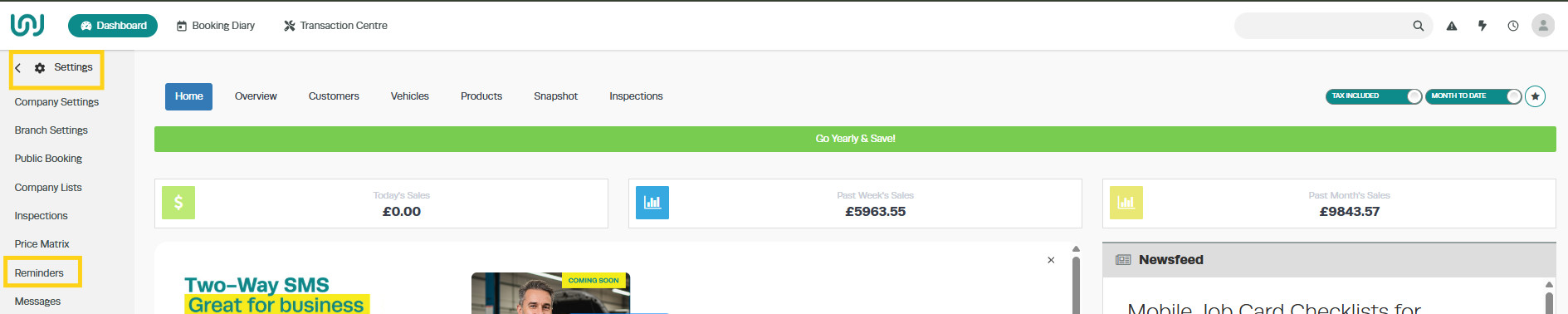
- Go to Settings > Reminders.
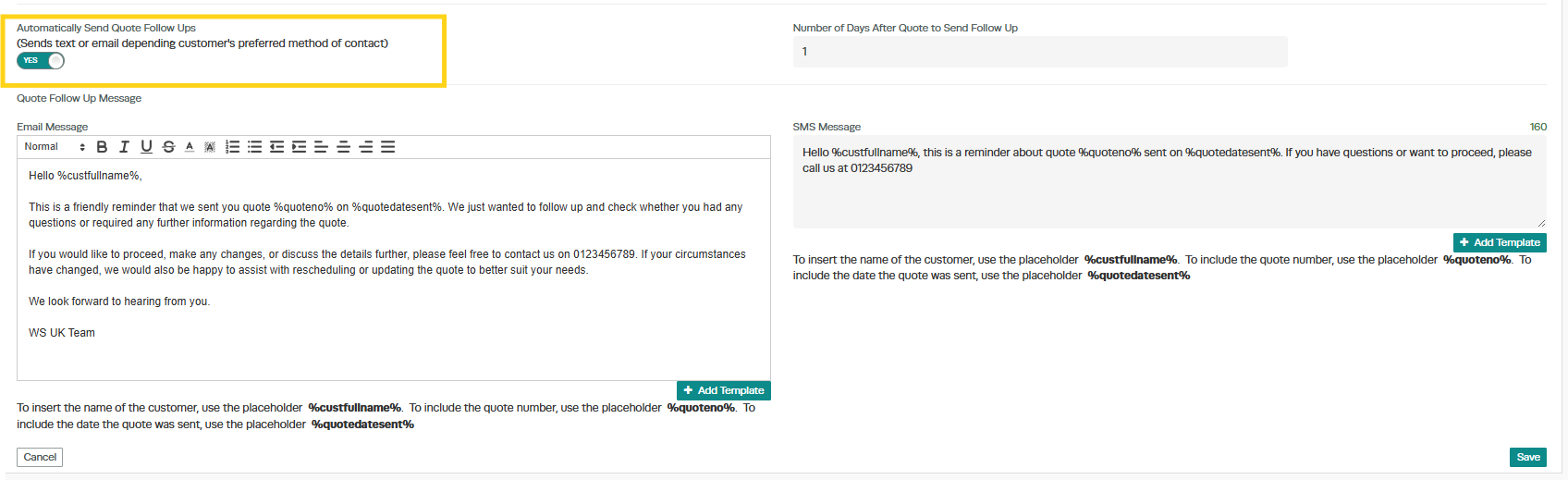
Enter the Number of Days After Quote to send the follow-up.
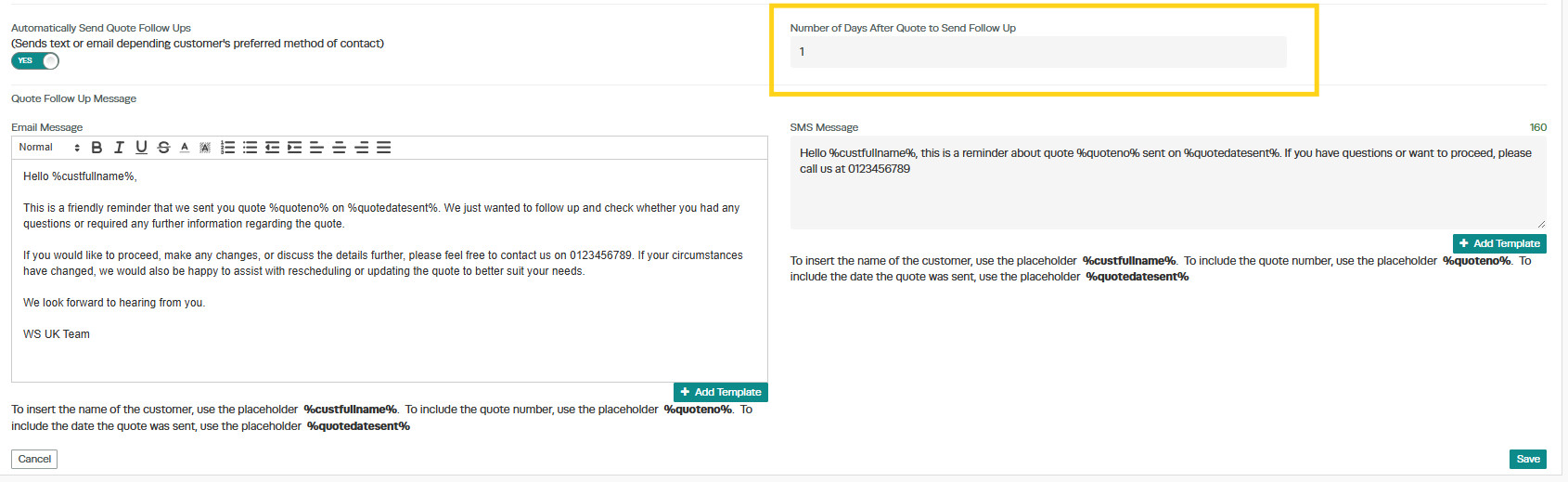
In the Quote Email message Field. Type the email message you would like your customer to receive
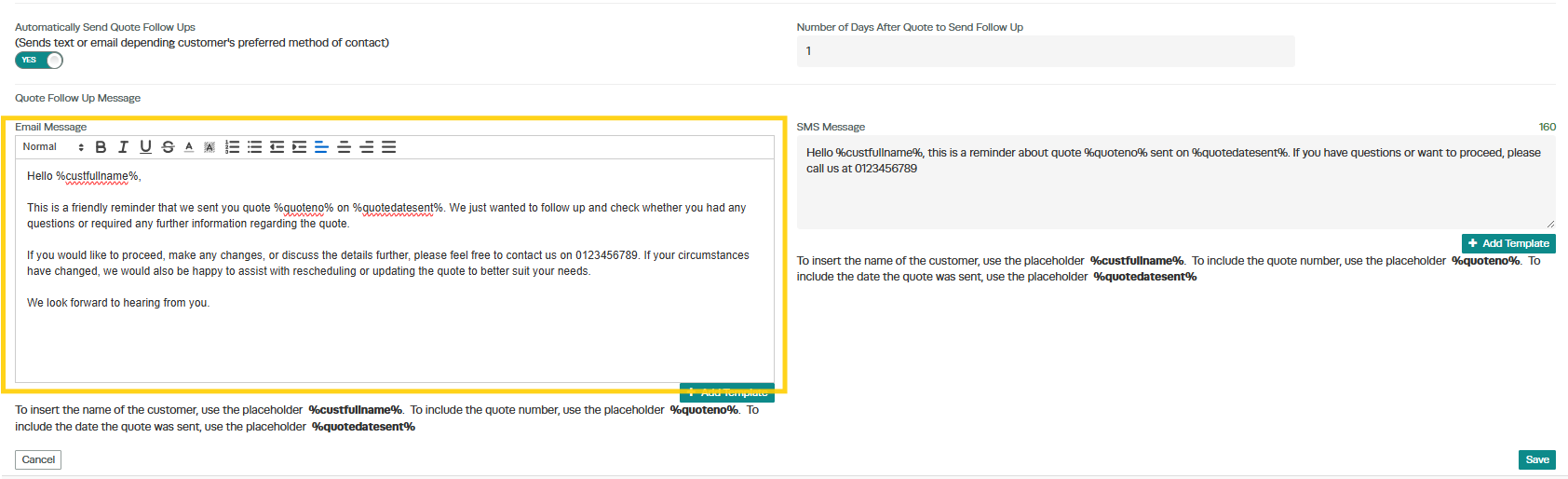
If you have reminders set to send via SMS, enter your text message in the SMS Message field. Please NOTE THE MESSAGE NEEDS TO BE UNDER 160 CHARACTERS
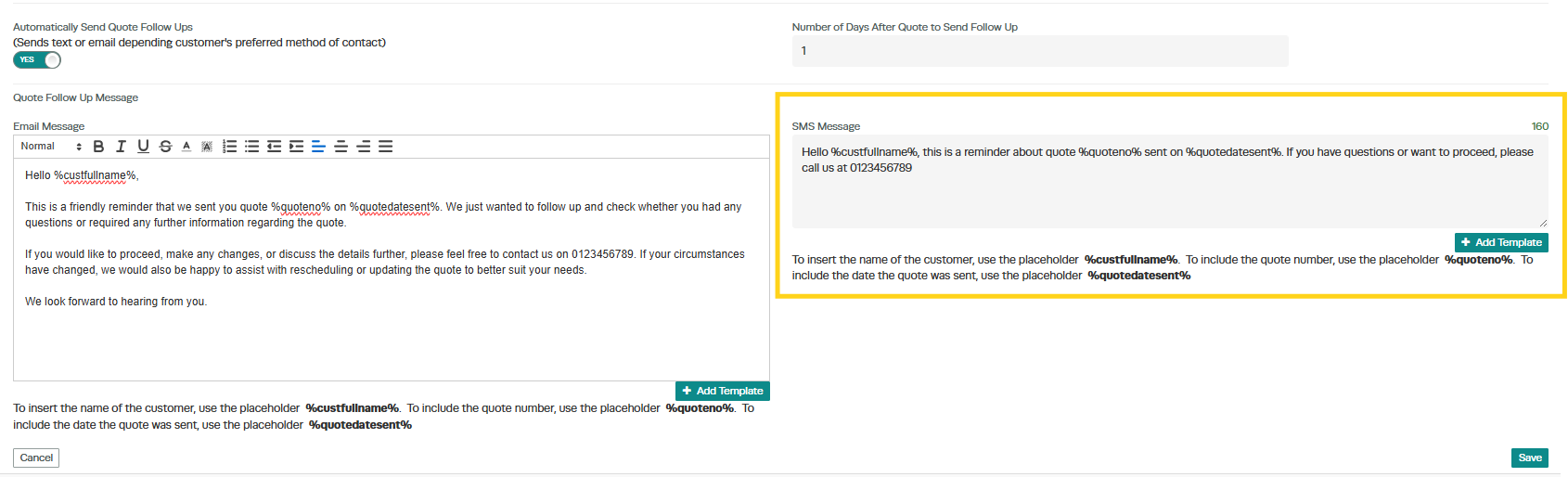
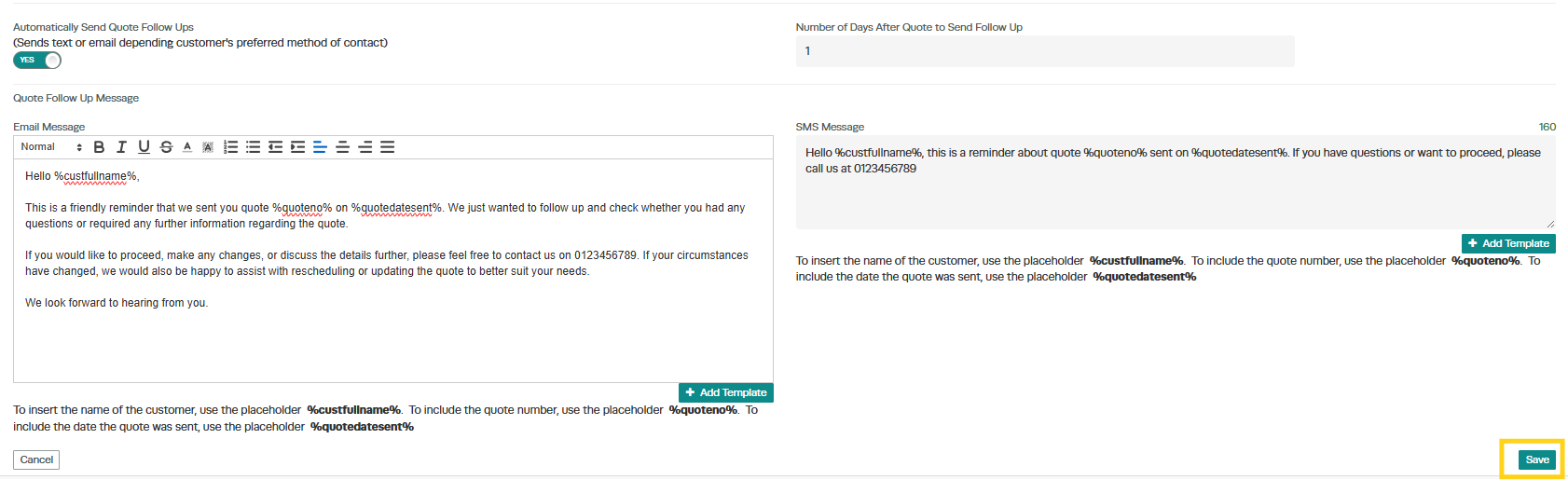
Click Save once complete.
Please note: You can use placeholders in both fields:
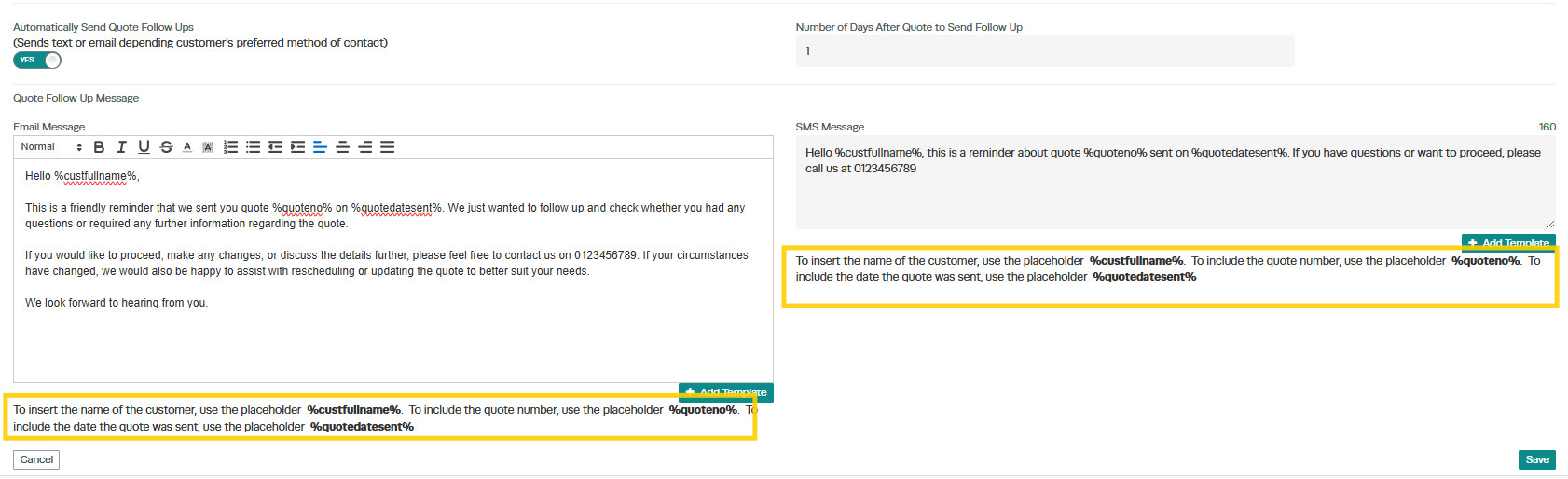
- %custfullname% = Insert Customer’s full name
- %quoteno% = To include the Quote Number
- %quotedatesent% = The date the quote was sent
These are the only three placeholders available for quote follow-ups.
How to Create a Quote
Select the Lightning Bolt icon.
Click Create Customer Invoice

Type the customer’s name into the ‘Select Customer’ field and then select the correct customer from the list

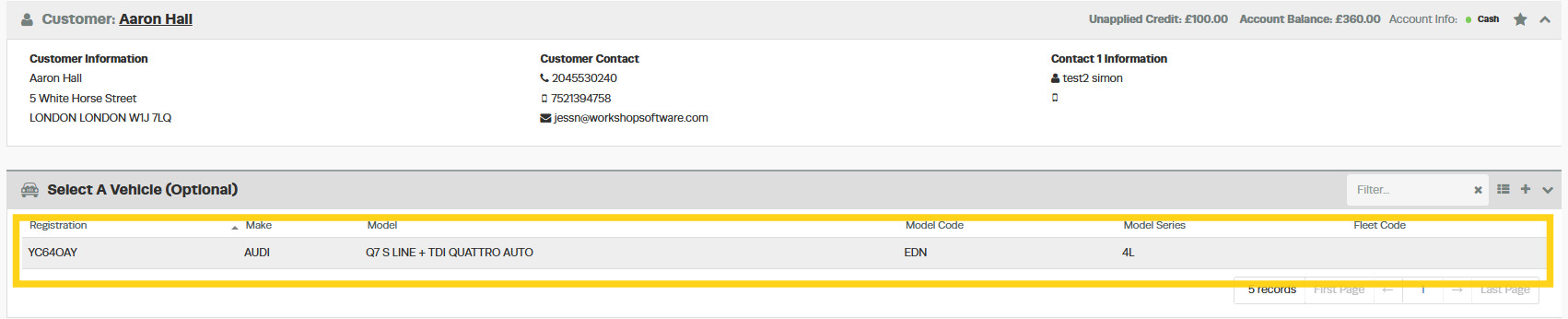
Select the customer’s vehicle
Change the invoice type to Quote.

Add your labour lines and products.
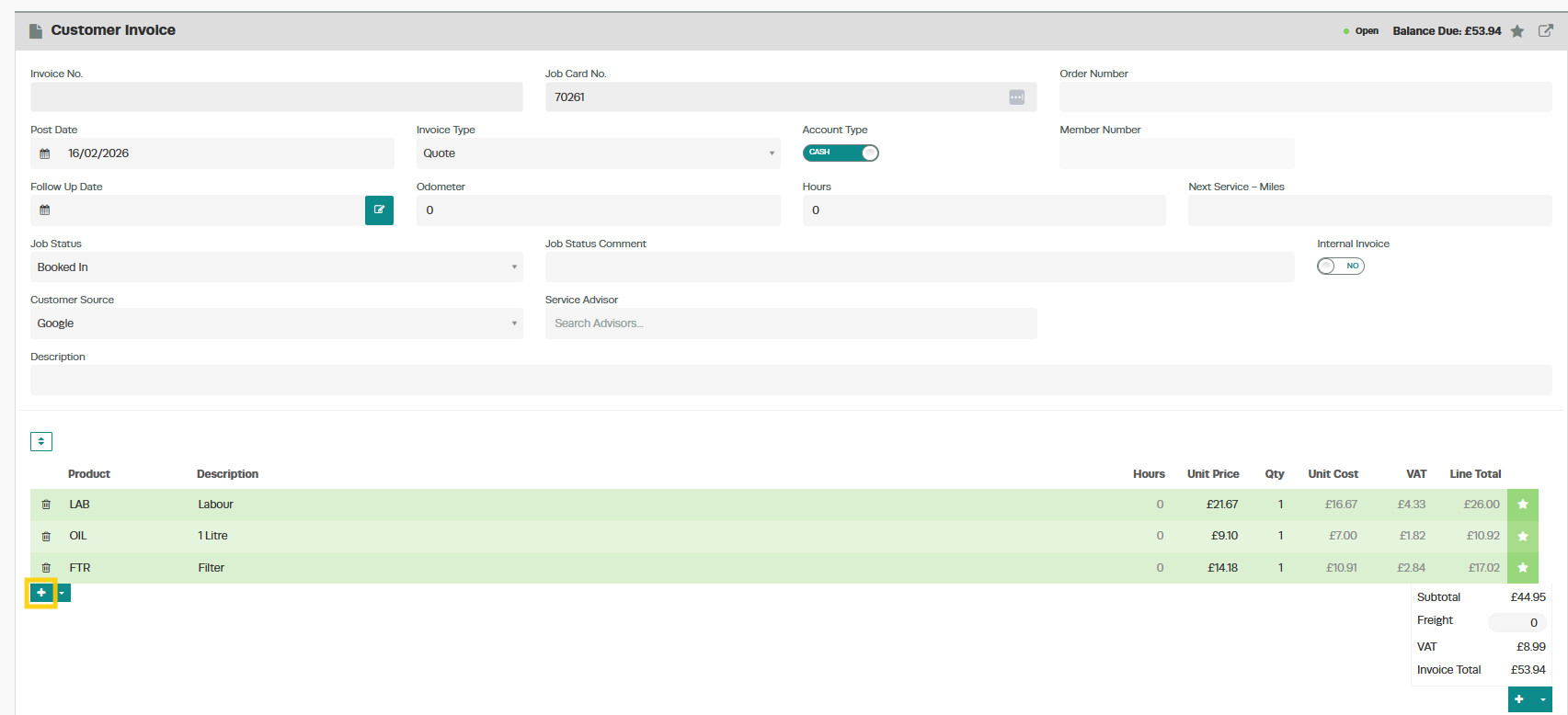
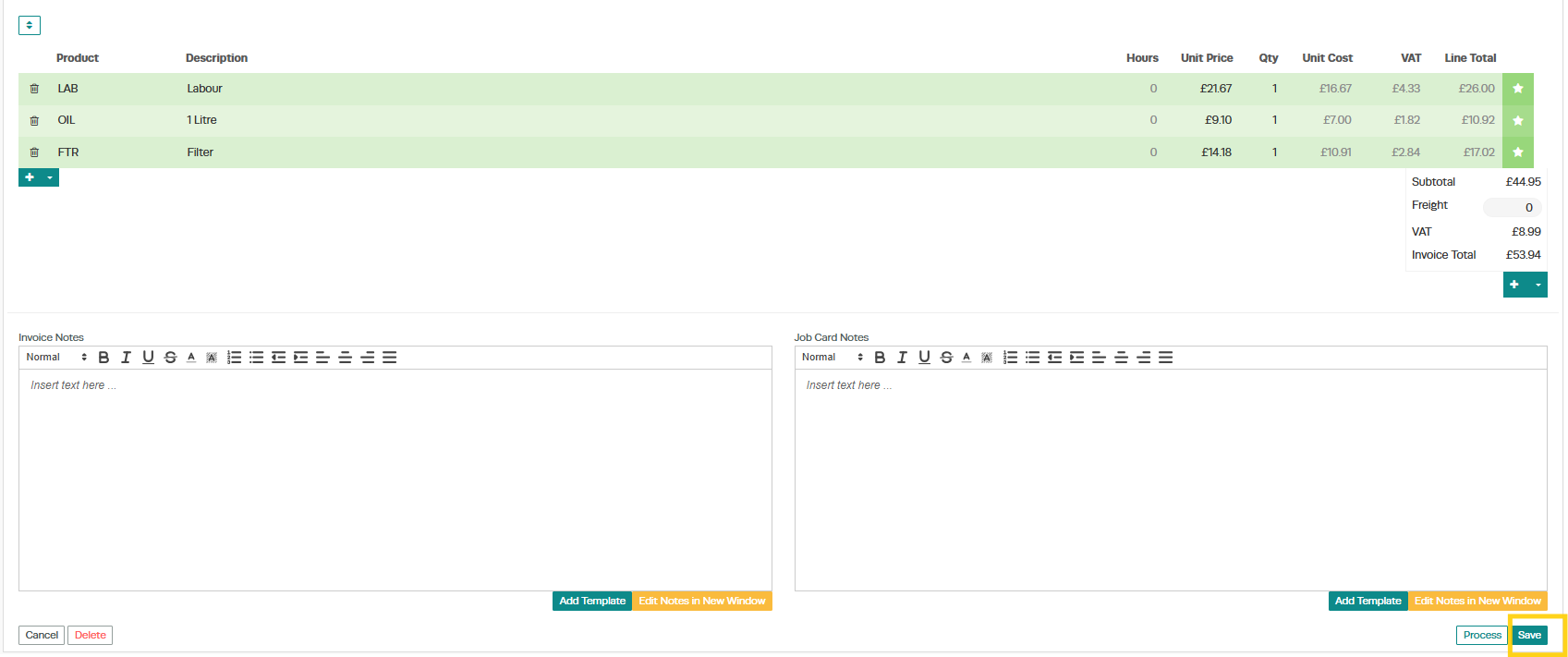
Click Save once the quote is complete.
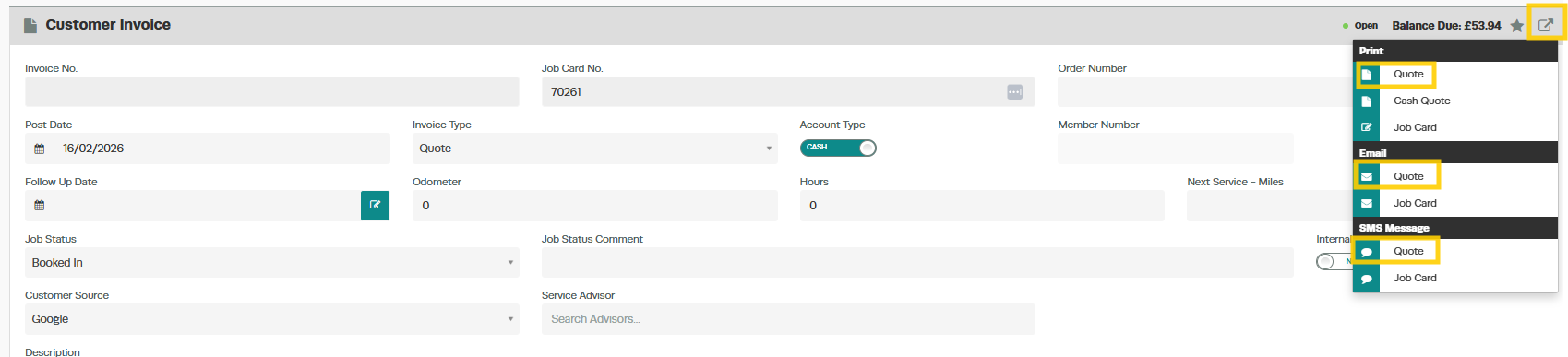
Once the quote has been saved, click on the box with the arrow icon and choose either Print Quote, Email Quote, or SMS Quote, depending on how you would like to send it.
What Happens After Quote Approval?
Once the customer approves the quote, you have two options:
Option 1: Convert to Job Card
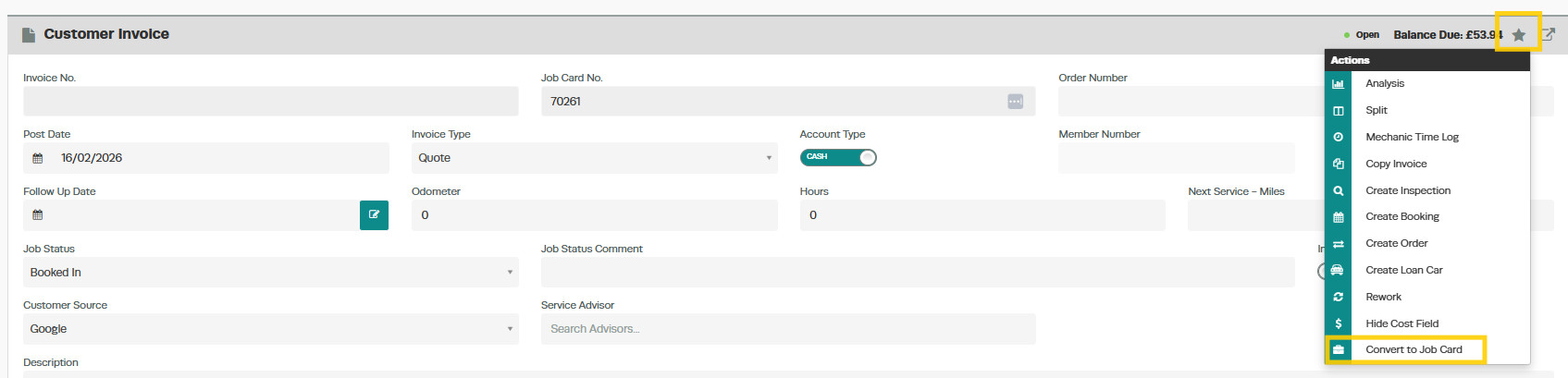
- Click the Action Star and select Convert to Job Card.
The quote will be associated with the customer invoice.
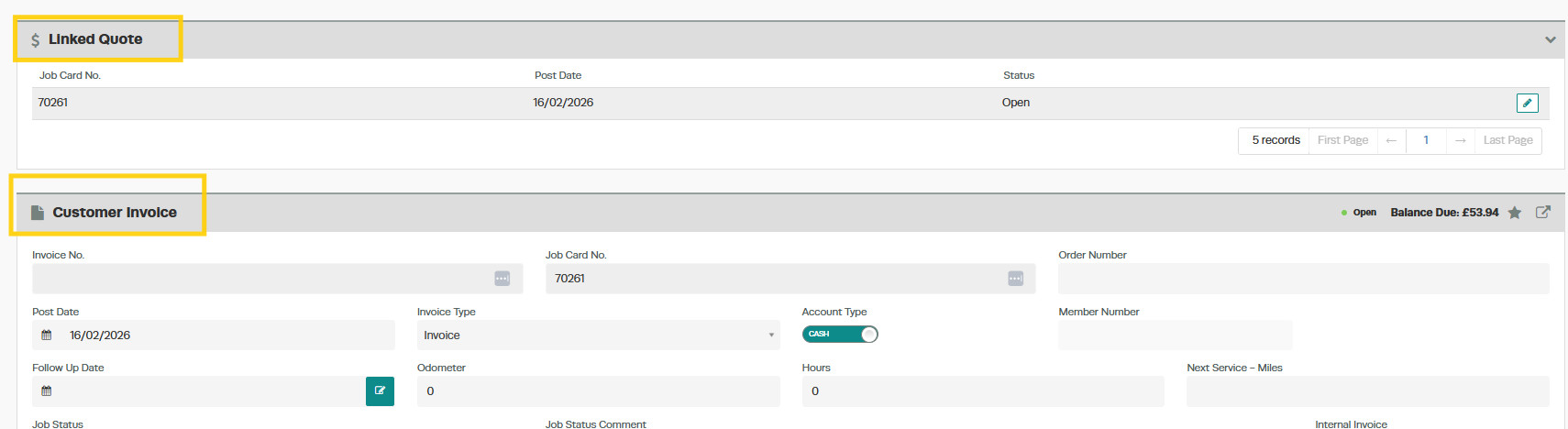
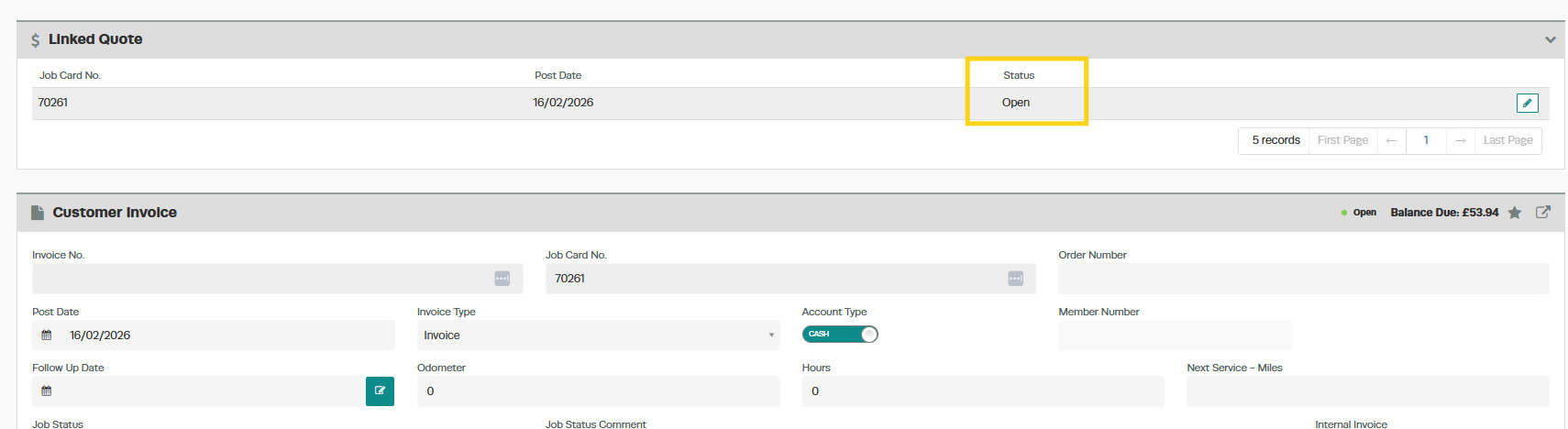
Please note: The quote will still show as “Open” in the system, but it will be linked to the invoice, and you will be able to see the associated quote from the invoice.
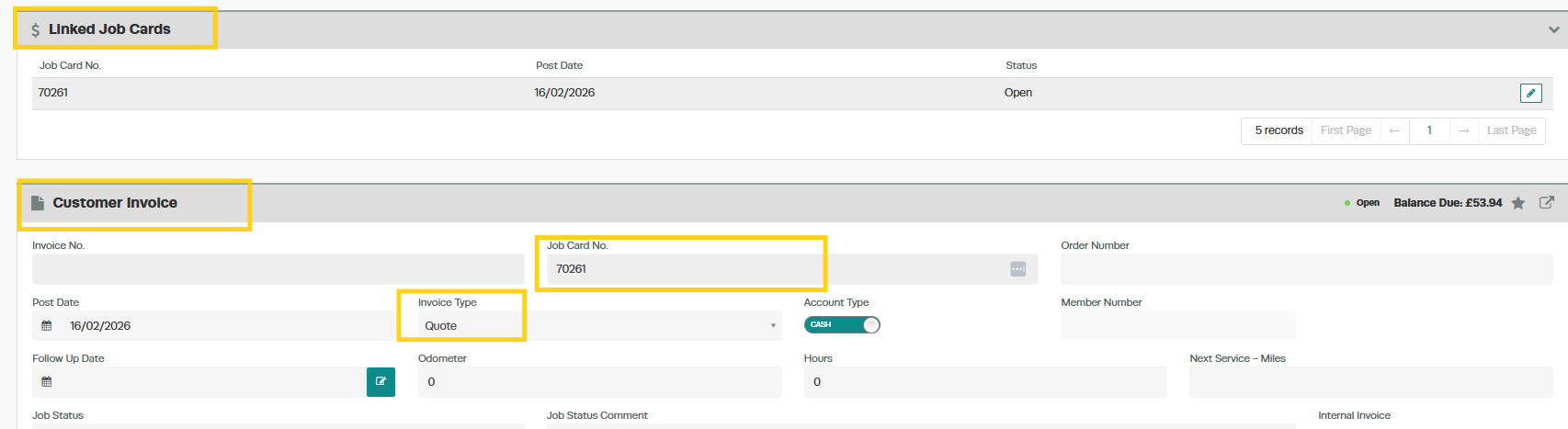
Please note that any changes made to the invoice will not be reflected on the original quote. The quote will remain as it was at the time of customer approval.
Option 2: Convert to Booking
Click the Action Star and select Create Booking.
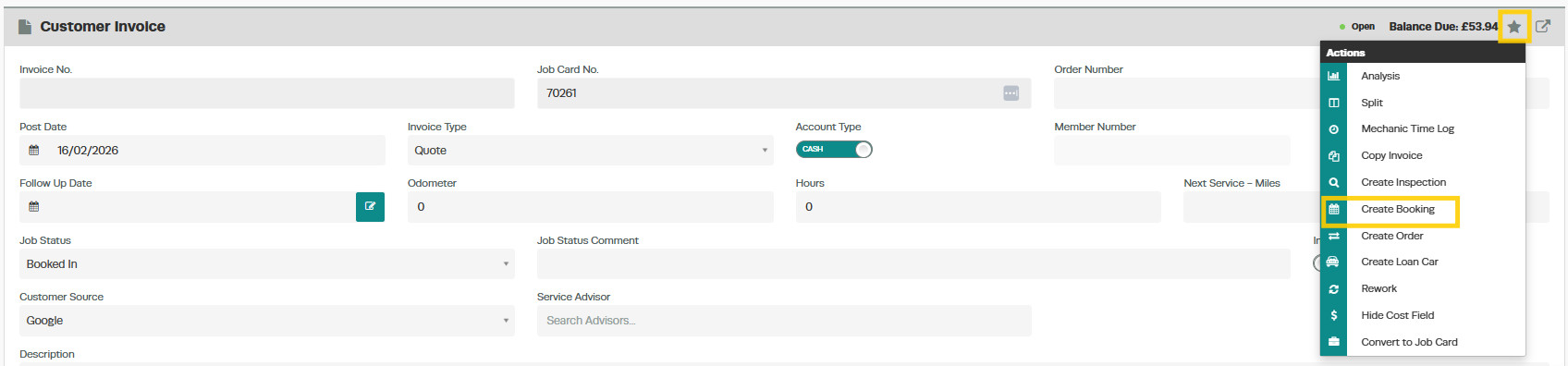
This allows you to create a booking from the quote.
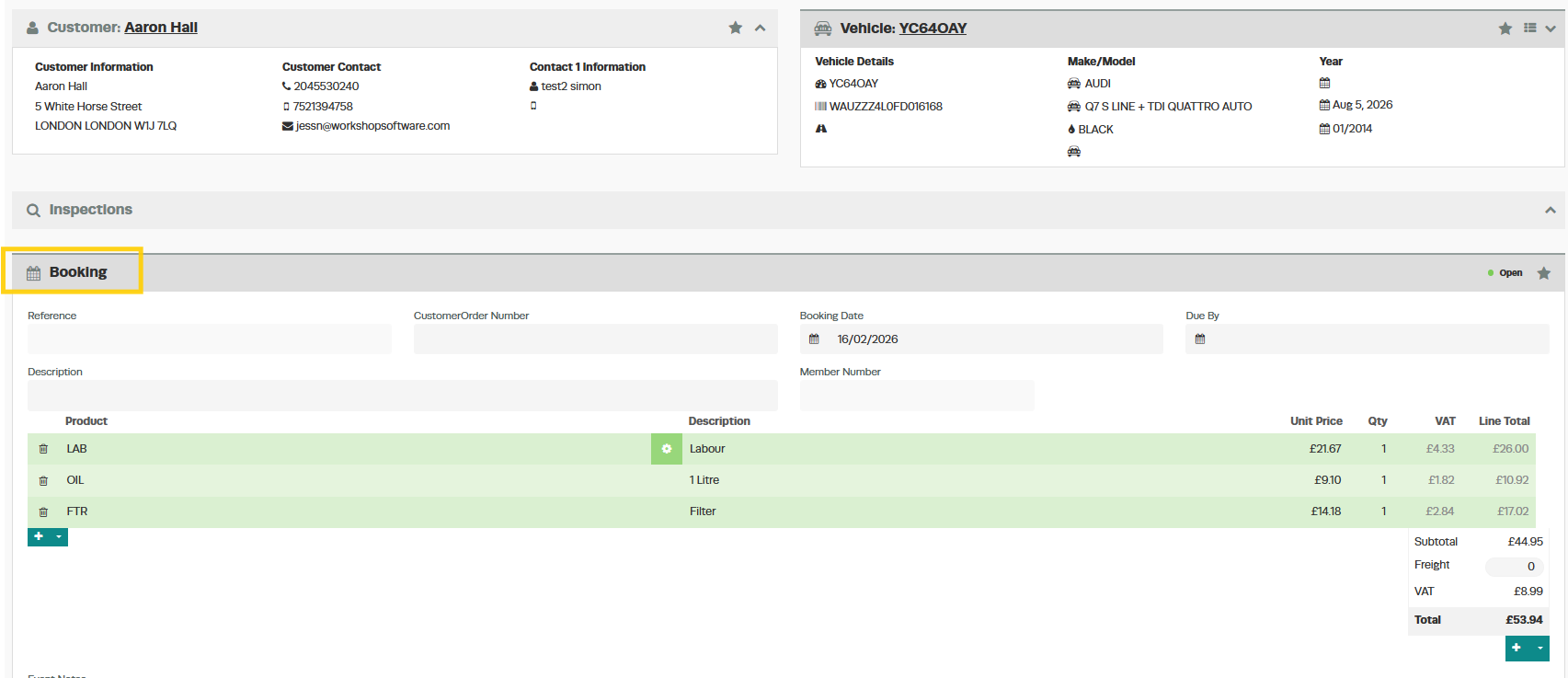
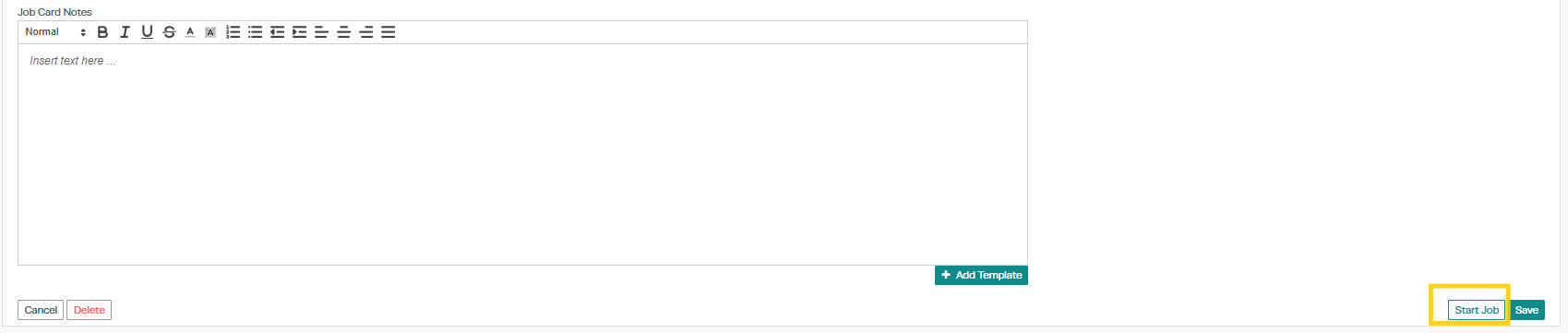
When the customer brings the vehicle in, you can start the booking and generate the invoice.
Please note: If you convert the quote to a booking, the quote will not be associated with the invoice.
Please note that once a quote has been converted to a Job Card or a Booking, any scheduled automatic quote follow-up reminders will be cancelled, regardless of the configured follow-up timeframe.
Related Articles
- Enter the Number of Days After Quote to send the follow-up.
- In the Quote Email Message field, type the email message you would like your customer to receive.
- If you have reminders set to send via SMS, enter your text message in the SMS Message field. Note that the message needs to be under 160 characters.
- Click Save once complete.
You can use placeholders in both fields:
- %custfullname% — inserts the customer’s full name
- %quoteno% — includes the quote number
- %quotedatesent% — the date the quote was sent
These are the only three placeholders available for quote follow-ups.
Step 2: Create a Quote
- Select the Lightning Bolt icon and click Create Customer Invoice.
- Type the customer’s name into the Select Customer field and select the correct customer from the list.
- Select the customer’s vehicle.
- Change the invoice type to Quote.
- Add your labour lines and products.
- Click Save once the quote is complete.
- Once saved, click the box with the arrow icon and choose either Print Quote, Email Quote, or SMS Quote to send the quote to the customer.
Step 3: Convert an Approved Quote
Once the customer approves the quote, you have two options:
Option 1: Convert to Job Card
- Click the Action Star and select Convert to Job Card.
- The quote will be associated with the customer invoice and you can continue adding labour, parts, and other items as needed.
Option 2: Convert to Booking
- Click the Action Star and select Convert to Booking.
- Choose the date and time for the booking.
- Select a mechanic to assign the job to.
- This allows you to schedule the work for a convenient time.
When the customer brings the vehicle in, you can start the booking and generate the invoice.
Good to Know
- If you convert the quote to a booking, the quote will not be associated with the invoice created from that booking.
- Once a quote has been converted to a Job Card or a Booking, any scheduled automatic reminders for that quote will stop.
