 Skip to content
Integrating Repco NavigatorPro with Workshop Software connects the two systems so data flows between them without manual entry. Once set up, this integration saves time and reduces the chance of errors when working across platforms. Follow the steps below to configure the integration.
Before you start please make sure you have your Repco account and login information.
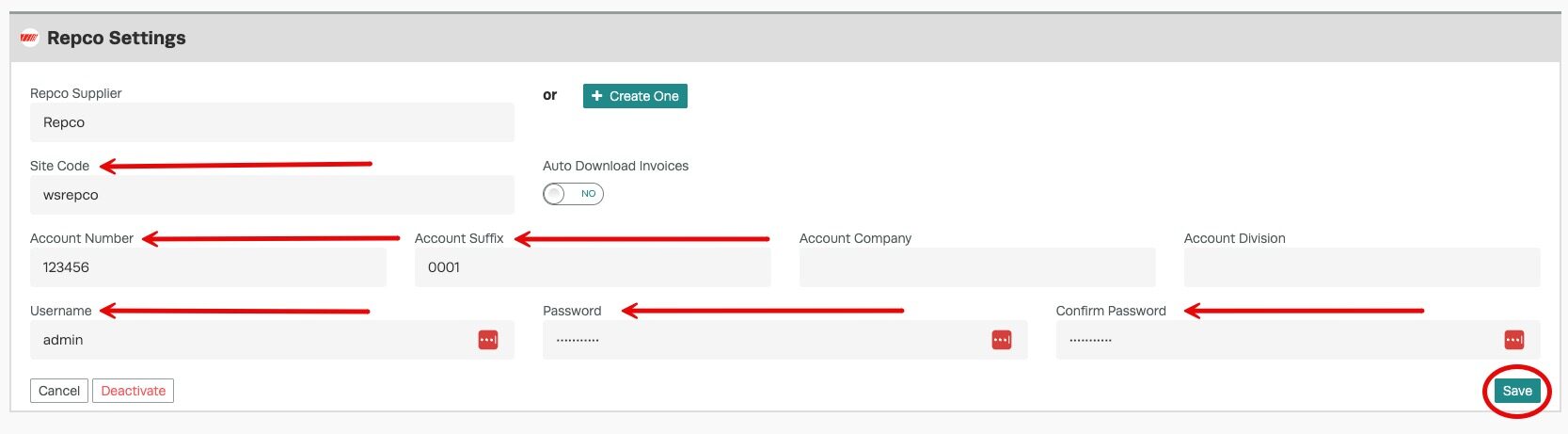
You will require:
- Site Code
- Account Number
- Account Suffix (this will always be ‘0001’)
- Repco Navigator Pro Username and Password
 ‘Account Number’ = is the first 7 digits of the number
‘Account Suffix’ = 0001 is the Account Suffix
You can obtain your Site Code by clicking on ‘Admin’ in the top right-hand corner, then selecting ‘Site Settings’.
‘Account Number’ = is the first 7 digits of the number
‘Account Suffix’ = 0001 is the Account Suffix
You can obtain your Site Code by clicking on ‘Admin’ in the top right-hand corner, then selecting ‘Site Settings’.

 Integrating with Workshop Software:
1. Using the menu on the left-hand side of Workshop Software, click ‘Integrations’ and ‘Automotive’.
2. In the additional menu list that appears, please select ‘Repco’.
Integrating with Workshop Software:
1. Using the menu on the left-hand side of Workshop Software, click ‘Integrations’ and ‘Automotive’.
2. In the additional menu list that appears, please select ‘Repco’.

Please note: If you have not already setup Repco as a supplier, please do so now, following the link ‘here’ or follow the steps below.
3. You will be asked if you want to ‘Activate Repco’. Please select the green ‘Activate Repco’ button to continue.
 4. You will also be asked if you are sure you want to ‘Purchase’ Repco. This is correct, please select ‘Yes’. (there are no fees associated with this)

Please note: Please note you are not actually purchasing anything. This is just a confirmation that you wish to proceed with the integration.
5. Make sure to choose your Repco Supplier from your already existing supplier in Workshop Software OR create one.
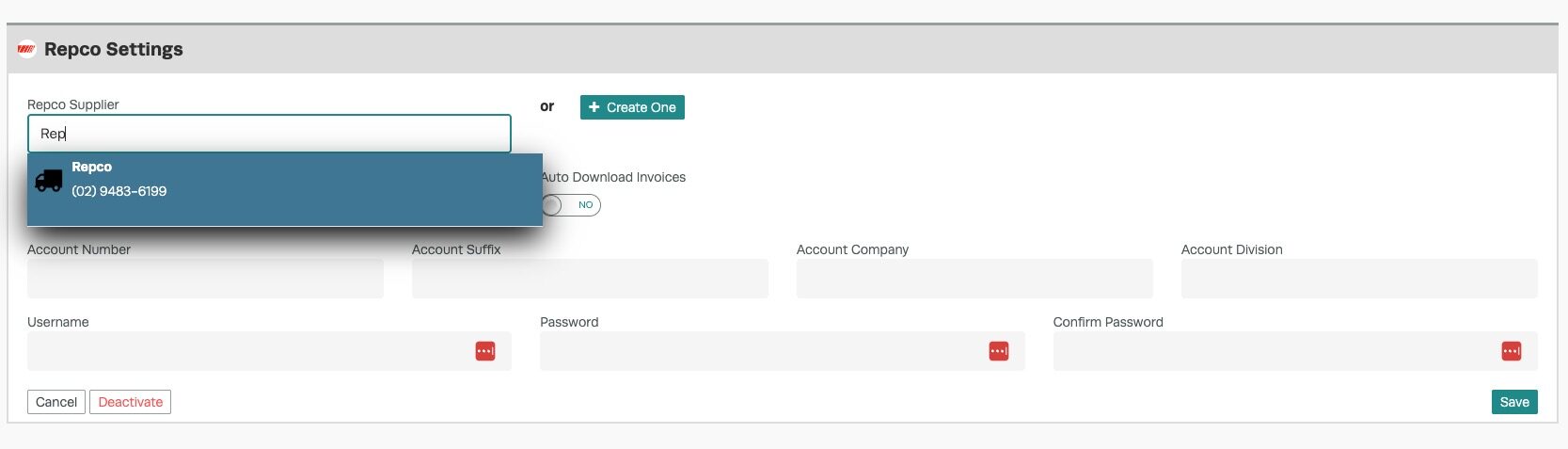 6. Enter Repco account information and click ‘Save’. Select your Repco branch from your supplier listing.
Good to Know
- Make sure you click Save after making your changes. If you navigate away before saving, your changes will be lost.
- If you experience any issues during setup, contact the Workshop Software support team for assistance.
- This setting can be toggled on or off at any time. The change takes effect immediately once you click Save.
Frequently Asked Questions
What do I do if the integration is not working?
First, check that your credentials are entered correctly and that both systems are accessible. If the issue persists, check the event log in Workshop Software for specific error messages, or contact the Workshop Software support team for assistance.
Can I disconnect this integration later?
Yes. You can disable or disconnect the integration at any time through the integration settings. Disconnecting does not delete any data that has already been synced.
