 Skip to content
This article covers a common technical issue in Workshop Software and how to resolve it. Follow the steps below to troubleshoot and fix the problem.
When attempting to import Arabic text into Workshop Software, you may find that the text appears as “????”. This occurs because csv files have not been designed to contain Arabic text. However, there is still a way that this can be imported. 1. Open your spreadsheet containing Arabic text and click File -> Save As 2. Within the filetype dropdown select “Unicode Text (*.txt)”
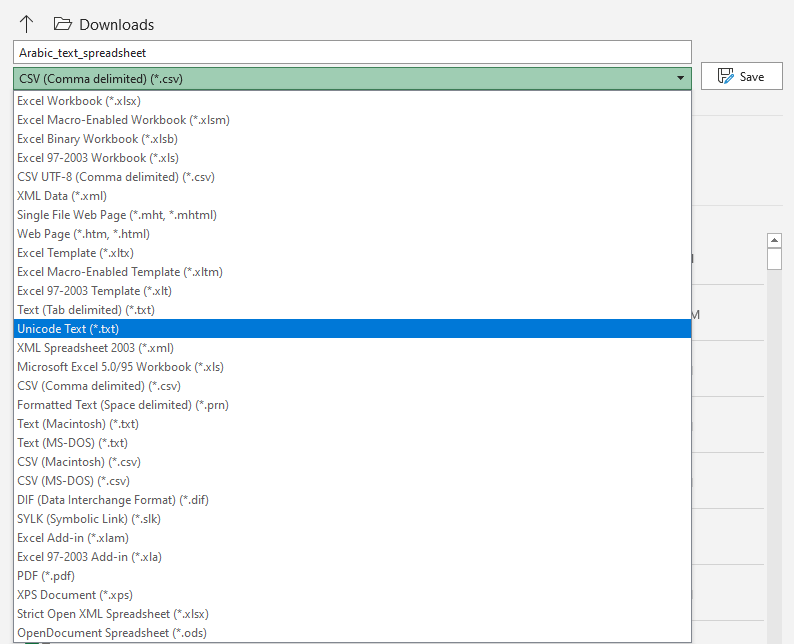 3. Click Save
  4. Close Excel and open the new file. This should look something like the image below:
 5. Select the blank space between 2 of your headings (As shown below):
 6. Press Ctrl + H to open the “Replace” window. You should see that the blank space has automatically been added into the “Find what:” field.
 7. In the “Replace with:” field, enter “,” (comma) and click “Replace All”
 8. Close this window and return to your file which should now look something like this:
 9. select the long string of commas at the end of each line and click Ctrl + H
  10. Remove all text from the “Replace with:” field and click “Replace All”
 11. Click File -> Save As
  13. In “Save as type”, select “All Files (*.*)” and click “Save”
 14. You can now begin the importing process using this file. Please refer to the guide linked below for information on importing:
Good to Know
- Make sure you click Save after making your changes. If you navigate away before saving, your changes will be lost.
Frequently Asked Questions
What if this does not resolve the issue?
If the problem persists after following the steps above, contact the Workshop Software support team. They can investigate further and help resolve the issue.
Do I need a specific subscription level for this feature?
Some features in Workshop Software are available on specific subscription plans. If you do not see the option described in the steps above, check your current plan or contact the Workshop Software team to find out if an upgrade is required.
