 Skip to content
This guide walks you through the steps to attaching a loan vehicle to a customer invoice in Workshop Software. This is a common task when managing your day-to-day invoicing and job card workflow.
THIS FEATURE IS AVAILABLE FOR GOLD & PLATINUM CUSTOMERS ONLY
If you wish to have the Loan Vehicle details attached to the customer invoice you would need to set up the Loan Vehicle as a ‘Product‘
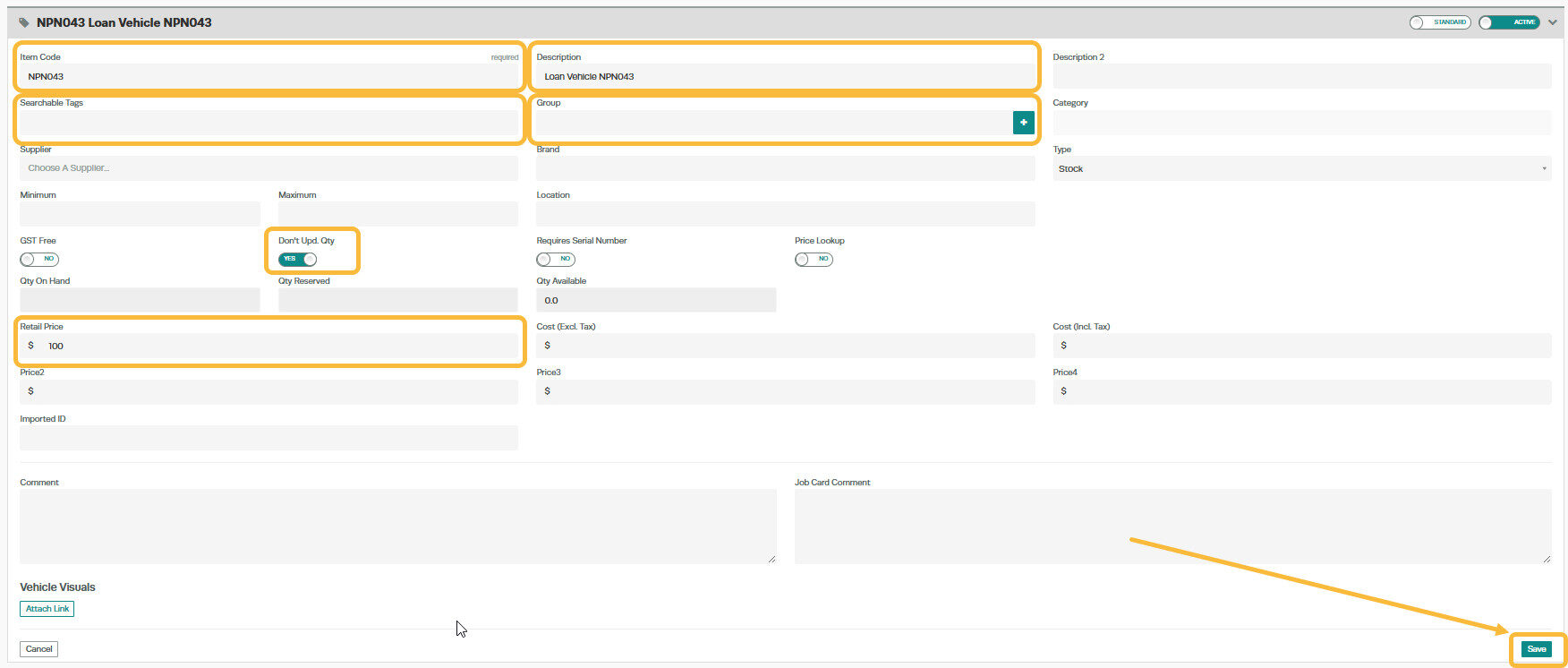
To Set up the Product:
1. Go to ‘Products‘ then click on the ‘+‘

2. Fill in the Vehicle details and make sure the ‘Don’t Upd. Qty‘ is switched to ‘YES‘.
3. Add a ‘Retail Price‘ if you wish to charge the customer a fee for the loan vehicle.
4. The click ‘Save‘
Good to Know
- Make sure you click Save after making your changes. If you navigate away before saving, your changes will be lost.
- Double-check the details on your invoice before finalising to ensure accuracy for your customer and your records.
Frequently Asked Questions
Can I undo this change to the invoice?
You can update the invoice again by following the same steps. If the invoice has already been finalised or synced to your accounting system, contact your administrator about the best approach.
Will this change affect existing invoices for this customer?
Changes to customer details (such as name, address, or contact information) apply to future invoices. Existing completed invoices retain the details that were on the invoice at the time it was created.
Related Articles
- Create your Loan Vehicle Terms and Conditions
- Create a Customer Invoice
- Add Vehicle Details to a Booking or Job Card – Customer Invoice
