 Skip to content
Workshop Software lets you change your customer from a cash account to an account customer through your account settings. Adjusting this setting ensures your workflow matches the way your workshop operates. The change takes effect immediately once saved. Follow the steps below to update this setting.
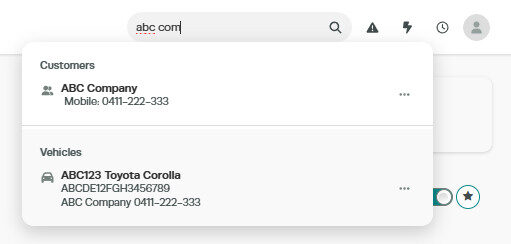
1. Find the customer that you want to edit by typing the customer name into the main search bar located at the top of the page and then double click on the name when it comes up:
2. Toggle the ‘Cash’ toggle, located in the top right hand corner of the customer profile, so that ‘Account’ is shown

3. Click the ‘Save’ button located on the bottom right hand corner of the page

Good to Know
- Make sure you click Save after making your changes. If you navigate away before saving, your changes will be lost.
- You can search for a customer by name, phone number, or email address using the search bar.
- The customer account type affects how payments and balances are tracked. Cash customers pay at the time of service, while account customers can be invoiced and pay later.
Frequently Asked Questions
Where do I find this setting in Workshop Software?
Navigate to Settings in the left-hand menu. The specific option is described in the steps above.
Can I change this setting back later?
Yes. This setting can be changed at any time by following the same steps and adjusting the option as needed. Remember to click Save after making your change.
Will this change affect existing invoices for this customer?
Changes to customer details (such as name, address, or contact information) apply to future invoices. Existing completed invoices retain the details that were on the invoice at the time it was created.
Related Articles
- Create a limit on an Account customer
- Create an account invoice for a cash customer
- Create a cash invoice for an account customer
