 Skip to content
This article covers a common technical issue in Workshop Software and how to resolve it. Follow the steps below to troubleshoot and fix the problem.
We understand how easy it is to have multiple people logging into Workshop Software on different computers at the same time or when you get pulled away from the computer. So how do you tell if you you’ve been logged out of Workshop Software? There is 2 ways you can be logged out of Workshop Software:- Someone else has logged in using the same login details on a different computer
- You’ve been logged out due to inactivity (the timer on this is approx. 4 hours)
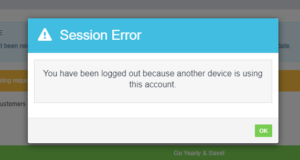 Logged out due to inactivity
If you have been away from the computer for more than 4 hours, then you will get a similar pop up window as above but the notification will advise it is due to inactivity.
Logged out due to inactivity
If you have been away from the computer for more than 4 hours, then you will get a similar pop up window as above but the notification will advise it is due to inactivity.
Good to Know
- Make sure you click Save after making your changes. If you navigate away before saving, your changes will be lost.
Frequently Asked Questions
What if this does not resolve the issue?
If the problem persists after following the steps above, contact the Workshop Software support team. They can investigate further and help resolve the issue.
Do I need a specific subscription level for this feature?
Some features in Workshop Software are available on specific subscription plans. If you do not see the option described above, check your current plan or contact the Workshop Software team.
Related Articles
- Why am I automatically logged out of Workshop Software?
- Why am I Automatically Logged Out of Workshop Software?
- Xero Sync Error – Account has been archived, or has been deleted
