 Skip to content
Integrating re-authorise Xero with Workshop Software connects the two systems so data flows between them without manual entry. Once set up, this integration saves time and reduces the chance of errors when working across platforms. Follow the steps below to configure the integration.
The purpose of this article is to show you how to overcome Xero syncing issues where the error says ‘signature_invalid:Failed to validate signature’ or Unknown response code: 500, etc.
signature_invalid:Failed to validate signature

Unknown response code: 500

The call to authorize a partner xero application failed- 401 Unauthorized

To resolve this and resume the integration between Workshop Software and Xero you simply need to re-authenticate your the Xero integration.
You do this by:
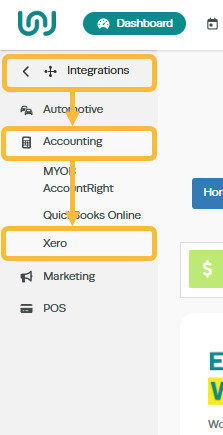
- Select Integrations in the left hand menu bar
- Select Accounting Integration
- Select Xero
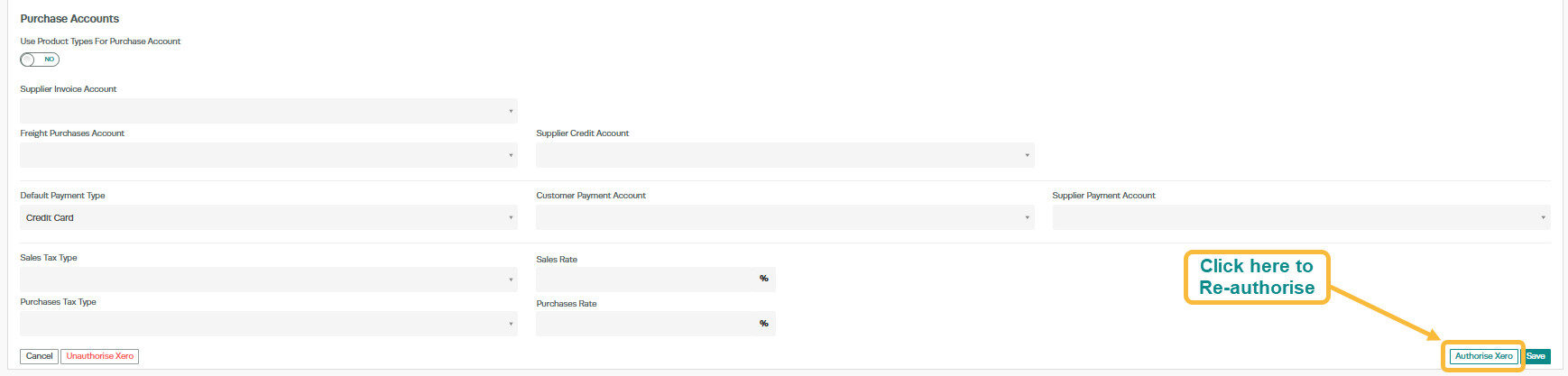
Click the ‘Authorise Xero’ button.
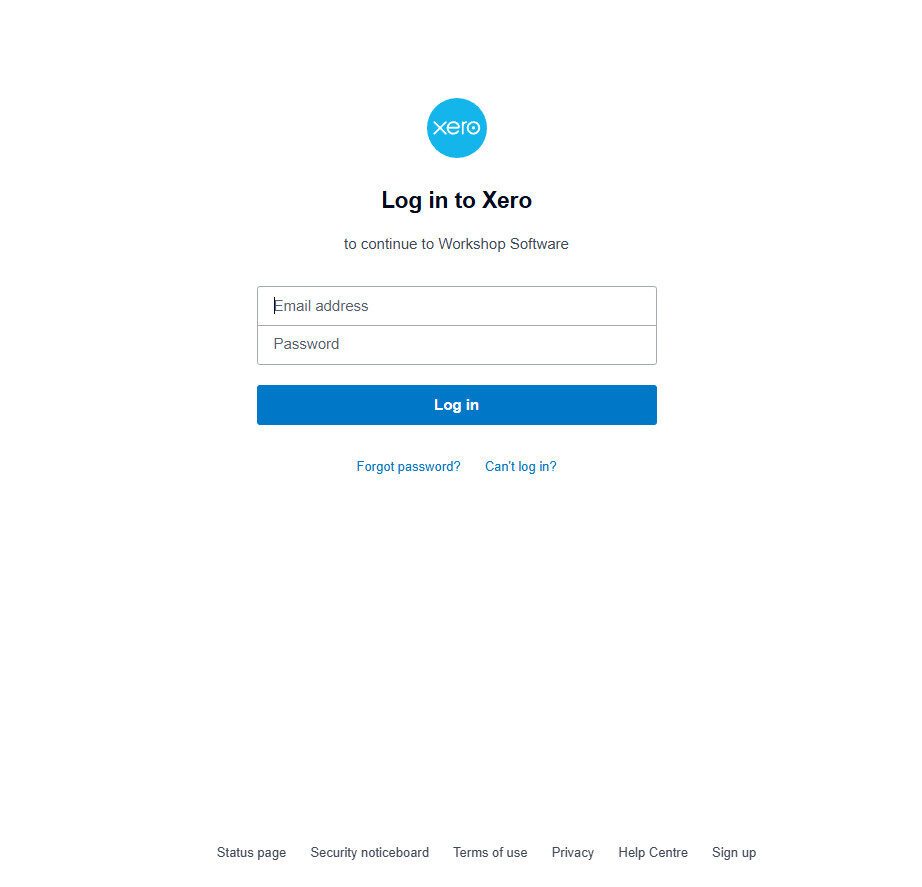
The last step is to just click login as you browser has most likely saved you Xero login details. If your browser hasn’t you just need to enter your login details and select login.
Once you are returned to Workshop Software go to the lightning bolt icon in the top-right corner and click Sync Xero.
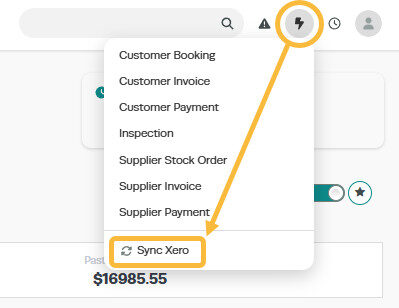
Allow the sync to process and your transactions should now be in your Xero account.
Good to Know
- Make sure you click Save after making your changes. If you navigate away before saving, your changes will be lost.
- If you experience any issues during setup, contact the Workshop Software support team for assistance.
Frequently Asked Questions
What do I do if the integration is not working?
First, check that your credentials are entered correctly and that both systems are accessible. If the issue persists, check the event log in Workshop Software for specific error messages, or contact the Workshop Software support team for assistance.
Can I disconnect this integration later?
Yes. You can disable or disconnect the integration at any time through the integration settings. Disconnecting does not delete any data that has already been synced.
