 Skip to content
This article explains how to detach a credit from an invoice and how to void a credit in Workshop Software. Detaching removes the credit allocation from invoices, while voiding cancels the credit entirely.
Please note: If you are voiding a credit, it will automatically detach the credit from all attached invoices. You do not need to run the detaching process separately.
Step 1: Open the Credit
- Open the credit you want to detach or void.

Step 2: Detach the Credit from Invoices
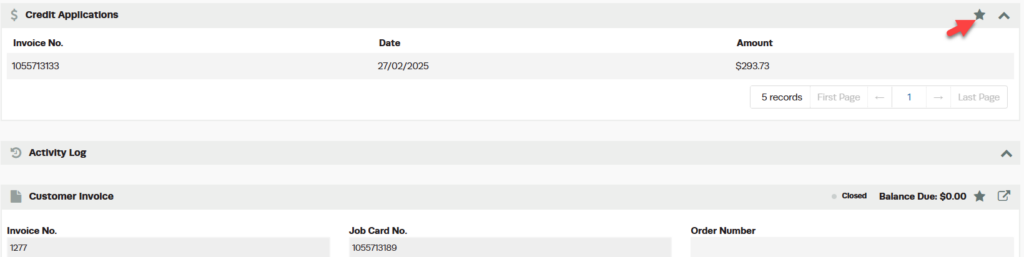
- Go to the Credit Application dropdown.

- Click on the Star in the top right-hand corner.
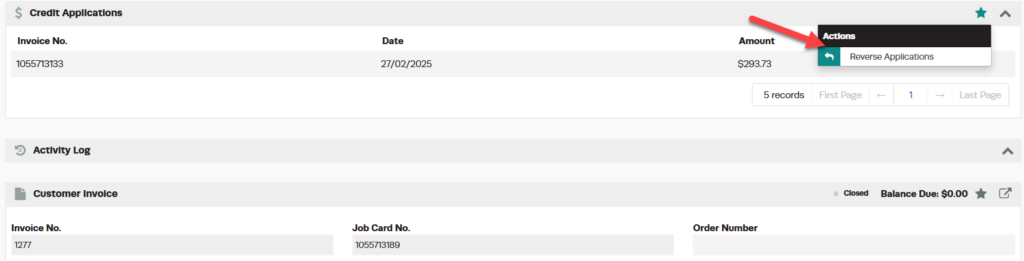
- Press Reverse Applications.
- Press Yes to confirm.

This will remove the credits attached to all invoices and allow you to either void the credit or re-allocate it to another invoice if needed.
Step 3: Void the Credit (Optional)
If you want to void the credit entirely after detaching:
- Open the credit.
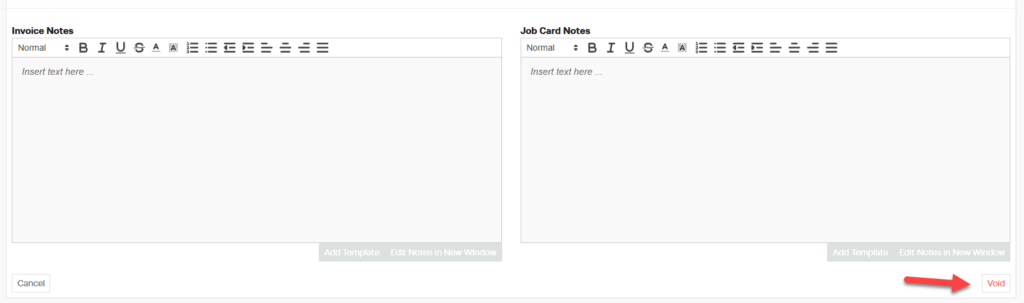
- Scroll to the bottom and press Void.
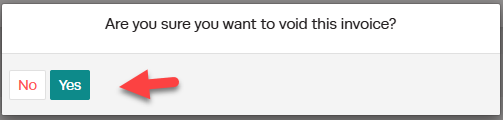
- Click Yes to confirm.
Good to Know
- Voiding a credit automatically detaches it from all invoices — you do not need to detach first.
- If you only need to move a credit to a different invoice, use the detach process (Reverse Applications) without voiding.
- Double-check the details before finalising to ensure accuracy for your customer and your records.
Frequently Asked Questions
Does a credit note sync to my accounting system?
If you have an accounting integration set up, credit notes will sync automatically to your connected accounting software.
