 Skip to content
Managing customer records accurately is important for invoicing, communication, and reporting. This guide shows you how to provide a booking link for service reminders in Workshop Software so your customer information stays up to date.
How easy are you making it for your customer to book with you? Customer now expect to be provided one-click options to take action on something that is desired or required.
Think of the “Shop now” buttons in emails you get from businesses that you follow and what about SMS text messages to remind you a sale will end soon, there is always a link for you to easily access the sale so that you don’t miss out.
Well you can also do this for your customers when they get a service or rego reminder from you.
Please note: You will need to be on our gold level subscription to do this as we will be utilising the online booking diary feature.
1. Ensure your Online Booking diary appointments, branding is set up. If you haven’t done this yet, click on this guide: https://staging.workshopsoftware.com/knowledge-base/booking-diary/customer-online-bookings-features/ and make sure the toggle for the “Send Link in Reminders” is on “Yes”

2. Ensure you have turned on your automatic rego & service reminder feature.

3. Ensure the email/sms templates lets the customer know they can use the link to request their preferred date.
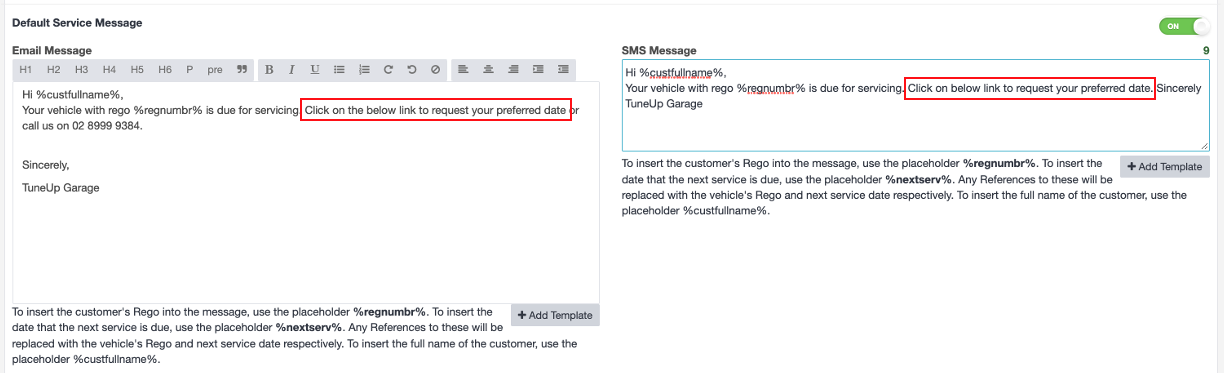
Rego renewal reminders
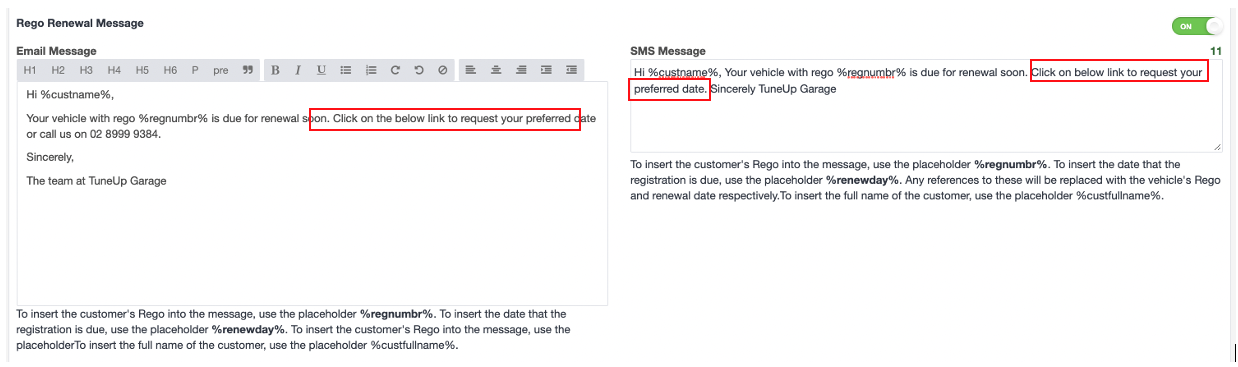
4. Below is a screenshot of what the reminder will look like to the customer.
Email version

SMS version
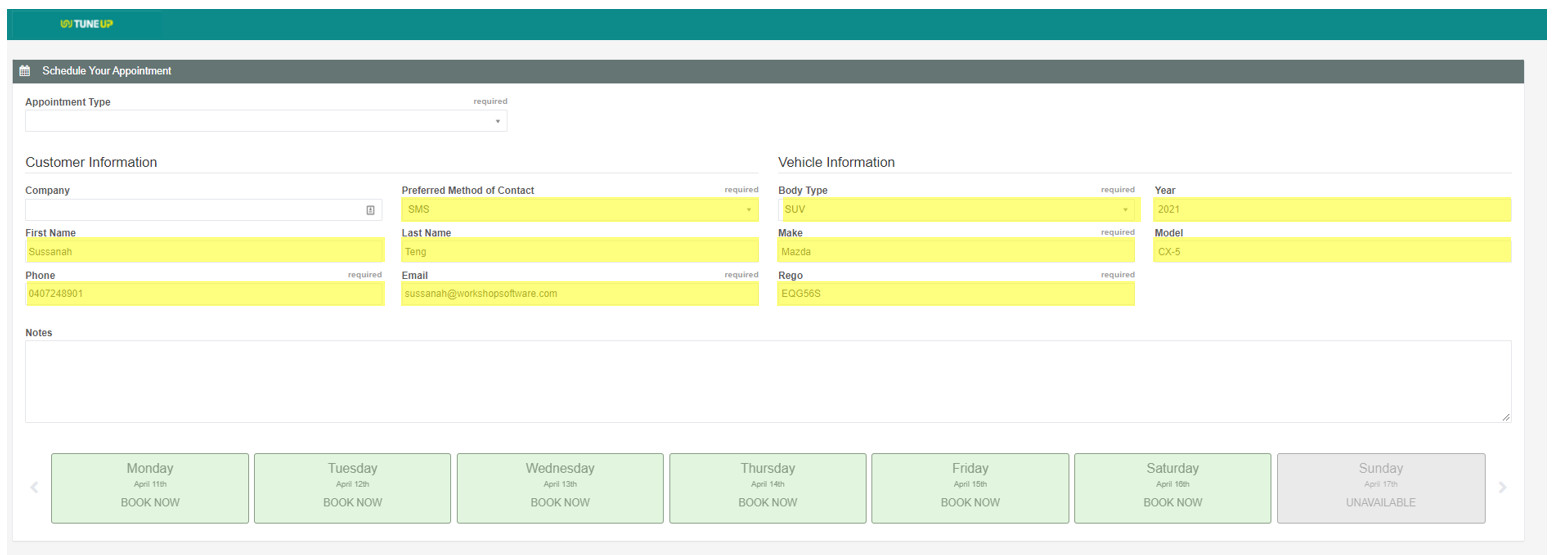
5. 5. When the customer clicks on the link it will load up your online booking portal. You will notice that the customer’s details as well as their vehicle details have been populated on the form. All the customer needs to do is select what appointment type they want to book in for and their preferred date.
Good to Know
- This setting can be toggled on or off at any time. The change takes effect immediately once you click Save.
- Keeping customer records up to date ensures accurate invoicing and reliable communication via SMS or email.
Frequently Asked Questions
Will this change affect existing invoices for this customer?
Changes to customer details apply to future invoices. Existing completed invoices retain the details that were on the invoice at the time it was created.
Can customers see this in the online booking diary?
If you have the public online booking diary enabled, customers can book appointments through it. Check your online booking settings for customer-facing options.
