 Skip to content
Your product list in Workshop Software controls what appears when you add items to invoices and job cards. This guide explains how to prevent the quantity of a product from updating, helping you keep your product catalogue organised and up to date.
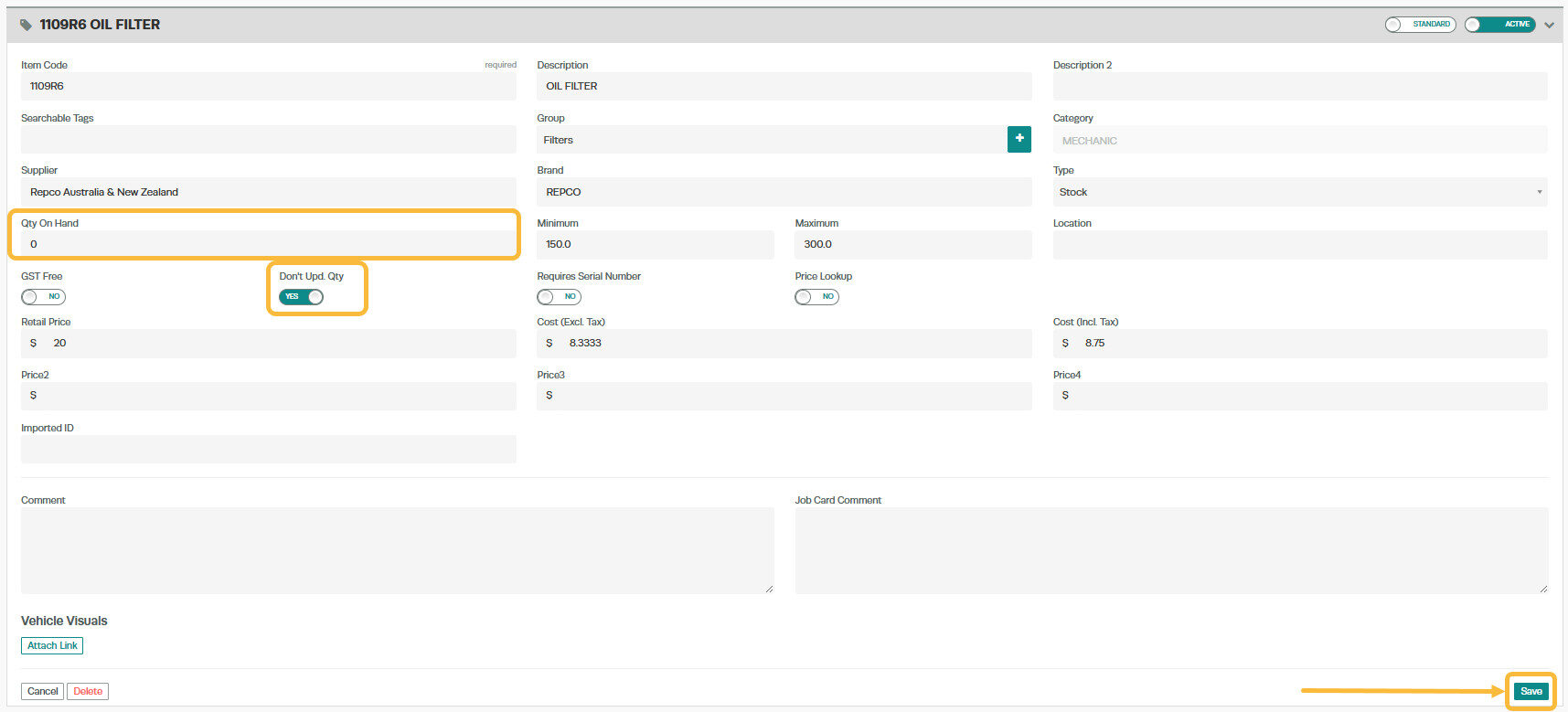
1. Search for and bring up the ‘Product Details‘ screen for the stock item or labour/job code that you want to stop updating the quantity of. If you are unsure on how to search for a product then please use the guide titled; Search for a Product
2. Click on the button underneath ‘Don’t Upd. Qty‘ to change it from the default NO to ‘YES‘.
3. Once you have selected YES clear the ‘Qty On Hand‘ field so that it is blank and click on the ‘Save’ button down the bottom right of the screen.
Now when you enter this stock item or labour/job code onto an invoice the Qty On Hand field will stay blank, it will no longer go into a negative.
Good to Know
- Make sure you click Save after making your changes. If you navigate away before saving, your changes will be lost.
- Use the product search bar to quickly locate the product you need by name or part number.
- This setting can be toggled on or off at any time. The change takes effect immediately once you click Save.
Frequently Asked Questions
Will this change affect existing invoices that already include this product?
No. Existing invoices and job cards retain the product details as they were at the time the invoice was created. This change only applies when the product is used on future invoices.
Do I need a specific subscription level for this feature?
Some features in Workshop Software are available on specific subscription plans. If you do not see the option described in the steps above, check your current plan or contact the Workshop Software team to find out if an upgrade is required.
