 Skip to content
Oscar Integration allows you to access a wide range of products and brand sites directly through Workshop Software, simplifying the process of sourcing parts and managing your invoices. With Oscar, you can view and order from well-known brands such as Castrol, Kenwood, YHI Power, and many more—from log book service items to body parts.
Click the link below to view all the brands that integrate with Oscar:
Oscar Participating Brands Gallery
Getting Started with Oscar Integration
To integrate Oscar with your Workshop Software account, follow these steps:
Step 1: Set Up Your Oscar Account
You must have an existing Oscar account. If you don’t have one, contact Oscar directly.
Step 2: Request Integration
To enable integration with Workshop Software, email support@autoinfo.com.au and request that your Oscar account be configured for Workshop Software.
Step 3: Obtain Your Site Code and Terminal ID
- Log in to your Oscar account.
- Go to Options > My Login Details.

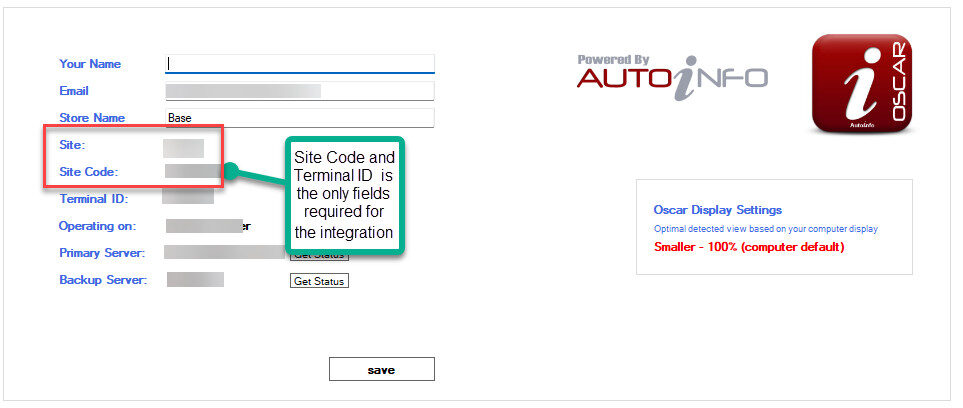
Step 4: Enter Credentials into Workshop Software
- In Workshop Software, go to Settings > Integrations > Automotive Integrations > Oscar.
- Enter your Site Code and Terminal ID.
- Click Save.
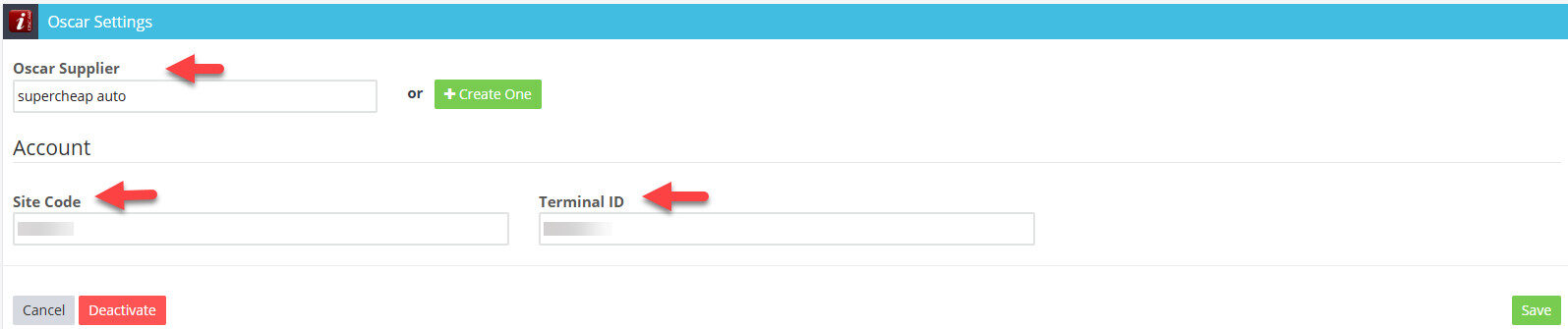
How to Use the Oscar Integration
Once set up, follow the steps below to create an order and bring parts into Workshop Software:
Step 1: Create an Invoice
- Start a new invoice in Workshop Software.
- Add the customer and vehicle details, then click Save.
Step 2: Start Oscar Integration
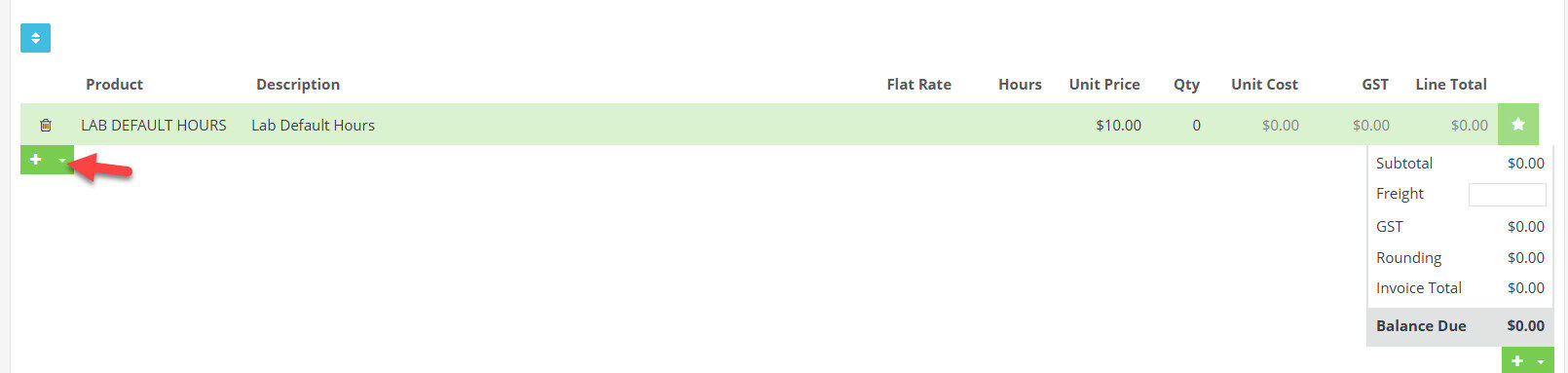
- Click the arrow under the product line.
- Select Oscar from the drop-down.
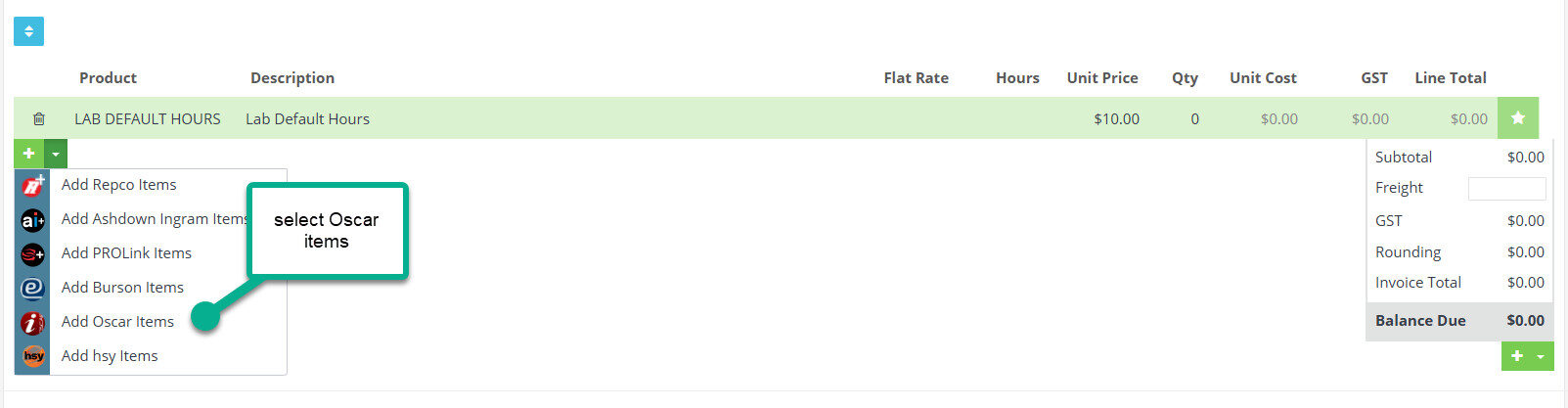
- A pop-up will appear:
“Order XXXX has been started in Oscar. Please complete the order and press send to Workshop Software.”
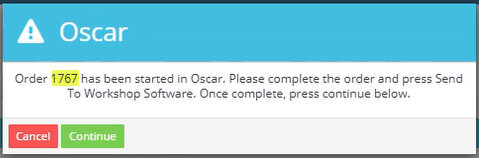
Step 3: Complete the Order in Oscar
- Log in to Oscar.
- At the bottom of the page, you’ll see 1 Request> wait until it turns blue. Request Clear

click View next to the Blue Request Clear.

- The order and vehicle details (Registration, VIN, Make, Model, Year) will appear.
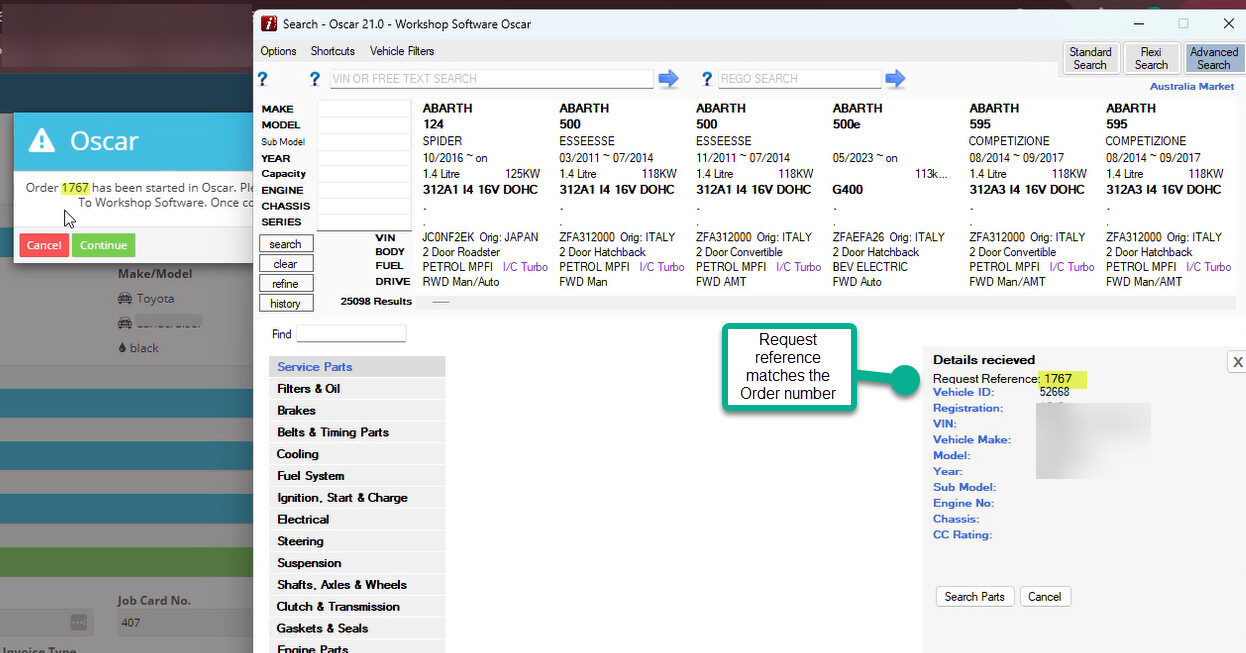
- Select Search Parts.
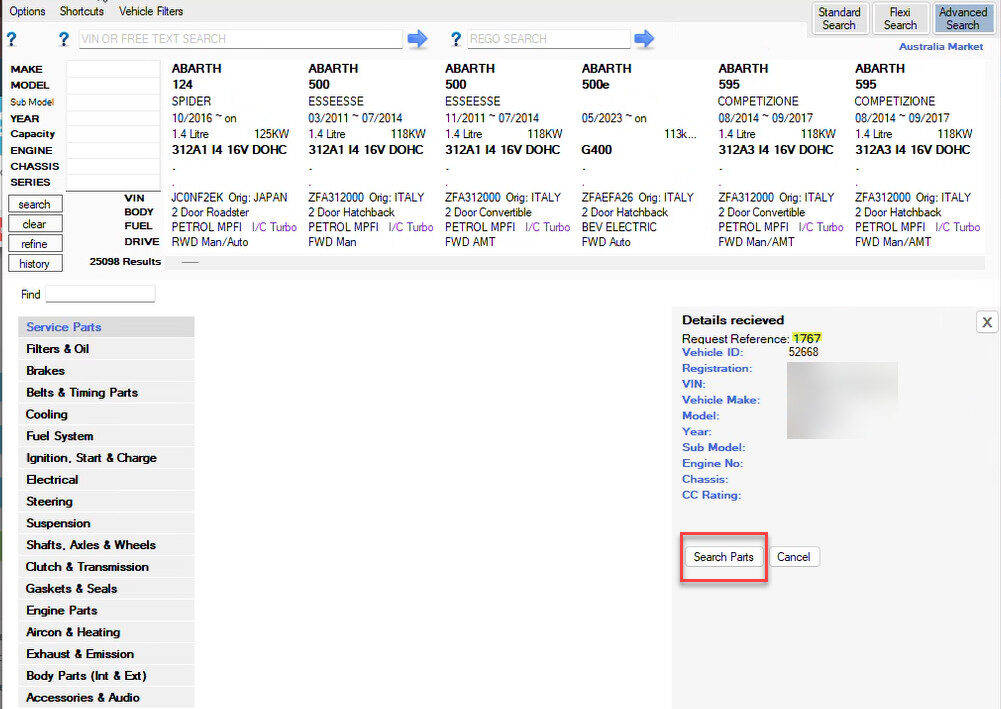
- Choose a category (e.g., Filters & Oils, Brakes, Fuel System).
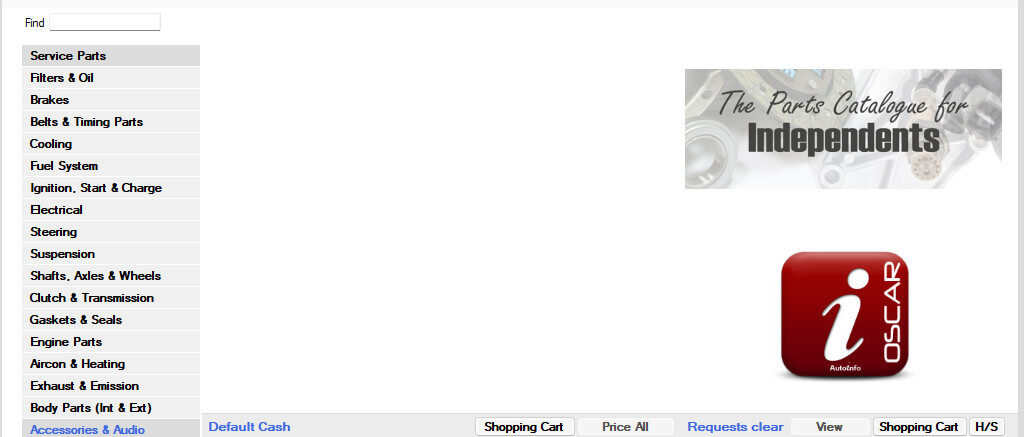
- Click Price All to view available products from different brands.
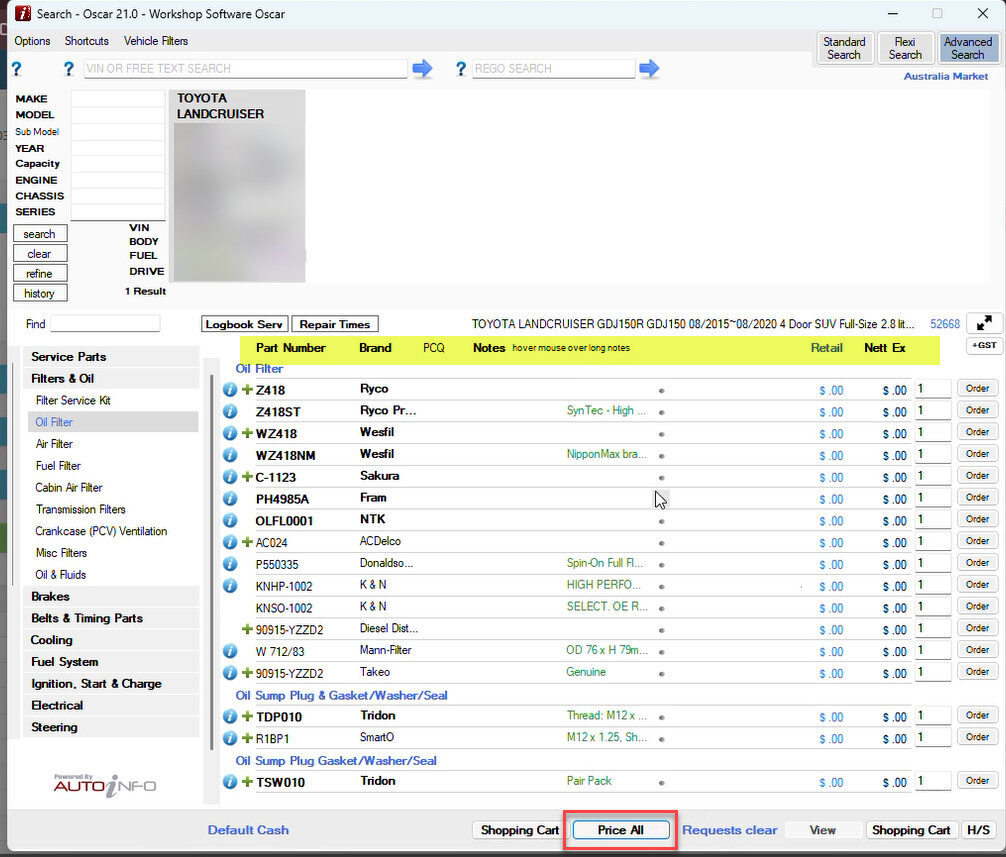
⚠️ Note: If your pricing is not set up in the Oscar portal, pricing will not sync to Workshop Software.
Step 4: Place the Order
- Click Order next to the products you wish to purchase.
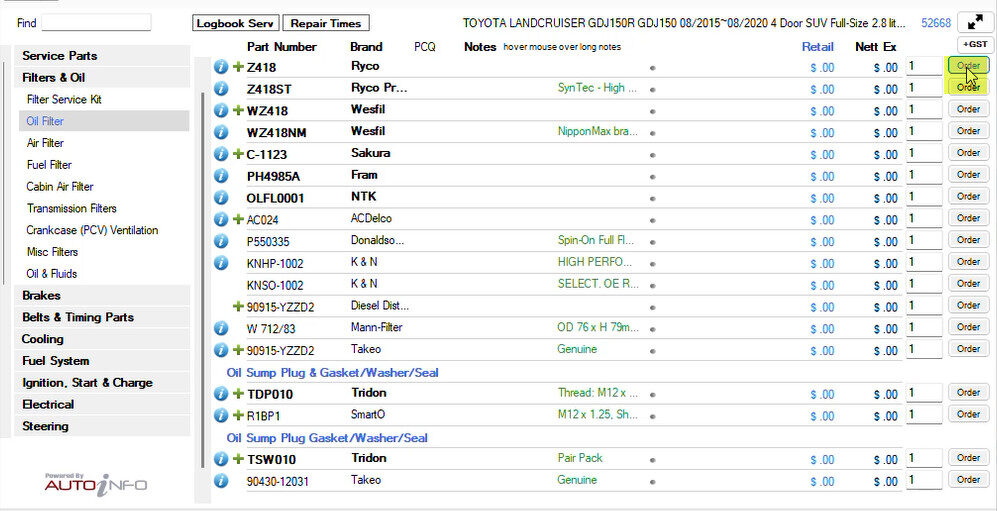
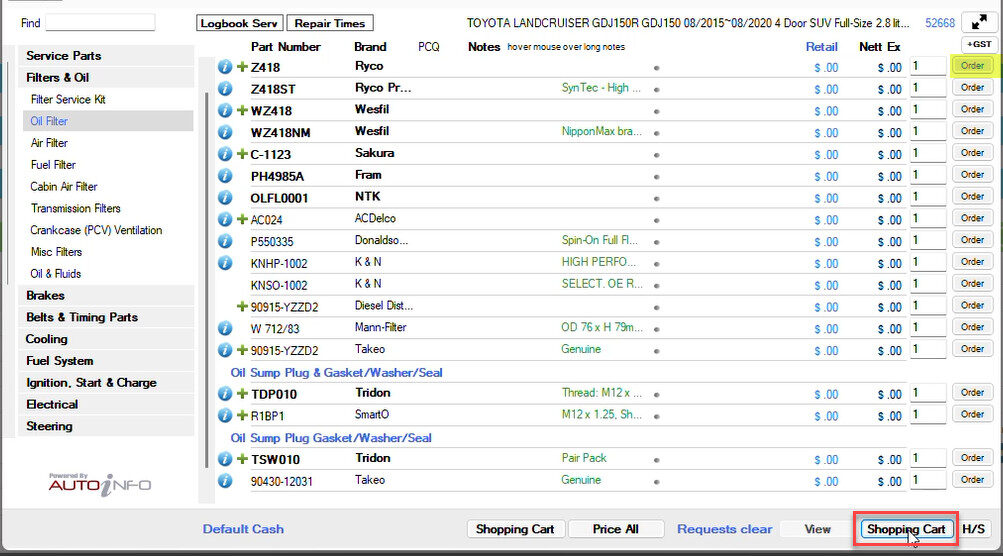
- Once all items are added, click the Shopping Cart (bottom-right).
- Change the document type to Quote.
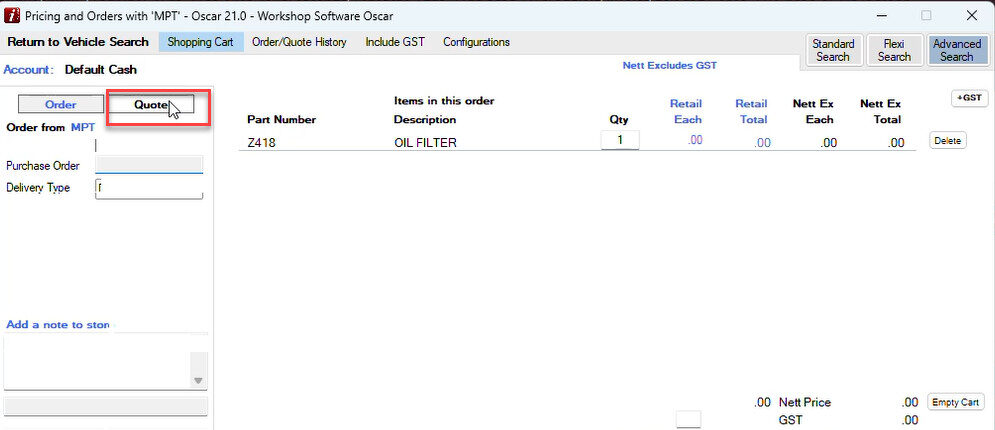
- Confirm the Customer Name, Address, Vehicle Make and Model.
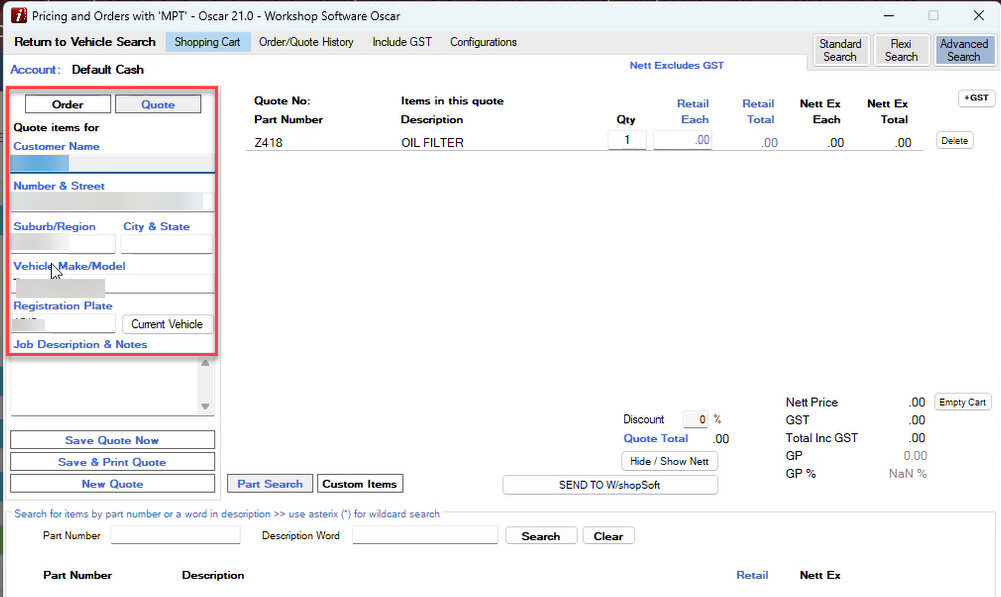
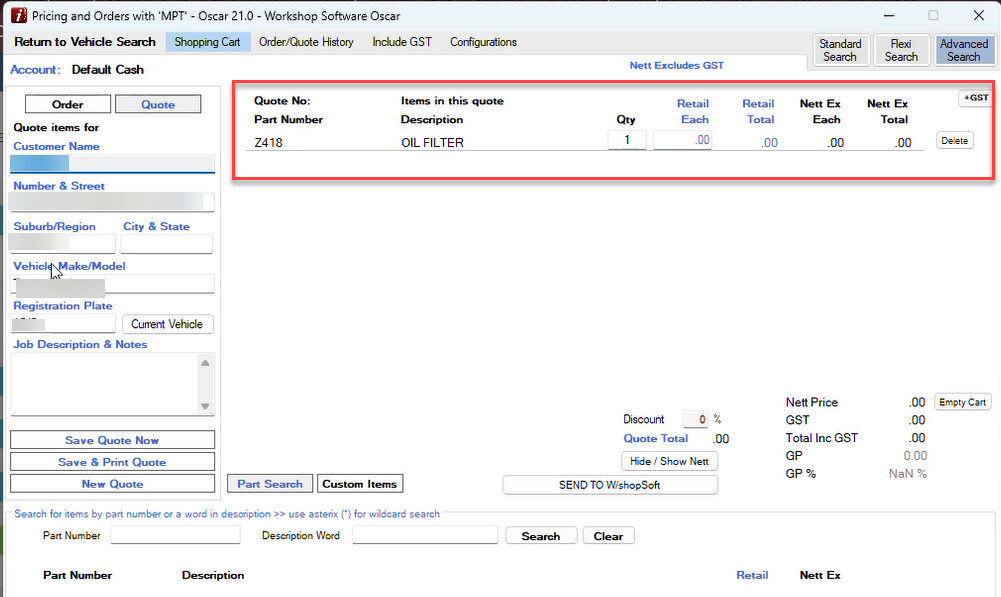
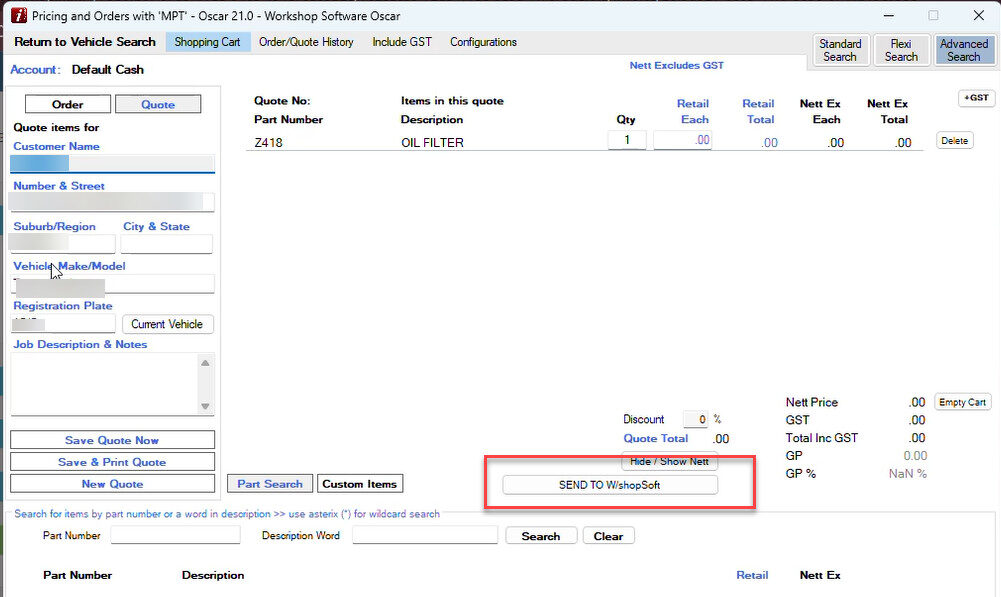
- Review the selected parts, then click Send to Workshop Software.
Step 5: Finalise in Workshop Software
- Close Oscar and return to Workshop Software.
- Press Continue on the pop-up window.
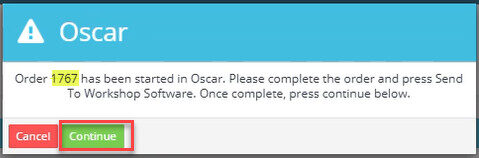
- All selected products will sync directly into your invoice.

The Oscar integration streamlines your workflow by allowing you to search, price, and order parts from multiple leading suppliers—then seamlessly import them into Workshop Software invoices. Be sure your Oscar account is fully set up with pricing details to ensure all data syncs correctly.
For setup support with Oscar or additional help, feel free to contact:
📧 support@autoinfo.com.au
📞 Or reach out to our team for assistance at support@workshopsoftware.com
