Skip to content
The Transaction Centre is a centralised hub for viewing and managing all financial and operational records in Workshop Software. It consolidates jobs, bookings, inspections, orders, and supplier invoices into one easy-to-navigate screen with tabs and filters.
Jobs Tab
- Open the Transaction Centre from the left-hand navigation menu.
- By default, the Transaction Centre opens on the Jobs tab, showing all current jobs.

Bookings Tab
The Bookings tab displays all bookings including their status, estimated hours, and descriptions.
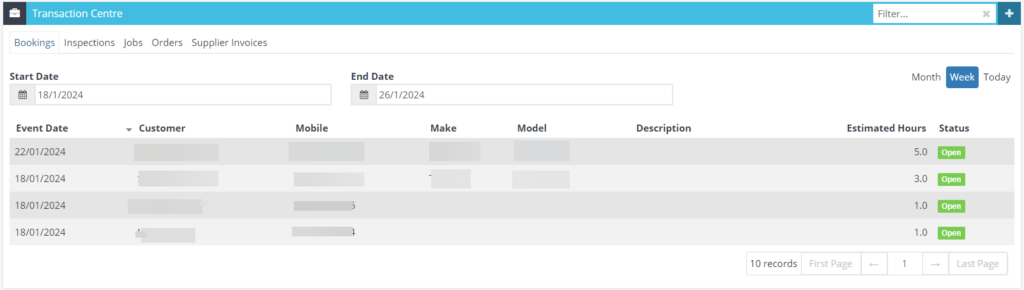
- Select the Bookings tab.

- By default, the screen opens to the current week. Change the Start Date and End Date to view different periods.

3. Change the view between Month/Week/Today, by pressing on the tab. 
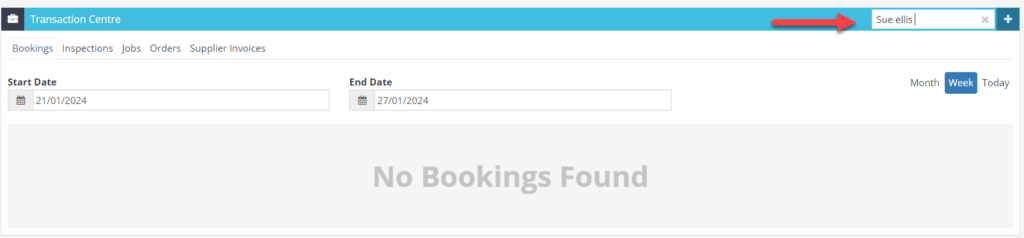
- To view bookings for a specific customer, enter the customer name in the search filter.
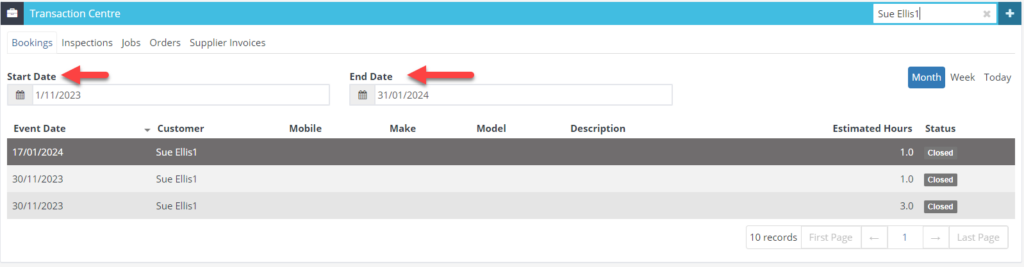
- Select Start Date and End Date to refine results further.
Inspections Tab
The Inspections tab mirrors the Inspection tab on the dashboard but is easier to access when working in the Transaction Centre.
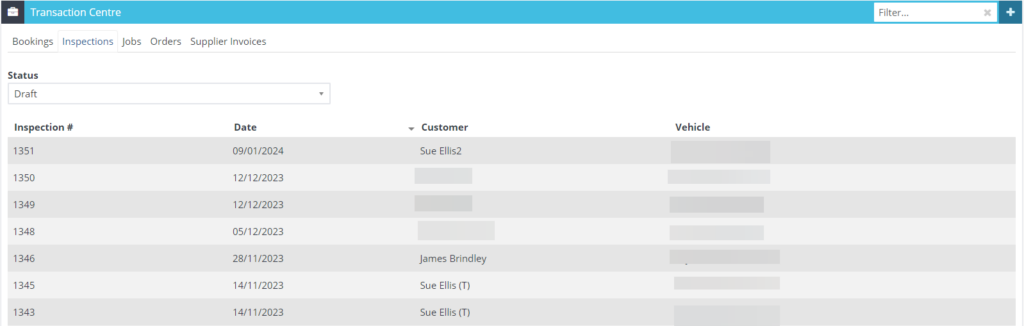
- Select the Inspection tab (defaults to Draft inspections).

- To change the status, click the arrow in the Status box and select the inspection status you want to view.

- To search by customer or inspection number, enter the details in the filter search bar.
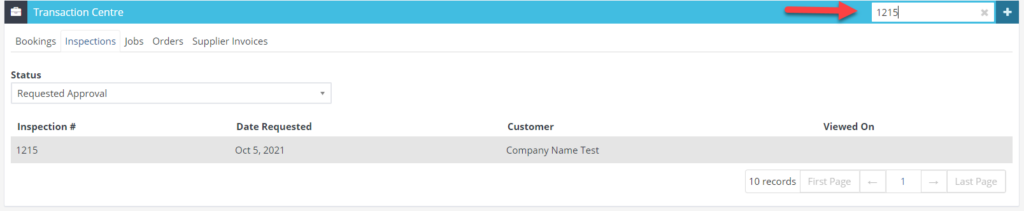
- Click on an inspection to open it.
Orders Tab
The Orders tab lets you view all supplier orders, filtered by date, status, and whether they are outstanding.

- Select the Order tab (defaults to showing all orders).

- Filter the date range by entering a Start and End Date.

- Filter by status: On Order, Received, or Suggested.

- Filter by Outstanding Only — select Yes or No.

If you press on the supplier name, it will take you to the supplier profile. 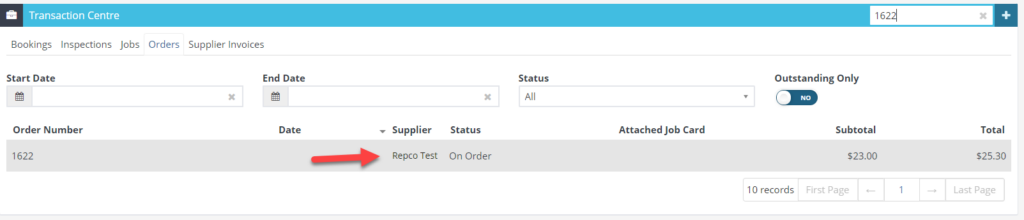
Supplier Invoices Tab
The Supplier Invoices tab displays all supplier invoices and credits.
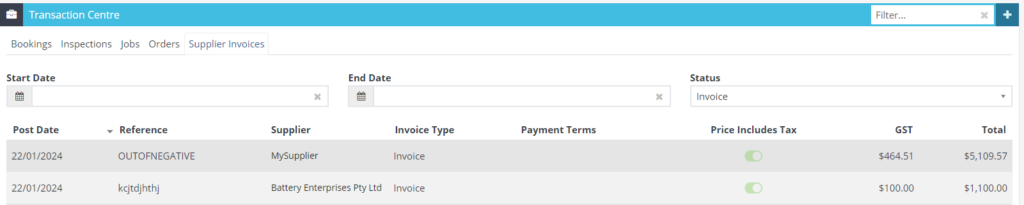
- Select the Supplier Invoice tab (defaults to showing all).

- Filter by date range.

- Filter by status.

- To search by supplier invoice number, enter the number in the filter bar.

- Click on a supplier invoice in the list to open it.
Good to Know
- You can sort records in any tab by clicking the column headers.
- Use the filter search bar at the top of each tab to quickly find specific records.
- The Transaction Centre is a read-only view — click on any record to open it for editing.