Skip to content
THIS FEATURE IS AVAILABLE FOR GOLD & PLATINUM CUSTOMERS ONLY
To Start The Loan Car Booking:
1. Go To ‘Loan Car Diary‘;
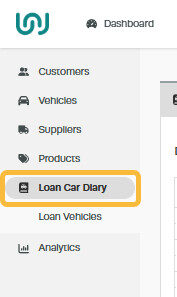
2. Click on the ‘Pencil‘ icon if you wish to modify the loan car booking;

3. Click on the ‘Clock‘ icon to start the booking;

Note: Once the Booking has been started it cannot be modified. If the loan car needs to be extended then a new booking needs to be created
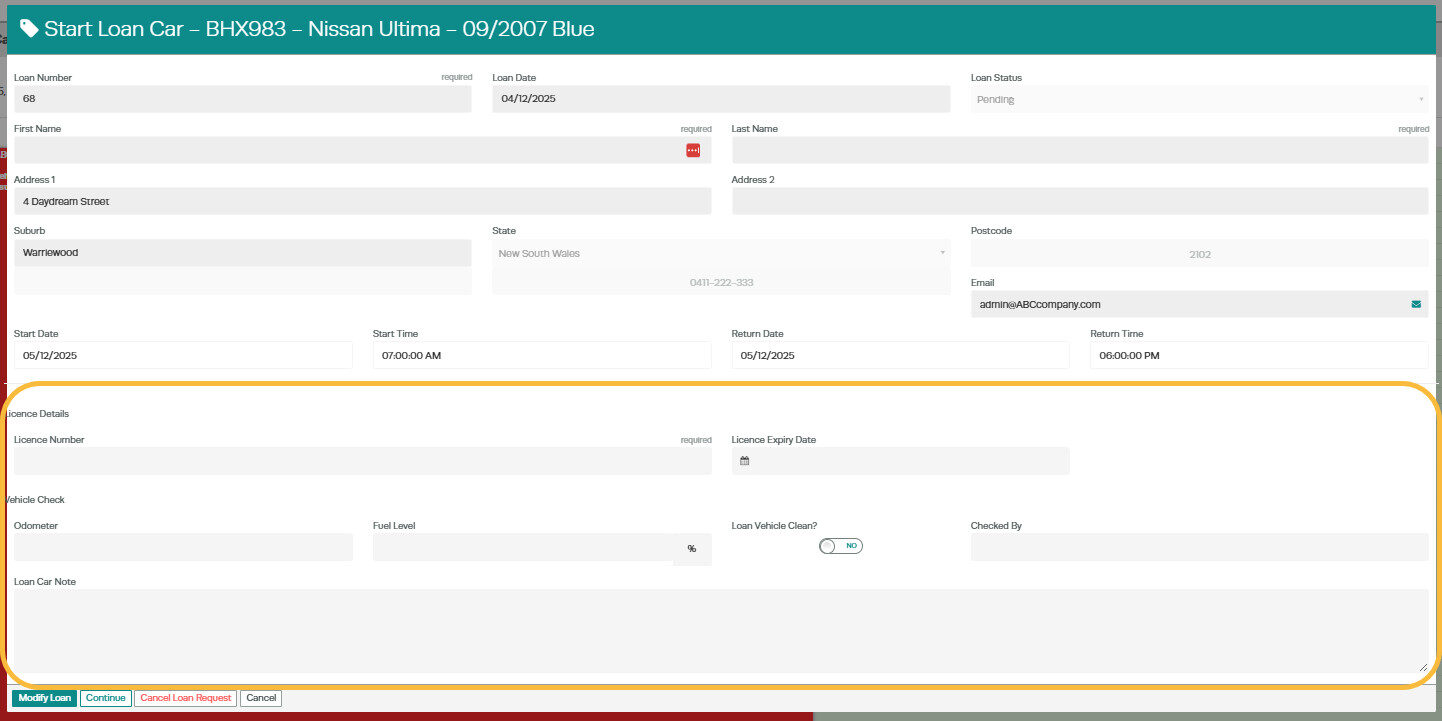
4. In the pop up window you will notice all the Customers details will be filled in, you will need to add;
- Their Licence Number
- Licence Expiry Date
- Odometer
- Fuel Level
- If the Loan Vehicle Clean (Change the toggle to yes or no)
- Checked By
- Any notes you wish to add to the Booking
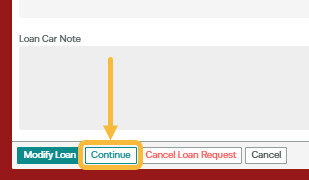
5. Click ‘Continue‘;
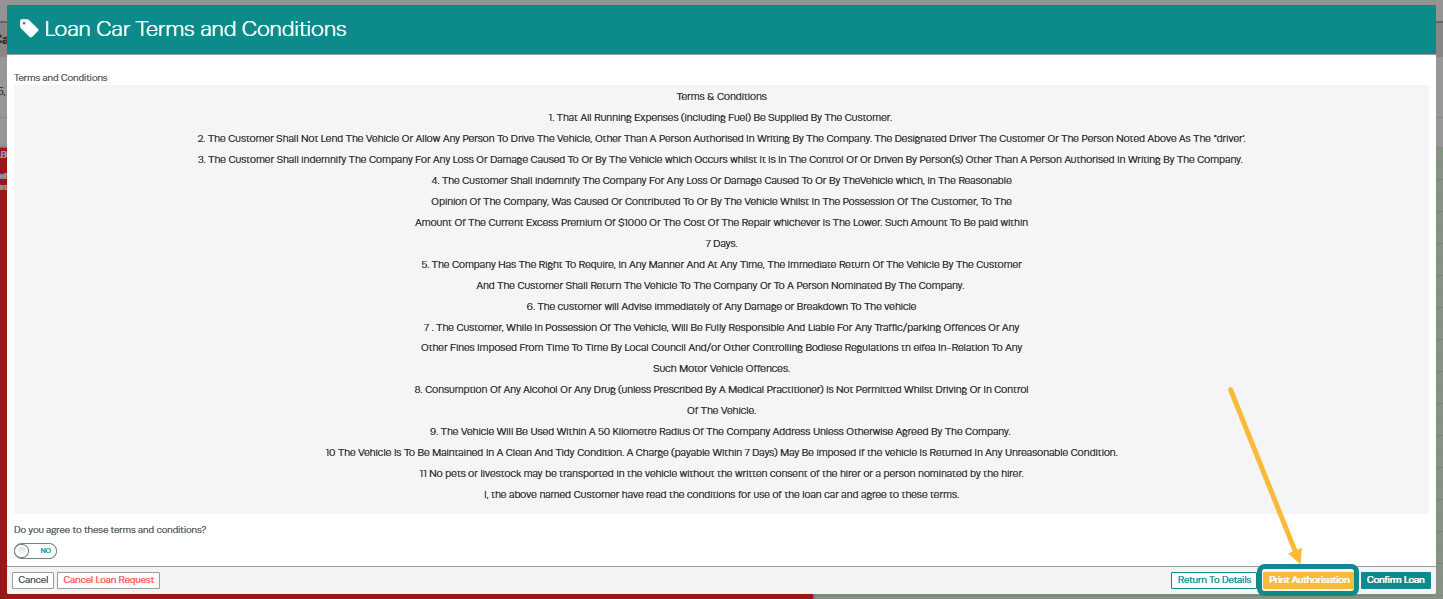
6. The Customer needs to read and agree to the terms And conditions of the vehicle (Create your Loan Vehicle Terms and Conditions). You can print this document out for your customer by clicking the ‘Print Authorisation‘ Button;
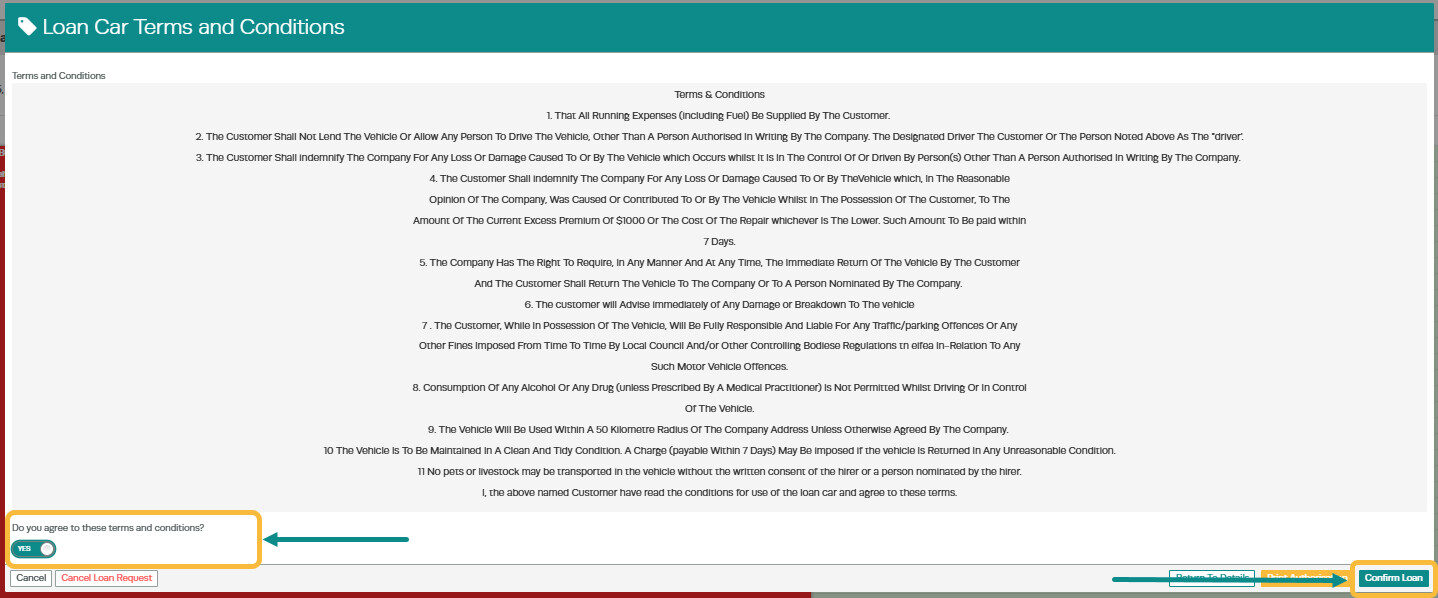
7. Change the toggle to yes if the customer agrees to the terms and conditions then press ‘Confirm Loan‘ button;
To End The Loan Car Booking:
This would be completed once the customer returns the loan car.
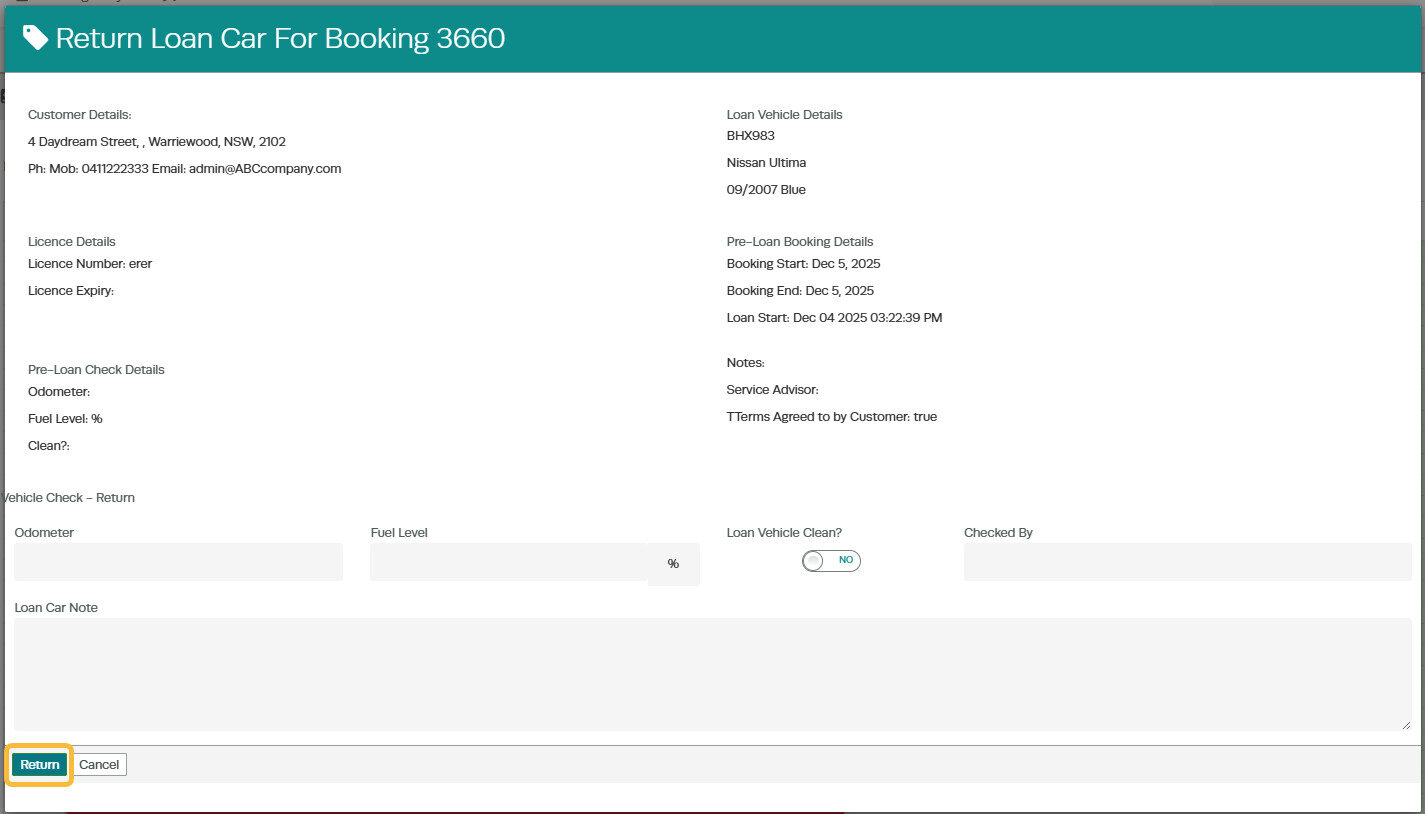
1. Go to the loan car booking and press the ‘Magnify Glass‘ to Review Loan only or the ‘Car‘ icon to Return Loan;
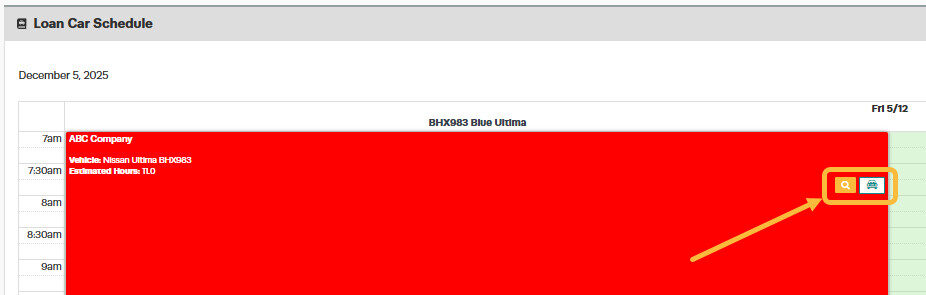
2. Once you click the ‘Car‘ icon to Return Loan a pop up screen will allow you to fill out the ‘Vehicle Check – Return‘, once you have filled in the details click ‘Return‘;