 Skip to content
This guide walks you through the steps to show barcode on job cards in Workshop Software. This is a common task when managing your day-to-day invoicing and job card workflow.
Workshop Software allows you to add barcodes to Job Cards, making it even easier for mechanics to quickly access jobs using the Workshop Software Mobile App.
By scanning the barcode, mechanics can open the Job Card to Clock On / Clock Off on the Job Card, streamlining workshop operations and saving valuable time.
Follow the steps below to enable barcodes on your Job Cards:
How to Show Barcode on Job Cards
1. From the Workshop Software main menu, click on ‘Settings‘ on the left-hand side.
2. Select ‘Company Settings‘.
3. Scroll down to the ‘Invoice Settings‘ section and click the arrow to expand it.
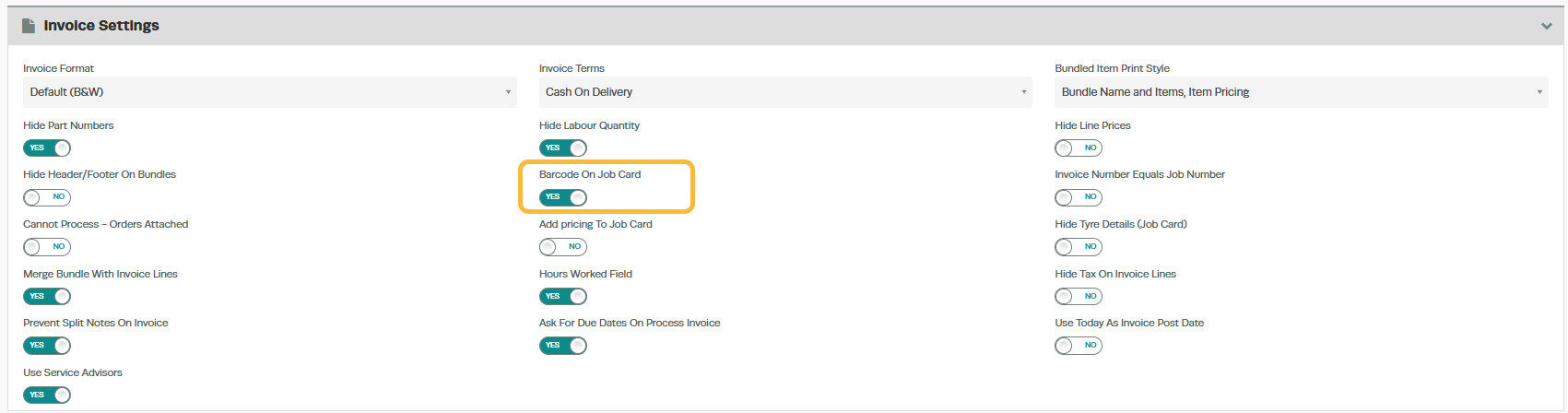
4. Locate the ‘Barcode on Job Card‘ option.
5. Toggle the setting to ‘Yes‘ to enable the barcode display.
6. Click ‘Save‘ to apply the changes.
Important Information
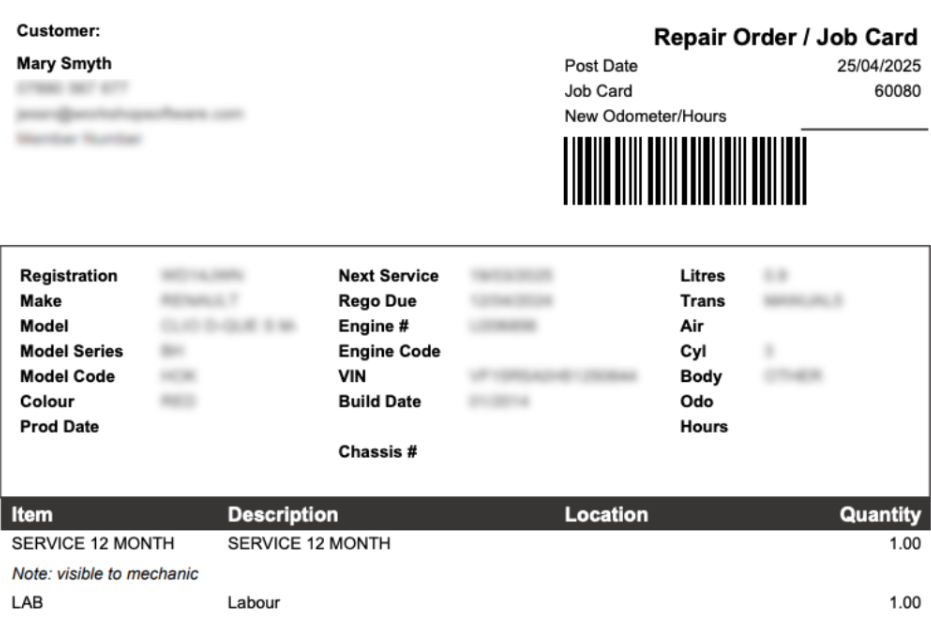
– Once enabled, a barcode will be printed automatically on new Job Cards.
– Mechanics can then use the Workshop Software Mobile App to scan the barcode using the barcode icon next to the search bar, at the top of the app’s main screen.
– Scanning the barcode allows the mechanic to either Clock In, Clock Out, or Open the Job Card directly within the app.
For more detailed instructions on how to clock on and clock off using the mobile app, please refer to our article: Mechanic Clock On and Clock Off in Workshop Software
Good to Know
- You can find this option under Settings > Company Settings in the left-hand menu.
- Make sure you click Save after making your changes. If you navigate away before saving, your changes will be lost.
- You can print, email, or SMS the invoice to your customer once it is ready.
- Use the product search bar to quickly locate the product you need by name or part number.
Frequently Asked Questions
Can I undo this change to the invoice?
You can update the invoice again by following the same steps. If the invoice has already been finalised or synced to your accounting system, contact your administrator about the best approach.
Will this change affect existing invoices that already include this product?
No. Existing invoices and job cards retain the product details as they were at the time the invoice was created. This change only applies when the product is used on future invoices.
