Express Essentials: Getting Started with the Basic Plan
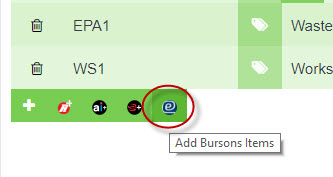
1. To use the integration, click on the Burson icon once you have gone into a job:
2. It will come up with the below window, click on ‘Continue‘ and it will direct you into your Burson system:
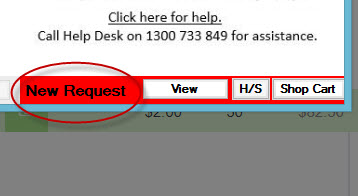
3. Open up your Ezyparts desktop system and you will see down the bottom in red will say ‘new request‘:
4. When you click on ‘view‘ it will show the car details, to start adding your parts – select ‘Search Parts‘:
5. Select ‘Logbook‘:
6. Select the KM service that is relevant to the job and to bring over the job comment click on ‘Job Sheet‘
*The job sheet can print out on your job card to tell the mechanic what needs to be done on the service.
7. Once you click on ‘Job Sheet‘ it will ask if you want to preview a schedule of operations in a PDF – select ‘no‘. This will still tell the system that you would like the job sheet information but not to print it right now.
8. Once you have finished selecting all your parts, navigate to the bottom right of your screen and select ‘Shop Cart‘:
9. When you have reviewed the products, you can send them back to Workshop Software by clicking on ‘SEND TO W/shopSoft‘. Bursons will then take you into Workshop Software and it will have added all your products with the correct pricing, item codes etc.
10. Select ‘Continue‘ and then your parts will have been added to your job:
11. If you then print your job card, you will see that the relevant service information has been added:
 Skip to content
 2. It will come up with the below window, click on ‘Continue‘ and it will direct you into your Burson system:
 3. Open up your Ezyparts desktop system and you will see down the bottom in red will say ‘new request‘:
 4. When you click on ‘view‘ it will show the car details, to start adding your parts – select ‘Search Parts‘:
 5. Select ‘Logbook‘:
 6. Select the KM service that is relevant to the job and to bring over the job comment click on ‘Job Sheet‘
*The job sheet can print out on your job card to tell the mechanic what needs to be done on the service.
6. Select the KM service that is relevant to the job and to bring over the job comment click on ‘Job Sheet‘
*The job sheet can print out on your job card to tell the mechanic what needs to be done on the service.  7. Once you click on ‘Job Sheet‘ it will ask if you want to preview a schedule of operations in a PDF – select ‘no‘. This will still tell the system that you would like the job sheet information but not to print it right now.
 8. Once you have finished selecting all your parts, navigate to the bottom right of your screen and select ‘Shop Cart‘:
 9. When you have reviewed the products, you can send them back to Workshop Software by clicking on ‘SEND TO W/shopSoft‘. Bursons will then take you into Workshop Software and it will have added all your products with the correct pricing, item codes etc.
 10. Select ‘Continue‘ and then your parts will have been added to your job:
 11. If you then print your job card, you will see that the relevant service information has been added:

