 Skip to content
Workshop Software allows you to send an SMS to a customer directly from the software.
In order to send SMS messages you will need to purchase SMS Credits first. Here is a guide on how to purchase SMS credits. If you would like your customers to be able to reply to your SMS messages follow this guide to enable Two Way SMS.
Using the SMS Icon
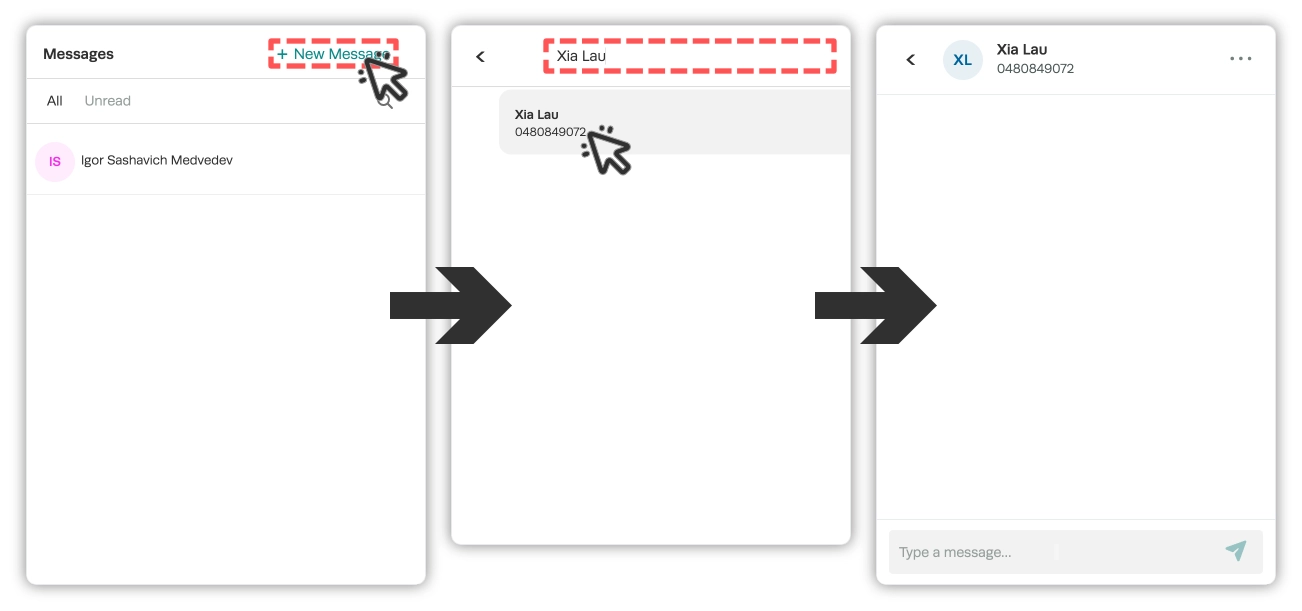
The Messaging icon in the menu bar may be used to send individual SMS messages, view sent messages and responses if Two Way SMS is enabled and to respond to received messages.

To send a new SMS message;
- Click the Messaging icon.
- Click the + New Message link in the drop down.
- Search for a customer and click their name in the list.
- You may now compose and send your message.
From the Main Search Bar
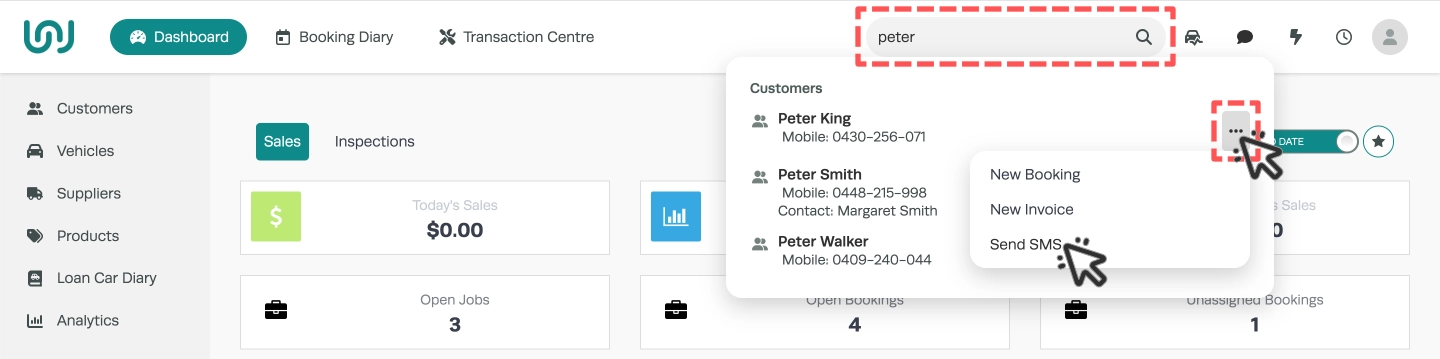
The Main Search Bar may be used to search for Customers, Suppliers, Vehicles and Products. From the search results you may create a Booking, Invoice or SMS a Customer.
- Search for the customer by typing their name into the Main Search Bar located at the top of the screen in Workshop Software.
- In the search results that come up, click on the … icon and select Send SMS.
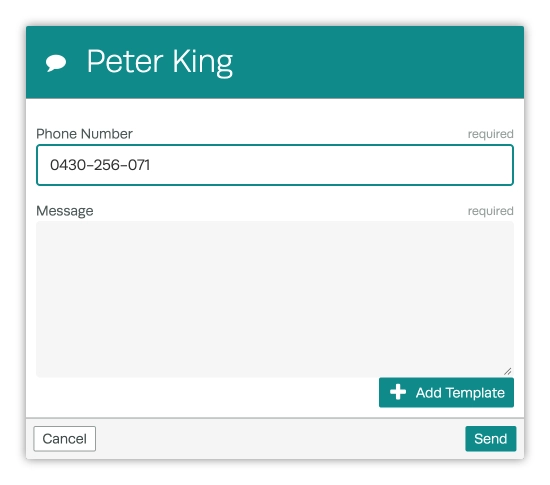
- Enter the message or select a message template to edit, then click on the green ‘Send’ button to send it. If you have entered a mobile number for the customer in their profile then it will automatically populate for you.
Via the Customer List
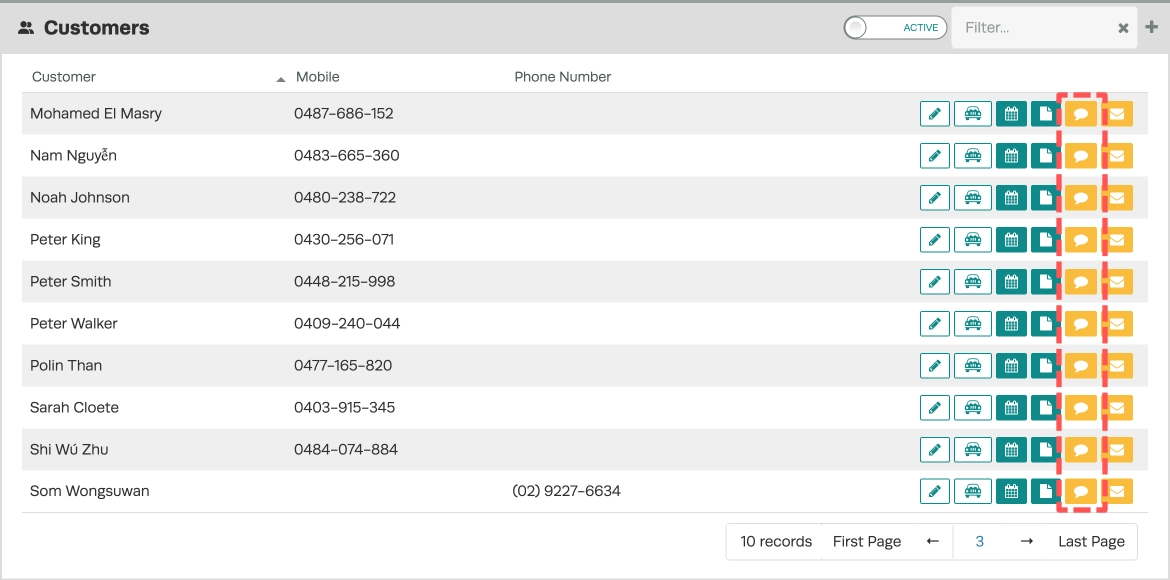
You may SMS, Email or create new Vehicles, Bookings and Invoices from Workshop Software’s Customer List. Click the orange SMS icon next to any customer to send an SMS message.
Via the Job Centre
You may send an SMS message to a single Customers from the Jobs list of the Transaction Centre by clicking on the job then click on the orange SMS icon.
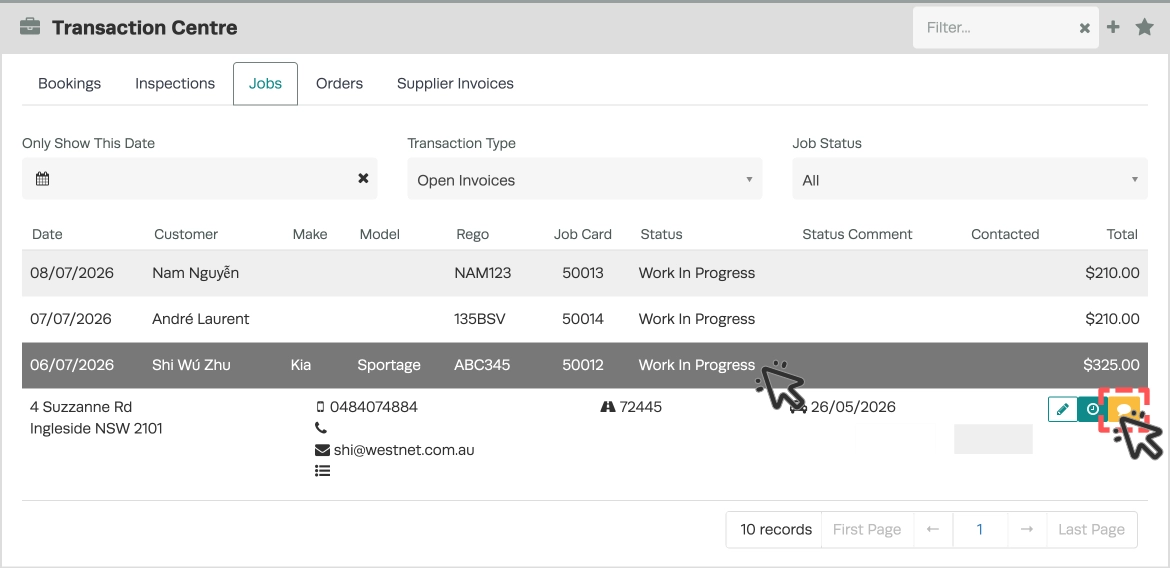
You may also send a Bulk SMS to all or a subset of the Customers currently in the Jobs list inside the Transaction Centre (for example to report a loss of power in your area to all upcoming bookings).
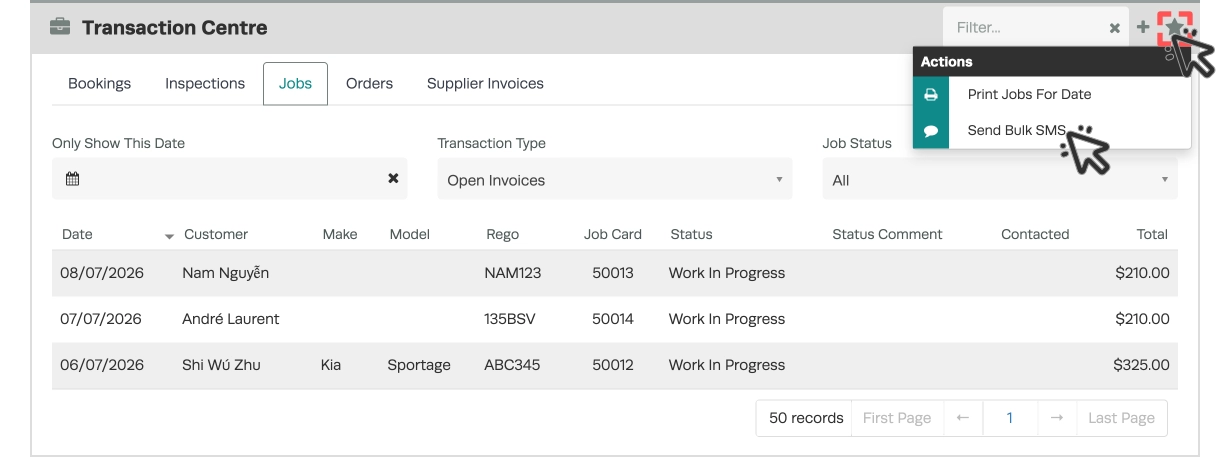
- In the Transaction Centre card click the Star icon then Send Bulk SMS.
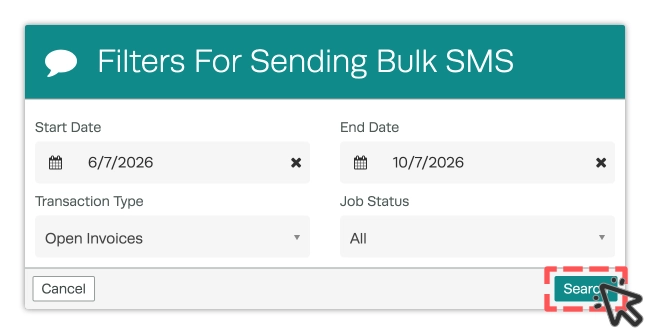
- Select the Date Range, Transaction Type and Job Status to filter the Customer List then click the Search button.
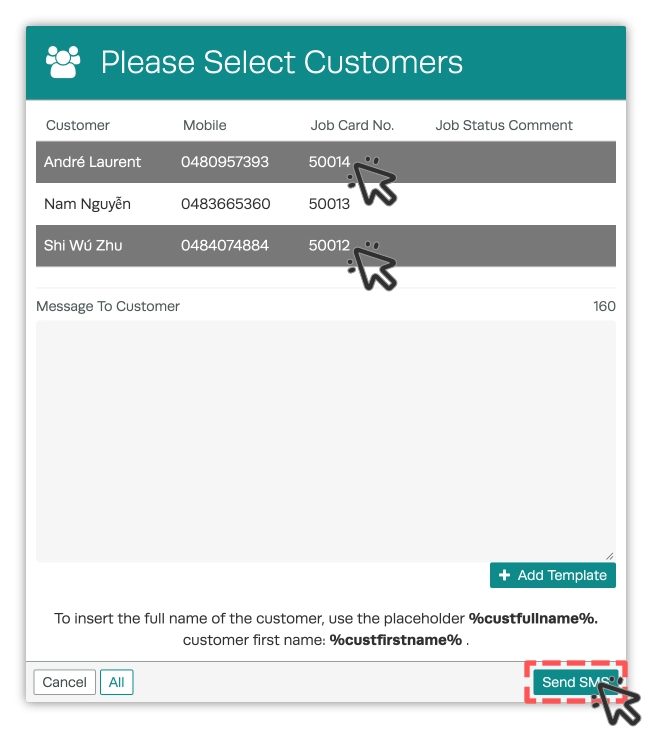
- You may now click each Customer you wish to email, compose your message or add a Template and then click the Send SMS button to message all selected Customers.
Bulk SMS Messages via the Communication Centre
The Communication Centre may be used for bulk email, to create mail merge documents for printing or bulk SMS messaging.
Please Note: This functionality is only available for Gold and higher subscriptions.
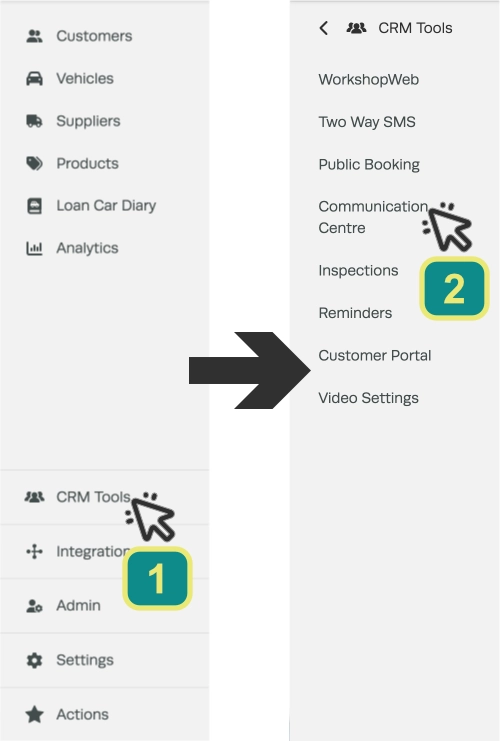
- To access the Communication Centre click CRM Tools (1) in the left hand sidebar menu then Communication Centre (2).
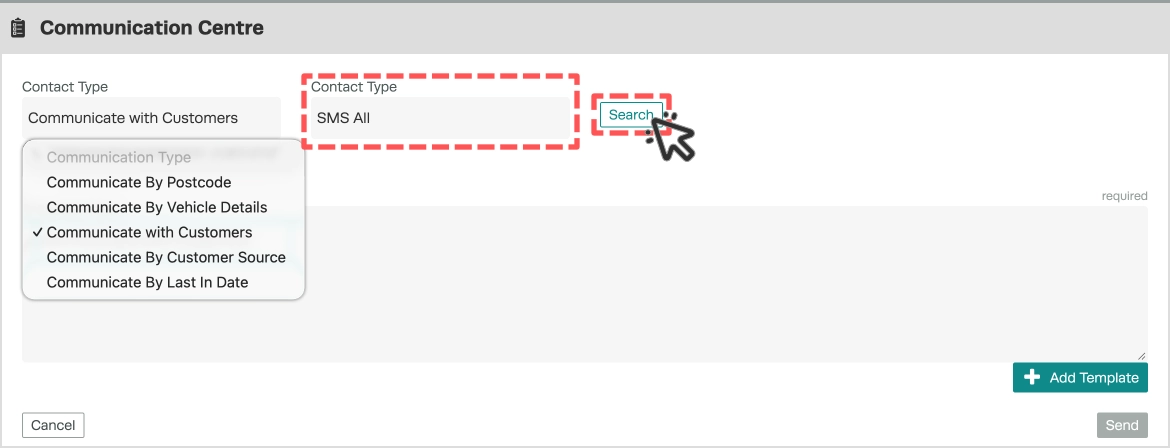
- In the right Contact Type field, select SMS All, this will send the selected customers an SMS regardless of their preferred contact method.
- In the left Contact Type field you may either select Communicate with Customers to access your complete Customer list or filter by Post Code, Vehicle, Customer Source or Last In Date.
- Click the ‘Search’ button to generate a list of customers.
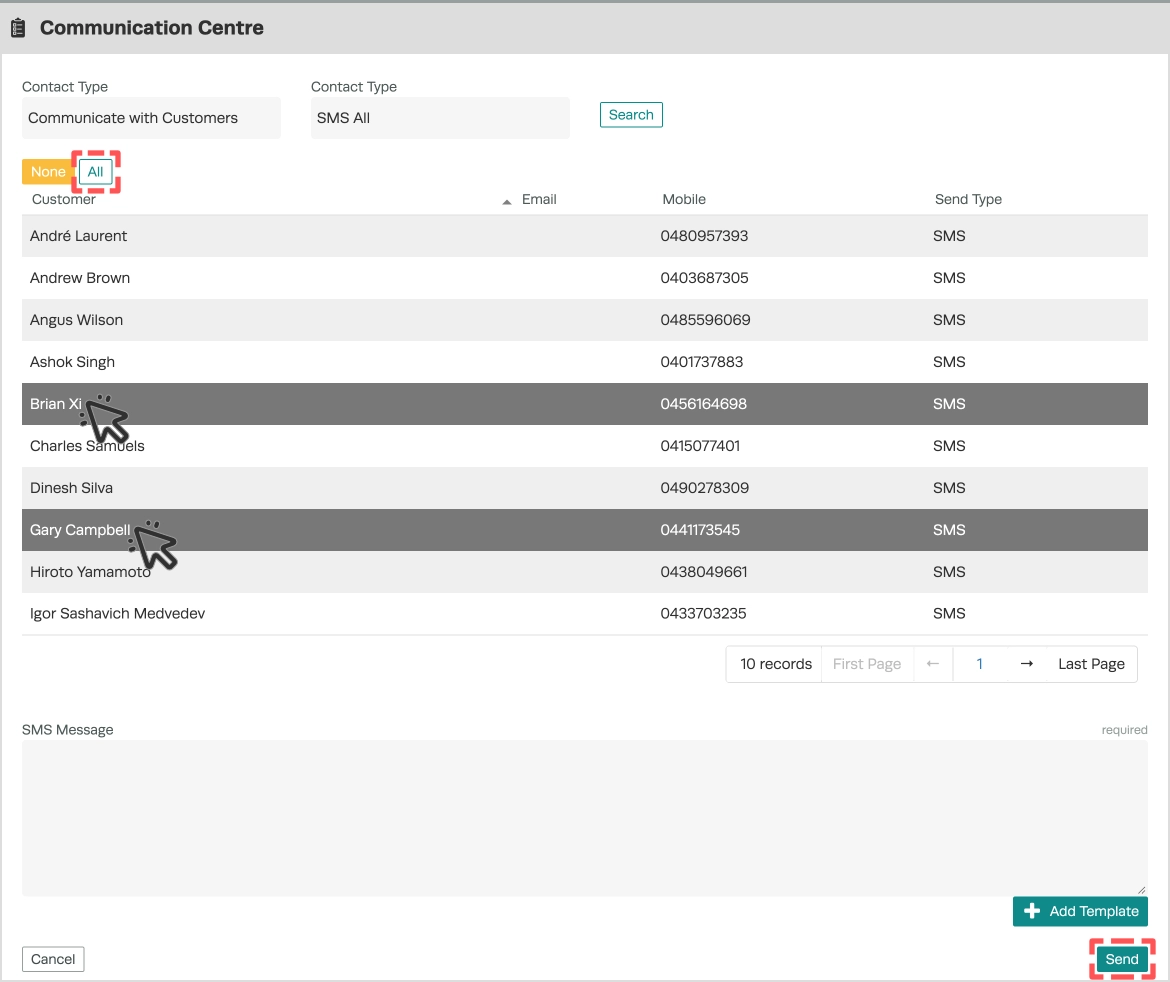
- You may now click each Customer you wish to message or use the All button to SMS every Customer in the list. You may navigate to each page of Customers and all selections made will be retained.
- Then compose a message or add a template and click the Send button to message all selected Customers.
Please Note: There is a daily maximum limit to Bulk SMS sending, if your Customer database is large and you encounter error messages please filter to a subset of Customers before sending.
Good to Know
- You must have SMS credits purchased before sending. See How to Purchase SMS Credits for details.
- Each SMS sent uses one credit per recipient per standard length message.
- Double check your date range and selected recipients when using bulk SMS functions before sending to avoid messaging the wrong customers.
- You may access a record of all automatic and manually sent SMS messages in Analytics > Business Reports. Select the SMS Report in the Log Reports card.
Frequently Asked Questions
Can I preview the message before sending?
You can review the message text in the compose window before clicking Send. When available placeholder fields will be replaced with actual customer data when sent.
Is there a limit to how many SMS messages I can send at once?
There is a large daily maximum, if you encounter error messages please filter to a subset of Customers before sending. You will also need enough SMS credits to cover all recipients, please check your balance before sending a large batch.
