Skip to content
Workshop Software offers a range of flexible subscription options. Users may upgrade their subscription, check the current subscription status, change from monthly billing to annual or cancel their subscription in the Company Profile page.
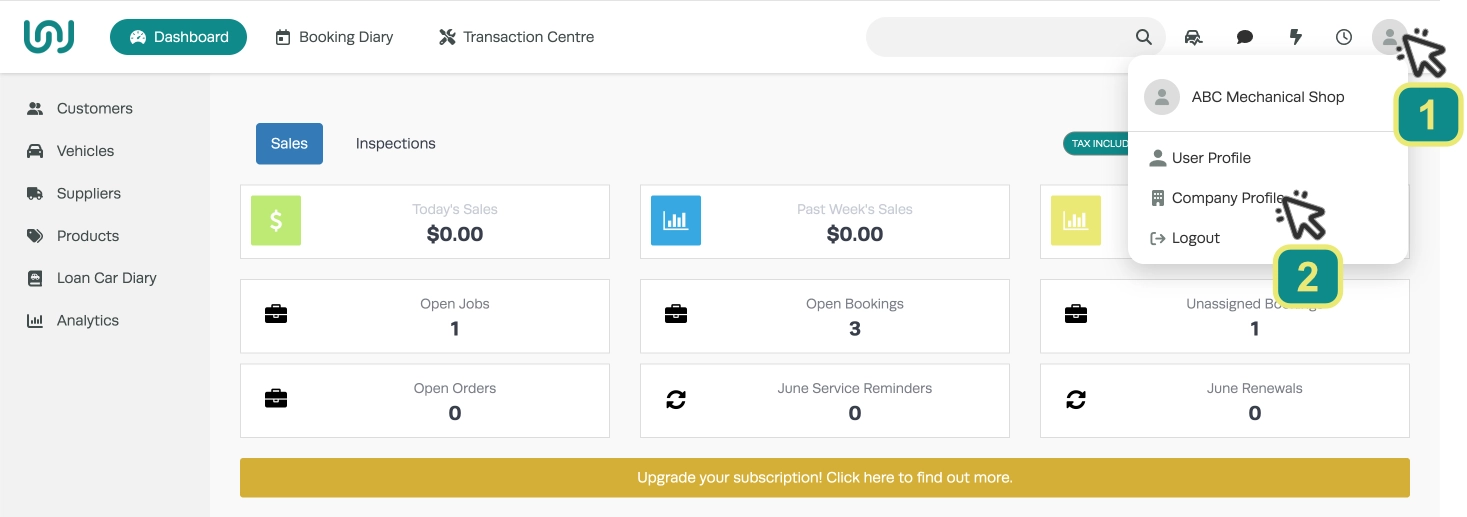
To access the Company Profile page first click the User icon (1) in the top right corner of the screen and choose Company Profile (2) in the drop down menu.
In the Company Profile page click to open the Subscription tab (3).

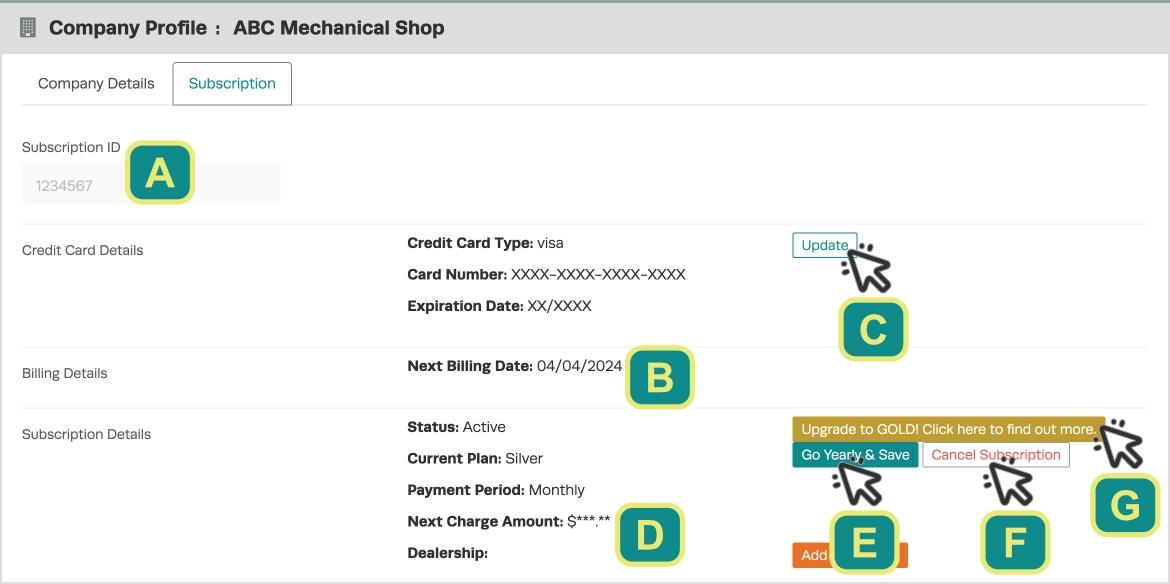
Subscription ID (A): Your subscription ID is the unique identifier for your instance of Workshop Software. It is used by Workshop Software’s support team to identify you and should be provided with any customer support request sent to support@workshopsoftware.com.
Billing Details (B): Your next billing date is shown here, on this day the “Next Charge Amount” in your Subscription Details will be charged to the card on file or your Capricorn account.
Credit Card Details and Update (C): A redacted copy of the Credit Card on file is shown here, if only a “/” appears it indicates you are paying with a Capricorn Account.
Subscription Details (D): Subscription Details lists your plan, payment period and the amount of the next charge. The periodic charge incorporates your subscription, additional PC users and any Integrations such as WorkshopData or Two Way SMS.
Update to Yearly Billing (E): This button is used to upgrade from a Monthly to Yearly billing cycle.
Cancel Subscription (F): This button is used to cancel your subscription. You may still login, use the software and export data until your remaining period is exhausted.
Upgrade Subscription Plan (G): This button allows a user to upgrade from Silver to Gold or Gold to Platinum.
Upgrade Your Subscription
To upgrade your subscription click the Upgrade Subscription Plan button (G), you must then confirm your upgrade in the next page.
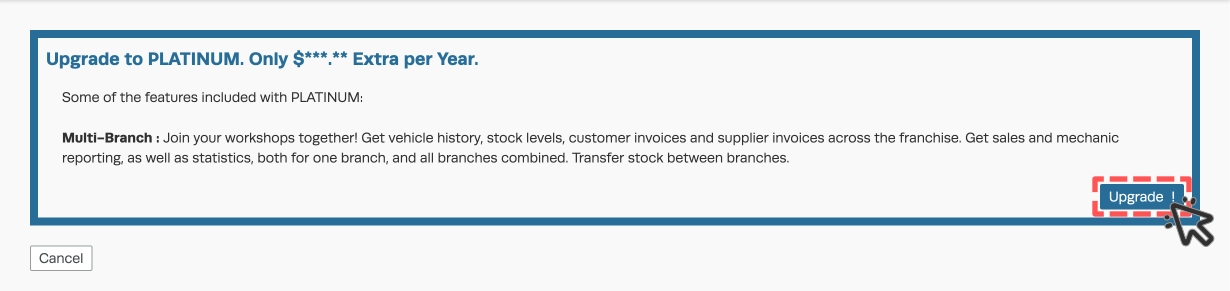
A subscription update will take effect immediately and the first charge will be prorated upon the remaining time before your Next Billing Date and charged at the time of upgrade. You will receive immediate access to the new features enabled by upgrading.
Upgrade to Yearly Billing
Yearly billing includes a discount of up to 20% when compared to a monthly cycle. You may click the Update to Yearly Billing button (E) to upgrade your billing cycle to yearly. You will then need to confirm in the following page.
Your Next Billing Date will remain the same and you will be charged the yearly cost for your subscription, users and integrations on this date. This charge will be visible as an updated Next Charge Amount.
Update your Credit Card
To update your credit card click the Update button (C) in the Credit Card Details section. You may then enter your new credit card information and update your billing address.
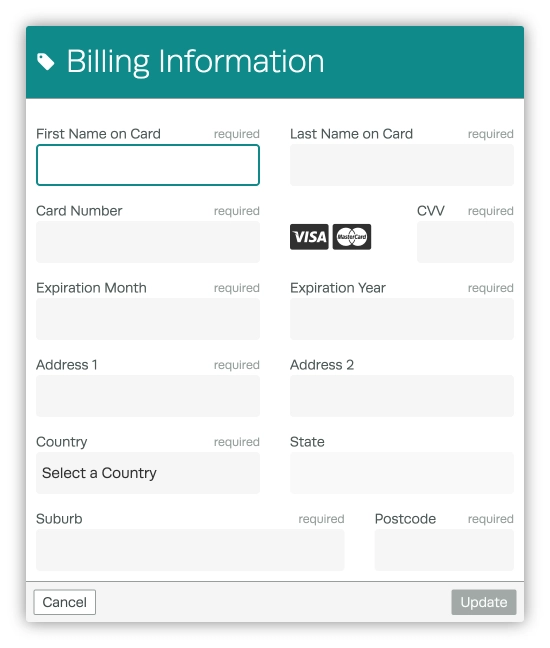
The updated credit card information will now be used for all future periodic account charges and single purchases.
Please Notes: To change billing to a Capricorn Account please contact Workshop Software’s Account Management team.
Cancel your Subscription
To cancel your subscription please click the Cancel Subscription button (F). You will need to confirm your cancellation and we would appreciate any feedback on your reason for cancellation.
Good to Know
- You must update an expired credit card before the next periodic charge or you will be locked out of your account.
- Users are responsible for upgrading or cancelling their subscription as explained in this article, our Account Management team is not able to complete these actions for you.
Frequently Asked Questions
Can I reduce my subscription tier or return to monthly billing?
Yes. Please contact your Account Manager if you wish to downgrade a subscription.