 Skip to content
Product Groups categorise products of the same type, for use during reporting, stocktaking, when assigning an Accounting Package account or inclusion in a Price Matrix.
To create a Product Group you may follow either of these two methods.
Creating or Modify a Product Group in Company Lists
You may create and modify Product Groups in Workshop Software’s Settings.
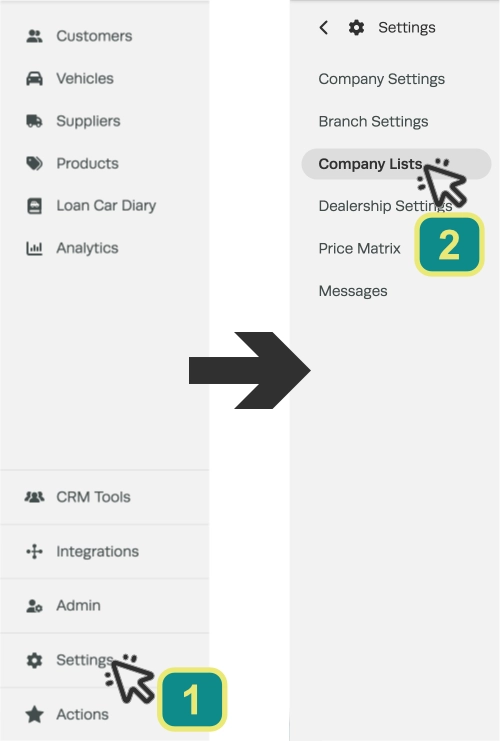
- In the left sidebar menu click Settings (3) then Company Lists (4).
- Scroll down to the Product Groups header.
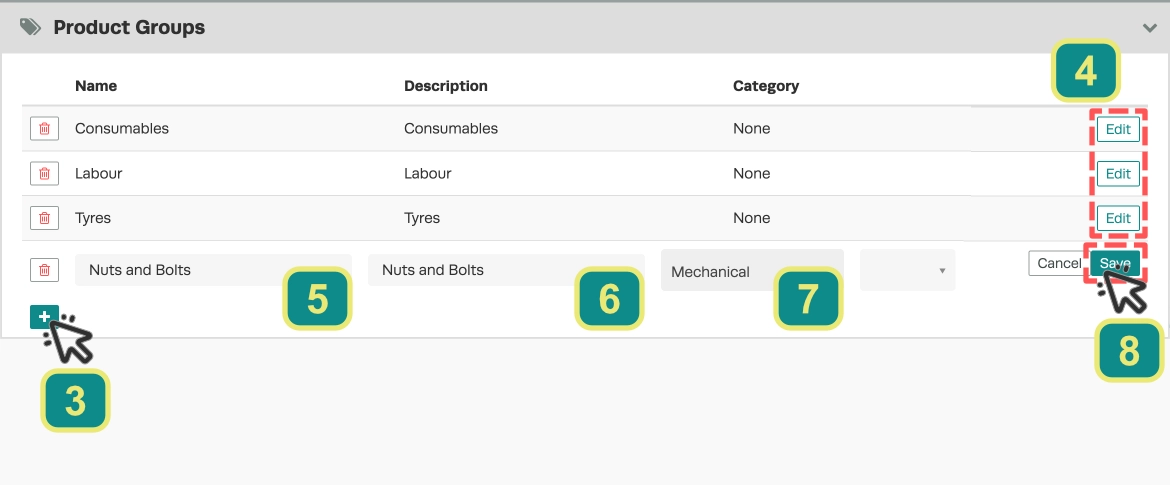
- You may create a new Product Group with the + icon (3) or modify an existing Group with the Edit buttons (4).
- Add or modify the Name (5), Description (6) and Category (7) for your Group and click Save (8).
Creating a Product Group inside a Product
Alternatively product groups may be created directly within a Product you are editing.
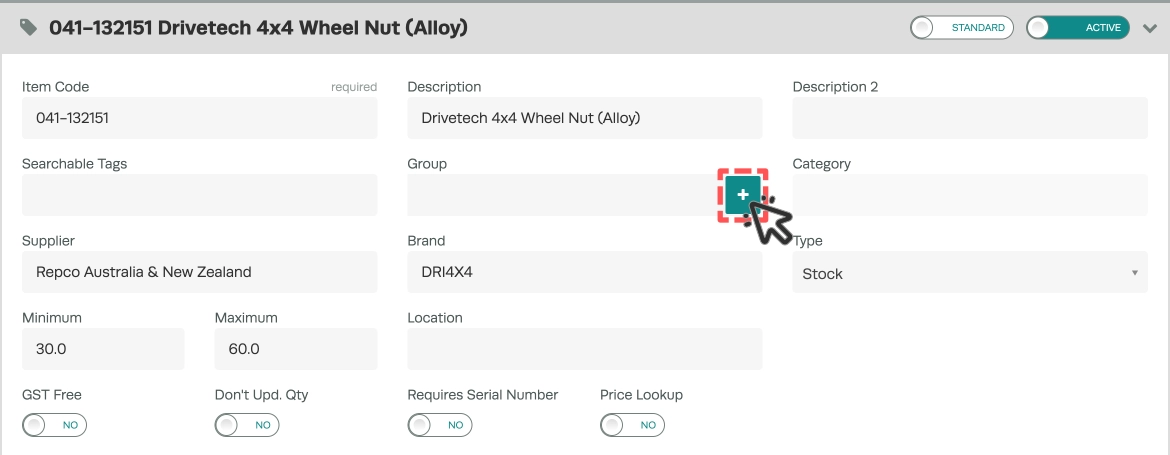
- Select a Product in your system and click the + icon in the Group field.
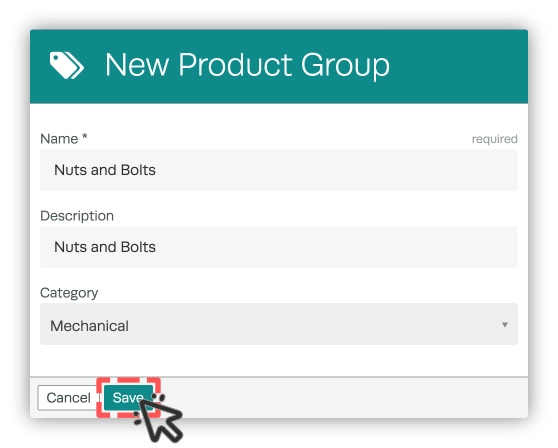
- Enter a Name, Description and choose a Category for your new Product Group and select Save.
Using Product Groups in a Report
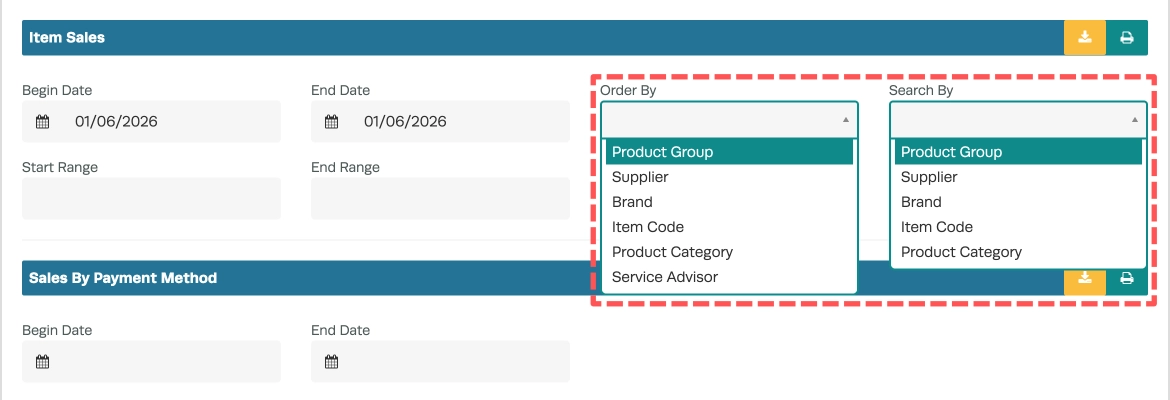
Allocating your products to a product group also improves reporting accuracy. For example you may access the Item Sales Report by navigating to Analytics > Business Reports > Sales Reports > Item Sales.
In this report you can search or order your report by Product Group to obtain a detailed breakdown of sales for each item within the product group.
For information on how to add products to product groups please see: https://staging.workshopsoftware.com/knowledge-base/products-jobs/how-to-add-products-to-a-product-group/
Good to Know
- You can find this option under Settings > Company Settings in the left-hand menu.
- Make sure you click Save after making your changes. If you navigate away before saving, your changes will be lost.
Frequently Asked Questions
Will this change affect existing invoices that already include this product?
No. Existing invoices and job cards retain the product details as they were at the time the invoice was created. This change only applies when the product is used on future invoices.
Do I need a specific subscription level for this feature?
Some features in Workshop Software are available on specific subscription plans. If you do not see the option described above, check your current plan or contact the Workshop Software team.
