 Skip to content
The Workshop Software Mobile App has just become even more powerful. Technicians and workshop staff can now access WorkshopData directly from their mobile device, giving them the information they need without leaving the job card.
This feature allows you to quickly view important vehicle data such as engine specifications, lubricants and fluids, brake information, transmission diagrams, and identification locations. Having this information readily available helps technicians work more efficiently and reduces the need to switch between systems or search for vehicle specifications elsewhere.
With WorkshopData available inside the mobile app, your team can access detailed diagrams, technical specifications, and vehicle identification details directly from the job card, making diagnostics and servicing faster and easier.
Below is a step-by-step guide on how to access and navigate WorkshopData in the mobile app.
Steps to Access WorkshopData on the Mobile App
1. Open the Job Card
- Log in to the Mobile App.
- Select the Job Card you would like to open.
2. Open WorkshopData
- On the Job Card screen, click the Green car icon located in the top right corner.
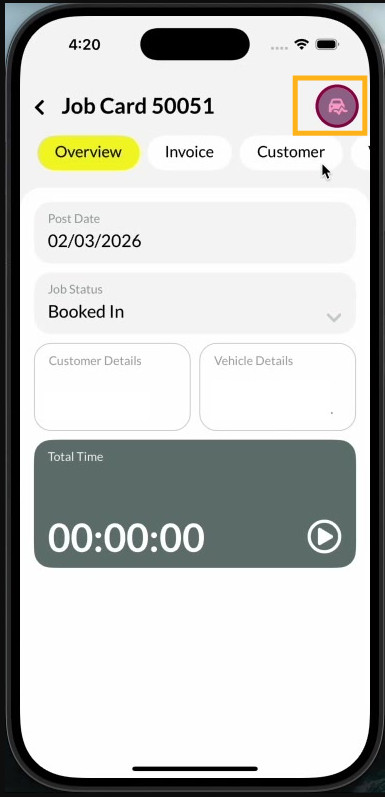
This will open WorkshopData.
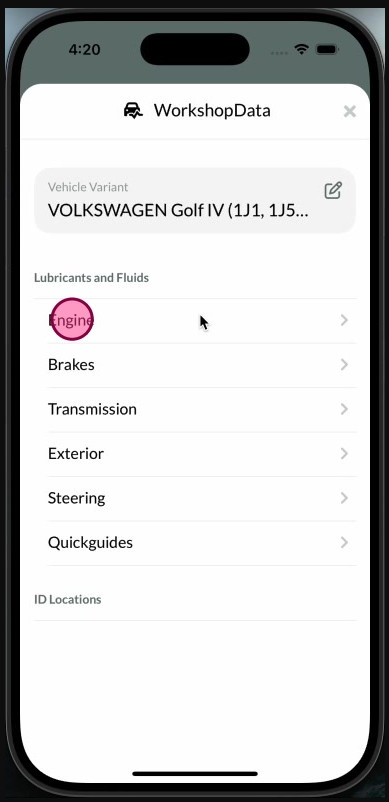
3. Confirm Vehicle Variant
Review the vehicle information to ensure all details match the actual vehicle. This helps maintain accurate job card records.
To update or confirm the vehicle variant:
- Step 1: Click the pencil icon next to the Vehicle Variant field.
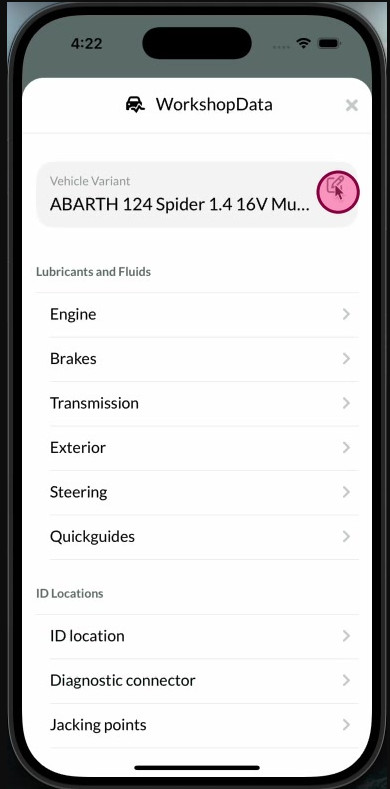
- This will open the Search Make/Model option.
- If needed, you can search for the correct vehicle details:
- STEP 2: Click Search Make/Model at the bottom of the screen.
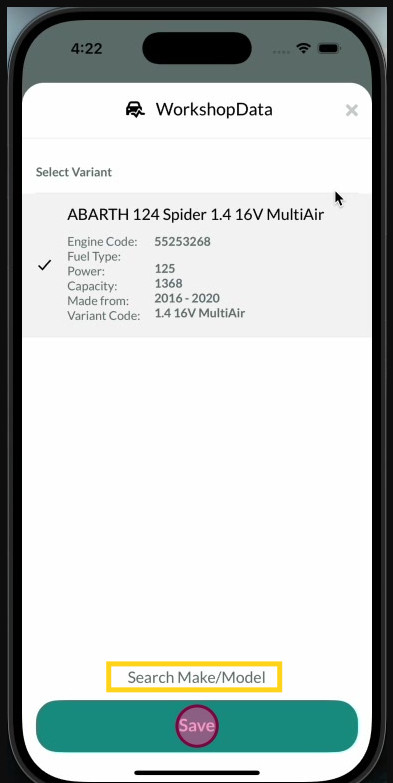
- STEP 3 : Select the vehicle type (Car, Motorcycle, or Truck).
- STEP 4: Choose the make.
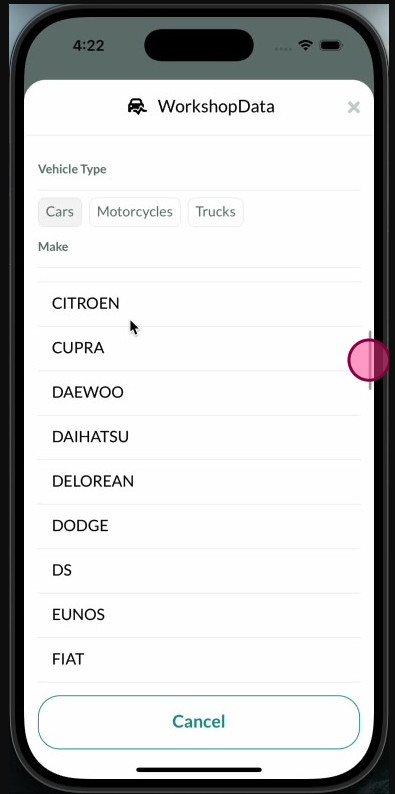
- STEP 5: Select the correct model from the list.
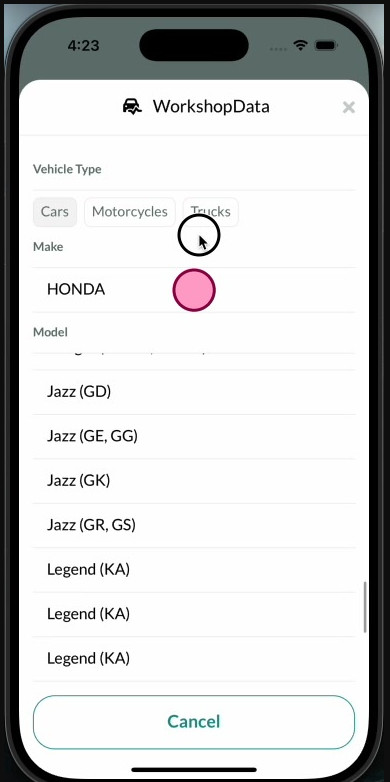
Carefully review all information and ensure it matches the actual vehicle before proceeding.
. STEP 6: Click the “Save” button at the bottom of the screen to confirm the selected vehicle variant.
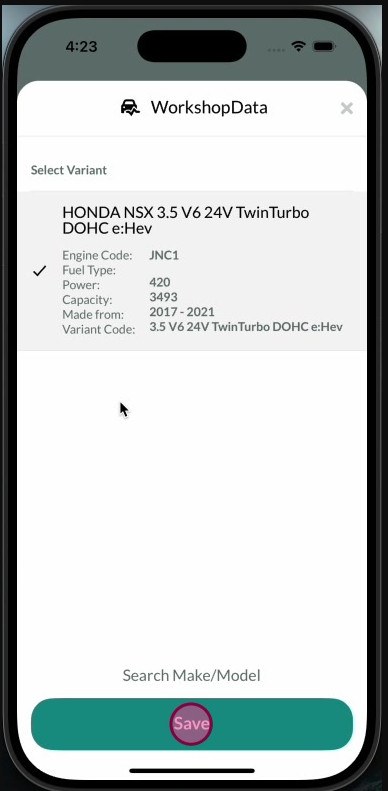
If you need to make changes to the variant or select a different one, click the pencil icon in the Vehicle Variant field and follow the steps above.
Once saved, the screen will return to the WorkshopData application, where you can explore a wide range of technical information specific to the vehicle you’re currently repairing.
Within the WorkshopData window, you’ll have access to:
- Technical Drawings
- Adjustments and Specifications
- Preferred Lubricants and Fluids
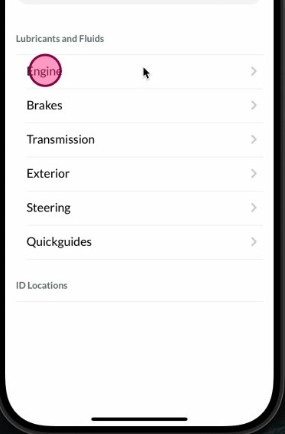
Viewing Lubricants and Fluids Details
Select Engine/ Brakes/ Transmissions Details
- On the WorkshopData screen, click Engine/Brakes/Transmission.
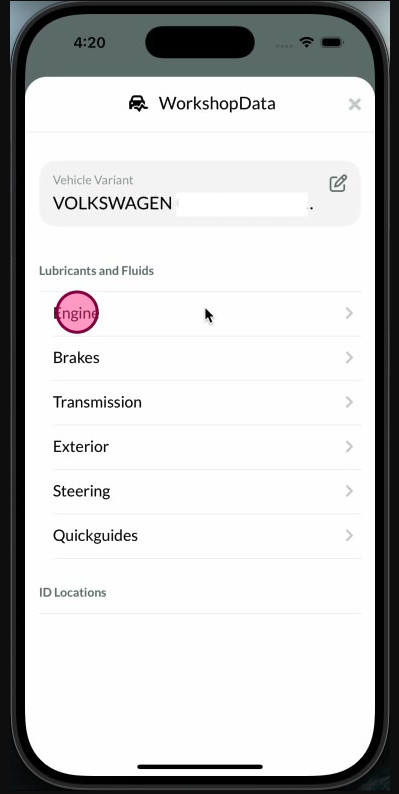
Review Engine Lubricants
- Scroll down the Lubricants and Fluids section.
- Review the engine lubricant and fluid specifications.
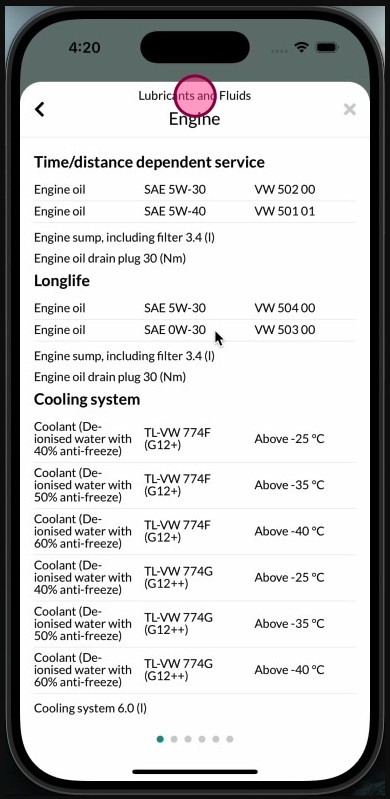
Swipe the screen to the right to see the Brakes, Lubricants and Fluids section.
Continue swiping right to view the other sections: Transmission, Lubricants and Fluids
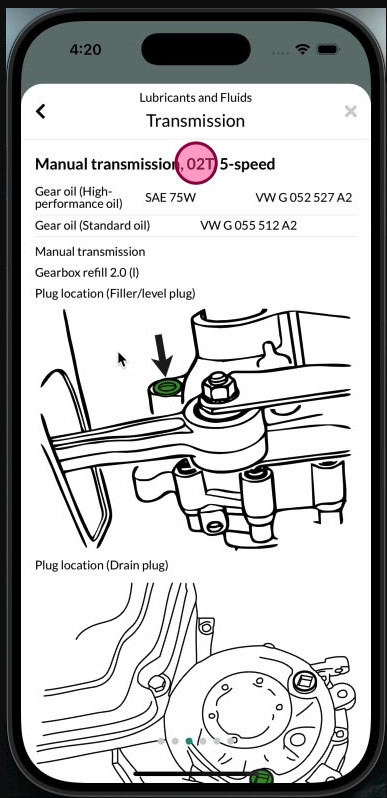
Press on the diagram, and you will then be able to enlarge it for a closer view.
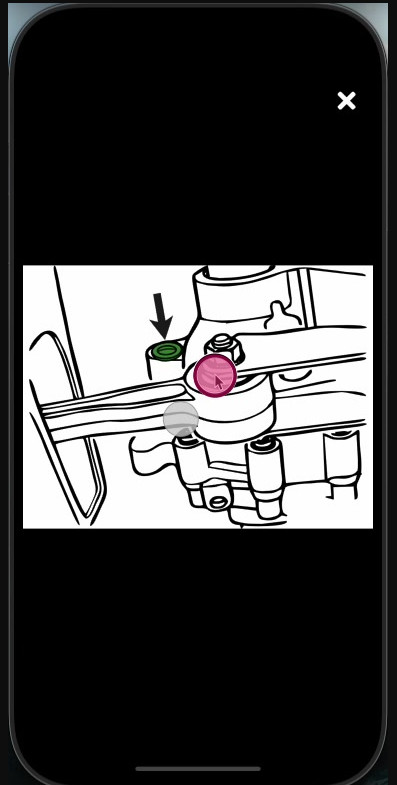
You can tap on an image to see a full-screen zoomable version.
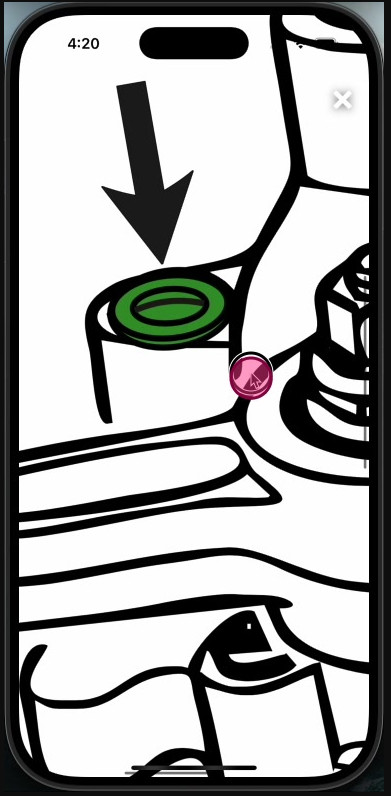
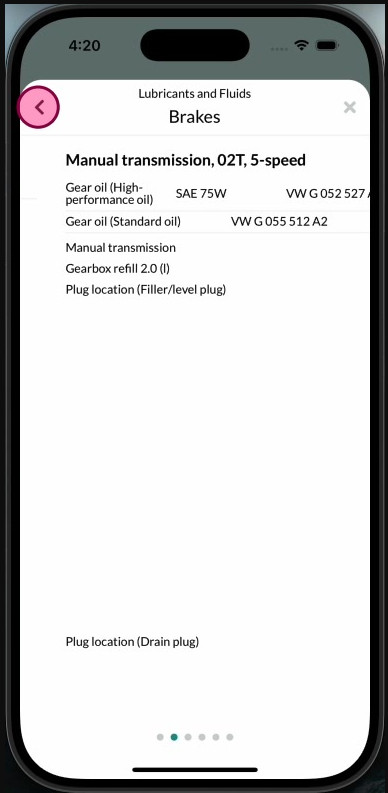
Return to WorkshopData
Click the back arrow in the top left corner to return to the WorkshopData screen from your current view.
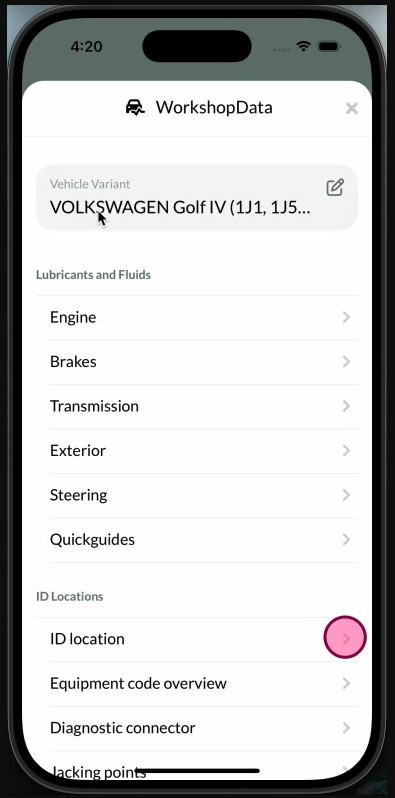
Select ID Location
- Scroll down the WorkshopData screen.
- Click the ID Location option.
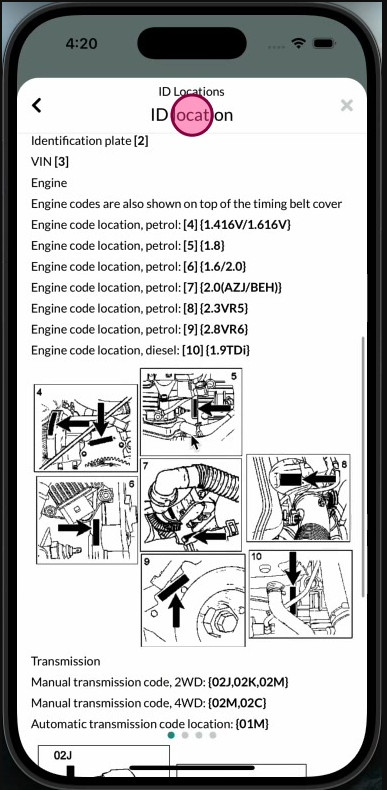
Review ID Location Details
- Scroll down the ID Location screen to view identification details and related diagrams.
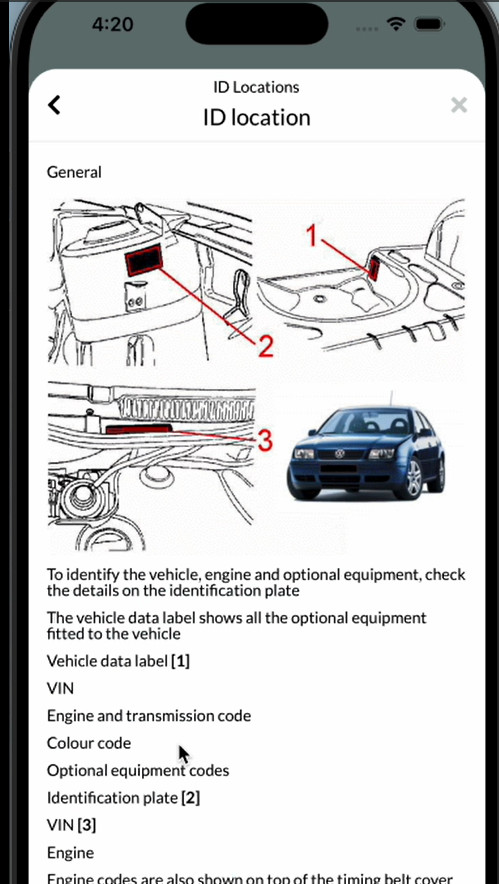
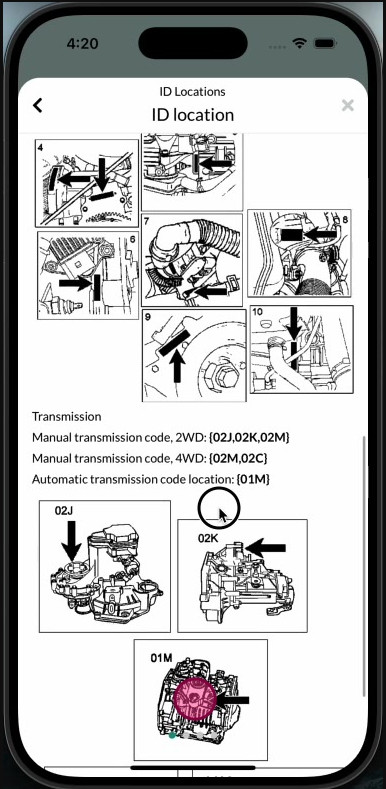
View Transmission Code Diagram
- Click on any of the diagrams to view it in full screen.
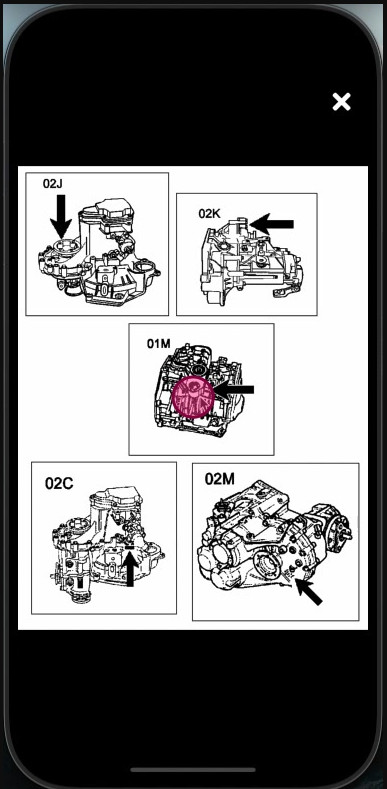
To return to the Job Card, close the window or press the back arrow in the top left corner.
