Skip to content
To save time entering the same products in every major service or standard task you may create a generic or specific bundle/kit. This allows you to enter just 1 product code and Workshop Software will automatically include the associated products and services that are required for that job.
Please note: When creating a bundled product (kit) the individual parts and/or services that make up the bundle need to have been created first, please see the guide titled Adding a Product if you need any assistance in adding a product or service. Bundles may not be used inside Supplier Invoices.
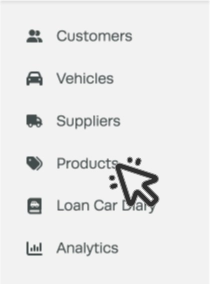
- Click on Products from the list of options on the left hand side of the screen.
- Select the + icon at the top right of the Products card to create a new product.

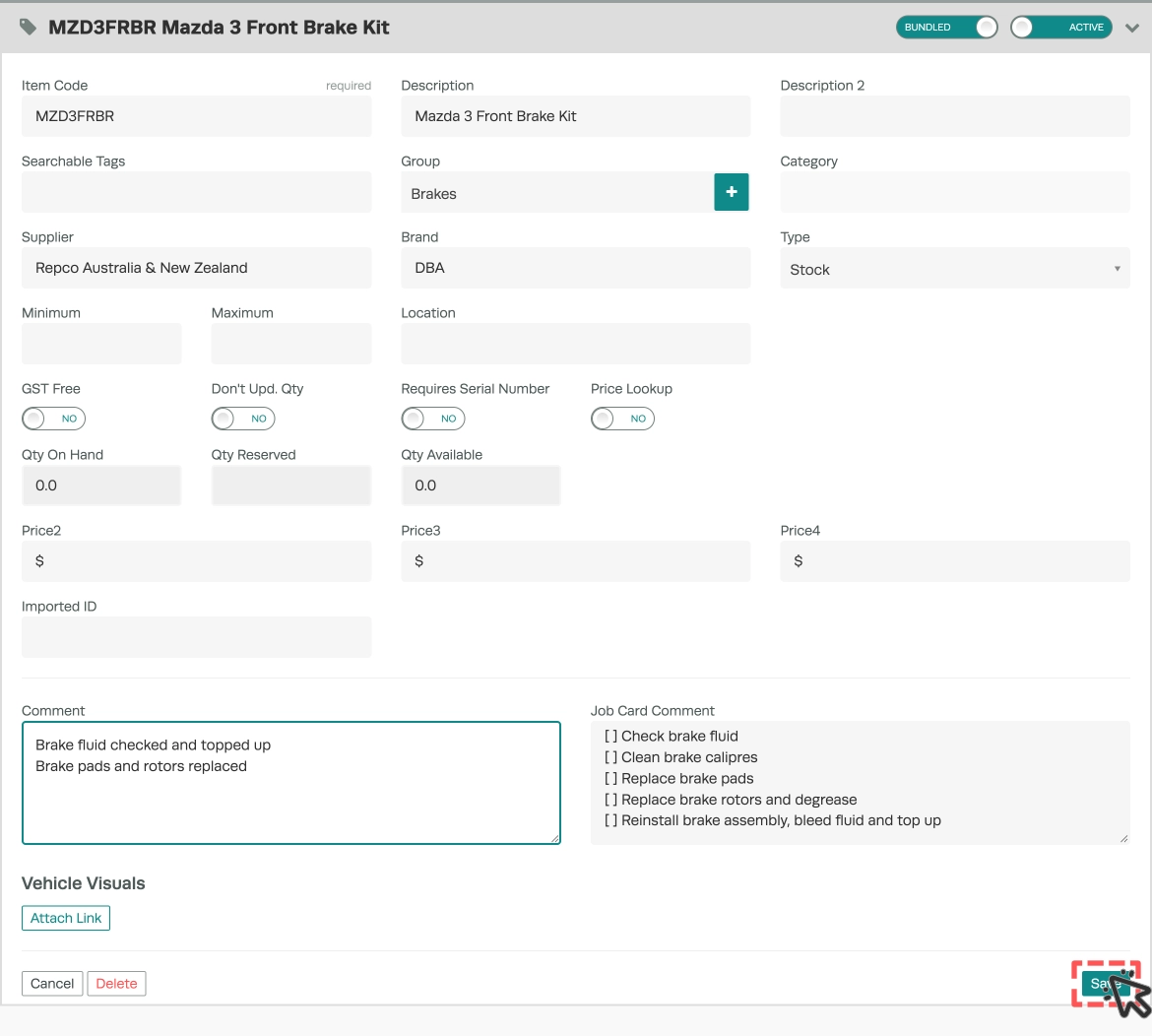
- Click on the Standard toggle at the top right of the page to change the product Bundled.

- Enter the details of the bundle, only the Item Code is required, all other fields are optional. Once you have entered the details you need then click on ‘Save’ so you can then had the individual products and/or services to the bundle.
Please note: With the Type field you may choose which type you want this bundle listed as, HOWEVER we do not recommend setting it as Labour, especially if the bundle will also have a labour line in it as this will create 2 bookings in the Booking Diary.
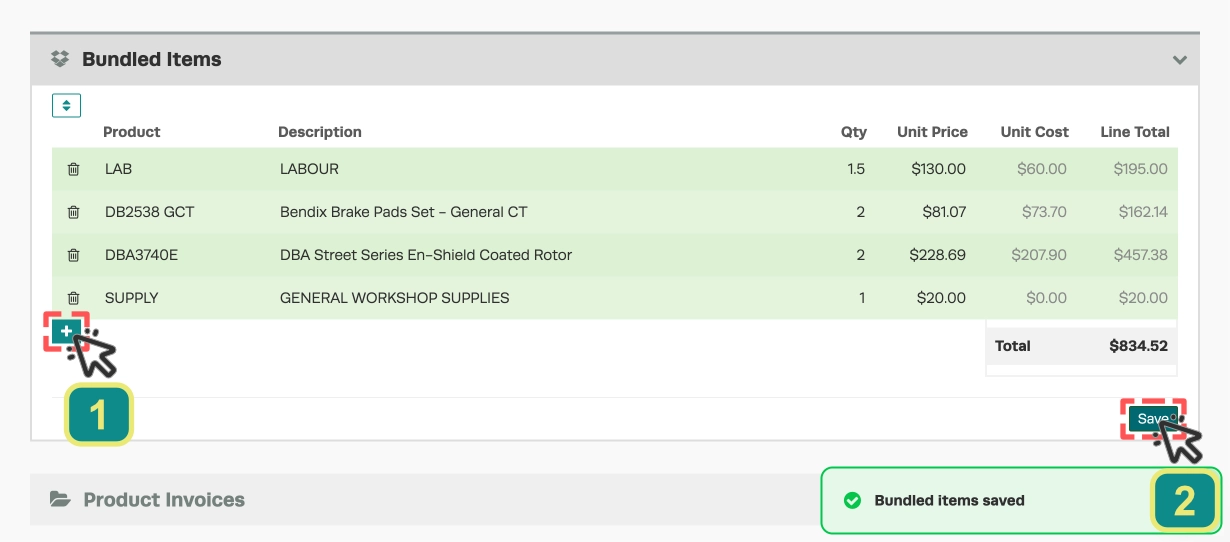
- After you first Save a new Bundled Items card is added below the main card. You may search for and create each product and/or service to be included in the bundle. To add an additional product or service line click on the green + icon (1). Once all the items have been entered, click the Save button (2).
- The bundle will now show up in your list of products.

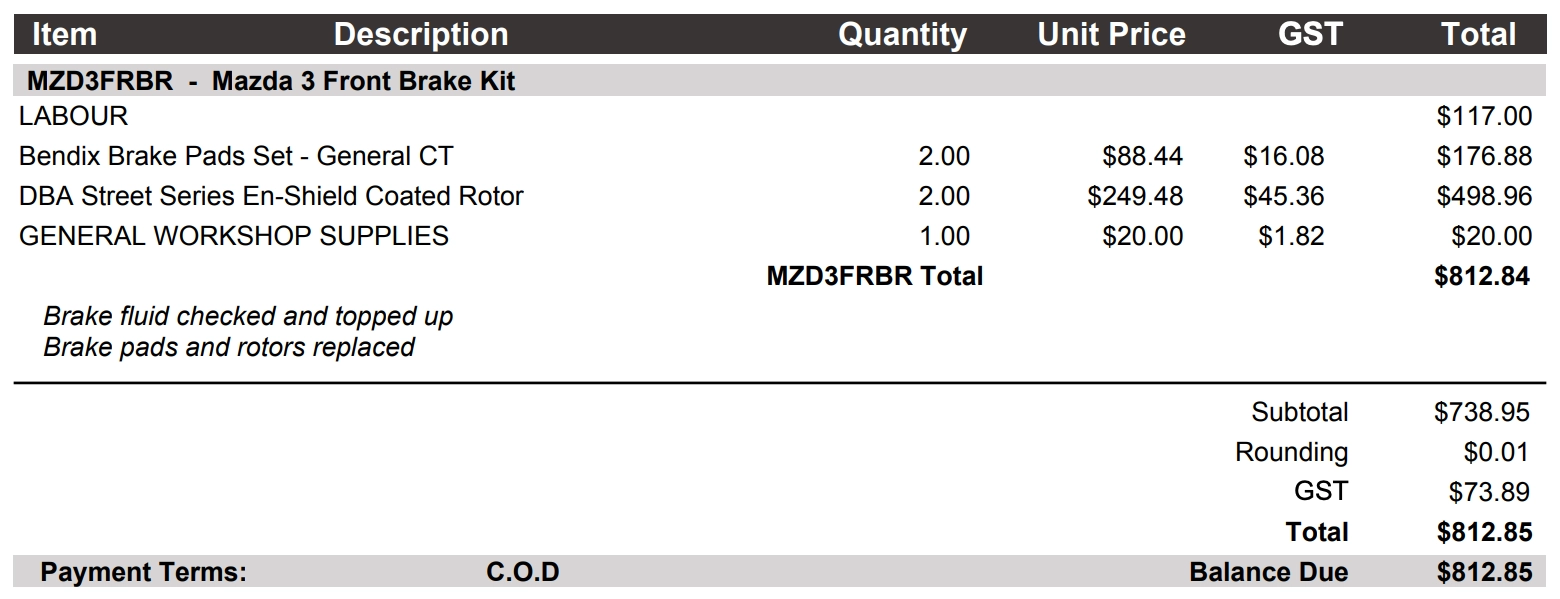
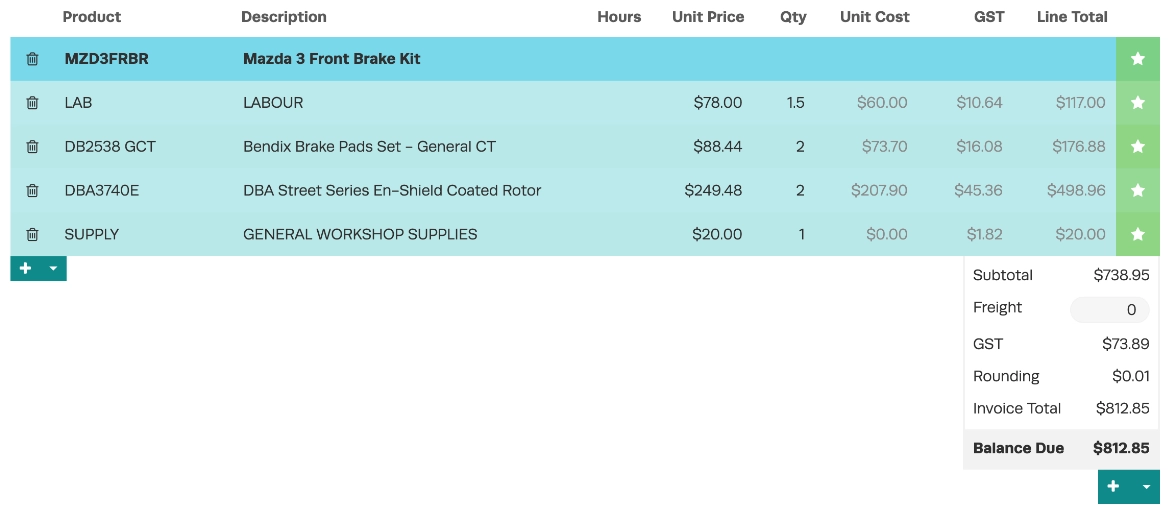
- This is how the bundle will show up on an Invoice, you can edit any of the associated products in that bundle at this point, if for example you have a specific filter you want to use on this car.
- The bundle will display on the Job Card including any Job Card Comment.
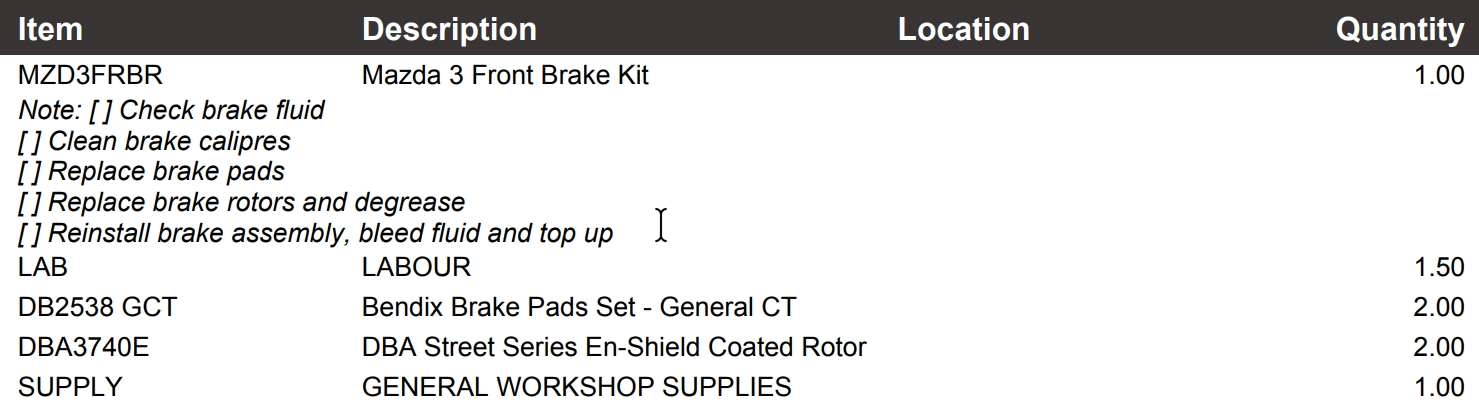
- When you send or print the invoice the Bundle will display in the invoice with any Comment.