 Skip to content
This guide will show you how to create a mobile user, who can then use the Workshop Software Mobile App to clock in and out of jobs assigned to them & add photo’s to jobs. For Gold Subscription clients mechanics can also create/action Auto Inspections, add invoice/job card notes, view & edit customer details from the app directly.
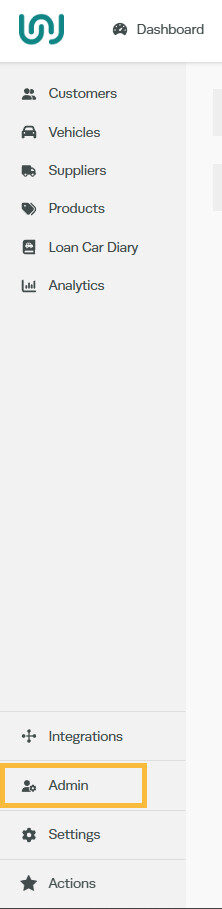
1. Click on ‘Admin’ from the left hand side navigation menu of the screen and then click on ‘Users‘
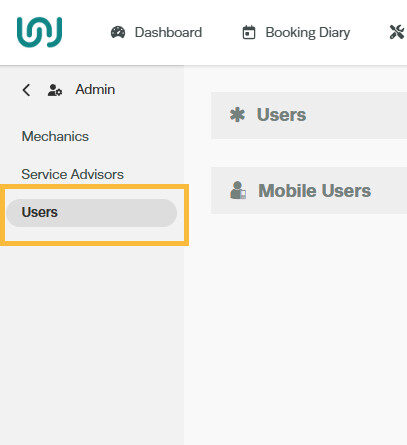
2. Click on the ‘+’ icon at the far right of the Mobile Users’ bar and then enter the user details;

3. Enter the details for the mobile user as below:

a) Switch toggle for Show Mechanic Features to Yes
b) Start typing in the Mechanic’s name to find the mechanic you want to set up for mobile app.
c) Select the Status as Active (if you wish to cancel a previously added mobile user, you can make it inactive).
d) Enter an email address (cannot be an email address already used in Workshop Software)
e) If you want to limit the mechanics from being able to see the customer’s information then switch the Limit Customer Information to Yes
f) Toggle Advanced User’s to give the mechanics the ability to see products and invoices from the mobile app. *Gold subscription only*
g) You can choose if the mechanics can see the pricing *Gold subscription only*
h) You can choose if the mechanic are able to process the invoices from the mobile. *Gold subscription only*
i) If you would like the mechanic to only see jobs that are assigned to themselves then switch the Limit Event Times to Yes *Gold subscription only*
j) Enter a password for the user & retype password in Confirm Password field.
k) Once all details have been entered click ‘Save’
For Service Advisors
Leave the Show Mechanic Feature toggle to “No“
Fill in the rest the form as per above instructions (Step b-e)
Open the Workshop Software App and enter the email and password to login
