 Skip to content
This guide shows you how to send a customer their invoice via SMS with a payment link, allowing them to view and pay directly from their phone.
Step 1: Process the Invoice
- Make sure your invoice is Processed before sending.
Step 2: Send the SMS Payment Request
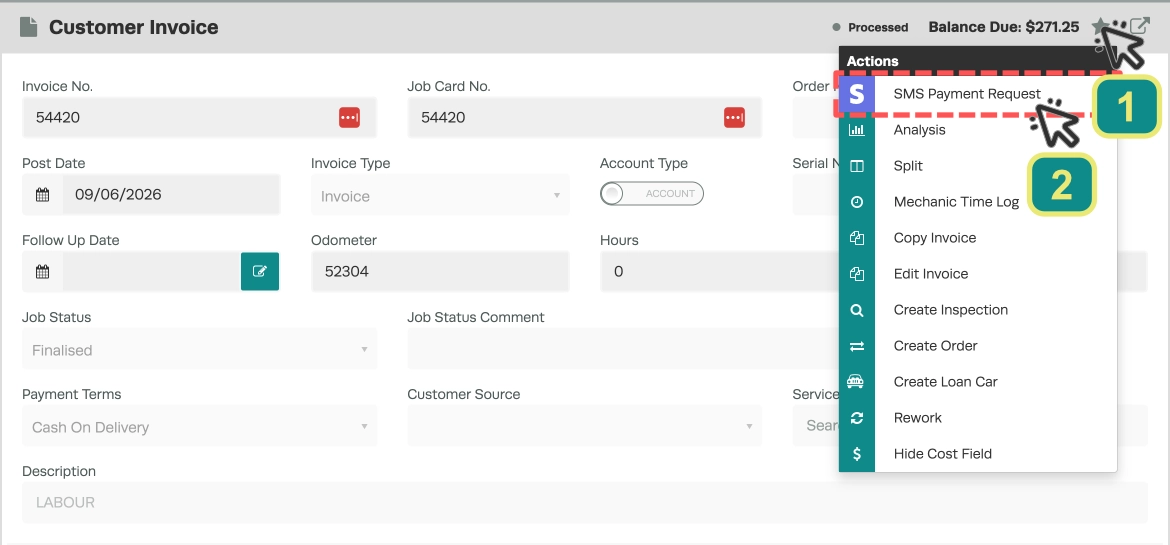
- Click the Star button (1) on the top right of the invoice.
- Select SMS Payment Request (2).
Step 3: Review and Send the Message
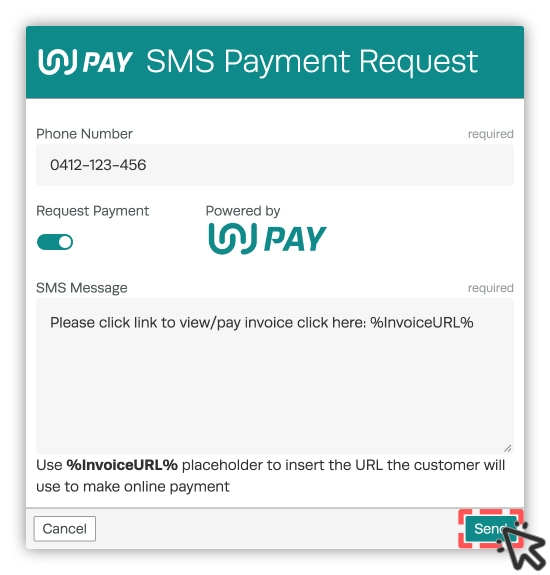
- A pop-up will appear with the customer’s mobile number and a default SMS message.
- Adjust the message if needed.
- Click Send.
What the Customer Receives
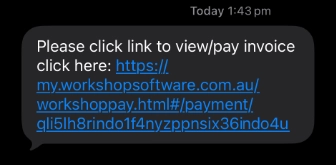
The customer will receive an SMS with a payment link:
Viewing the Invoice
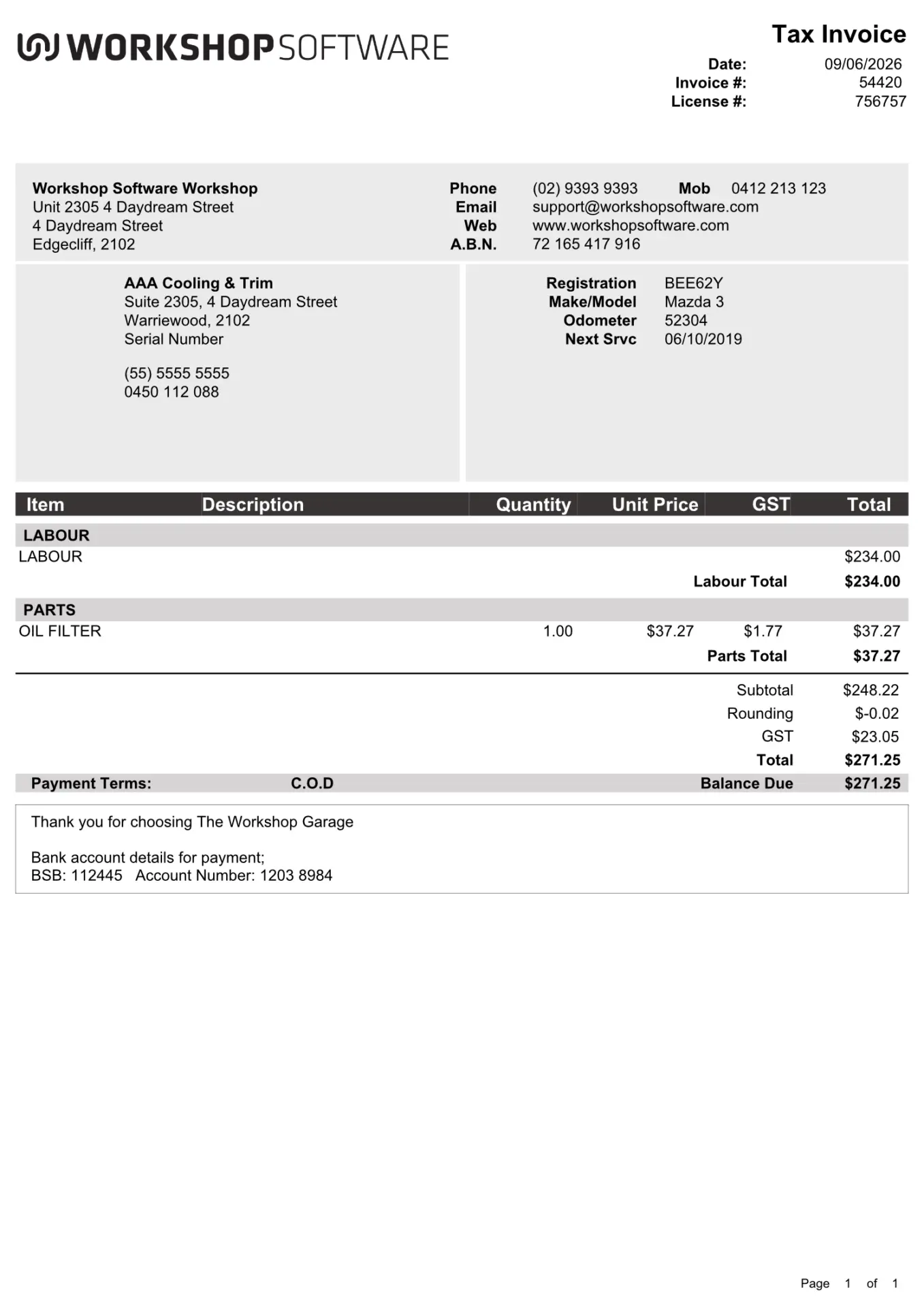
When the customer taps the link, they see an overview of the invoice.
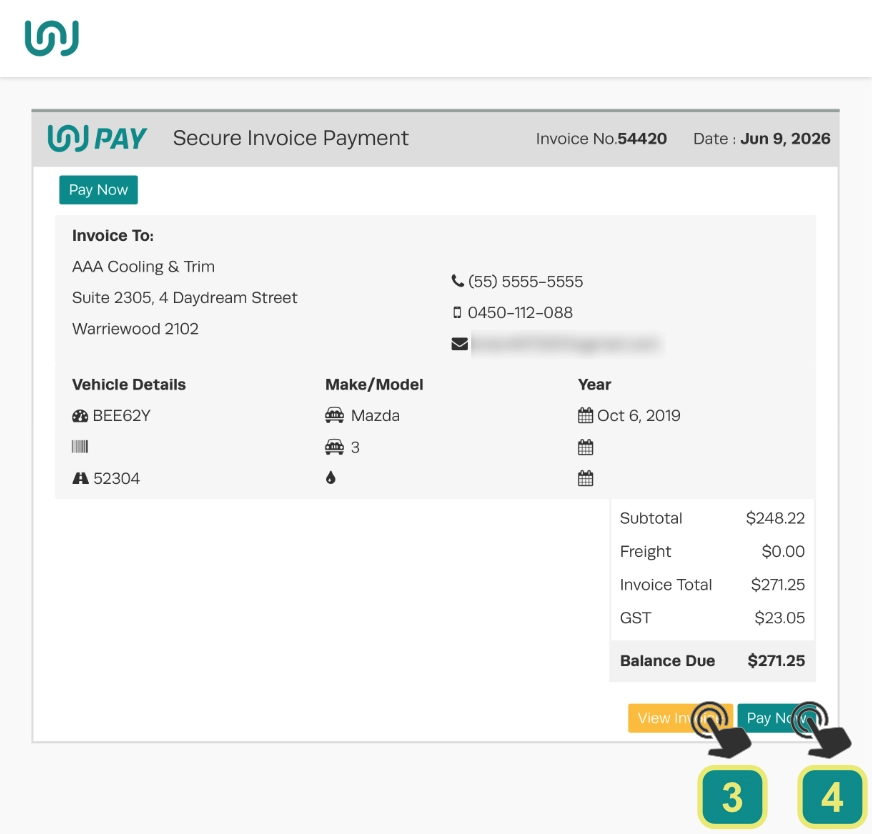
They may scroll down and press View Invoice (3) to see a full PDF of the invoice.
Making a Payment
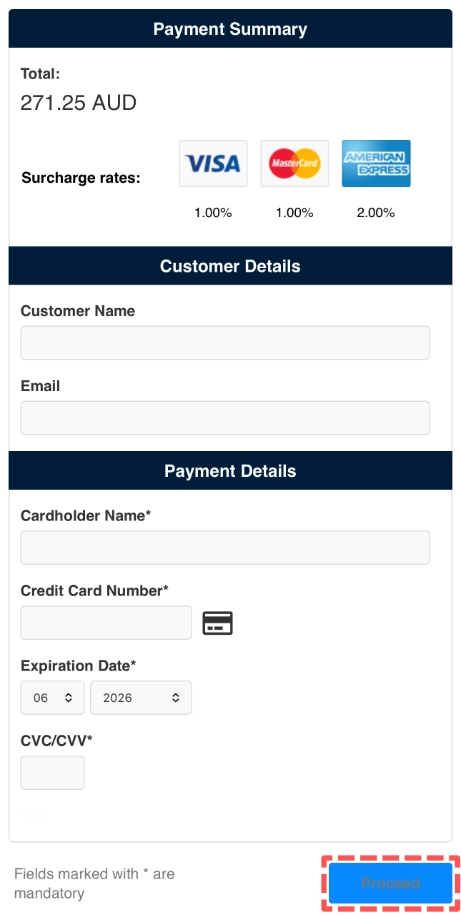
The customer can press Pay Now (4) to make a payment. They enter their card details and choose Proceed to submit.
Good to Know
- You need SMS credits to send messages. Purchase credits from Settings > SMS.
- The SMS includes a secure link that allows the customer to view their invoice and make a payment online.
- Ensure the customer’s mobile number is correct before sending.
Frequently Asked Questions
Does the customer need an account to pay?
No, the customer can view the invoice and pay directly through the link without creating an account.
Will I be notified when payment is received?
Yes, the payment will appear in Workshop Software once processed and the invoice will be updated accordingly.
