 Skip to content
This guide walks you through how to workshoppay online in Workshop Software. Follow the steps below to complete this task.
This article will help you to get the most out of the WorkshopPay Online feature. If you are yet to activate and setup your account please refer to this guide. For a video demonstration on how WorkshopPay works, checkout this page WorkshopPay Online (WPAY Online) allows you to send a payment request along with an invoice to your customers. Simply opt to send the payment link when contacting your customer via email or SMS. Once the payment has been processed Workshop Software will automatically create the payment and apply it to the relevant invoice! The requirements for sending a payment request are:- A processed invoice with an open balance.
- An address recorded against the customer record.
- An email and/or mobile number recorded against the customer record.
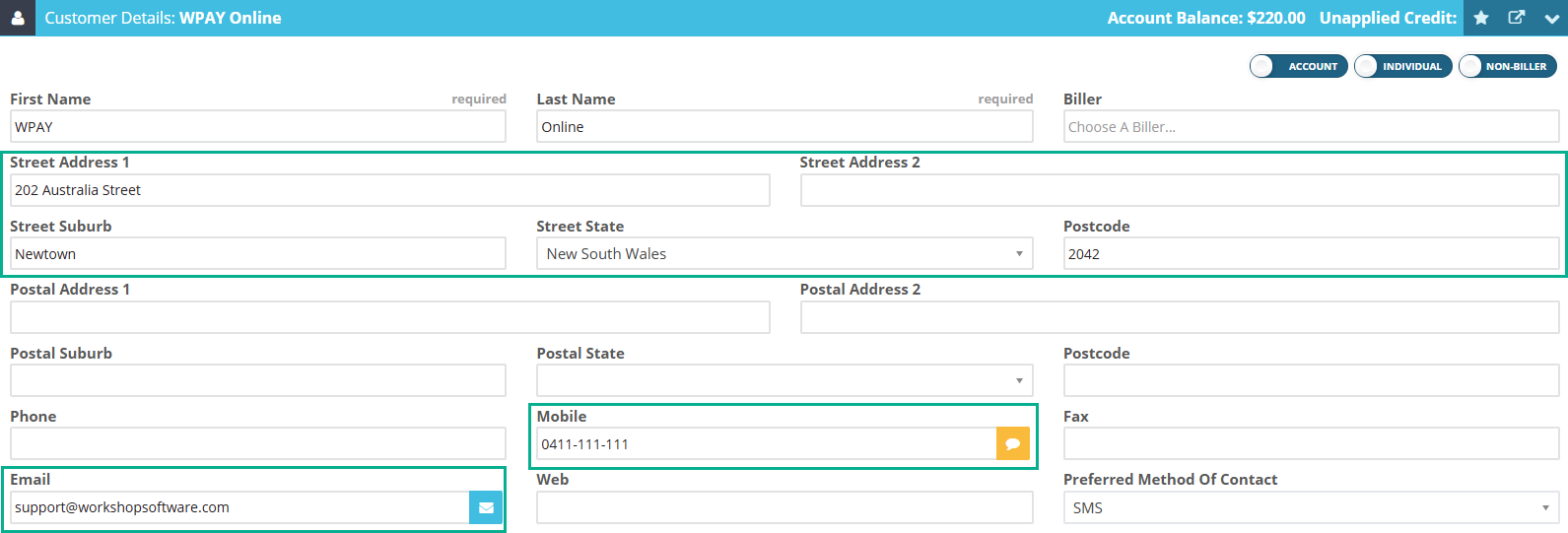 Follow these steps to send a payment request:
1. Process and finalise the invoice.
2. Select the arrow on the right hand side.
Follow these steps to send a payment request:
1. Process and finalise the invoice.
2. Select the arrow on the right hand side.
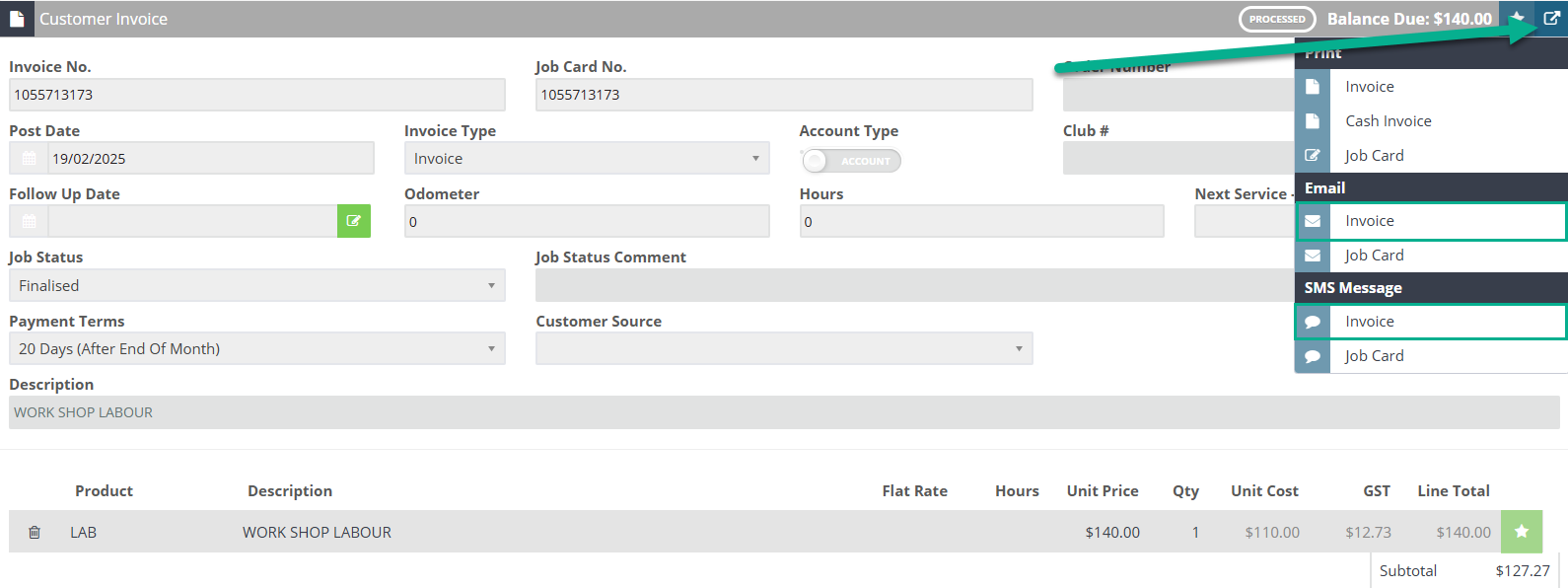 3. Select either ‘Email Invoice’ or ‘SMS Invoice’.
4. Set the ‘Request Payment’ toggle to YES. For more information on how to set up the default ‘Request Payment’ message, please refer to this guide.
3. Select either ‘Email Invoice’ or ‘SMS Invoice’.
4. Set the ‘Request Payment’ toggle to YES. For more information on how to set up the default ‘Request Payment’ message, please refer to this guide.
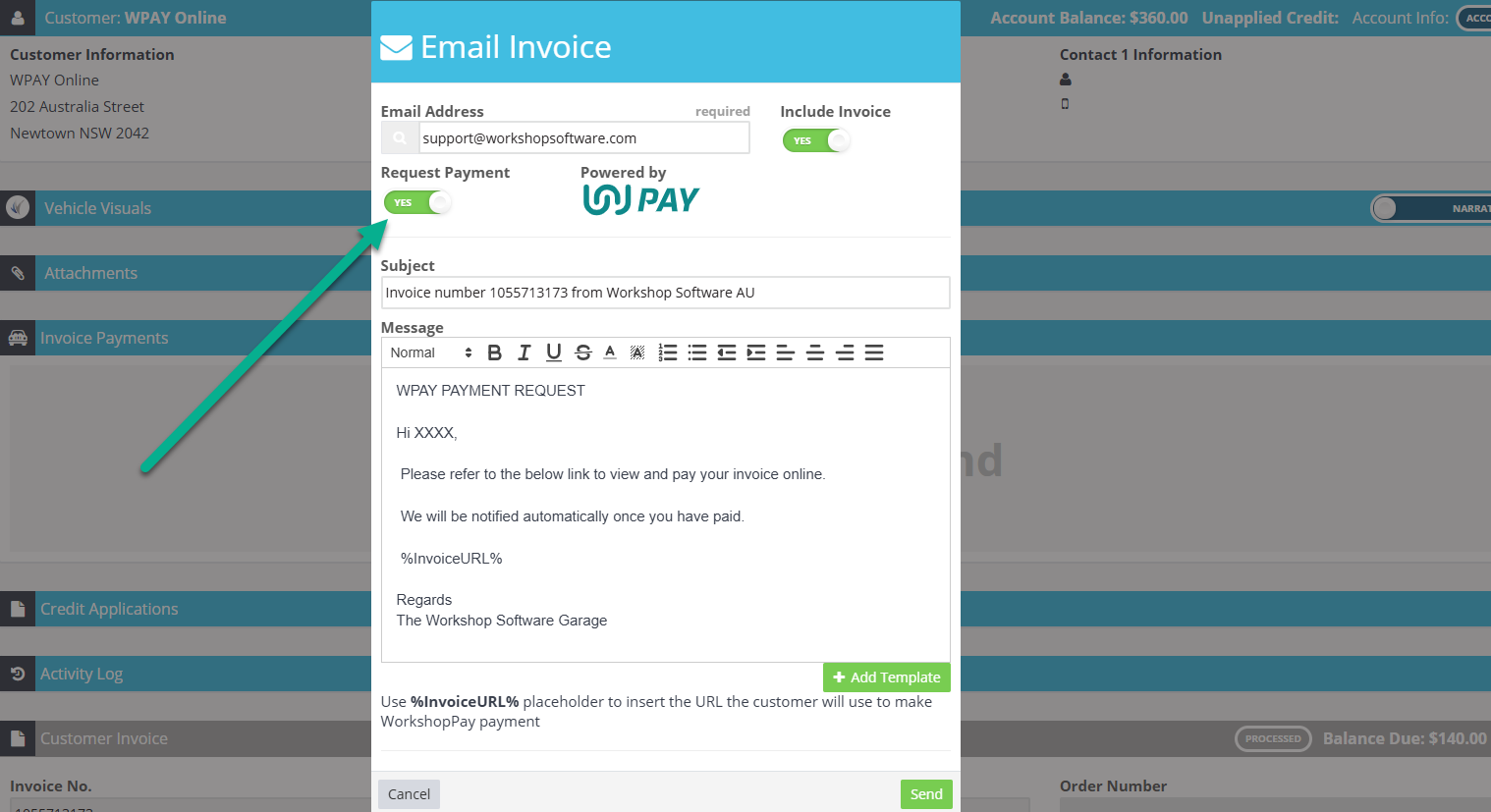 5. Select the send button.
Your customer will now receive the invoice (if included) and a payment request.
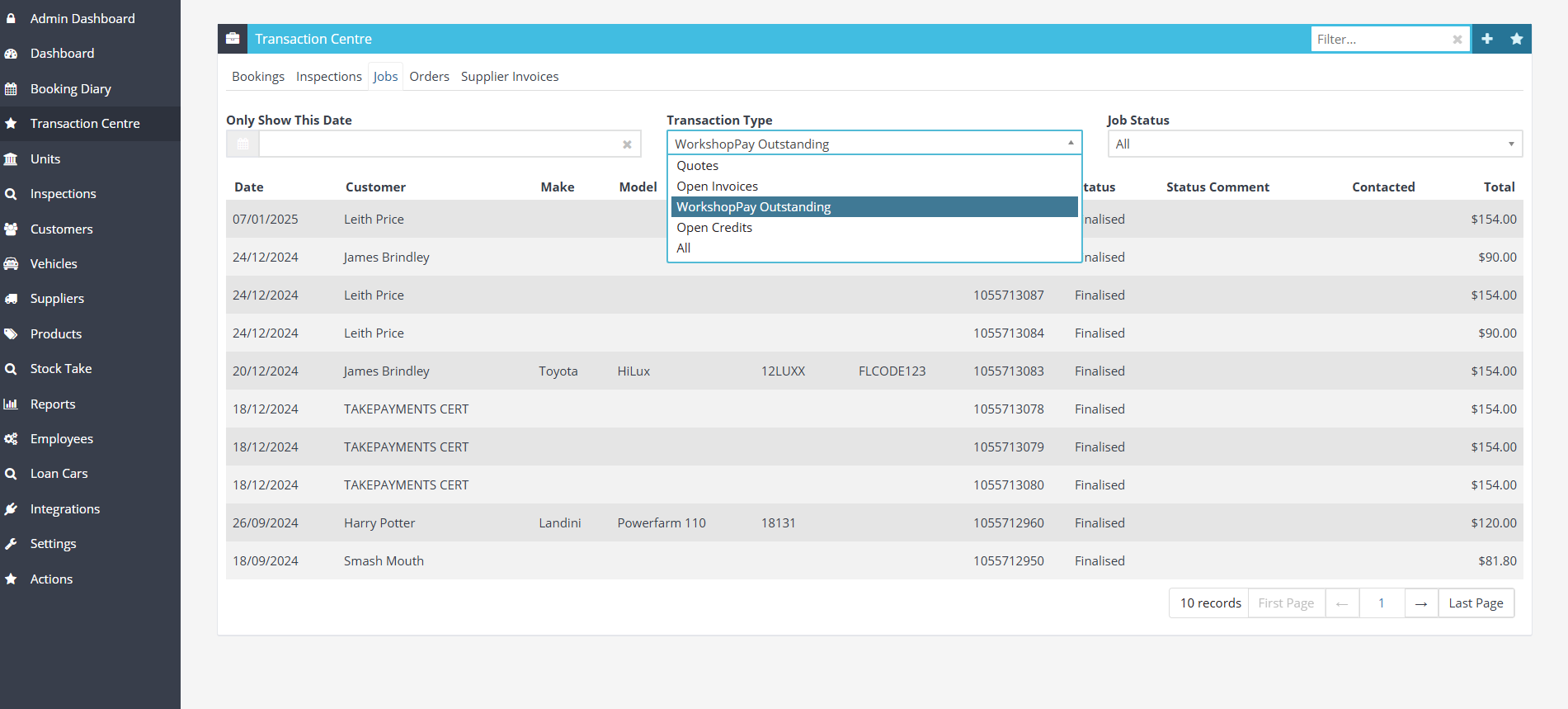
If you want to check which invoices have outstanding payment requests sent to customers you can go to the Transaction Centre, open the Jobs tab and set the Transaction Type to ‘WorkshopPay Outstanding’.
5. Select the send button.
Your customer will now receive the invoice (if included) and a payment request.
If you want to check which invoices have outstanding payment requests sent to customers you can go to the Transaction Centre, open the Jobs tab and set the Transaction Type to ‘WorkshopPay Outstanding’.
Good to Know
- This setting can be toggled on or off at any time. The change takes effect immediately once you click Save.
- This feature is also available on the Workshop Software mobile app if you have mobile access enabled on your account.
Frequently Asked Questions
Do I need a specific subscription level for this feature?
Some features in Workshop Software are available on specific subscription plans. If you do not see the option described in the steps above, check your current plan or contact the Workshop Software team to find out if an upgrade is required.
