 Skip to content
This guide walks you through how to access teamviewer in Workshop Software. Follow the steps below to complete this task.
TeamViewer allows our support team to access your computer so that we can diagnose the problem that is occurring.
You can access it via your Workshop Software account.
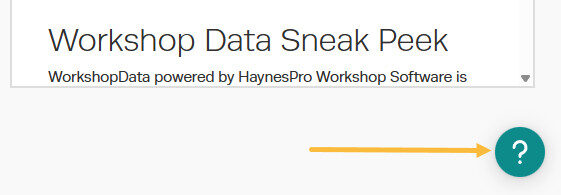
1. Once logged into Workshop Software press the ‘?‘ on the bottom right of the page;
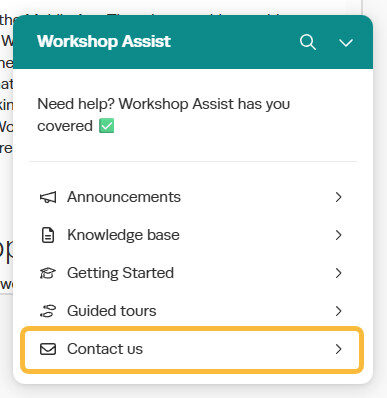
2. Click on the ‘Contact Us‘;
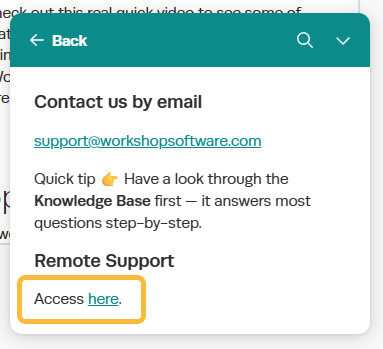
3. Click on the ‘Access here‘ link;
4. This will trigger a download of TeamViewer;
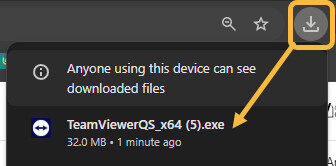
5. Once the download has finished click on it to open it up.
5. A window should appear with your ID and Password:
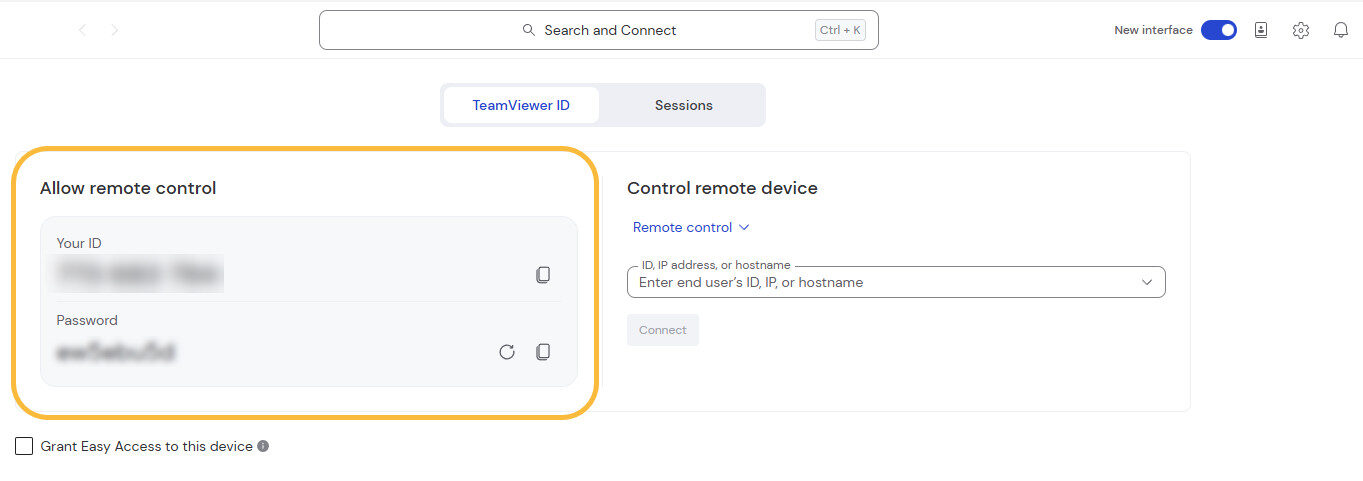
6. Please read these out to the support team member dealing with your query.
Frequently Asked Questions
Do I need a specific subscription level for this feature?
Some features in Workshop Software are available on specific subscription plans. If you do not see the option described in the steps above, check your current plan or contact the Workshop Software team to find out if an upgrade is required.
