 Skip to content
This guide walks you through how to add images/description to a sale unit in Workshop Software. Follow the steps below to complete this task.
1. Open the unit in the Unit List of the unit is already acquired, if not, create a new template of the unit to be acquired in the future.
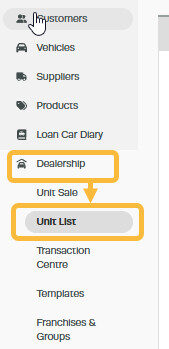
2. Click on the ‘pencil‘ icon to open the unit you wish to add a description or image;

3. Under the heading ‘Sale Description‘, add the description you would like to attach to the vehicle and press ‘Save‘.
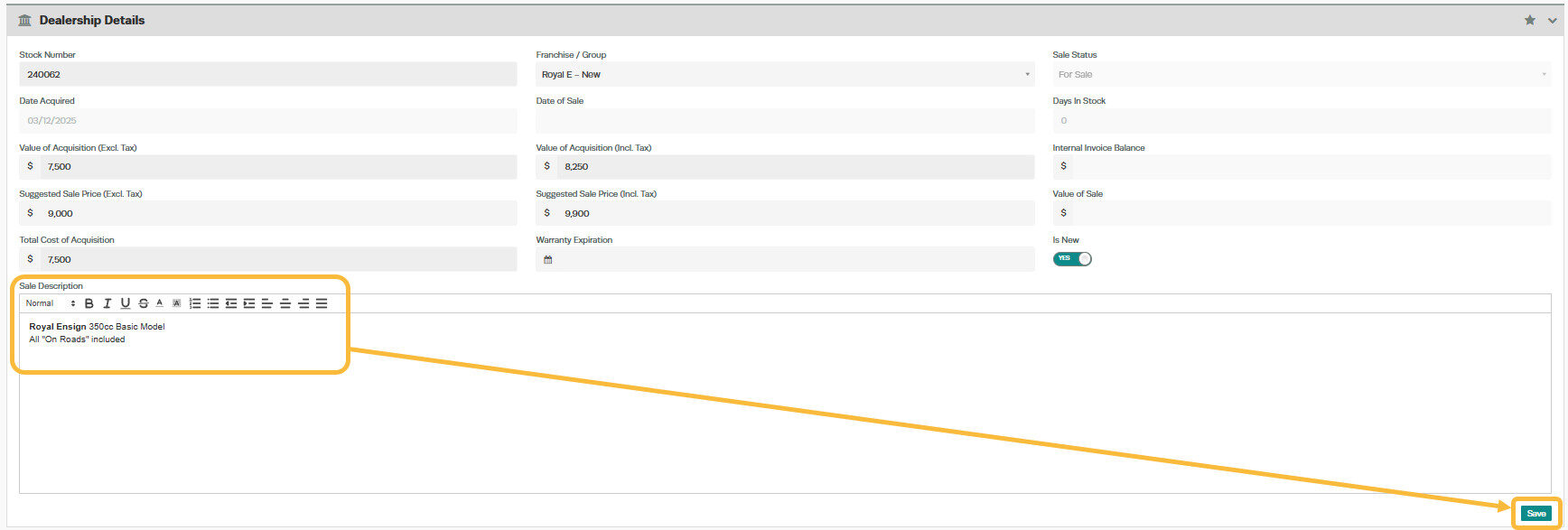
4. To add an image, scroll to the heading ‘Attachments‘, press ‘Choose File‘ to select the image you wish to attach and press ‘Upload‘.

Good to Know
- Make sure you click Save after making your changes. If you navigate away before saving, your changes will be lost.
Frequently Asked Questions
Do I need a specific subscription level for this feature?
Some features in Workshop Software are available on specific subscription plans. If you do not see the option described in the steps above, check your current plan or contact the Workshop Software team to find out if an upgrade is required.
