 Skip to content
Managing customer records accurately is important for invoicing, communication, and reporting. This guide shows you how to manage your customers who pay you via capricorn in Workshop Software so your customer information stays up to date.
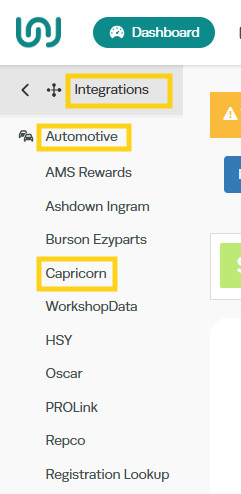
1. Activate your integration by going into Integrations – Automotive Integrations – Capricorn:
2. Activate your Capricorn integration by pressing ‘Activate CAPRICORN‘:

3. Enter your Capricorn supplier number and press ‘Save‘:

Your integration is now activated, when a customer is choosing to pay you through their Capricorn account please go through the following steps:
Steps to set up a Capricorn payment method
4. Go into the customer’s profile, enter their Capricorn Number in the Capricorn Member Number field:

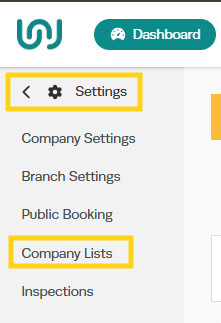
5. Next add Capricorn as a payment type by going into Settings – Company Lists:
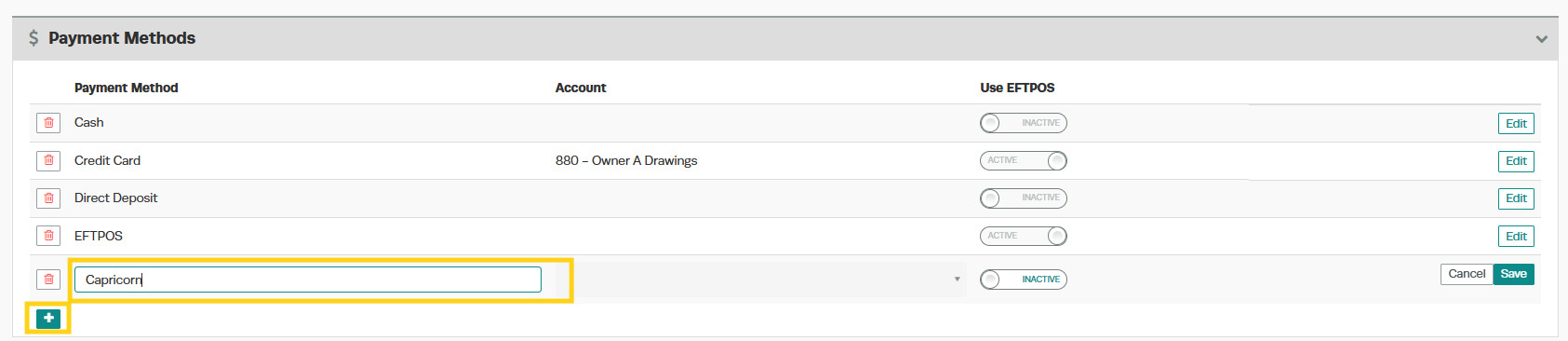
6. Scroll down towards the bottom of the Company Lists section and you will find ‘Payment Methods‘:

7. To add Capricorn as a payment method, press the green “+” button and type Capricorn in the Payment Method field box.
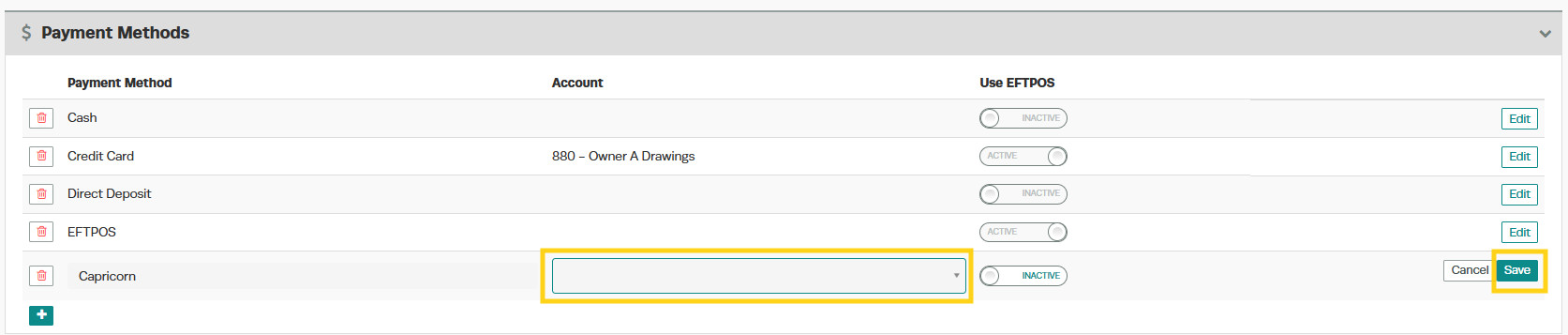
If you are integrated with Xero and are on the Gold package, you will be able to select the bank account that Capricorn payments will sync to. In the Account field, press the arrow to select the correct account, then save the changes.
Download Customers That Have Paid via Capricorn to Add To Caplink
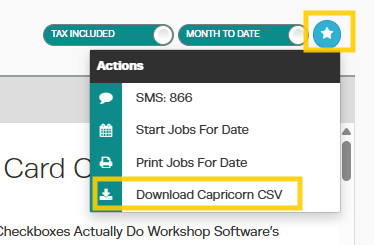
8. Go to the Dashboard, select the star icon, and download the CSV file. (This file can then be uploaded to Caplink.)
9. Select the date range by entering a Begin Date and End Date, then download the file to view the customers’ invoices that have been processed within that period.
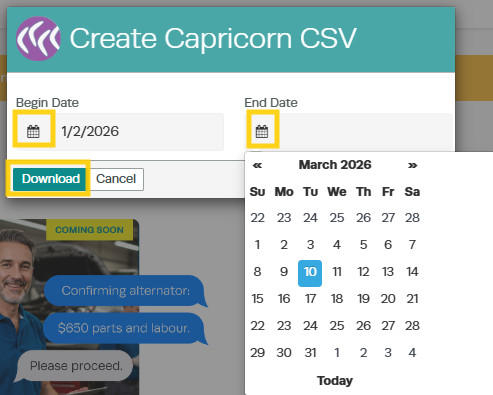
10. Once you have downloaded the CSV file, you can upload this file to Caplink.
Good to Know
- You can find this option under Settings > Company Settings in the left-hand menu.
- Make sure you click Save after making your changes. If you navigate away before saving, your changes will be lost.
- You can search for a customer by name, phone number, or email address using the search bar.
Frequently Asked Questions
Will this change affect existing invoices for this customer?
Changes to customer details (such as name, address, or contact information) apply to future invoices. Existing completed invoices retain the details that were on the invoice at the time it was created.
What is the difference between a cash customer and an account customer?
A cash customer pays at the time of service, so there is no outstanding balance. An account customer can be invoiced and given payment terms, allowing them to pay later. You can track account customer balances through the customer balances report.
Related Articles
- Edit a customer’s details
- Set up my customer’s preferred method of contact
- Send out a google review to your customers via SMS
