 Skip to content
This guide shows you how to email an invoice to a customer with a Stripe payment link, allowing them to view and pay their invoice online.
Step 1: Process the Invoice
- Make sure the invoice is processed before sending.
Step 2: Open the Email Invoice Option
- Click the Arrow button on the top right of the invoice.
- Select Email Invoice.

Step 3: Enable Payment Request
- In the email pop-up, find the Request Payment toggle.
- Set the toggle to Yes.

Step 4: Check the Email Body and Send
- Make sure the email body includes the placeholder %InvoiceURL% — this creates the link your customer uses to pay.
- Click Send.

What the Customer Receives
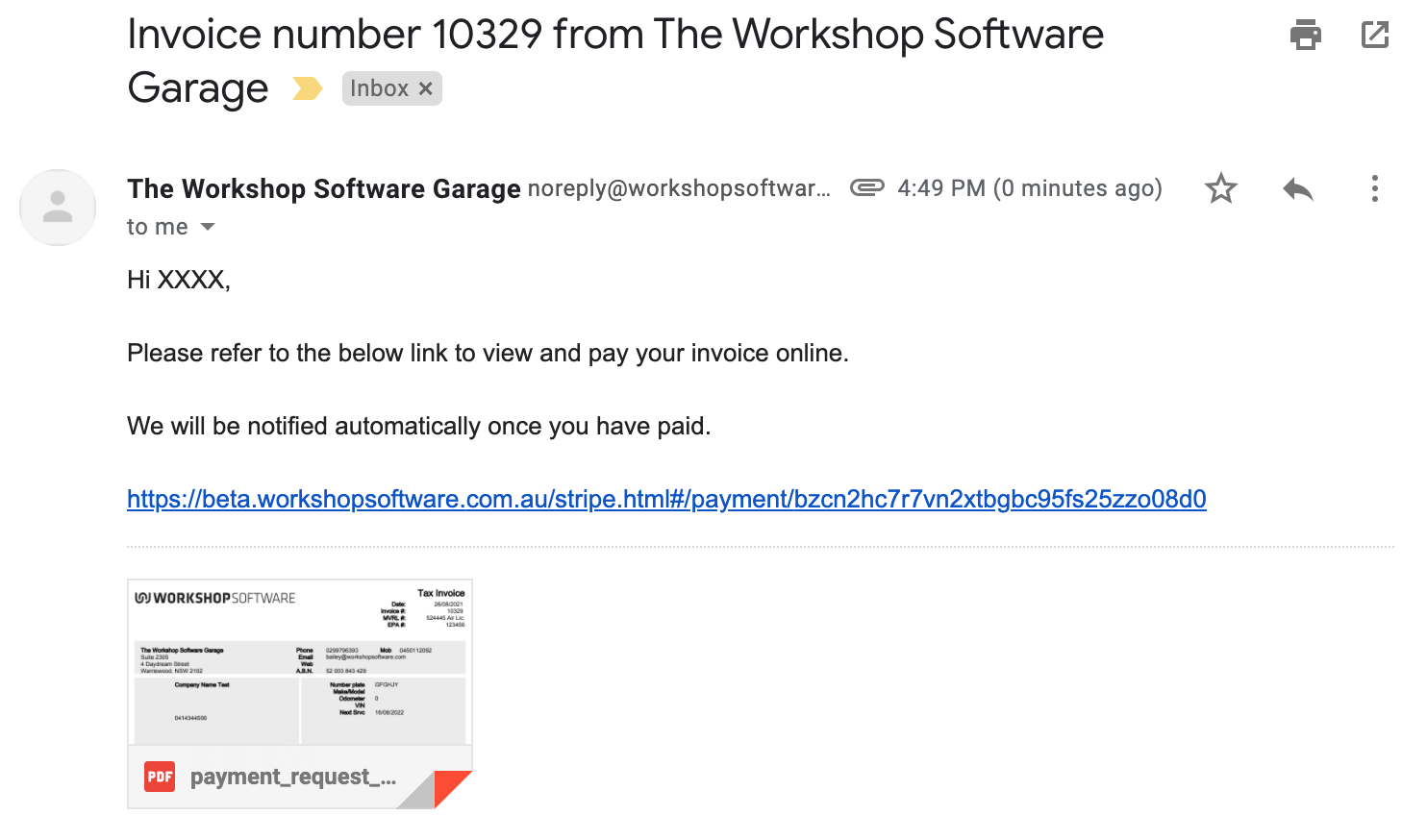
The customer receives an email with a link to view and pay their invoice:
Payment Screen
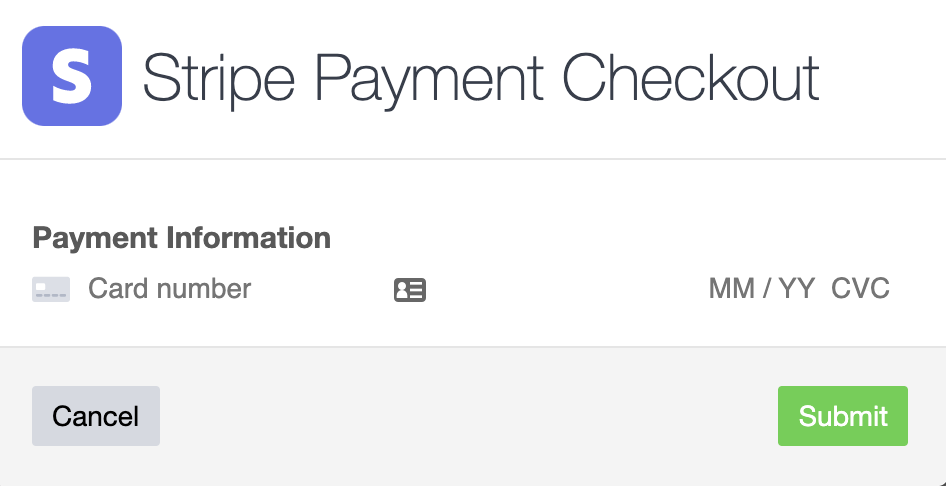
When the customer clicks the link, they are taken to the payment screen:


Payment Confirmation
After payment is processed, the customer sees a confirmation:

Good to Know
- You must have Stripe integrated with Workshop Software for this feature to work. Set up Stripe in Settings > Payment Integrations.
- The %InvoiceURL% placeholder is required in the email body — without it, the customer will not receive a payment link.
- Payments made via Stripe are automatically recorded against the invoice in Workshop Software.
Frequently Asked Questions
What if the customer does not pay immediately?
The payment link remains active. The customer can return to it at any time to complete payment.
Will I be notified when payment is received?
Yes, the payment will appear in Workshop Software once Stripe processes it, and the invoice status will update accordingly.
