 Skip to content
Instead of keeping multiple customers or vehicles in your system that are no longer relevant, but still require retaining the information for future reference, you can archive a customer, a vehicle, or both. This allows you to maintain historical records so that if the customer calls in requiring a vehicle history, you can access the information easily. Archiving can be done in just two simple steps, giving you full access to historical data without cluttering your active customer or vehicle lists.
Archive a Customer
- Go to the Customer tab or use the universal search to find the customer.

Open the customer profile.
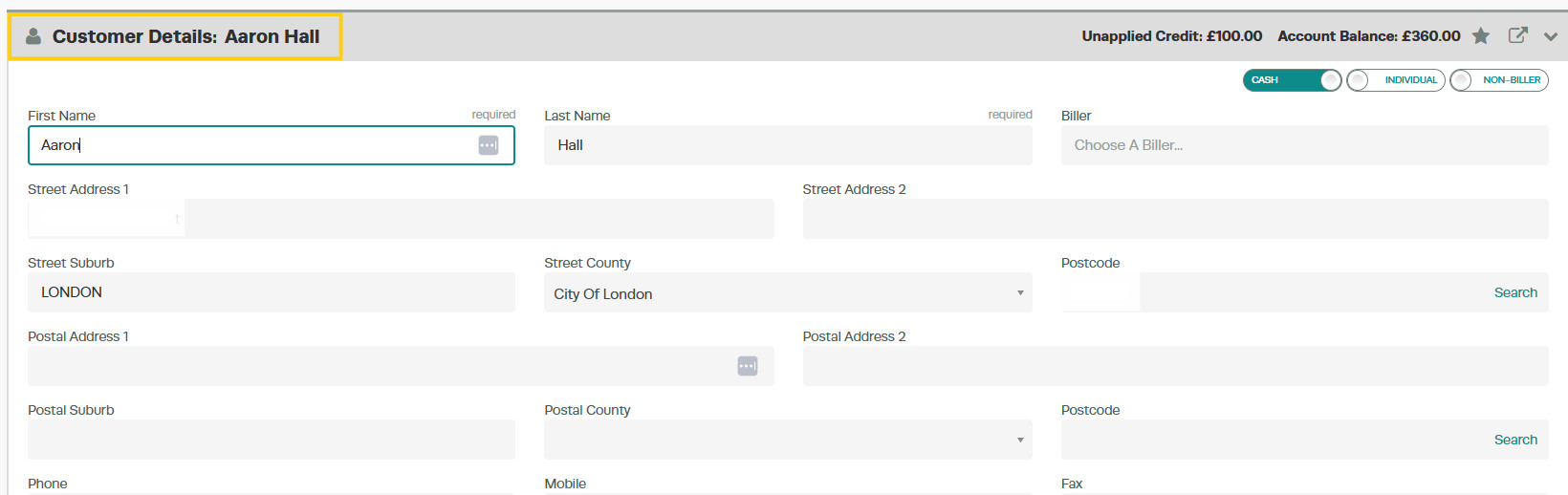
Scroll to the bottom of the profile and select Archive > Save
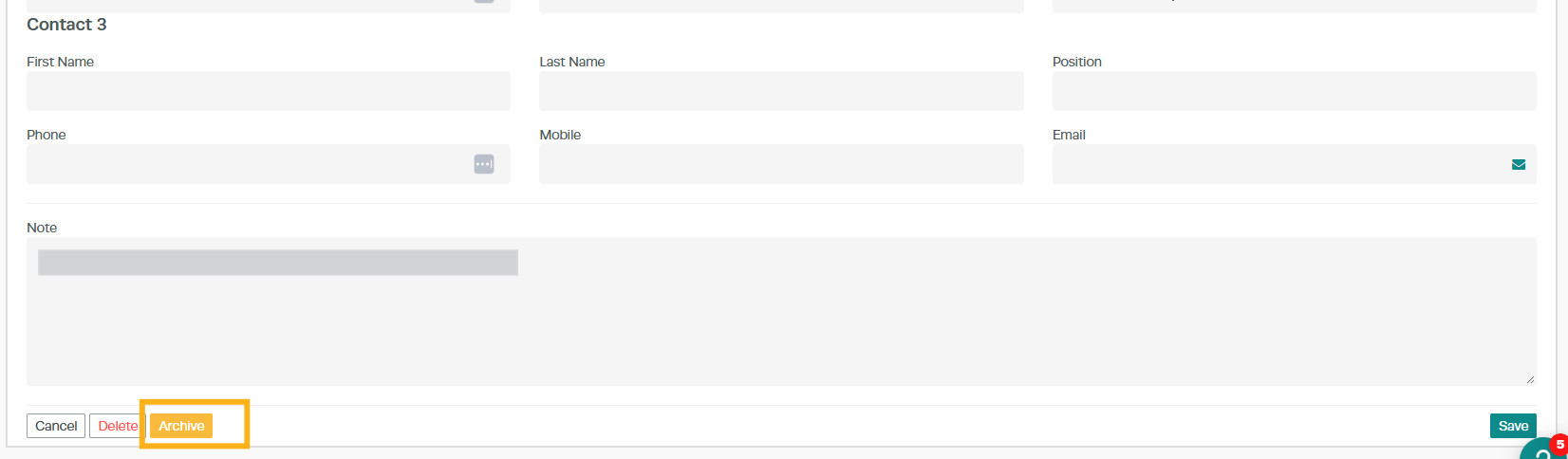
Note: If the customer has associated vehicles, archiving the customer will automatically archive all associated vehicles.
Archive a Vehicle
Go to the Vehicle tab or use the universal search to find the vehicle.

Open the vehicle profile.
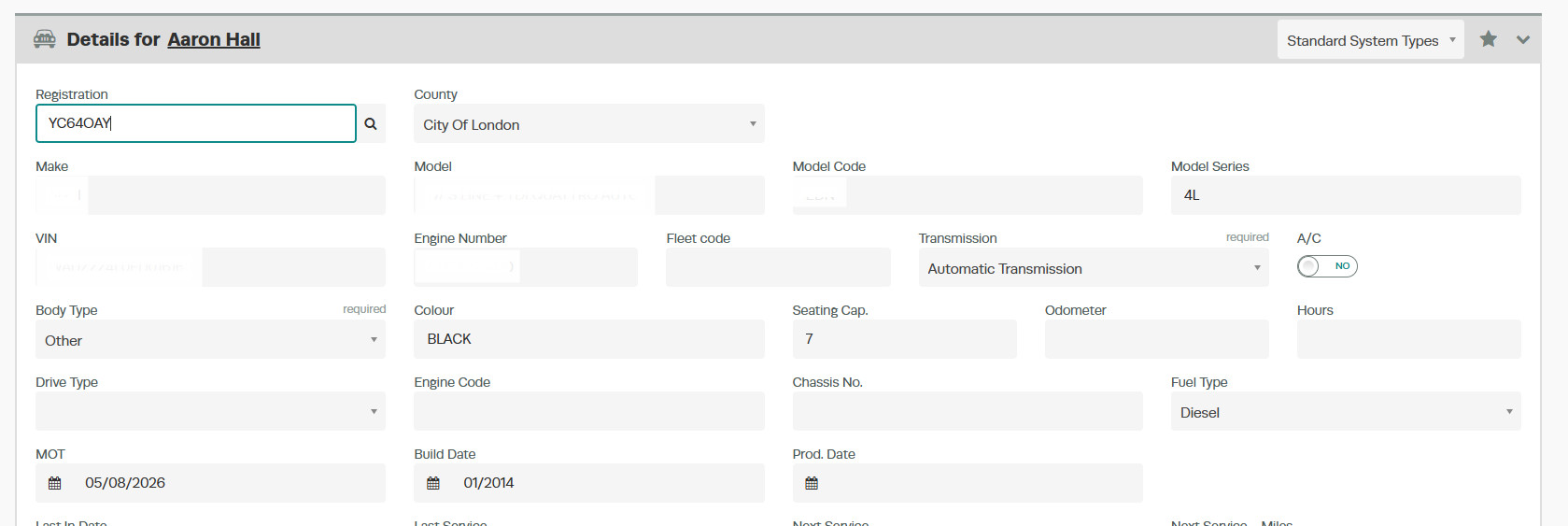
Scroll to the bottom of the profile and select Archive > SAVE
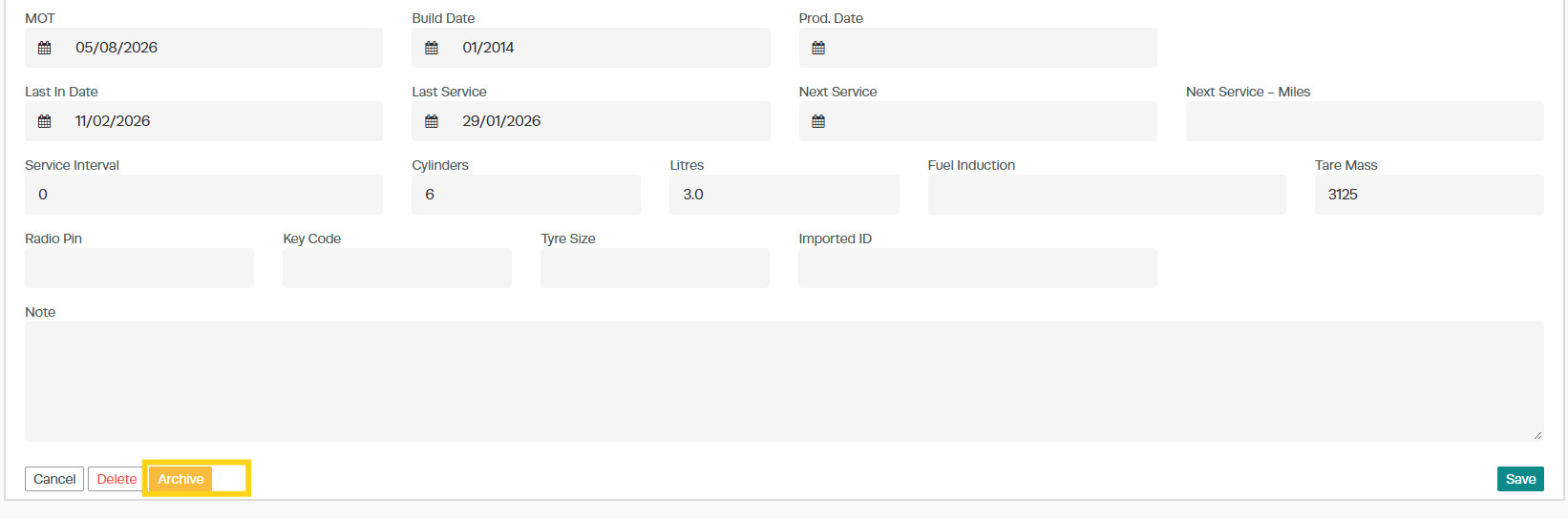
Unarchive a Customer
Go to the Customer tab and change the Active toggle to Inactive.

Search for the vehicle using the filter. Click the blue pencil icon at the end of the vehicle line.

This will open the Customer profile.
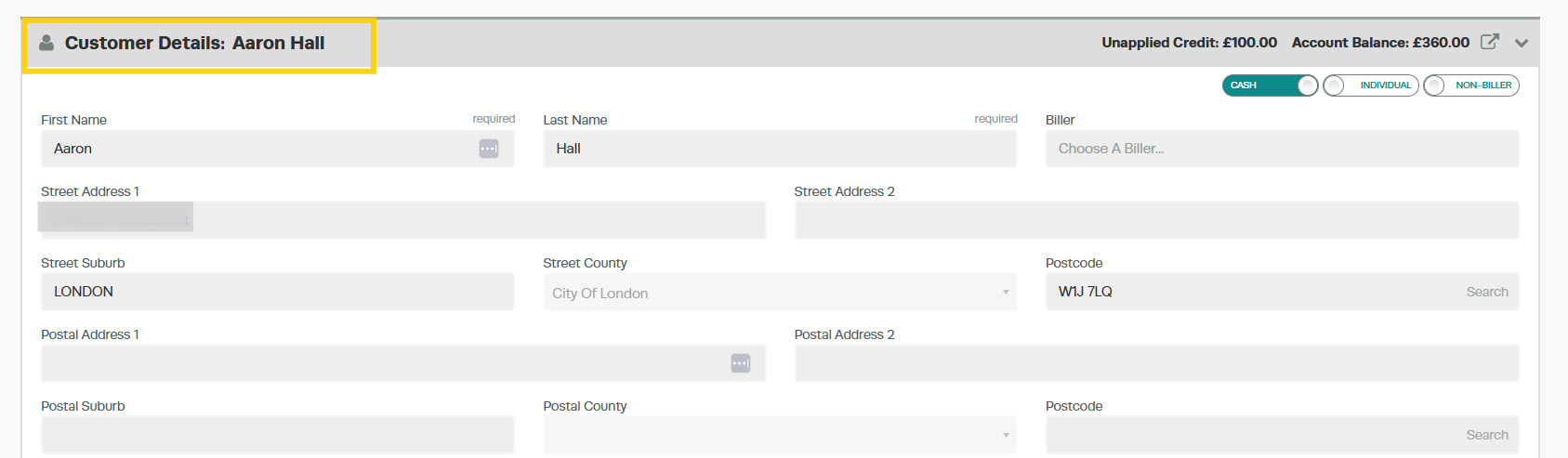
Scroll to the bottom and click the yellow Unarchive button.
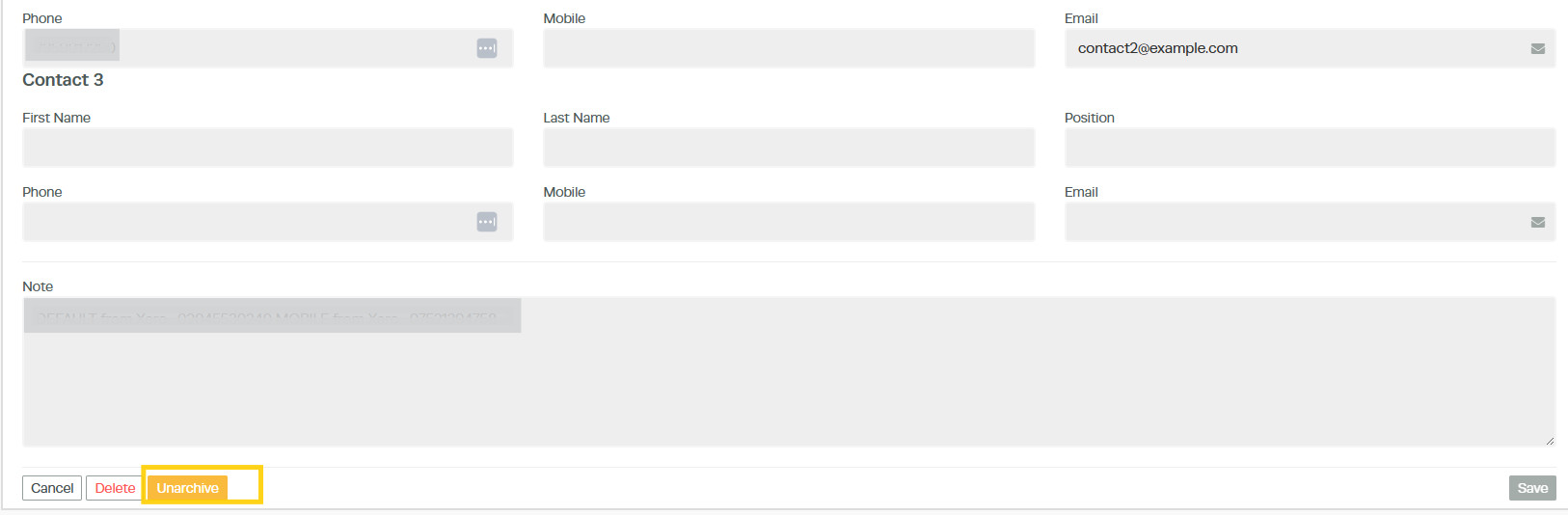
Click Save. The Customer will now be unarchived.
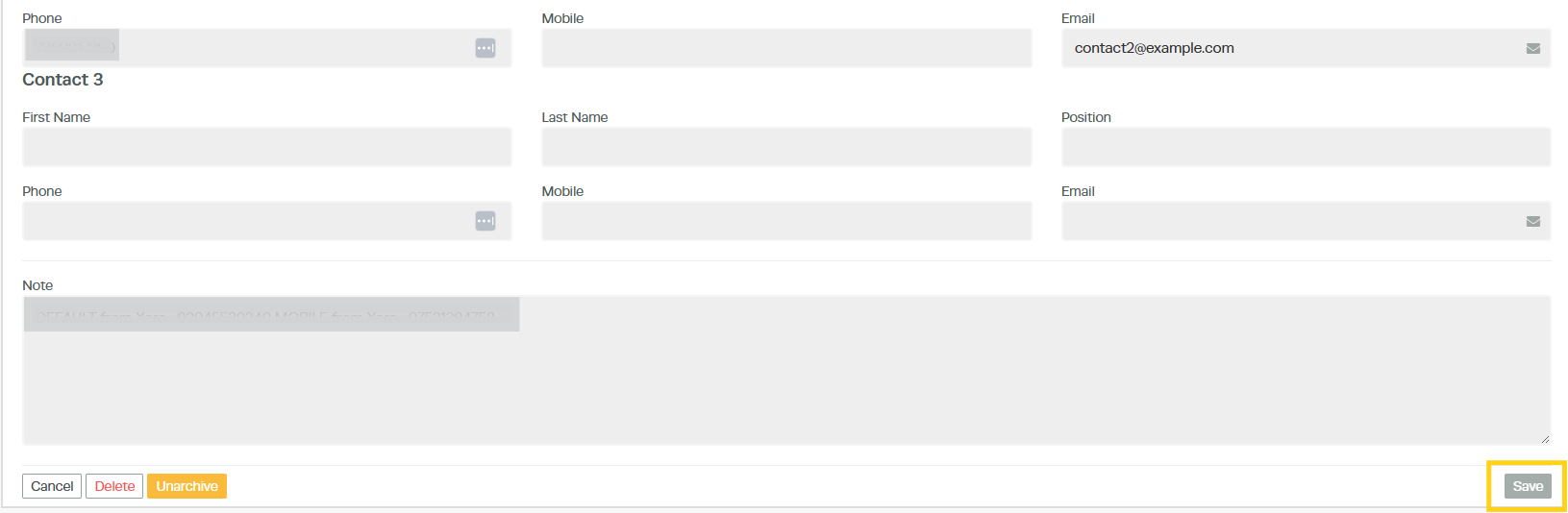
Note: If the customer has any associated vehicles, you will need to unarchive each vehicle separately.
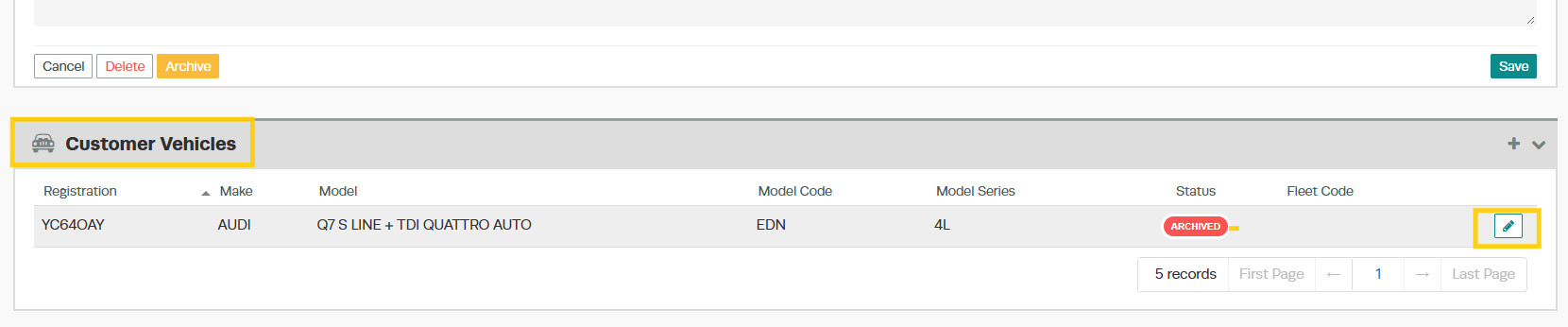
Scroll down to the Customer Vehicle field under the customer profile, you will see the vehicle status is Archived
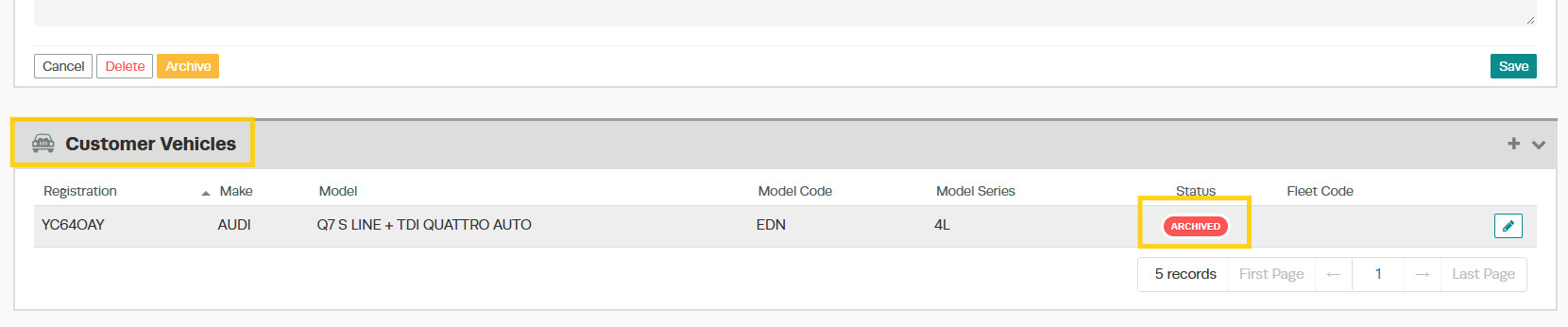
Click on the Pencil on the vehicle line
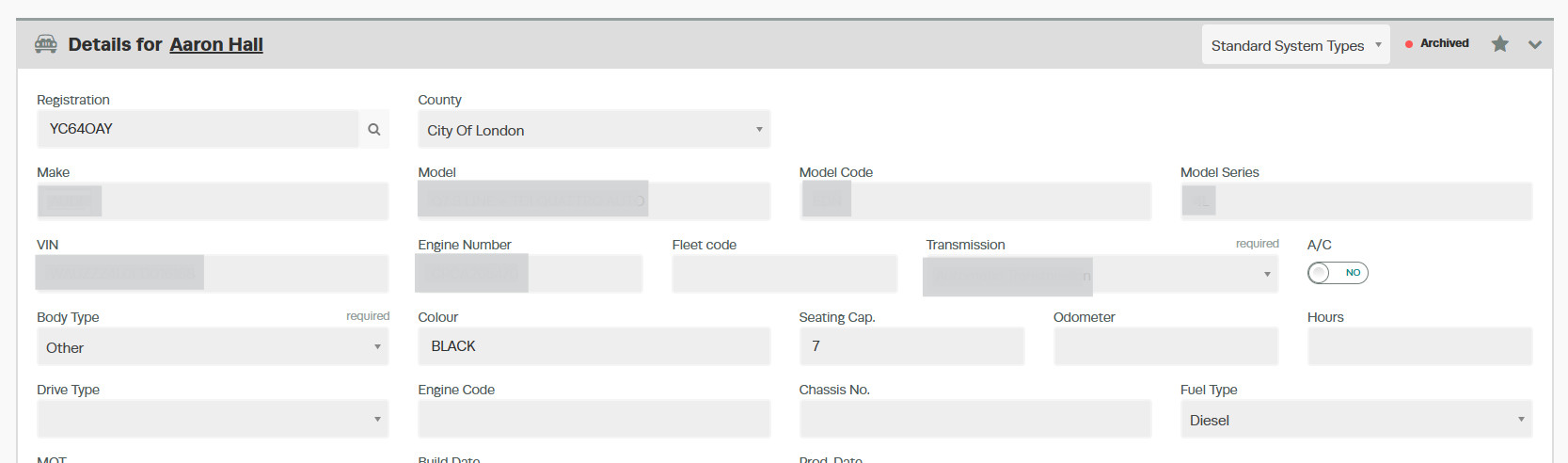
This will then open the vehicle profile
Press Unarchive yellow button > Save
 Unarchive a Vehicle
 Go to the Vehicle tab and change the Active toggle to Inactive.

Search for the vehicle using the filter.

Click the blue pencil icon at the end of the vehicle line to open the profile.

Scroll to the bottom and click the yellow Unarchive button.
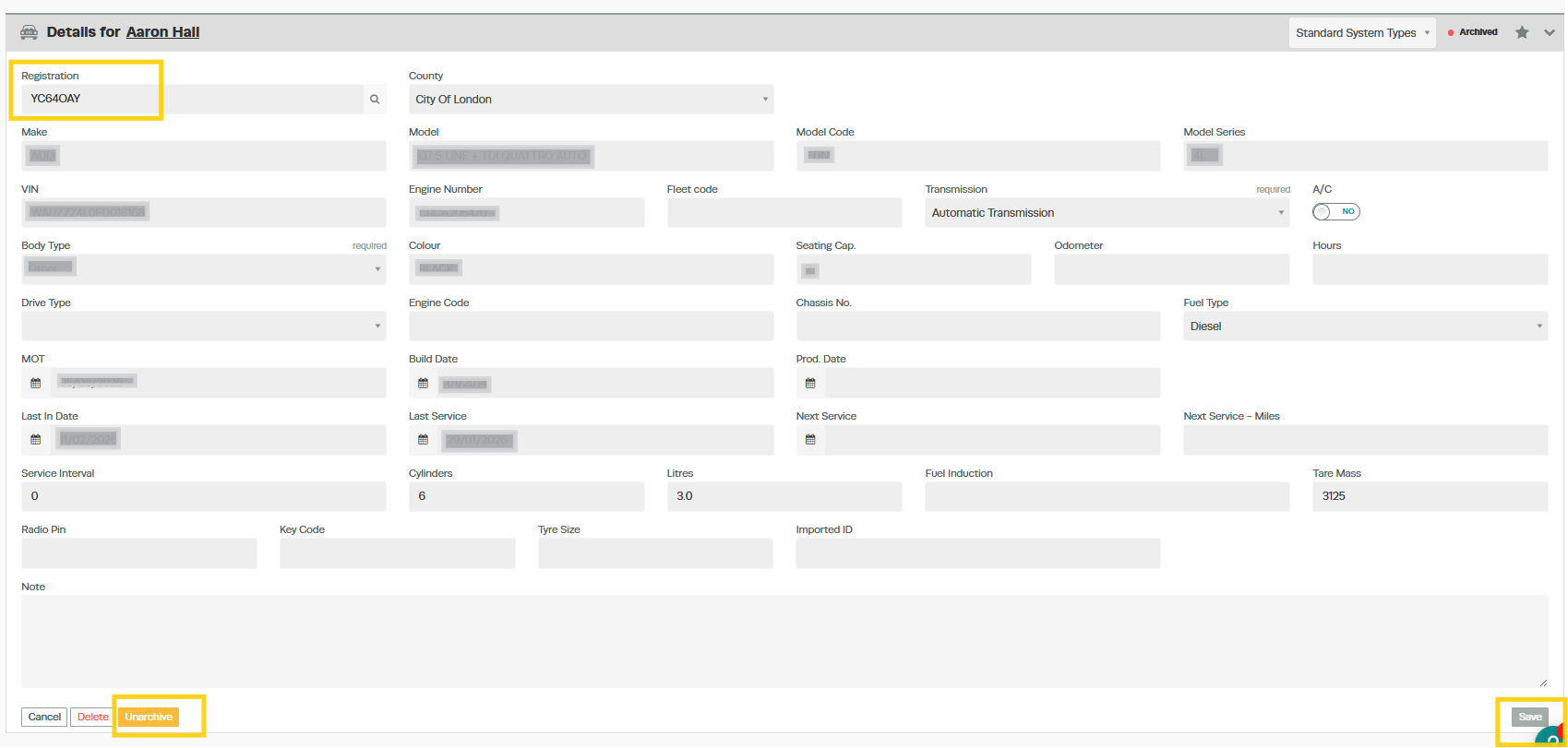
Click Save. The vehicle will now be unarchived.
