 Skip to content
Two-Way SMS in Workshop Software allows you to communicate directly with customers via text message without leaving the system. You can send invoices, pickup notifications, booking confirmations, and have real-time conversations — all tracked within the software.
Step 1: Send an Invoice or Quote via SMS
- Open the customer’s quote or invoice in Workshop Software.
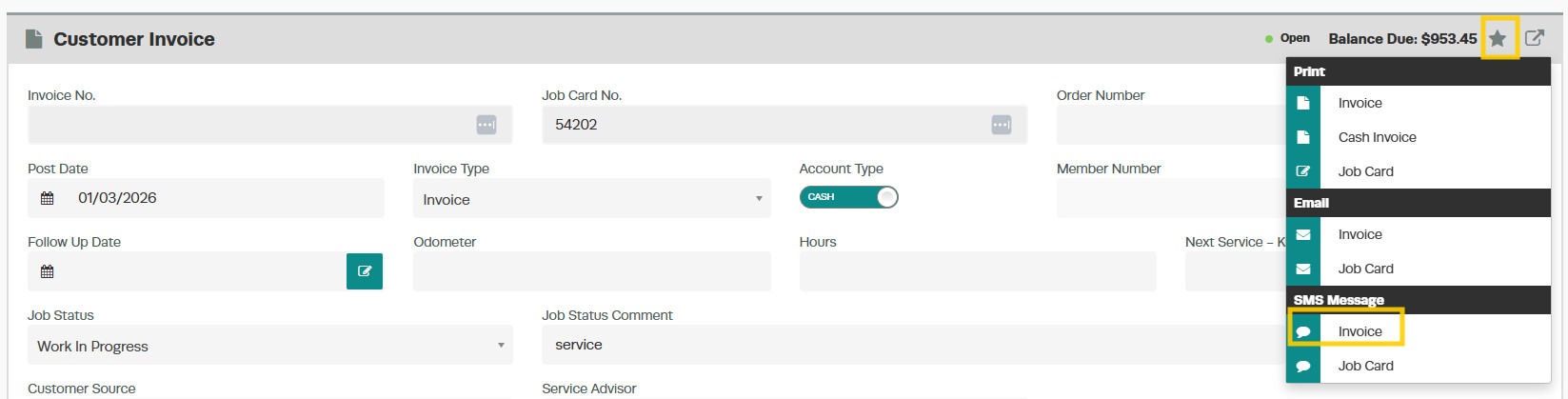
- Press the Action Star and select the SMS option.
- Compose your message. This may include:
- Pickup notifications
- General updates
- Invoice notifications
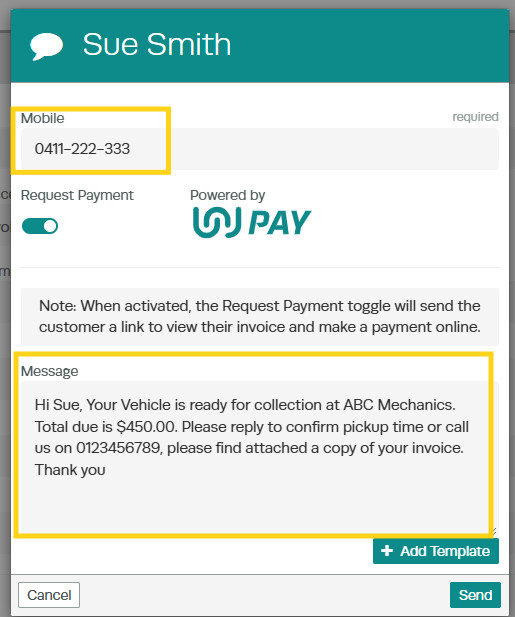
- Press Send to deliver the message.
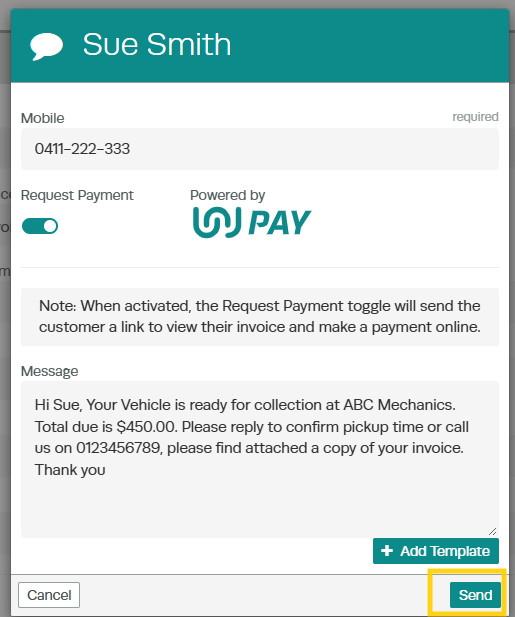
Once sent, the SMS icon will flash briefly to confirm the message has been successfully sent.

Step 2: Send a Pickup Notification Without an Invoice
- Go to the Customer tab.
- Select the SMS Icon.

- Write your message — for example: “Your vehicle is ready for pickup. Please let us know when you will be collecting your vehicle.”
- Press Send.
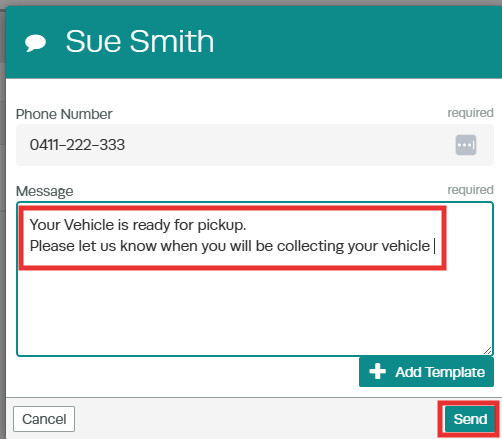
The customer will receive the SMS message and can reply instantly to confirm their pickup time.
Step 3: Send a Booking Confirmation via SMS
- Create the booking in the system. See How to Create a Booking for instructions.
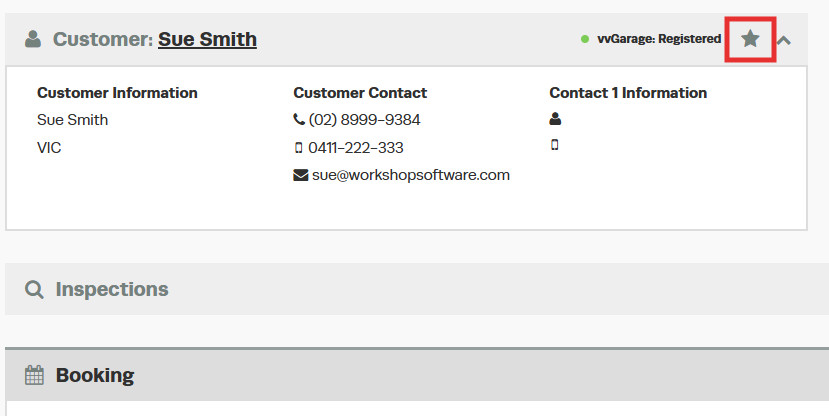
- Click the Action Star next to the customer’s name.
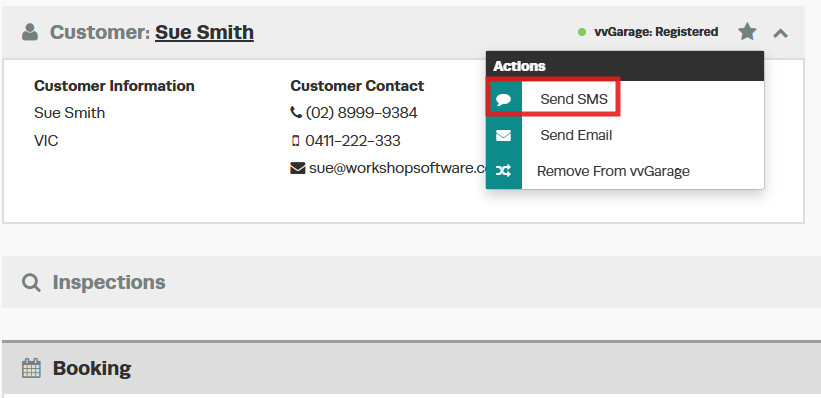
- Select Send SMS.
- Type your message and press Send.
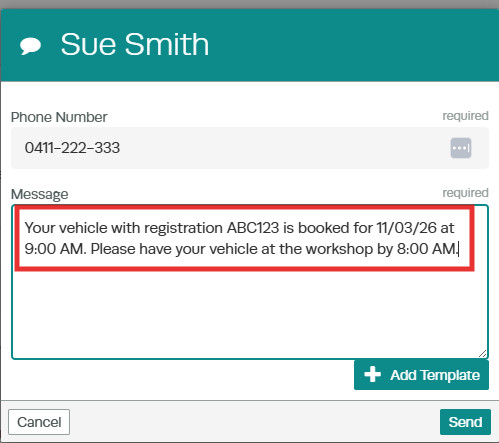
The customer will receive the booking confirmation via SMS and can confirm by replying to the message.
Step 4: Receive and View Customer Replies
When a customer replies:
- The SMS icon will flash briefly.
- A number will appear next to the SMS icon indicating how many unread messages you have.
- Click the SMS icon on the dashboard.

- Open the conversation thread.
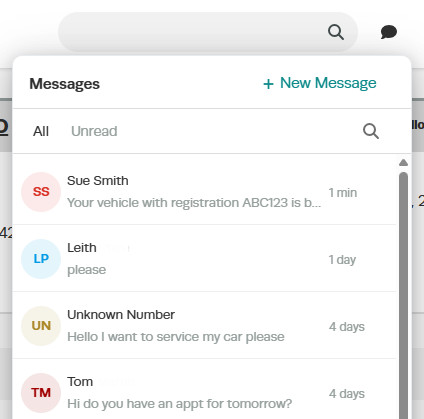
- Select the customer’s name in the message thread to view their message.
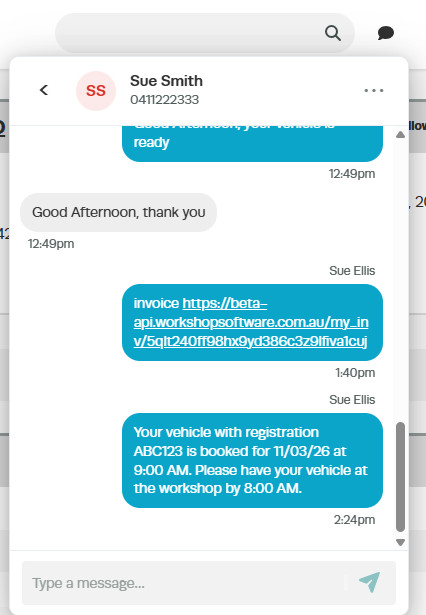
- Type your reply in the reply field and click Send to continue the conversation.
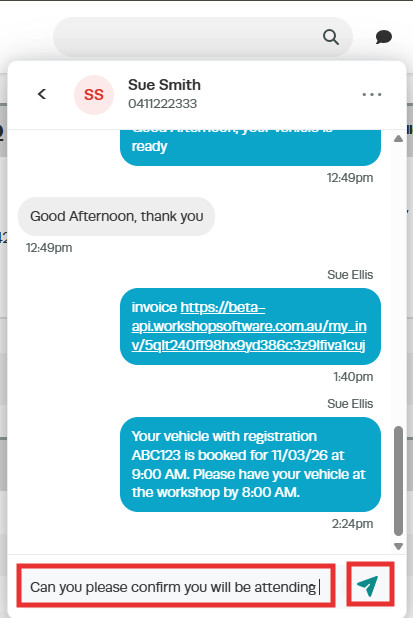
Step 5: Start a New SMS Conversation
You can start a conversation with any customer at any time.
- Click the SMS icon on the dashboard.

- Select New Message.
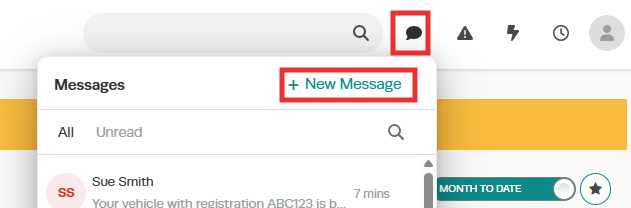
- Type the customer’s name in the field at the top and select the correct customer to begin the conversation.
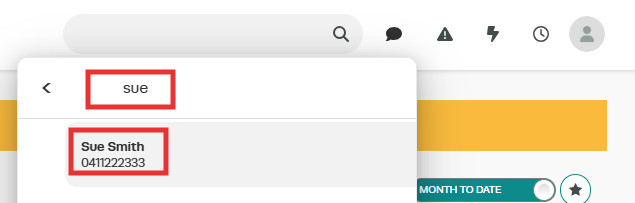
- Type your message in the message field, then click Send.
Step 6: Search for Previous SMS Conversations
If you need to check whether you have already messaged a customer, you can search your conversation history.
- Click the SMS icon on the dashboard, then click the magnifying glass.
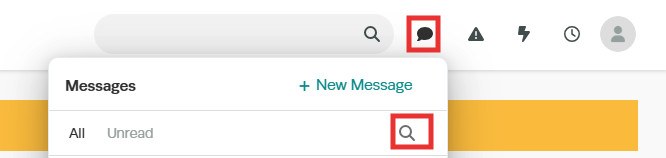
- Enter the customer’s name.
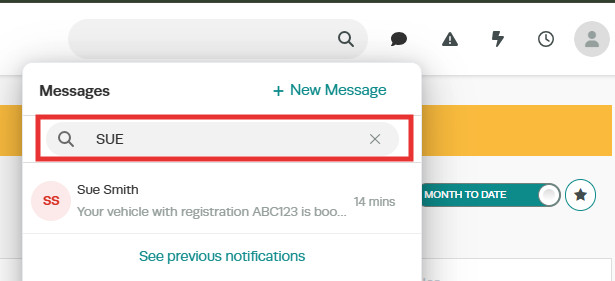
- Select the customer from the results to view any previous SMS conversations.
Keeping all SMS conversations within Workshop Software ensures you always have a record of customer communication, making it easy to track and follow up.
Good to Know
- The SMS number provided is a dedicated number for your business.
- Calls cannot be made or received on this number — it is for SMS messaging only.
- Inspection links cannot be sent through SMS.
- Pictures or PDFs (MMS — Multimedia Messaging Service) cannot be sent through SMS messages.
