 Skip to content
Price Matrix
The following guide provides step-by-step instructions on setting up and pushing your Price Matrix to the branches in your Multi-Branch account.
Please note: the Price Matrix feature is available for all customers with Gold or Platinum accounts. However, this guide is specifically tailored for those with Platinum Head Office Multi-Branch account.
Steps to Set Up and Push the Price Matrix
- Log into Your Head Office Multi-Branch Account
Navigate to your account and access the Price Matrix feature on the left-hand side menu, under Settings.
2. Set Up Your Price Matrix
Configure the Price Matrix according to your pricing strategy. Refer to the Set up a Price Matrix article for detailed setup instructions.
3. Save the Price Matrix
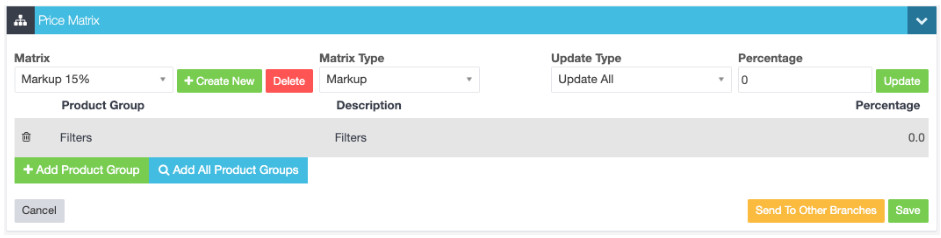
Once you have configured the Price Matrix, press the Save button to save your settings.
4. Push the Price Matrix to Other Branches
After saving, press the “Send to Other Branches” button. This action will initiate the process of pushing the new or updated Price Matrix to all linked branches:
5. Confirm the Action
If a warning message asks if you would like to continue, click “Yes”. This confirmation ensures that you want to proceed with updating the branches.
6. Matrix Update Confirmation
A green bar will appear, indicating the matrix was updated across your branches. This confirms that the Price Matrix has been successfully pushed to all other branches.
7. Verify the Price Matrix in other Branches
You will now be able to find the updated Price Matrix in the other branches, ensuring consistency across your multi-branch setup.
By following these steps, you can efficiently manage and distribute your Price Matrix across all branches. If you have any questions or need further assistance, please email us at support@workshopsoftware.com
We greatly value your feedback and invite you to share any suggestions about this feature in our Feature/Change Suggestions Portal. You are welcome to vote for existing ideas and participate in discussions, helping us to continuously improve and better serve your needs.
