 Skip to content
Integrating Repco automatic invoice feature with Workshop Software connects the two systems so data flows between them without manual entry. Once set up, this integration saves time and reduces the chance of errors when working across platforms. Follow the steps below to configure the integration.
**NOTE: Available to Australian and New Zealand Users This guide will go through how to activate the new Repco automatic invoice feature! This will mean that you can receive invoices and credits directly into your Workshop Software System. 1. Open up the Repco integration in Workshop Software by clicking on Integrations – Automotive Integrations – Repco:
 2. Use the following guide to set up your integration: https://staging.workshopsoftware.com/knowledge-base/automotive-integrations/how-do-i-integrate-workshop-software-with-repco-navigatorpro/
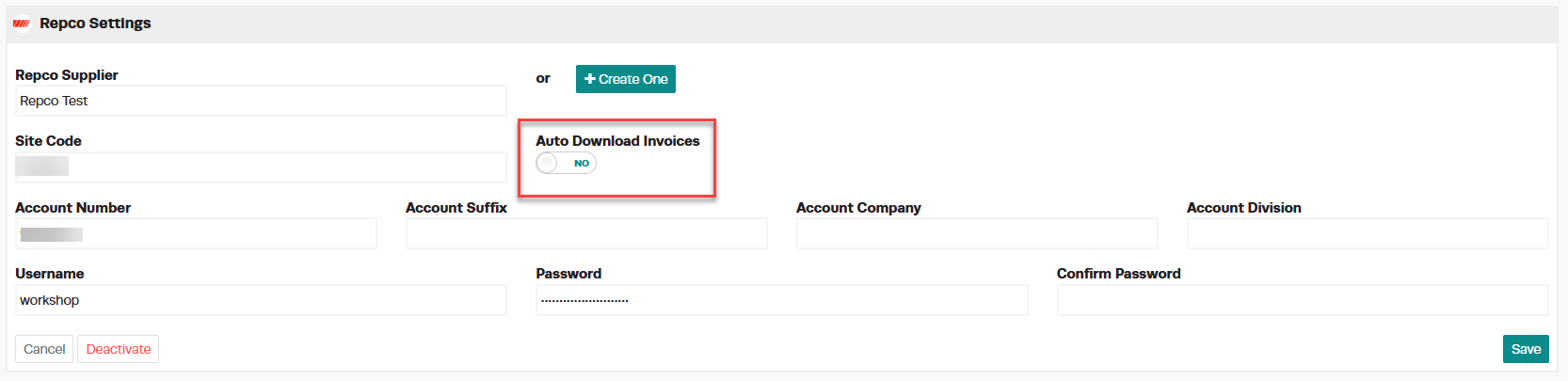
3. Toggle the ‘Auto Download Invoices‘ button to YES.
2. Use the following guide to set up your integration: https://staging.workshopsoftware.com/knowledge-base/automotive-integrations/how-do-i-integrate-workshop-software-with-repco-navigatorpro/
3. Toggle the ‘Auto Download Invoices‘ button to YES.
 4. Copy and paste this email address to send to online@repco.com.au The email must contain the following:
Subject: Electronic Invoicing for Workshop Software.
Body: Hello
Please turn on Electronic Invoicing for Workshop Software for my Repco Account:
<YOUR COMPANY NAME>
<YOUR REPCO ACCOUNT NUMBER>
<YOUR CONTACT DETAILS>
5. Your invoices should automatically come across once Repco has activated your account
4. Copy and paste this email address to send to online@repco.com.au The email must contain the following:
Subject: Electronic Invoicing for Workshop Software.
Body: Hello
Please turn on Electronic Invoicing for Workshop Software for my Repco Account:
<YOUR COMPANY NAME>
<YOUR REPCO ACCOUNT NUMBER>
<YOUR CONTACT DETAILS>
5. Your invoices should automatically come across once Repco has activated your account
Good to Know
- You can print, email, or SMS the invoice to your customer once it is ready.
- If you experience any issues during setup, contact the Workshop Software support team for assistance.
- This setting can be toggled on or off at any time. The change takes effect immediately once you click Save.
Frequently Asked Questions
Can I undo this change to the invoice?
You can update the invoice again by following the same steps. If the invoice has already been finalised or synced to your accounting system, contact your administrator about the best approach.
What do I do if the integration is not working?
First, check that your credentials are entered correctly and that both systems are accessible. If the issue persists, check the event log in Workshop Software for specific error messages, or contact the Workshop Software support team for assistance.
Can I disconnect this integration later?
Yes. You can disable or disconnect the integration at any time through the integration settings. Disconnecting does not delete any data that has already been synced.
