 Skip to content
Your product list in Workshop Software controls what appears when you add items to invoices and job cards. This guide explains how to multi-branch transferring stock, helping you keep your product catalogue organised and up to date.
This article will guide you through the process of transferring stock from one branch to another. This feature is available exclusively for Platinum customers with Multi-Branch enabled.
Steps to Transfer Stock:
1. Access Stock Transfer: Click on Products then Stock Transfer
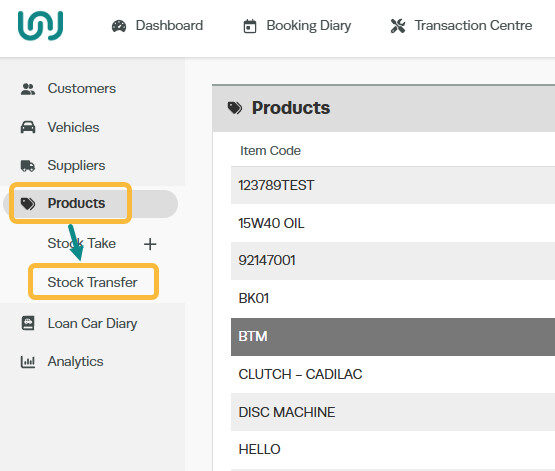
2. Select Source Branch: Choose the branch from which you want to transfer stock in the “From Company” field

3. Select Destination Branch: Choose the branch to which you want to transfer stock in the “To Company” field.

4. Choose Stock Item: Select the stock item you wish to transfer.

5. Enter Quantity: Input the quantity of stock to be transferred.
NOTE: if the quantity on hand is “0” or if the transfer will result in a negative stock count, the transfer will not occur.

6. Complete Transfer: Press the “Transfer” green button to complete the process.

Stock transfers are recorded in the product history and can be reviewed using the star function to check branch stock levels across all locations.
Important Note: You cannot transfer stock to and from the same branch. Attempting to do so will result in an error, and the transfer will not be allowed.
We greatly value your feedback and invite you to share any suggestions about this feature in our Feature/Change Suggestions Portal. You are welcome to vote for existing ideas and participate in discussions, helping us to continuously improve and better serve your needs.
Good to Know
- You can find this option under Settings > Company Settings in the left-hand menu.
- This setting can be toggled on or off at any time. The change takes effect immediately once you click Save.
Frequently Asked Questions
Will this change affect existing invoices that already include this product?
No. Existing invoices and job cards retain the product details as they were at the time the invoice was created. This change only applies when the product is used on future invoices.
Do I need a specific subscription level for this feature?
Some features in Workshop Software are available on specific subscription plans. If you do not see the option described in the steps above, check your current plan or contact the Workshop Software team to find out if an upgrade is required.
