 Skip to content
This guide shows you how to copy an invoice along with its attachments in Workshop Software. This is useful when you need to duplicate a job with all its associated documents.
Step 1: Open the Invoice
- Open the invoice you wish to copy.
Step 2: Open the Action Menu
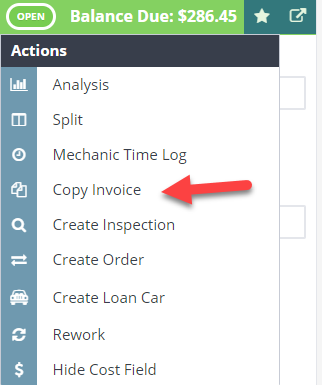
- Click the action star icon on the invoice.
- Select Copy Invoice from the menu.
 3. Select Copy Invoice
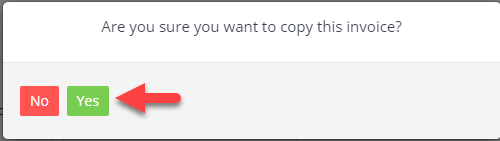
Step 3: Confirm Invoice Copy
- When prompted whether you want to copy the invoice, select Yes.
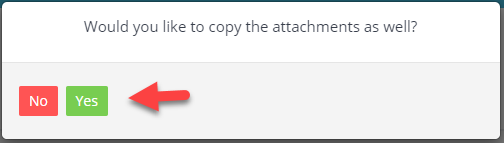
Step 4: Copy Attachments
- When prompted whether you want to copy the attachments as well, select Yes.
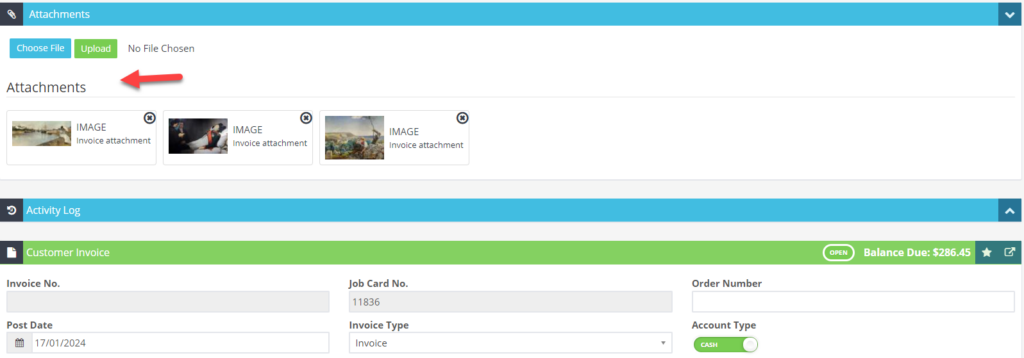
Step 5: Save the Copied Invoice
- Click Save to save the copied invoice with its attachments.
Good to Know
- Make sure you click Save after the copy is complete. If you navigate away before saving, your changes will be lost.
- The copied invoice will be a new, separate invoice — changes to the copy will not affect the original.
- All attachments from the original invoice will be duplicated onto the new invoice.
Frequently Asked Questions
Can I undo the copy?
You can update or delete the copied invoice. If the original invoice has already been finalised, you may need to create a credit note to reverse any changes.
Will the copied invoice have the same invoice number?
No, the copied invoice will be assigned a new invoice number automatically.
