 Skip to content
Managing customer records accurately is important for invoicing, communication, and reporting. This guide shows you how to create a new customer and add a vehicle to their profile in Workshop Software.
Step 1: Open the Customers Section
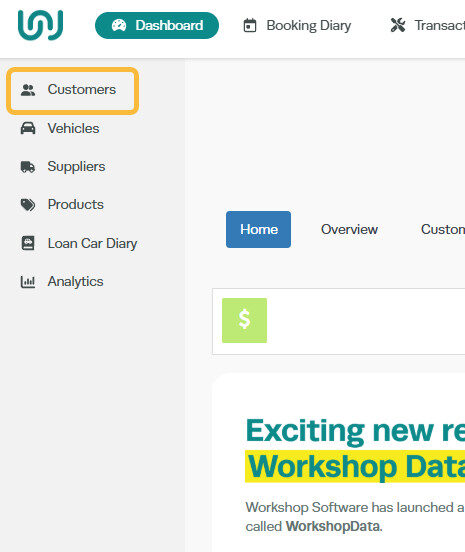
- Click Customers from the left-hand navigation menu.
Step 2: Create a New Customer
- Click the + icon at the far right corner of the blue Customers bar.

Step 3: Enter Customer Details
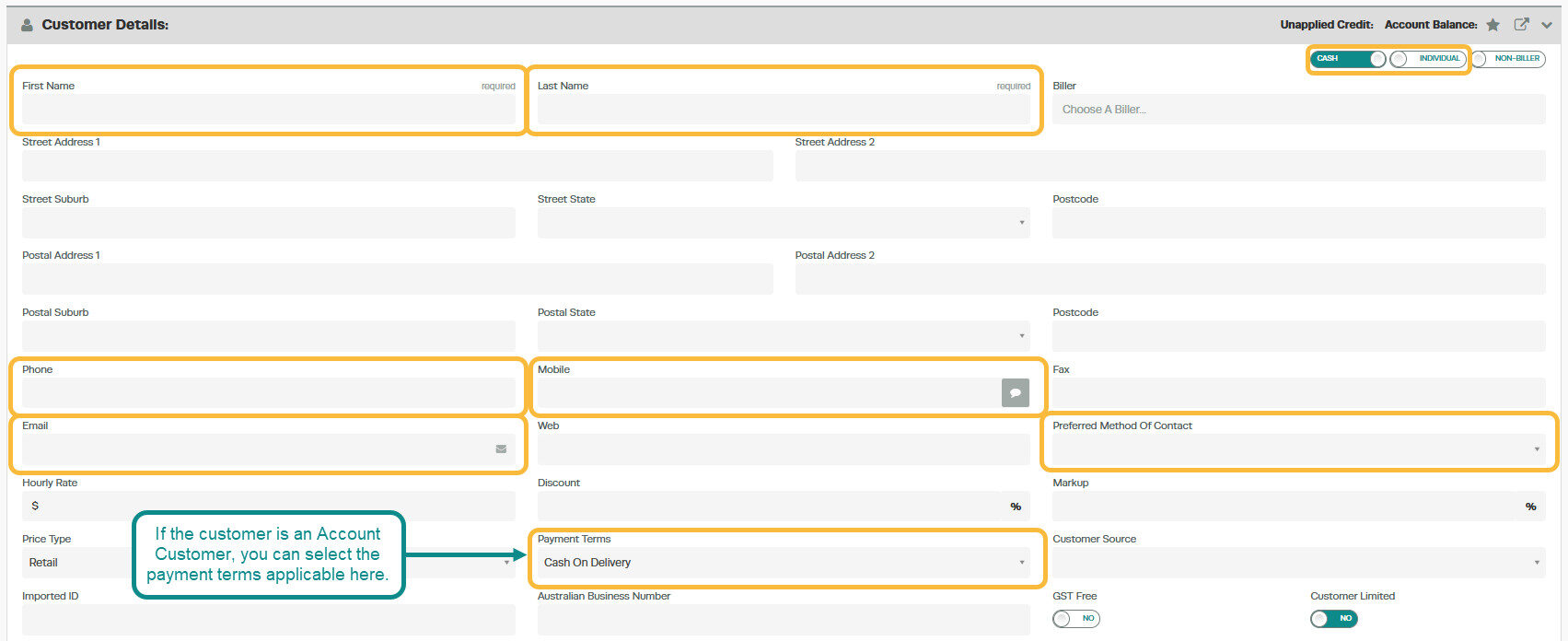
- The screen will refresh with a blank customer profile form. Fill in the following details:
- Select if the customer is an individual or a company
- Select if they are a cash or account customer (for account customers, you can set payment terms further down the form)
- Enter their name, contact details, and address
- Once all details are entered, click the green Save button.
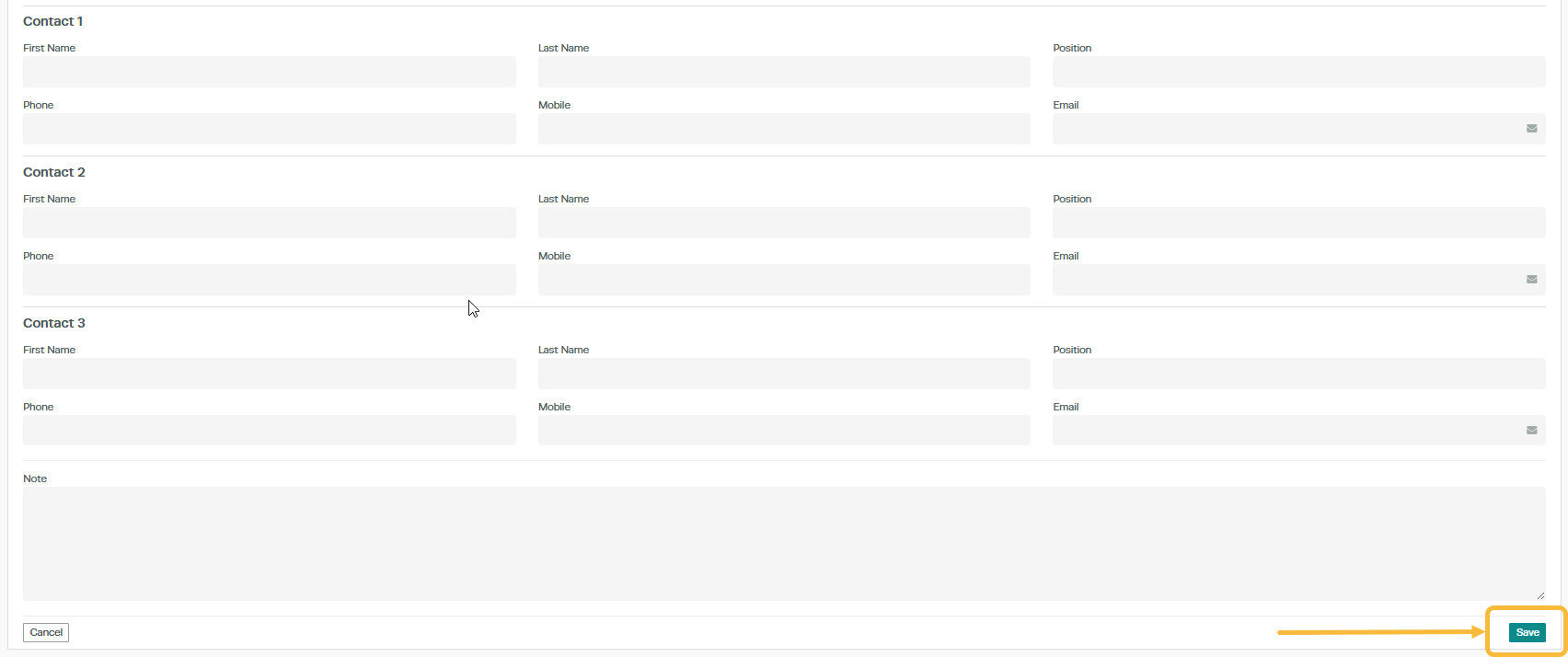
A green pop-up will appear in the bottom right corner confirming the customer has been saved.

Step 4: Add a Vehicle
- Once the customer is saved, scroll down to the Vehicles section of the customer profile.
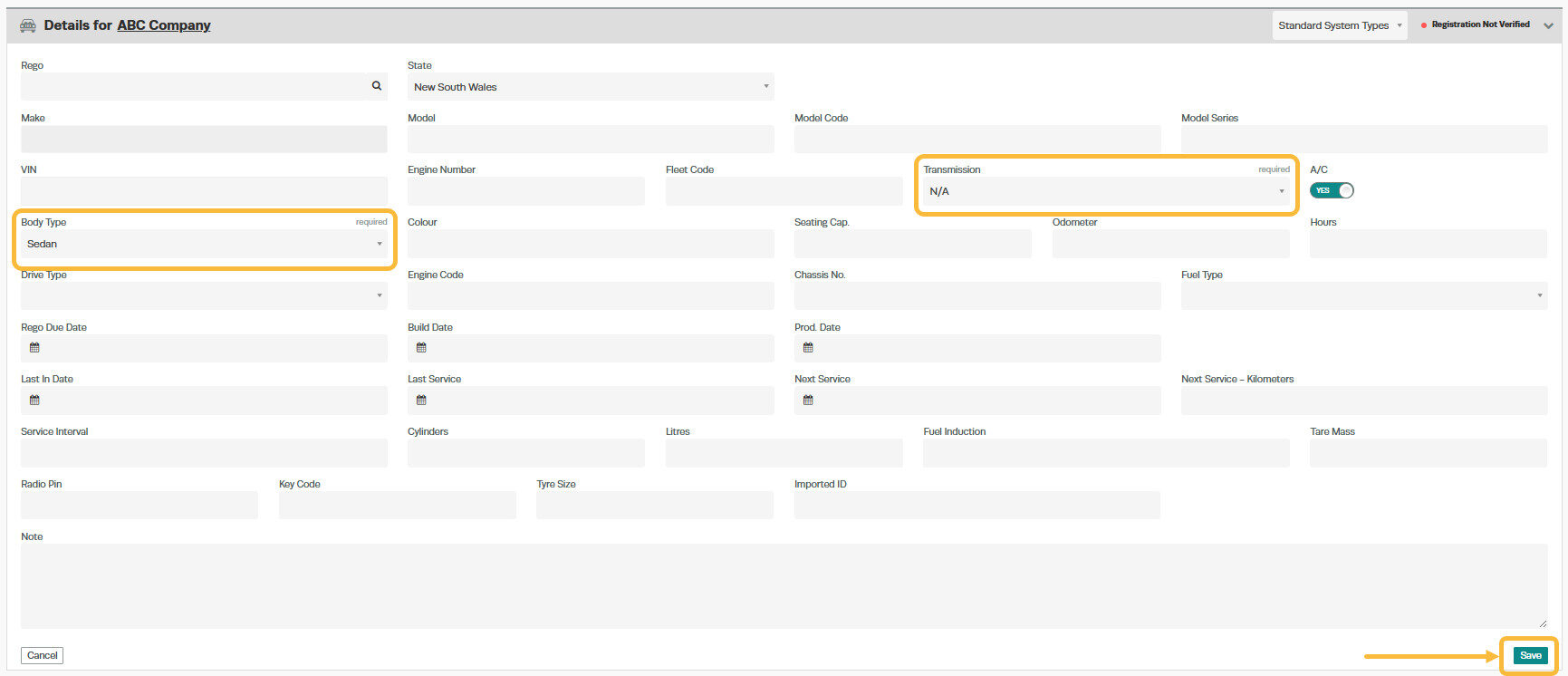
- Click the + icon to add a new vehicle.
- Enter the vehicle details — registration, make, model, year, and any other relevant information.
- Click Save.

Good to Know
- You can add multiple vehicles to a single customer profile.
- Setting the correct account type (Cash or Account) at the customer level determines the default for all future invoices for that customer.
- The customer record is used across all areas of Workshop Software — invoicing, booking diary, reports, and communication.
Frequently Asked Questions
Can I edit customer details after saving?
Yes, open the customer record at any time to update their details. Changes will apply to future invoices but will not affect previously processed invoices.
Can I merge duplicate customer records?
Workshop Software has a merge function for duplicate customers. Contact support if you need assistance merging records.
