 Skip to content
A Customer Booking can be created without assigning it to a mechanic, and a mechanic can be added or assigned at a later date. This Knowledge Base article will show you how to assign a mechanic to a booking, but you can also start from How to Create a Booking in Workshop Software?
Please note: a Labour product line must be included in the booking for it to appear in the Booking Diary.
Adding a Mechanic at the Time of Creating a Booking
Once you have added the Labour line and any other products to the booking, click Save at the bottom-right corner of the screen.
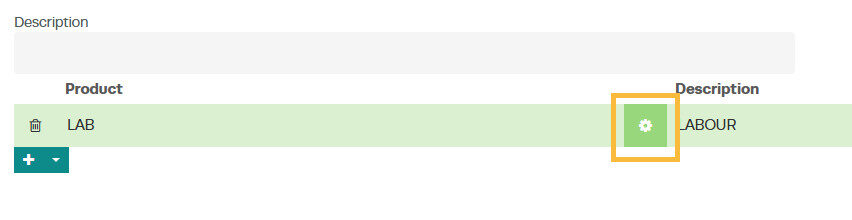
- Click on the cog icon next to the Labour line in the booking to open the Event Time editor.
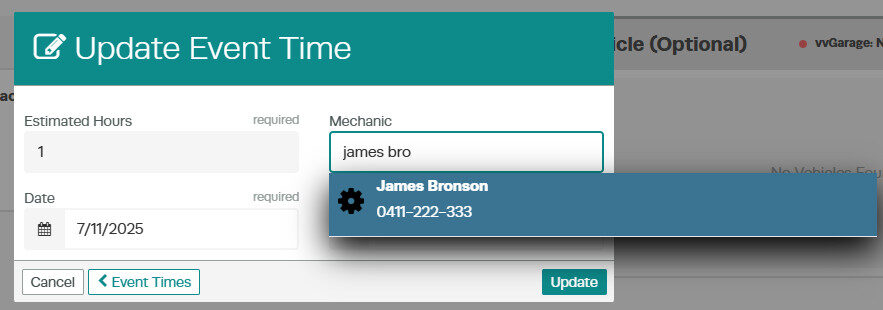
- In the Event Times, select the Mechanic field, then search the mechanic you wish to assign to this job.
- Select the mechanic from the search results
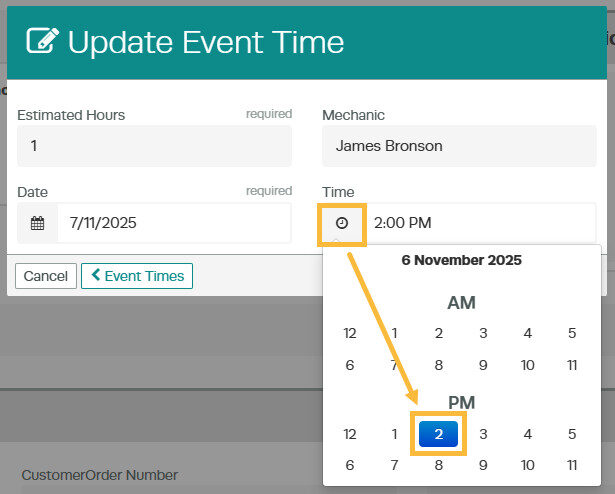
- Set the Start Time: if you know the start time for the job, you can allocate it in the Event Time editor.
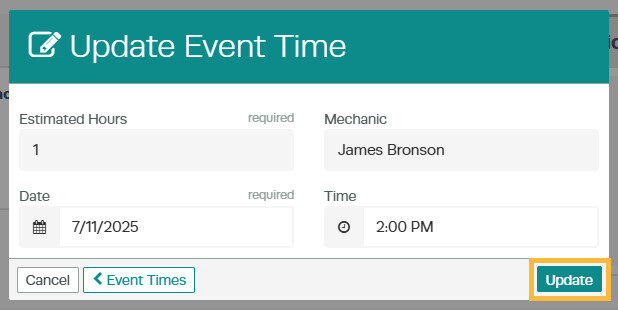
- After entering all the details, click Update. You can also Create multiple event times for a single job. Click here for more details.
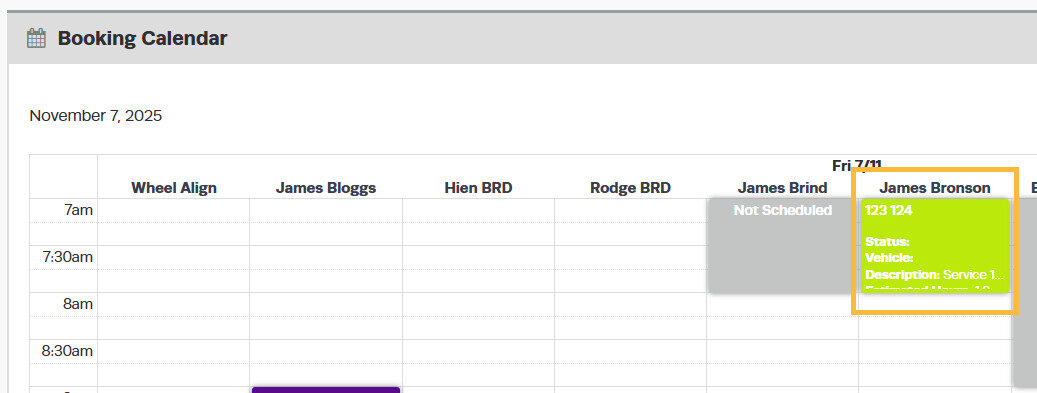
- Navigate to the Booking Diary and search for the date. You will see the mechanic assigned to the job on their calendar.
Adding a Mechanic After a Booking Has Been Created
If a booking has been created without assigning a mechanic, there are two ways to add one:
Please note: Ensure your mechanics are set up in Workshop Software. See this guide: How to Add a Mechanic
Option 1: Drag and Drop in the Booking Diary
- Open the Booking Diary.
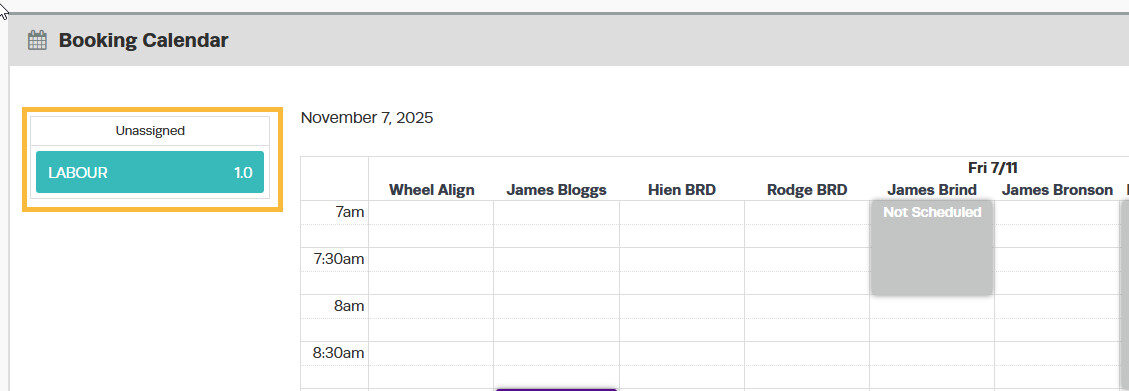
- Unassigned bookings will appear on the left-hand side under the heading Unassigned.
- Drag the unassigned job to the calendar of the desired mechanic and set the start time.
Option 2: Edit the Event Time
- Open the unassigned booking by clicking on it in the Unassigned section of the Booking Diary.
- Follow the same steps as outlined in the section Edit the Event Time above to assign a mechanic using the Mechanic field.
For further details on how to use the Booking Diary, see the video below:
