 Skip to content
In this step-by-step guide we will walk you through how to activate the customer portal in your Workshop Software account.
Please note: this feature is available on our Gold subscription level
Below are the step-by-step written instructions.
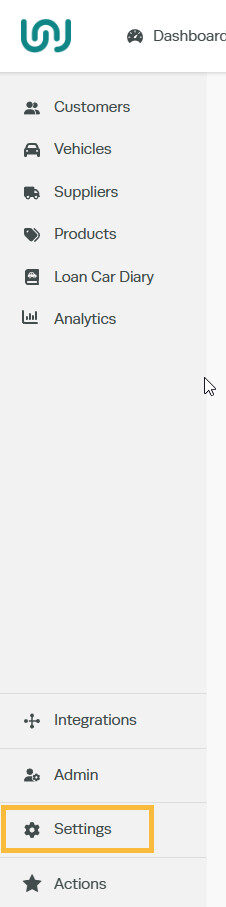
1. Select “Settings” from our left-hand navigation menu bar
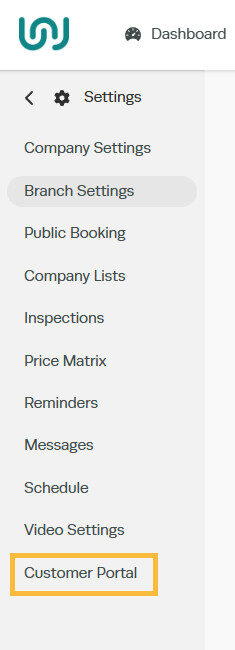
2. Select “Customer Portal”
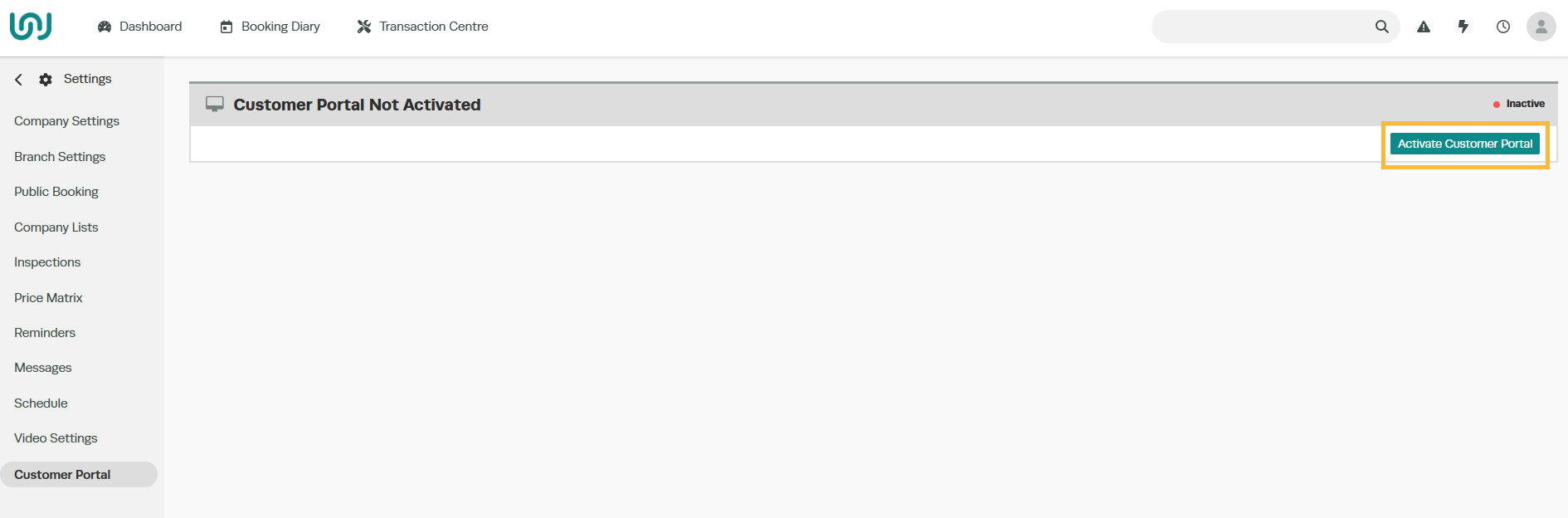
3. Click on the green “Activate Customer Portal”.
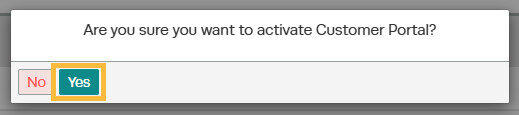
4. A pop up box will appear asking if you are sure you want to turn on the Customer Portal. Click “Yes” if you want to continue.
5. You will now see confirmation that the customer portal has been activated.

Now that you have activated the portal, check out this guide on how to send an invitation to your customers to set up their login details.
