 Skip to content
Managing employee and user settings in Workshop Software controls who has access and what they can do in the system. This guide shows you how to use the mechanic clock on function.
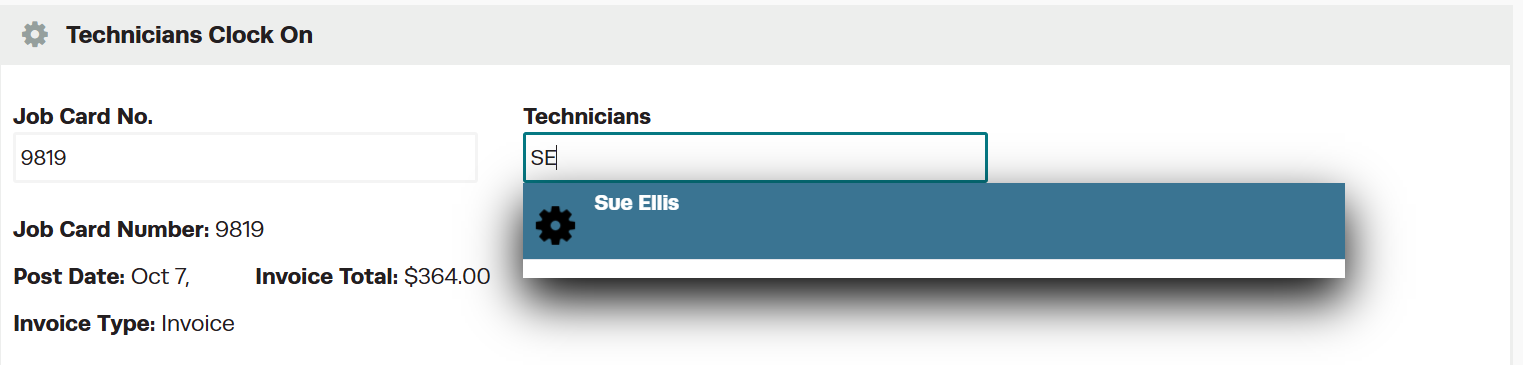
This functionality is used to clock mechanics on and off of jobs through the software and is limited to our Gold and Platinum subscriptions only. 1. Click on the clock symbol top right hand corner on the Dashboard 2. The Mechanic Clock On screen will appear. In the Job Card No field type the job you would like to clock on to.
 3. Select the job card when it appears in blue.
 4. A Mechanic field will then appear. You can choose to type their Name or their Mechanic Code and then select the mechanic.
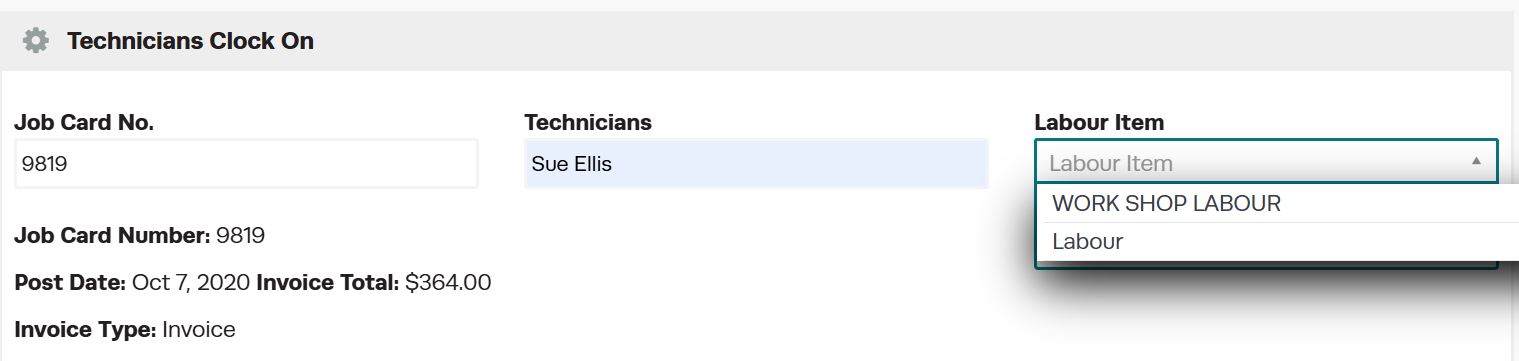
 5. If you have one labour item it will automatically clock onto that line at this point. However if you have more than one labour item it will ask you which labour item you would like to clock onto.
 6. Once you have selected your Labour Item a green bar should appear at the top of the page to show that the mechanic has successfully clocked onto the job.
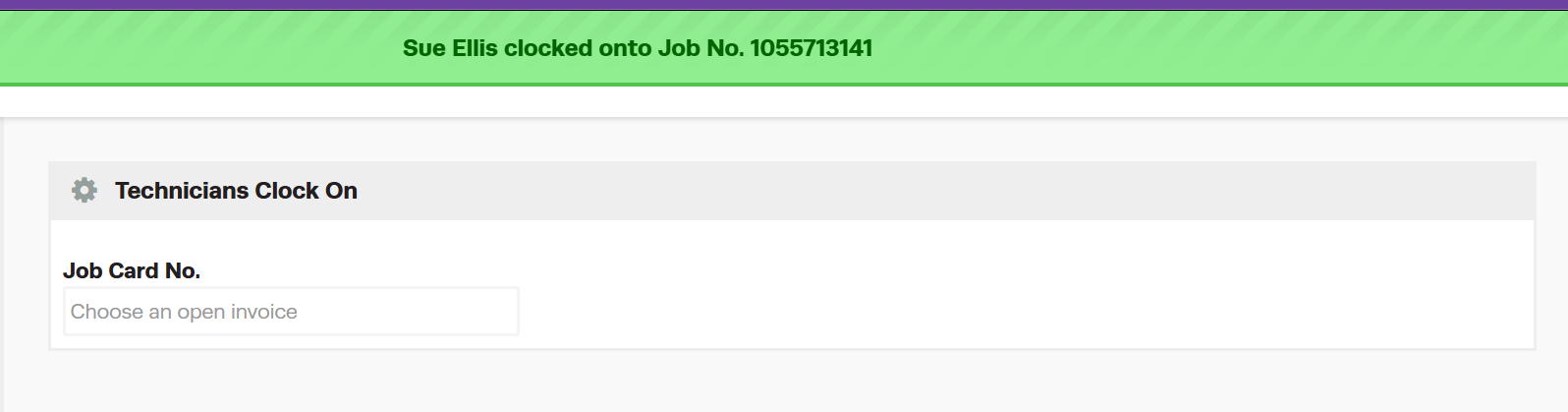 7. To clock the mechanic off the job please perform steps 2-6.
Frequently Asked Questions
Can I restrict what an employee can access in Workshop Software?
Yes. Workshop Software allows you to set permissions for each user, controlling which areas of the system they can view or edit. Check the user settings for available permission options.
Do I need a specific subscription level for this feature?
Some features in Workshop Software are available on specific subscription plans. If you do not see the option described in the steps above, check your current plan or contact the Workshop Software team to find out if an upgrade is required.
