 Skip to content
Managing employee and user settings in Workshop Software controls who has access and what they can do in the system. This guide shows you how to add a mechanic.
If you want to add a new mechanic to your Workshop Software system, follow this guide for simple instructions. 1. Click on “Admin” . 2. Select Mechanic
 3. Select the ‘+’ symbol at the top right of the screen to add the details of the new mechanic.
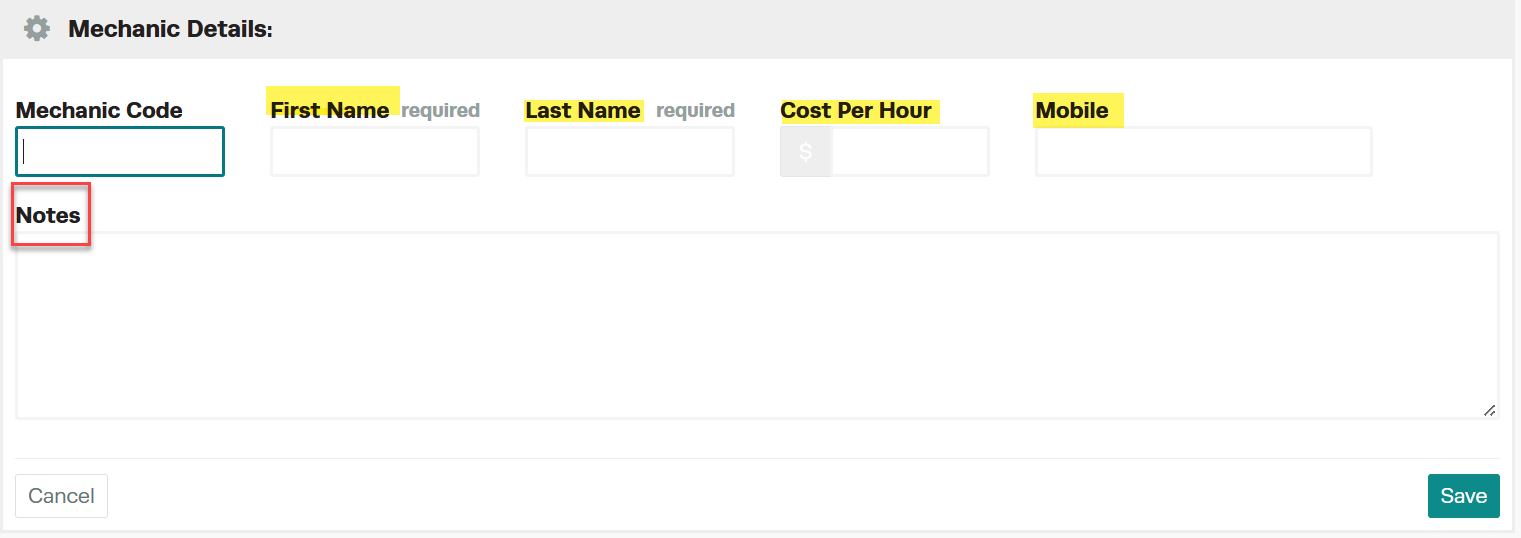
 3. Enter the details of the new mechanic:
- First Name (required)
- Last Name (required)
- Cost per hour
- Mobile phone number
- Any applicable additional notes
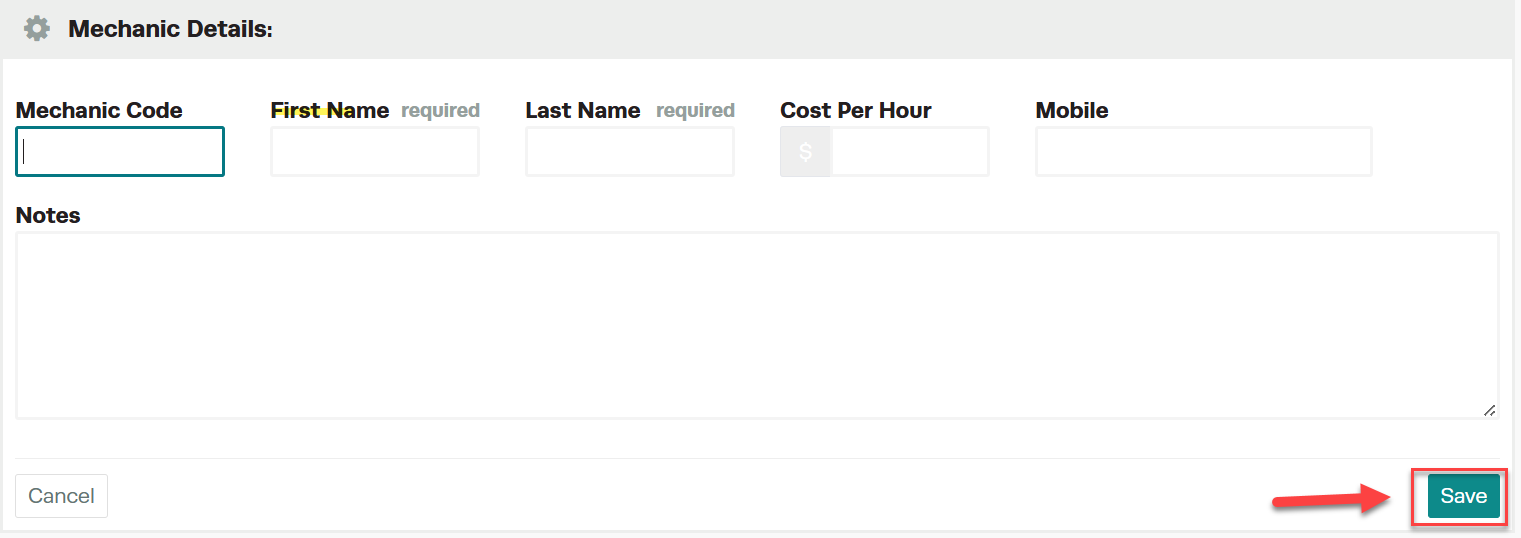
 4. Save
Good to Know
- Make sure you click Save after making your changes. If you navigate away before saving, your changes will be lost.
- This feature is also available on the Workshop Software mobile app if you have mobile access enabled on your account.
Frequently Asked Questions
Do I need a specific subscription level for this feature?
Some features in Workshop Software are available on specific subscription plans. If you do not see the option described above, check your current plan or contact the Workshop Software team.
Related Articles
- Mechanic Clock On and Clock Off in Workshop Software
- Use the Mechanic Clock On Function
- Assign a Mechanic to a Booking
