 Skip to content
This guide explains how to record a deposit or overpayment for a customer in Workshop Software so that it syncs correctly to your accounting software.
Step 1: Create an Invoice for the Deposit Amount
- Create a new invoice for the customer.
- Add a product called Deposit (or create one if it does not exist) and set the amount to the deposit value.
- Process the invoice.
If the customer is an account customer, apply the payment to the invoice. Once processed, the payment will sync to your accounting software.
Step 2: Create a Credit for the Customer’s Account
- Create a Credit for the customer’s account to offset the deposit invoice.
- This ensures the customer’s account balance reflects that the deposit has been applied.

Step 3: Apply the Credit When the Final Invoice Is Ready
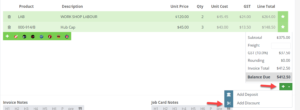
- When the actual job is completed and invoiced, apply the credit to the final invoice.
- The deposit amount will be deducted from the total owing.
Good to Know
- This is a workaround to ensure deposits and overpayments sync correctly with your accounting software (Xero, MYOB, etc.).
- Do not void the deposit invoice after it has been reconciled in your accounting program — voiding will undo the reconciliation.
- The deposit product should be set up as a standard product in your product list for easy reuse.
Frequently Asked Questions
What if the deposit is more than the final invoice?
The remaining credit will stay on the customer’s account and can be applied to future invoices.
Does the deposit show in my accounting software?
Yes, because the deposit is recorded as a processed invoice, it will sync to your accounting software as a normal transaction.
