 Skip to content
Your product list in Workshop Software controls what appears when you add items to invoices and job cards. This guide explains how to bulk update product price list, helping you keep your product catalogue organised and up to date.
Do you get frequent product price list from your supplier where the products have been entered into Workshop Software in the past and you want to update all the products in Workshop Software based off the prices on the price list?
Then you need to following the below steps to successfully import the data so that it updates the existing products in Workshop Software.
- Ensure any logos, blank rows are removed from the spreadsheet
- First row of the spreadsheet needs to be the column headings identifying what data is in each column
- The data must include Item Code (Stock code), cost price excluding taxes and Retail price including taxes as a minimum.
- All columns with prices need to be in the format of ‘numbers’ NOT ‘Accounting’ or ‘Currency’
- Save the price list as a .csv file (comma delimited)
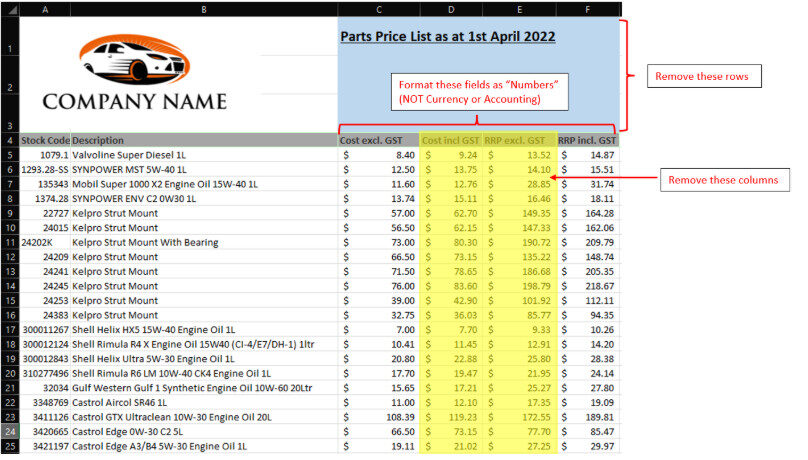
Then follow our “How to import data” guide on how to import the new price list details into Workshop Software
Good to Know
- Make sure you click Save after making your changes. If you navigate away before saving, your changes will be lost.
- Keeping your product list tidy helps your team find items quickly when building invoices and job cards.
Frequently Asked Questions
Will this change affect existing invoices that already include this product?
No. Existing invoices and job cards retain the product details as they were at the time the invoice was created. This change only applies when the product is used on future invoices.
Do I need a specific subscription level for this feature?
Some features in Workshop Software are available on specific subscription plans. If you do not see the option described above, check your current plan or contact the Workshop Software team.
