 Skip to content
If your business does not charge or pay tax, you can remove tax from the Workshop Software display and printed invoices. This guide shows you how to disable the tax option.
Step 1: Open Tax Settings
- Go to Settings > Company Settings > Tax Settings.
- Disable the tax option as required.

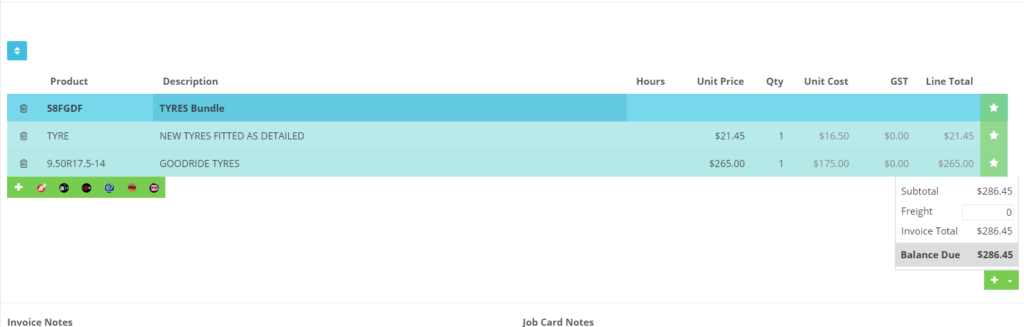
Step 2: Verify on a Customer Invoice
- Create a new invoice to confirm the changes.
- The invoice should no longer display a tax subtotal.
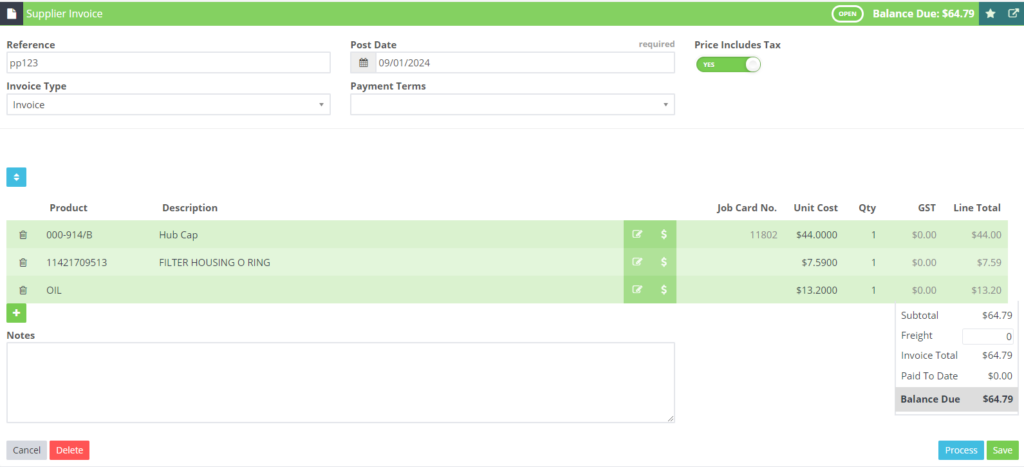
Step 3: Verify on a Supplier Invoice
- Create a new supplier invoice to verify.
- The supplier invoice should also not display a tax subtotal.
Good to Know
- You can find this option under Settings > Company Settings in the left-hand menu.
- This setting affects all new invoices. Existing invoices that were created with tax will retain their tax values.
- If your tax status changes in the future, you can re-enable the tax option by following the same steps.
Frequently Asked Questions
Will this affect existing invoices?
No, existing invoices retain their original tax settings. Only new invoices created after the change will be tax-free.
Can I have tax on some invoices but not others?
The tax setting applies globally. If you need to handle mixed tax scenarios, consult your accountant for the best approach within Workshop Software.
