 Skip to content
This guide walks you through allocating a payment (full or partial) to a customer invoice in Workshop Software. This is commonly used when a customer pays in instalments or when you need to record a payment against an outstanding invoice.
Step 1: Open the Invoice
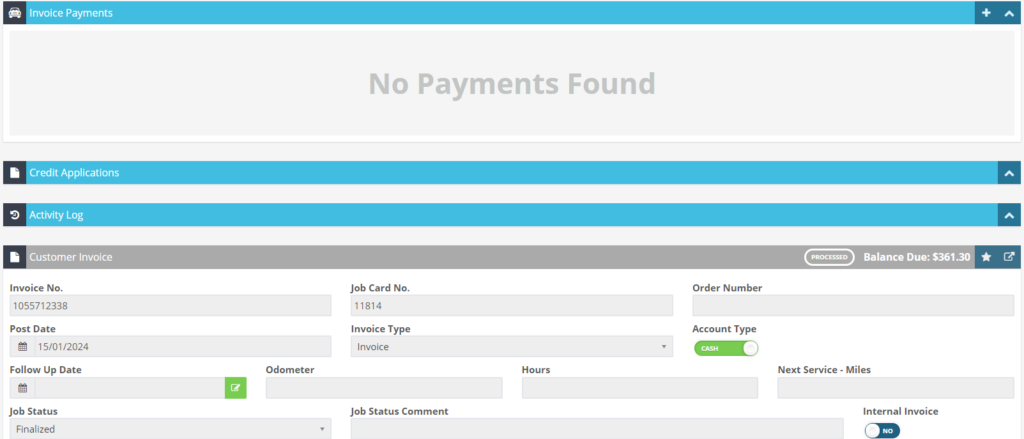
- Navigate to the customer record and open the invoice you want to apply a payment to.
Step 2: Add a Payment
- Click the + icon next to the payment line on the invoice.
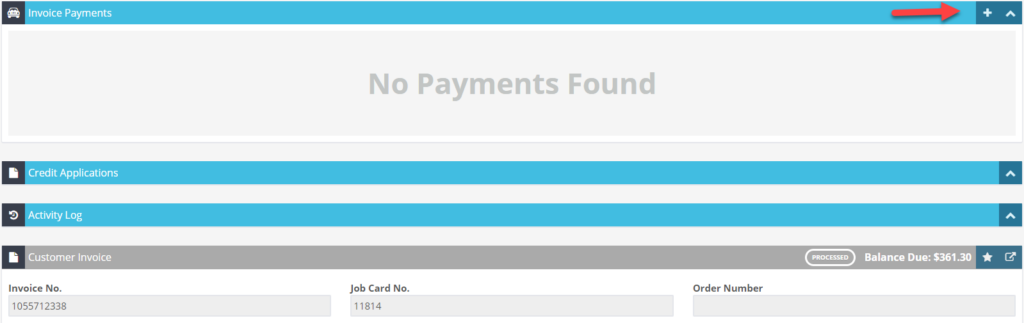
- Select Add Payment from the options.

Step 3: Enter Payment Details
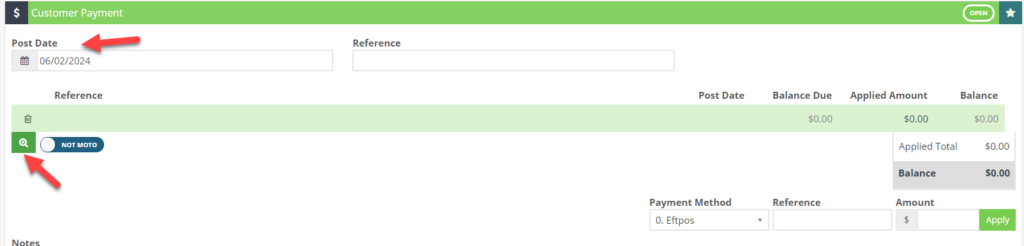
- Update the date if needed.
- Click the green magnifying glass icon to search for the invoice.
- Add a reference if applicable (e.g. receipt number or bank reference).
Step 4: Select the Invoice
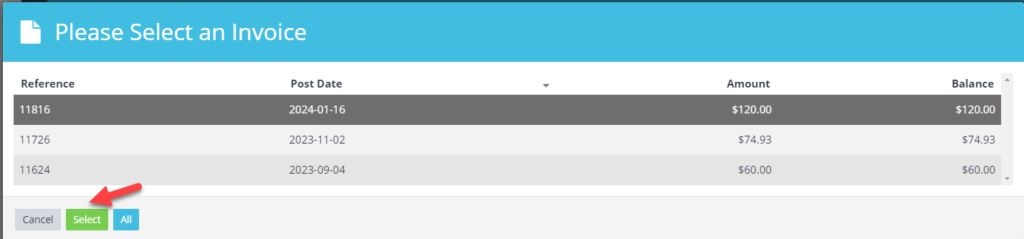
- Select the customer invoice from the list.
- Click Select to confirm.
Step 5: Enter the Payment Amount
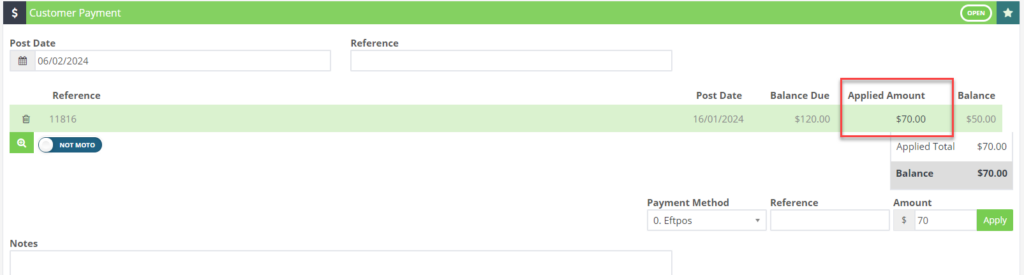
- Enter the payment amount in the Applied Amount field — this can be a full or partial payment.
Note: If an amount has not been added to the Applied Amount on the reference line, an error will appear when you press Process.
Step 6: Process the Payment
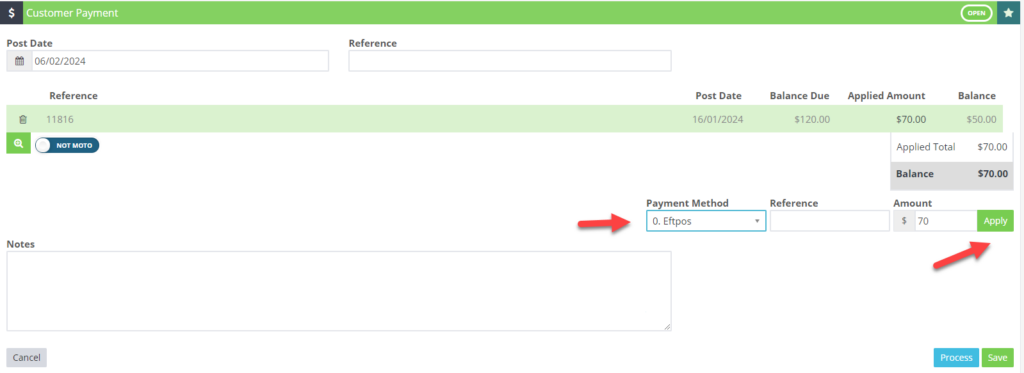
- Select the Payment Method (e.g. Cash, EFTPOS, Credit Card, Direct Deposit).
- Click Apply.
- Click Process to finalise the payment.
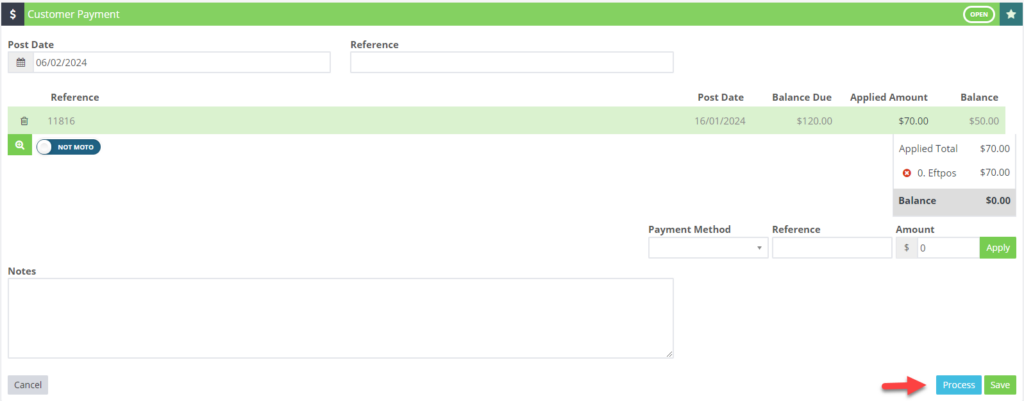
Once processed, the payment will be displayed on the invoice along with any outstanding balance.
Once you’ve completed the payment process, you’ll see the payment or payments displayed right on the invoice, as well as any outstanding balance 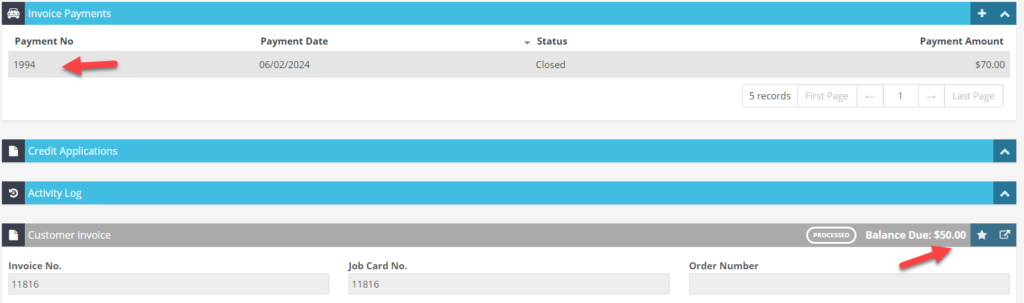
Good to Know
- You can print, email, or SMS the invoice to your customer once it is ready.
- Double-check the details on your invoice before finalising to ensure everything is correct.
- If a customer pays in multiple instalments, repeat this process for each payment until the balance is zero.
Frequently Asked Questions
Can I undo a payment on an invoice?
Changes to finalised invoices may be limited. If the invoice has already been synced to your accounting system, you may need to create a credit note instead of editing the original invoice.
Will this change affect existing invoices for this customer?
Changes to customer details (such as name, address, or contact information) apply to future invoices. Existing completed invoices retain the details that were on the invoice at the time it was created.
What is the difference between a cash customer and an account customer?
A cash customer pays at the time of service, so there is no outstanding balance. An account customer can be invoiced and given payment terms, allowing them to pay later. You can track account customer balances through the customer balances report.
