 Skip to content
This guide walks you through the steps to service advisors on job cards in Workshop Software. This is a common task when managing your day-to-day invoicing and job card workflow.
Get a better handle on your operations by linking Service Advisors to your job cards. This simple step not only highlights who’s handling which jobs but also lets you run reports on advisor profitability for specific periods. Plus, these assigned Service Advisors make an appearance on your printed invoices and add to the metrics in your sales report. 1. Set the “Use Service Advisors” toggle to Yes under Settings > Company Settings > Invoice Settings. company sett…” width=”1024″ height=”412″>
To Create a new Service Advisor,
Go to Admin,
company sett…” width=”1024″ height=”412″>
To Create a new Service Advisor,
Go to Admin,
 Select Service Advisor.
  Press the “+” on the Service Advisor screen
 3. Enter the Service Advisor details then click save.
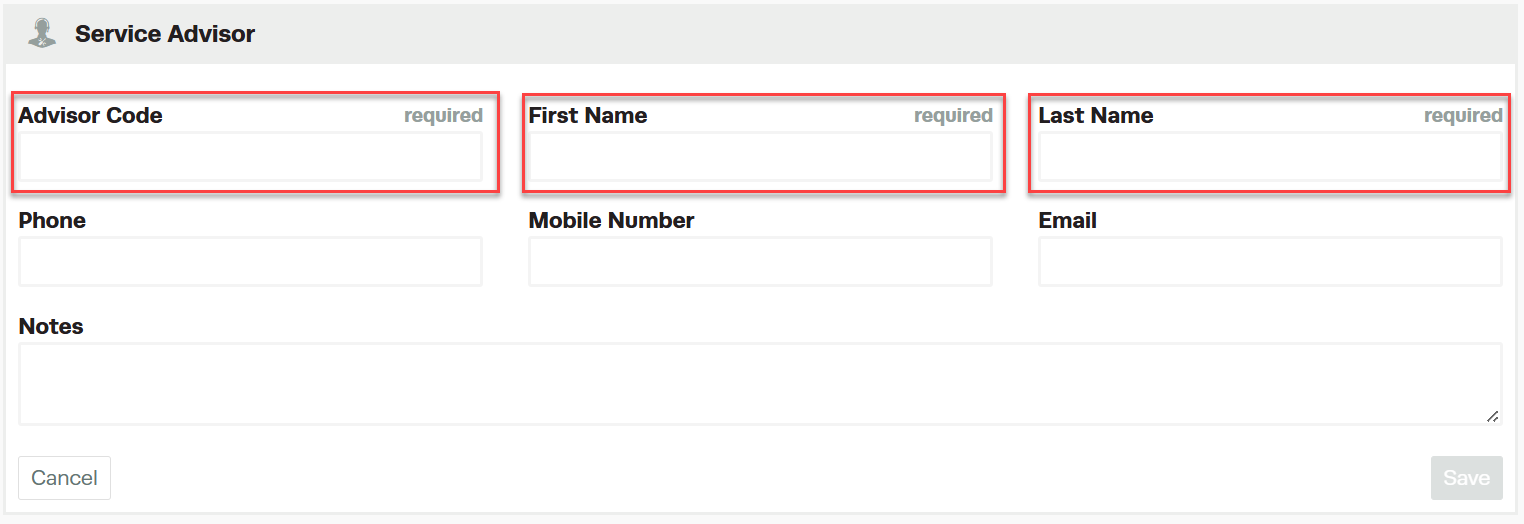 NOTE: The Advisor Code (the employee’s initials can be used as an example), first name and last name are mandatory.
4. Add the Service Advisor in the Service Advisor field on the Job card before clicking save.
NOTE: The Advisor Code (the employee’s initials can be used as an example), first name and last name are mandatory.
4. Add the Service Advisor in the Service Advisor field on the Job card before clicking save.
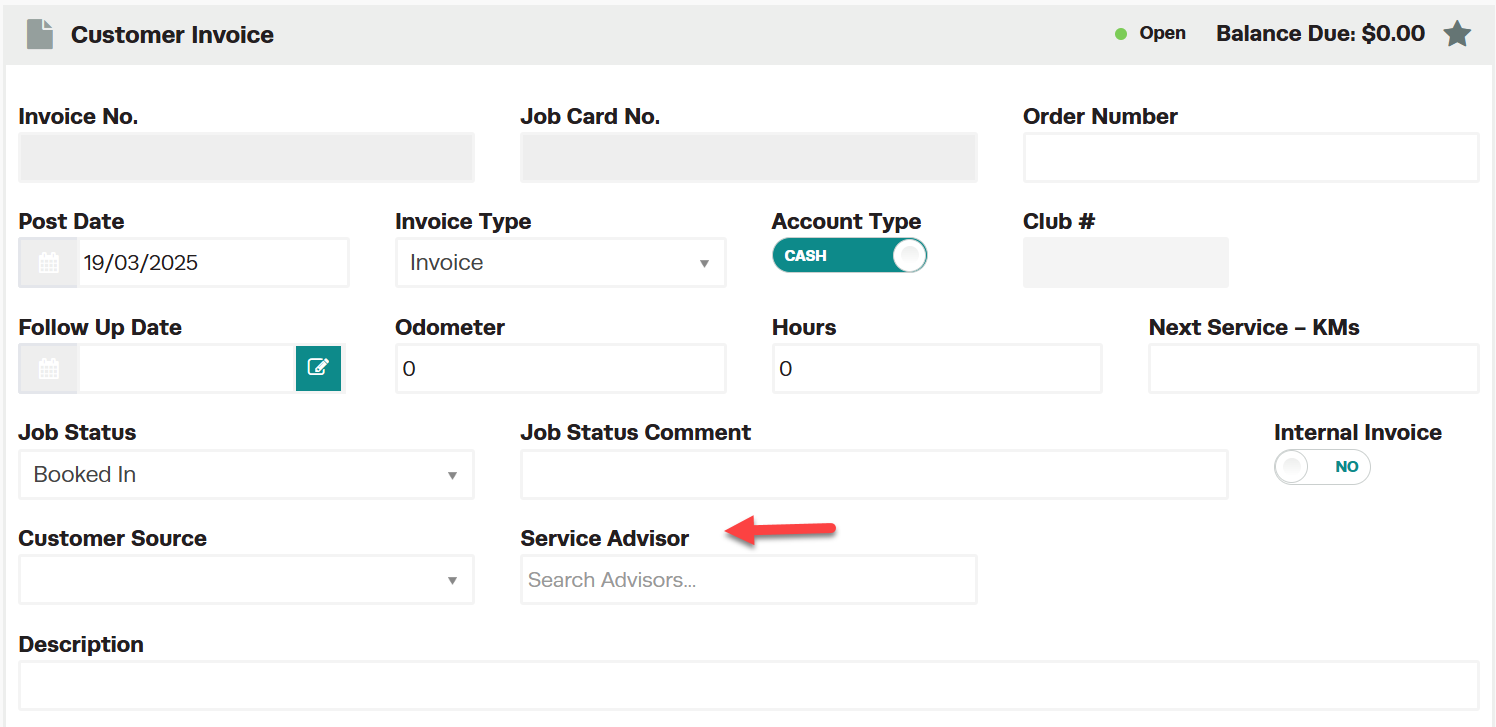
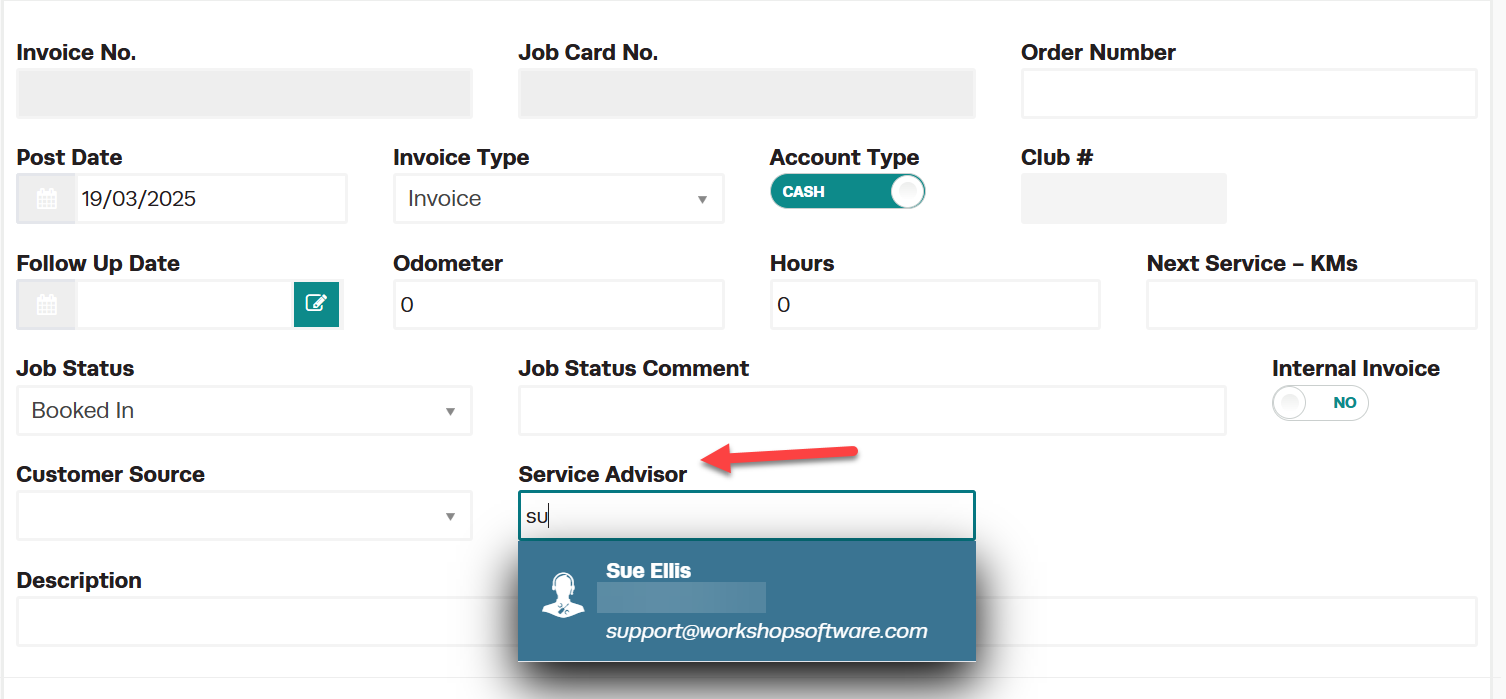 5. The Service Advisor will now be available on finalised Invoice
To see Service Advisor on Sales Report and Item Sales report
1. Go to Analytics
5. The Service Advisor will now be available on finalised Invoice
To see Service Advisor on Sales Report and Item Sales report
1. Go to Analytics
 Business Reports
  Sales Reports > Sales Reports > Begin Date > End Date > Order By Service Advisor > Green Print Button
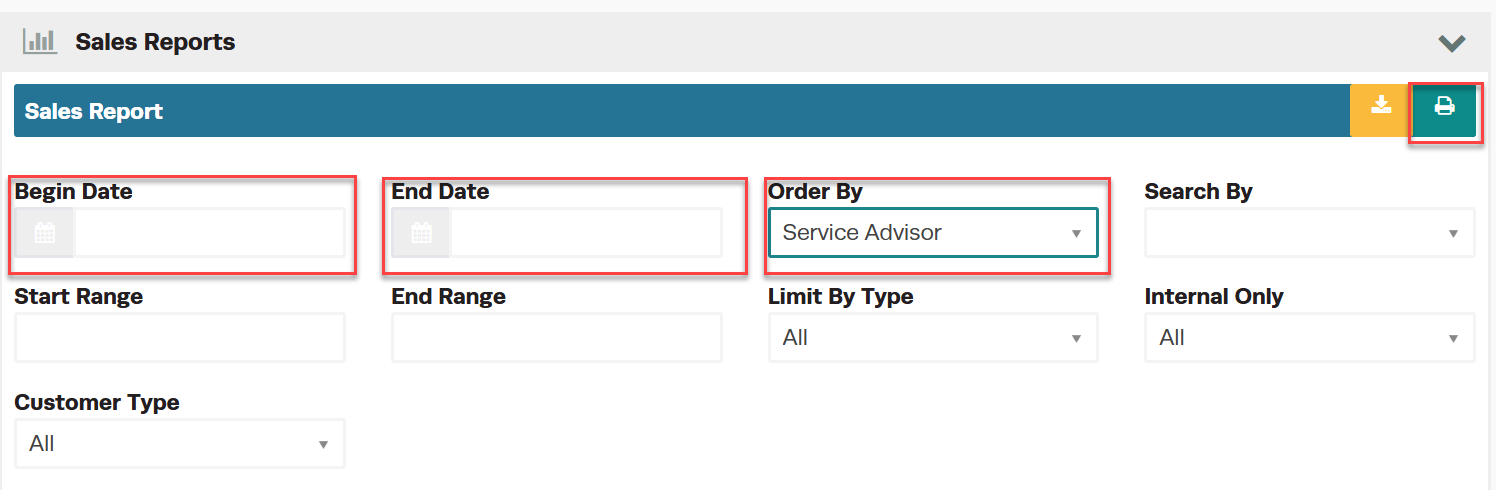 2. Go to Analytics > Business Reports > Item Sales > Begin Date > End Date > Order By Service Advisor > Press the green print button
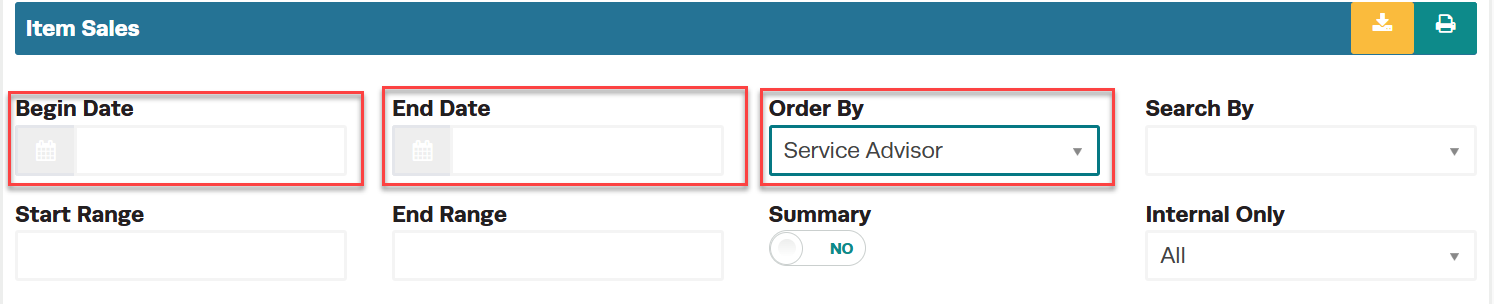 Please Note: Both reports show the Service Advisor Code not their name. All Service Advisors need to be set up with an Advisor Code
 Good to Know
- You can find this option under Settings > Company Settings in the left-hand menu.
- Make sure you click Save after making your changes. If you navigate away before saving, your changes will be lost.
- You can print, email, or SMS the invoice to your customer once it is ready.
- This setting can be toggled on or off at any time. The change takes effect immediately once you click Save.
Frequently Asked Questions
Can I undo this change to the invoice?
Changes to finalised invoices may be limited. If the invoice has already been synced to your accounting system, you may need to create a credit note instead of editing the original invoice.
Can I restrict what an employee can access in Workshop Software?
Yes. Workshop Software allows you to set permissions for each user, controlling which areas of the system they can view or edit. Check the user settings for available permission options.
