 Skip to content
Workshop Software lets you delete an additional user through your account settings. Adjusting this setting ensures your workflow matches the way your workshop operates. The change takes effect immediately once saved. Follow the steps below to update this setting.
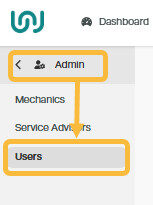
1. Click on ‘Admin’ from the menu options down the left hand side of the screen and then click on ‘User’;
2. Find the user you wish to delete and click on the ‘pencil’ icon to the far right of their details;

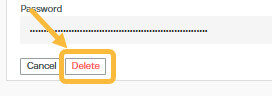
3. Click on the red ‘Delete’ button at the bottom left;
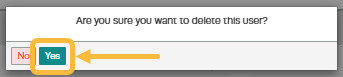
4. Then click on the ‘Yes’ button to confirm you want to delete this user;
Good to Know
- This setting can be toggled on or off at any time. The change takes effect immediately once you click Save.
- Review your settings periodically to ensure they still match your workshop’s current workflow.
Frequently Asked Questions
Where do I find this setting in Workshop Software?
Navigate to Settings in the left-hand menu. The specific option is described in the steps above.
Can I change this setting back later?
Yes. This setting can be changed at any time by following the same steps and adjusting the option as needed. Remember to click Save after making your change.
Can I restrict what an employee can access in Workshop Software?
Yes. Workshop Software allows you to set permissions for each user, controlling which areas of the system they can view or edit. Check the user settings for available permission options.
