 Skip to content
Workshop Software lets you setting up your franchise/group in dealership software through your account settings. Adjusting this setting ensures your workflow matches the way your workshop operates. The change takes effect immediately once saved. Follow the steps below to update this setting.
When setting up your Dealership franchises & groups. It is important to set your accounts correctly.
Your franchise & groups assets account must be set up in your accounting program as an inventory account.
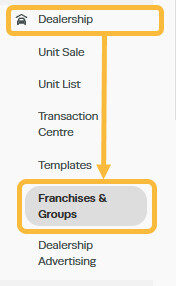
This can be done by going to ‘Dealership‘, and then clicking on to ‘Franchises & Groups‘;
Click on the ‘+‘ icon in the top right corner to open the settings;

Click on the ‘pencil‘ icon next the existing group to open the settings;

Select the relevant accounts from your accounting package integration; making sure your Assets Account is set as an Inventory Account;

If you were to open your accounts package now, you can find your Assets under your inventory;

Good to Know
- Review your settings periodically to ensure they still match your workshop’s current workflow.
Frequently Asked Questions
Where do I find this setting in Workshop Software?
Navigate to Settings in the left-hand menu. The specific option is described in the steps above.
Can I change this setting back later?
Yes. This setting can be changed at any time by following the same steps and adjusting the option as needed. Remember to click Save after making your change.
Related Articles
- Create Dealership Templates
- Multi-Branch – Setting up shared accounting with MYOB
- Setting Up and Managing Customer Online Bookings
