 Skip to content
This guide walks you through the steps to customer payment in Workshop Software. This is a common task when managing your day-to-day invoicing and job card workflow.
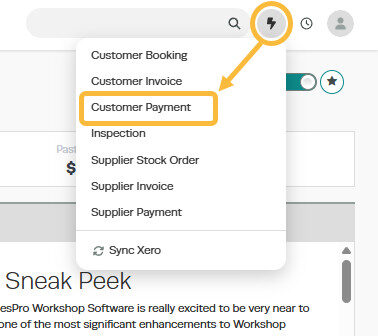
1. Click on the ‘+’ icon located next to the main search bar in Workshop Software and select ‘Customer Payment‘ from the dropdown menu:
2. Search for the customer and click to select:

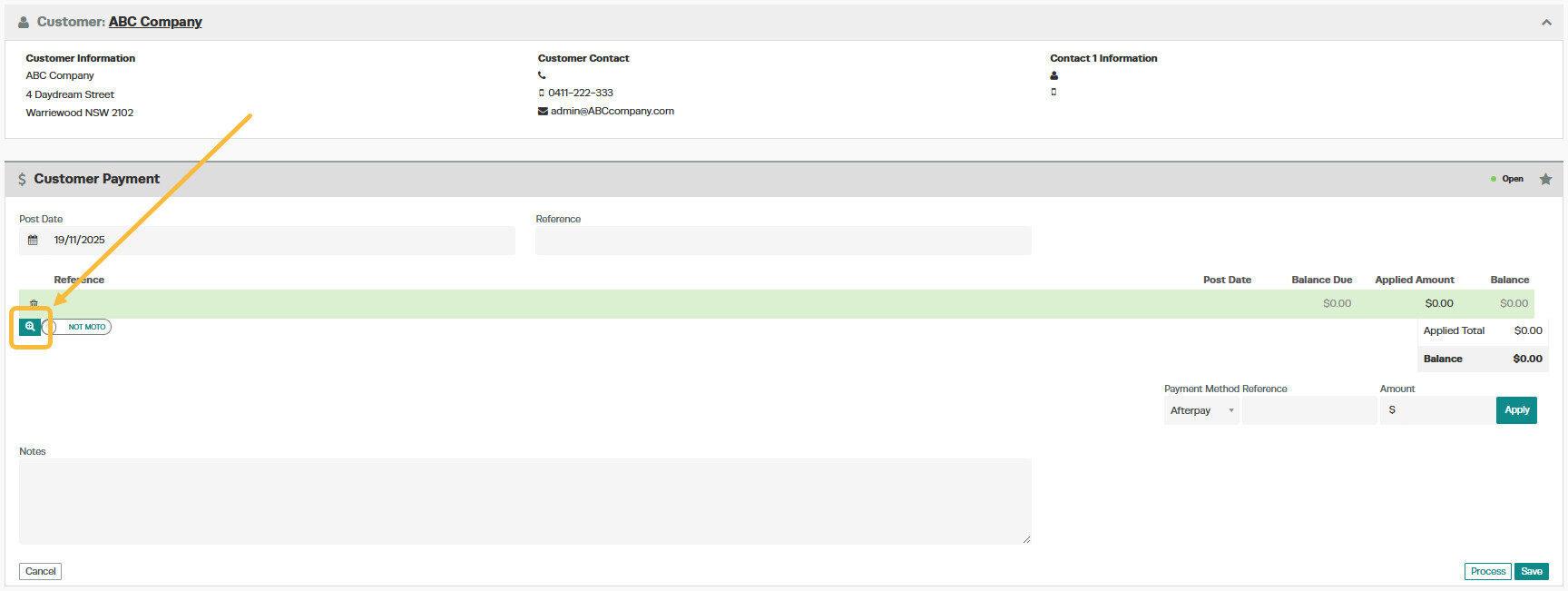
3. Click on the ‘magnifying glass‘ icon to bring up a list of invoices with outstanding balances:
4. Click on the invoice to be paid (multiple invoices can be selected) and then click on the ‘Select’ button or if you wish to select all invoices then click on the blue ‘All’ button.

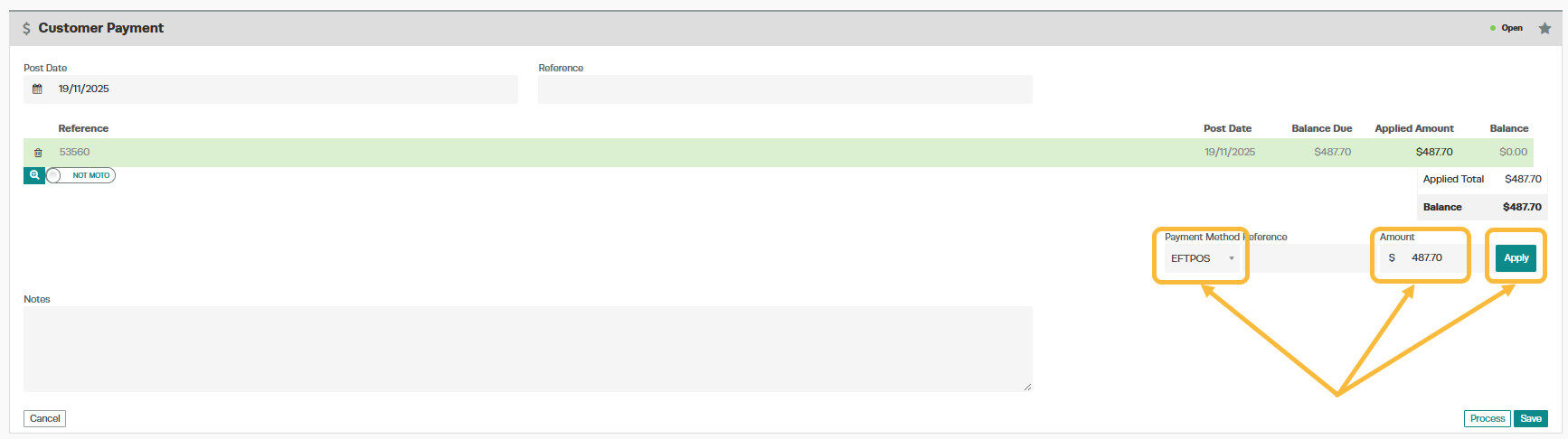
5. Enter the ‘Payment Method‘, make sure the ‘Amount‘ is correct and click the ‘Apply‘ button to apply the payment
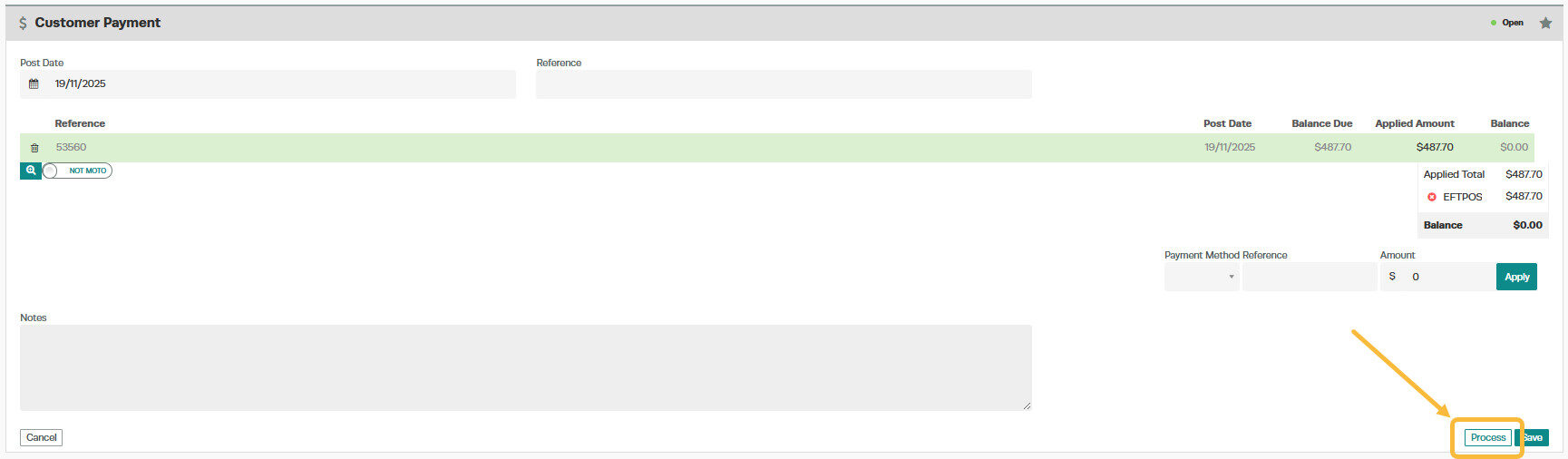
6. Click ‘Process’ to process the customer payment
Good to Know
- You can search for a customer by name, phone number, or email address using the search bar.
- Double-check the details on your invoice before finalising to ensure accuracy for your customer and your records.
Frequently Asked Questions
Can I undo this change to the invoice?
You can update the invoice again by following the same steps. If the invoice has already been finalised or synced to your accounting system, contact your administrator about the best approach.
Will this change affect existing invoices for this customer?
Changes to customer details apply to future invoices. Existing completed invoices retain the details that were on the invoice at the time it was created.
