 Skip to content
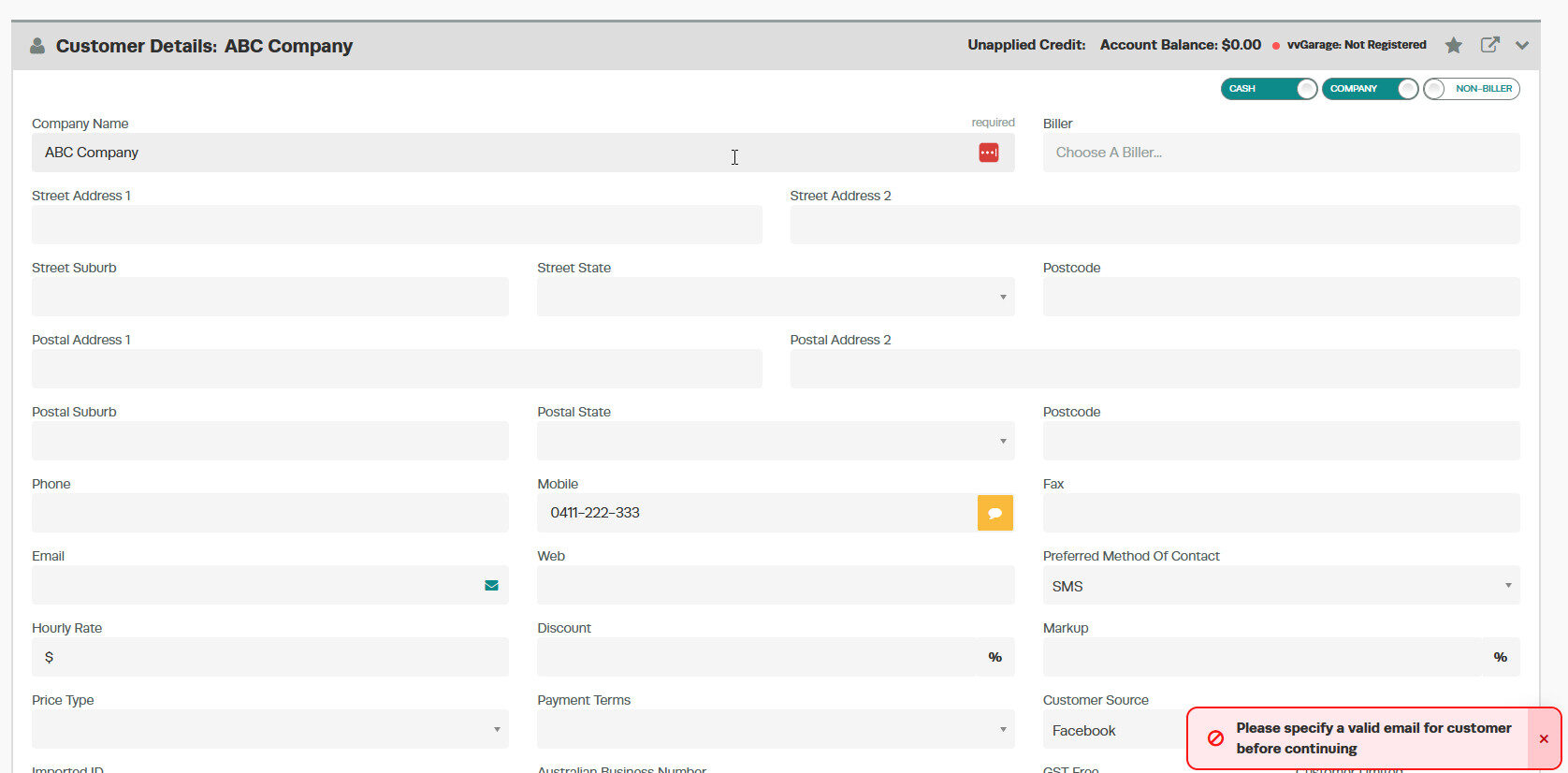
In this step-by-step guide we will go through how you can send an invitation to your customers to set up their login details to the Customer Portal.
Before you proceed you will need to make sure you have activated the Customer Portal first.
Steps
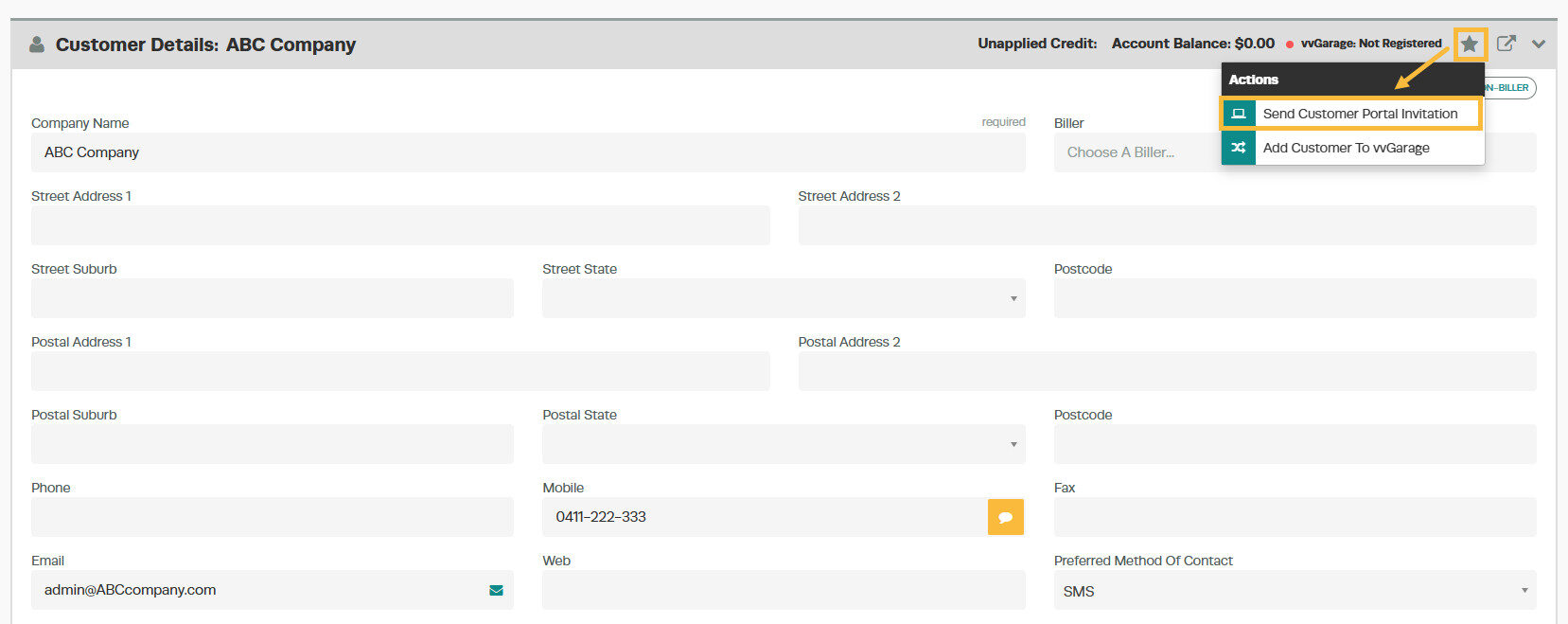
1. Access the customer profile in Workshop Software, then click on the “Star” icon located in the top right hand corner of the page. Then select “Send Customer Portal Invitation“.
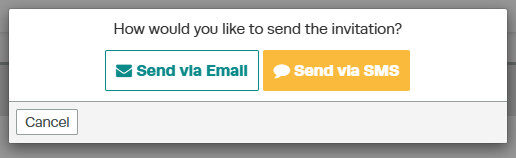
2. A Pop up box will appear, prompting you to select the preferred method for sending the invitation – either by email or SMS. Choose the desired option.
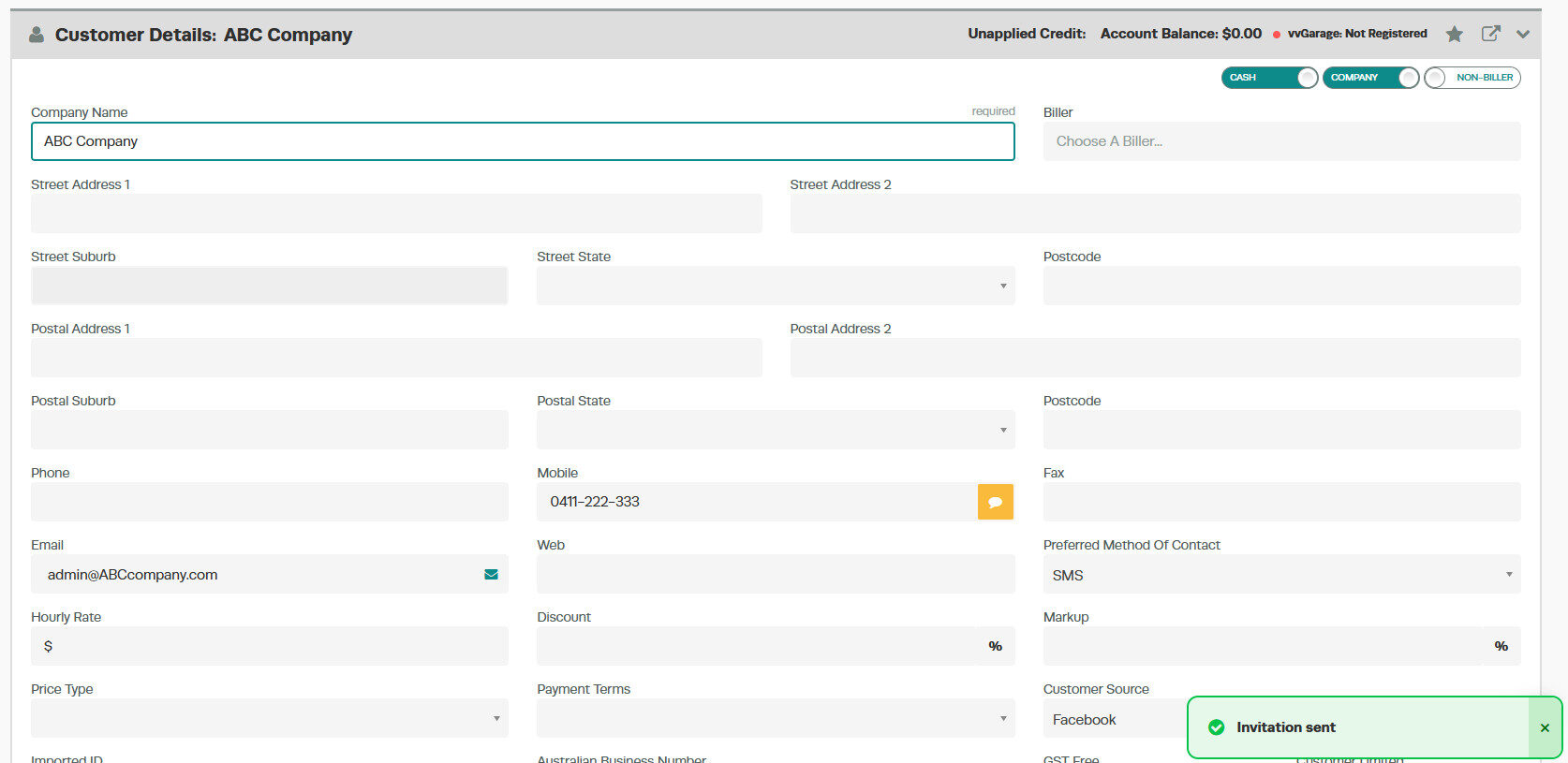
3. Regardless of the method you select, you will receive a confirmation that the invitation has been successfully sent to the customer.
4. This is how the email invitation will present to your customer.

5. This is how the SMS invite will appear to your customers

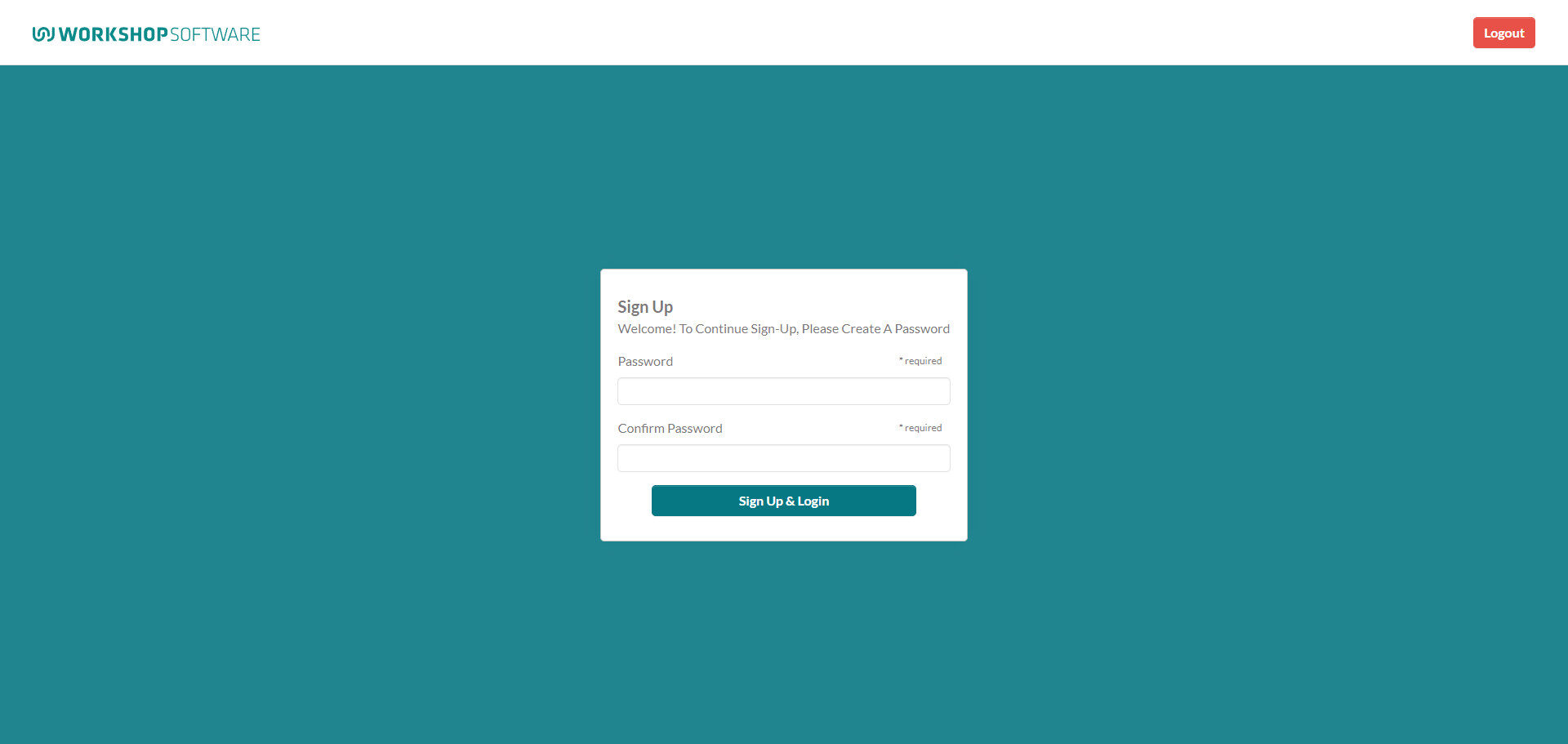
6. When your customer clicks on the link, they will be directed to a page where they can set up their password Their login details will be the email address that you have for them in Workshop Software.
Now that you have sent your customers an invitation to set up their login details, check out our guide on the features of the Customer portal and what your customers can see/do from the portal itself.
Further Importance: Once the invitation to the customer portal has been sent to the email address or phone number associated with your customer’s profile, it cannot be re-sent. The invitation includes a link to the login page and, if necessary, a password reset option. We strongly recommend advising your customers to keep this email for future reference to ensure they can easily access the portal and reset their password if needed.
