 Skip to content
Integrating Xero Tracking Categories with Workshop Software connects the two systems so data flows between them without manual entry. Once set up, this integration saves time and reduces the chance of errors when working across platforms. Follow the steps below to configure the integration.
If your business operates in multiple work locations, the Tracking Categories feature in Xero allows you to effectively track sales for each location.
When enabled, this feature lets you:
-
Select a Tracking Category to categorize your transactions by location.
-
Choose the specific tracking options under each vehicle or location to monitor the sales activity accurately.
By using this feature, you can get more detailed insights into the performance of each location, making it easier to manage and analyse sales across different areas of your business.
To turn on the Tracking Categories feature, you first need to set up Tracking Categories in Xero
https://central.xero.com/s/article/Set-up-tracking-categories
Once you have set up Tracking Categories in Xero, Go to Settings in Workshop Software
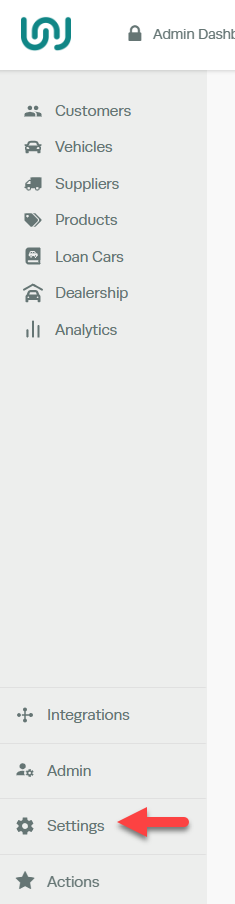
Select Company Settings
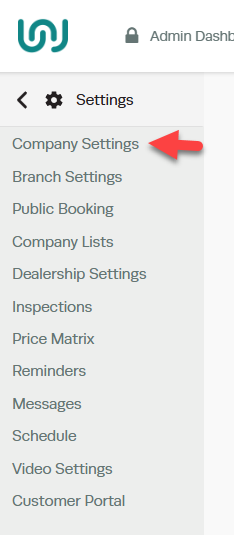
Vehicle Settings > Turn the Vehicle Tracking Category Status field to yes > Save
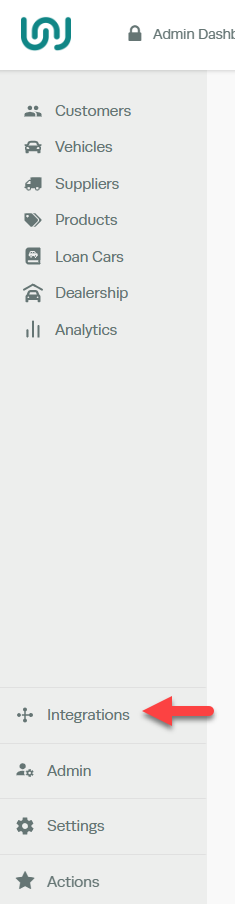
 Go to Integrations
Select Accounting
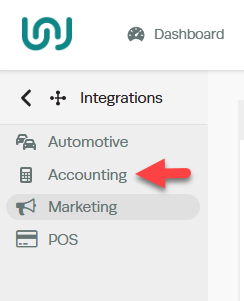
Select the Tracking Category, you are only able to select one Tracking Category

To Apply a Tracking Category option
Open the vehicle registration profile to which you would like to apply a Tracking Category.
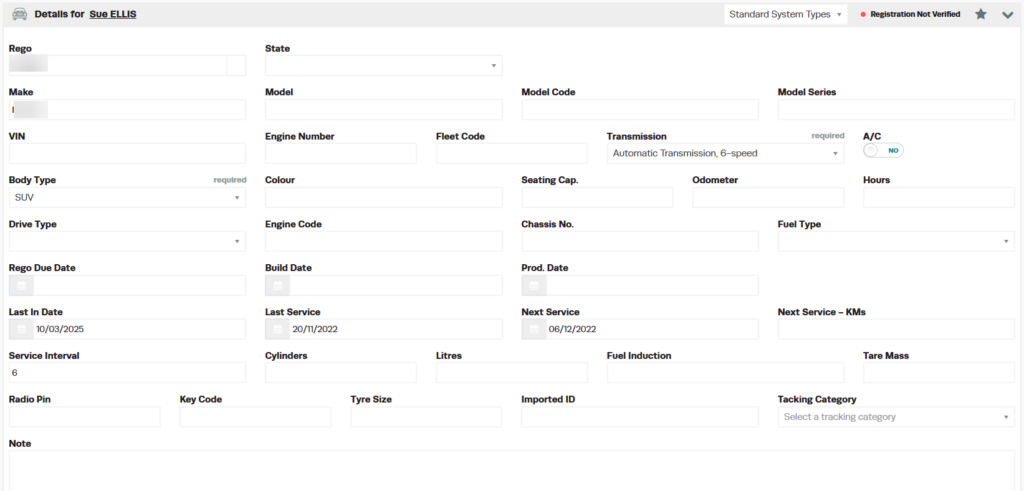
Select the tracking option that you set up in Xero under the Tracking Category.
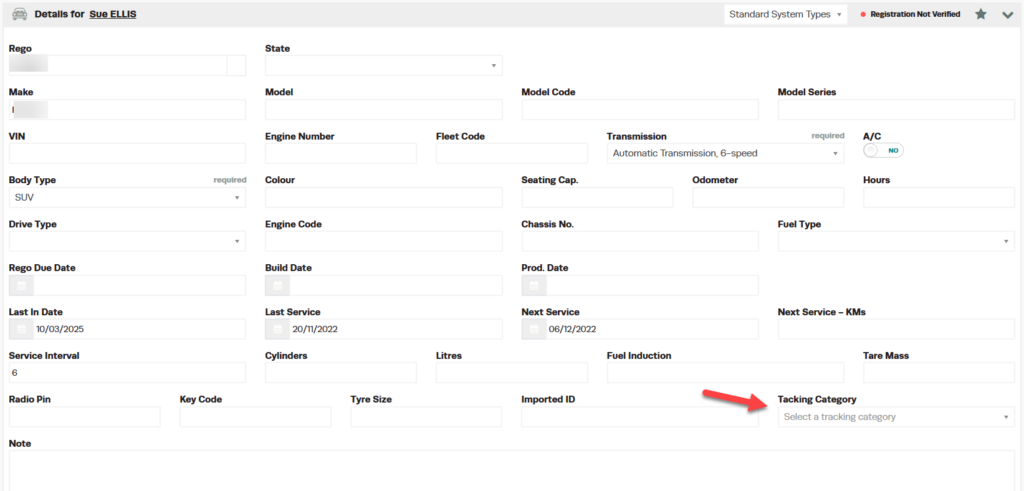
After selecting the tracking option for a vehicle, any time you create an invoice for that vehicle, it will be automatically filtered into the corresponding tracking category in Xero. You will then be able to view the different sales for each tracking category in a report within Xero.
Good to Know
- You can find this option under Settings > Company Settings in the left-hand menu.
- Make sure you click Save after making your changes. If you navigate away before saving, your changes will be lost.
- If you experience any issues during setup, contact the Workshop Software support team for assistance.
Frequently Asked Questions
What do I do if the integration is not working?
First, check that your credentials are entered correctly and that both systems are accessible. If the issue persists, check the event log in Workshop Software for specific error messages, or contact the Workshop Software support team for assistance.
Can I disconnect this integration later?
Yes. You can disable or disconnect the integration at any time through the integration settings in Workshop Software. Disconnecting does not delete any data that has already been synced.
