Skip to content
Setup Guide
Step 1: Configure Tax Settings
-
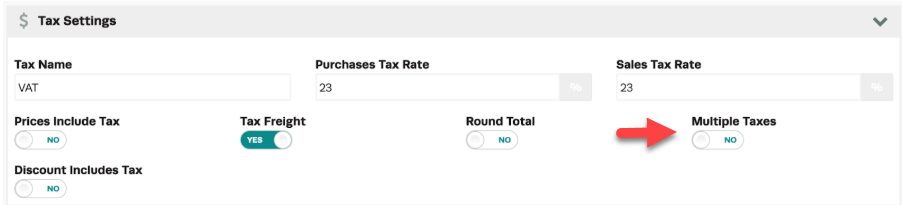
Navigate to Settings > Company Settings > Tax Settings > Multiple Taxes Toggle No.
-
Enter the default Purchase Tax Rate and Sales Tax Rate as required.
Step 2: Create Product Category
-
Navigate to Settings > Company Lists.
-
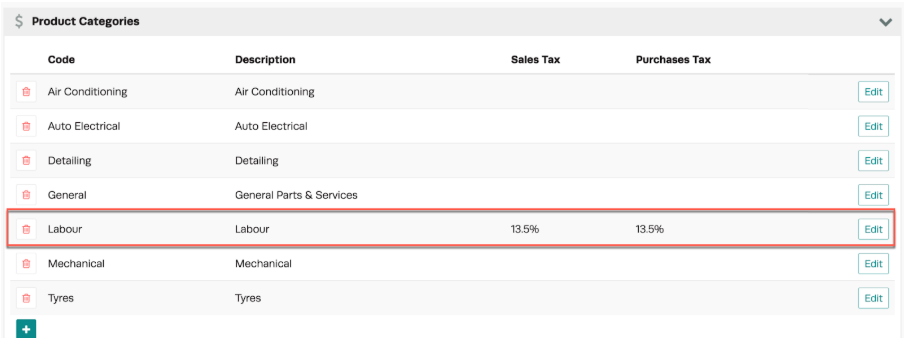
Create a new Product Category or edit an existing one.
-
Assign the appropriate Tax Rate to the category.
⚠️ The tax rate set at the category level will override the default tax rate for any products assigned to that category.
For detailed instructions on setting up Product Groups, refer to the attached link.
https://staging.workshopsoftware.com/knowledge-base/products-jobs/add-a-product-group/
Step 3: Assign Tax Rates to Product Groups
-
Identify product groups that require a different tax rate.
-
For example, if the default VAT is 23%, but a reduced VAT of 13.5% applies to maintenance services or labor, create a Product Category specifically for these services.
-
Assign the appropriate tax rate (e.g., 13.5%) to the category.
⚠️ Note: If a category does not have a tax rate assigned, it will default to the standard tax rate set in Company Settings.
Step 4: Link Product Group to Category
Create or link a Product Group that will be associated with the category and its respective tax rate.
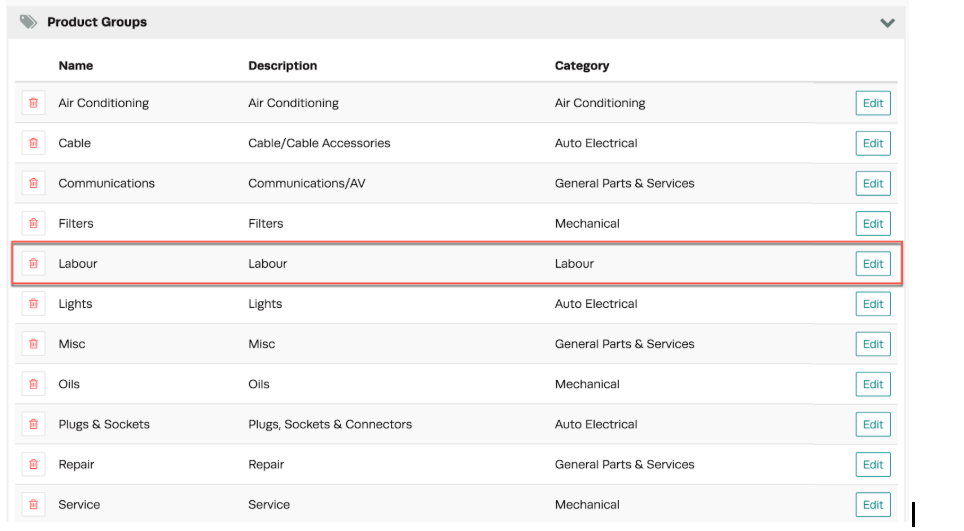
Visual Structure
Category: Auto Electrical ├── Group: Plugs and Sockets ├── Group: Alternators └── Group: Wiring HarnessesStep 5: Assign Products to Groups and Categories
-
Navigate to the Products List.
-
Create a new product or edit an existing product.
-
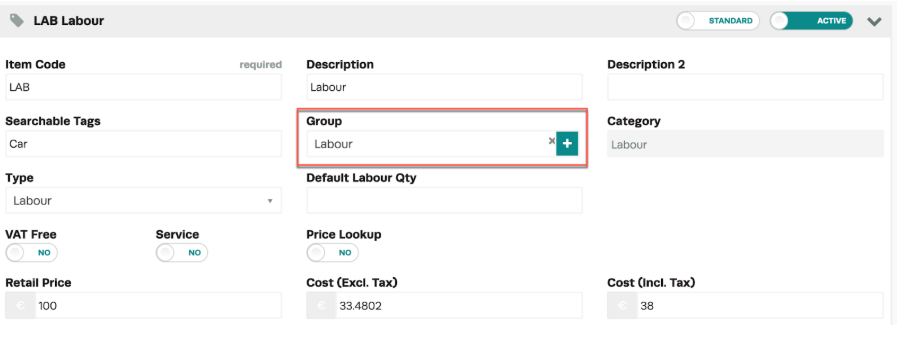
Select the Group that the product belongs to.
-
The tax rate will be automatically calculated based on the category’s tax rate.