 Skip to content
Creating a new inspection template especially a longer one can be time consuming, if you need to create a new template that only has a couple of changes you may now copy an existing template.
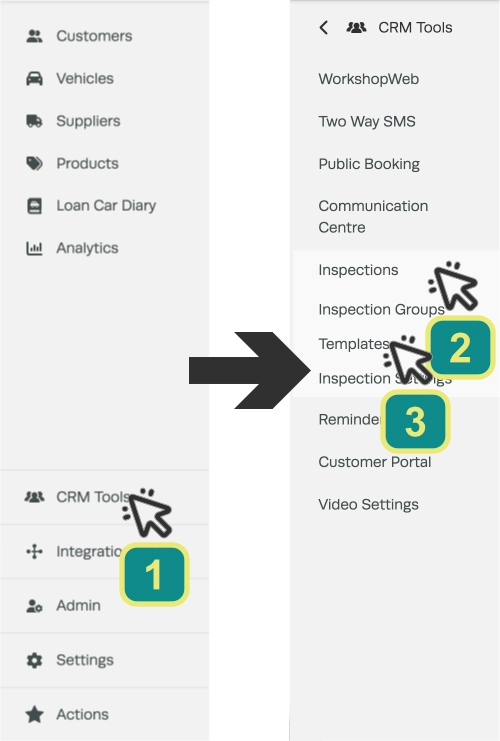
In the left hand sidebar menu click on CRM Tools (1), Inspections (2) then Templates (3).
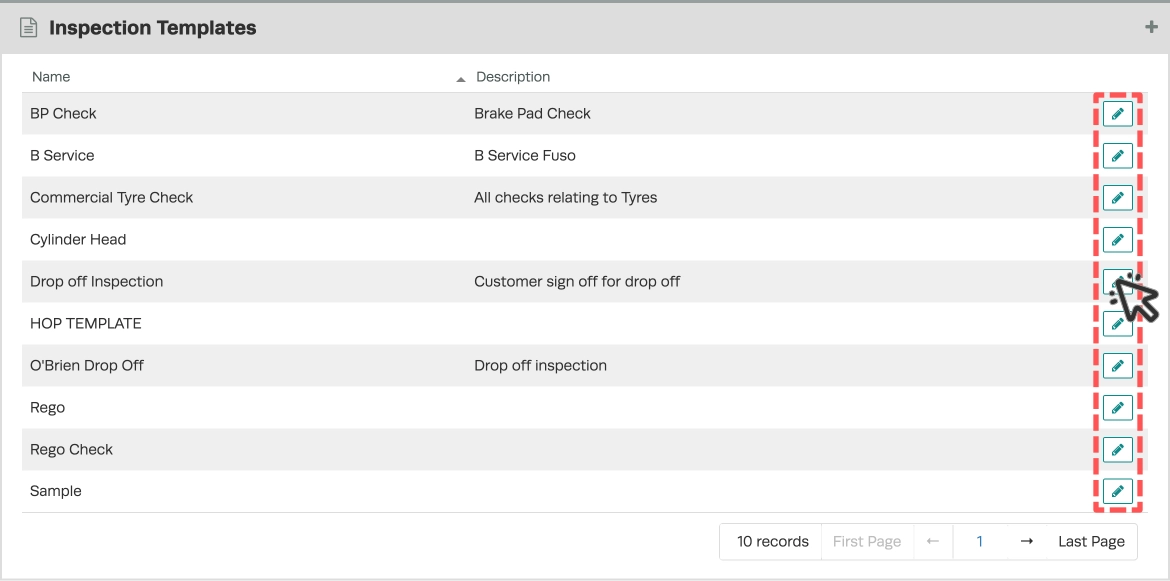
Double click or click on the pencil icon right of the desired inspection to open it.
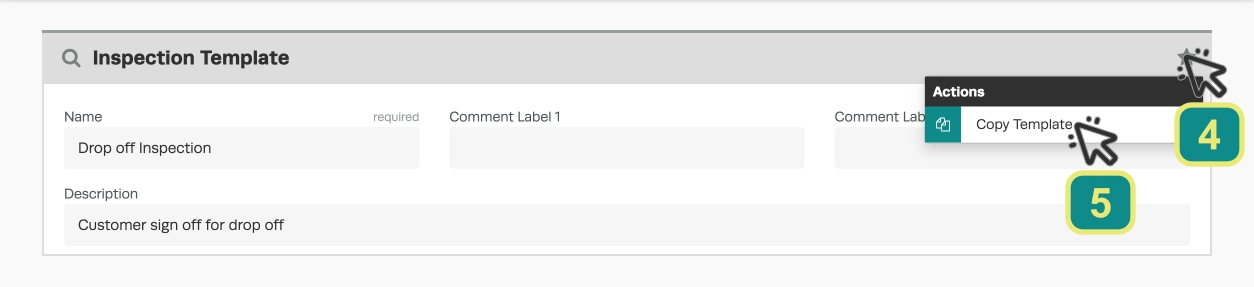
Click on the Star icon (4) located in the top right hand corner of the Inspection Template banner and select Copy Template (5).
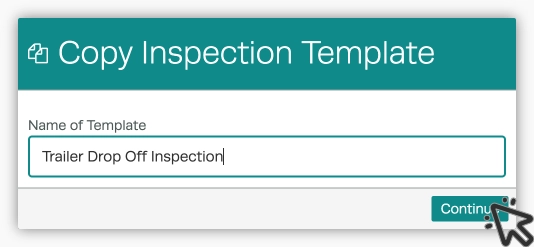
A pop up window will appear to prompt you to name the new template, enter the desired template name and click the green Continue button.
The screen will now refresh showing the new template and you will see a green confirmation in the lower right of the screen that the template has been copied.
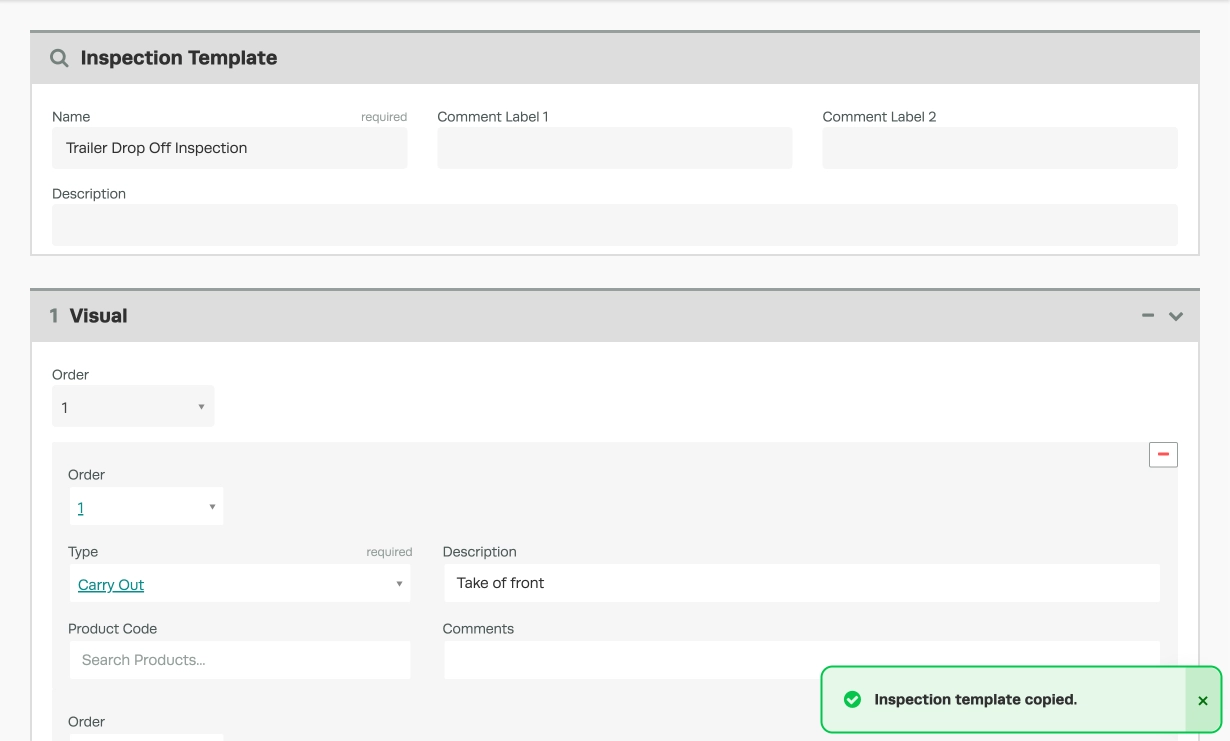
Make the changes you need and scroll down to the bottom of the page and click on the green Save icon to save the changes you have made.

Good to Know
- Make sure you click Save after making your changes. If you navigate away before saving, your changes will be lost.
Frequently Asked Questions
Do I need a specific subscription level for this feature?
Some features in Workshop Software are available on specific subscription plans. If you do not see the option described above, check your current plan or contact the Workshop Software team.
